Different users may require different permissions. You can add or remove members from groups as required. A member can also belong to multiple groups at the same time.
In this article we'll cover how to:
- add a member to a group.
- remove a member from a group.
Only users with the correct permissions can manage group members. If you think you should have permission to perform such an action please contact the organisation owner.Add a member to a group
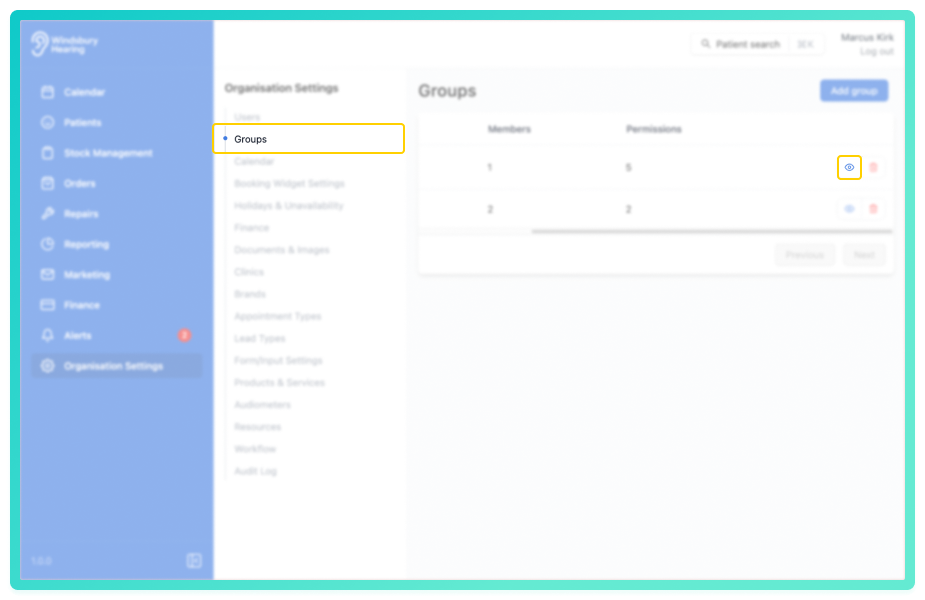
- Navigate to Organisation Settings.
- Locate and click the Groups section of the settings.
- Click the View icon
 for the group you want to manage.
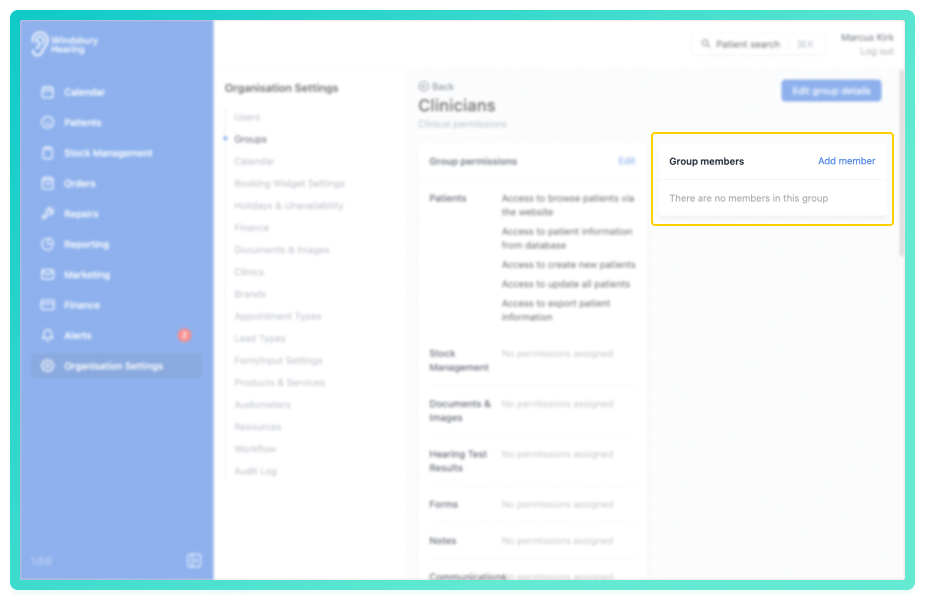
- Click the Add member text.
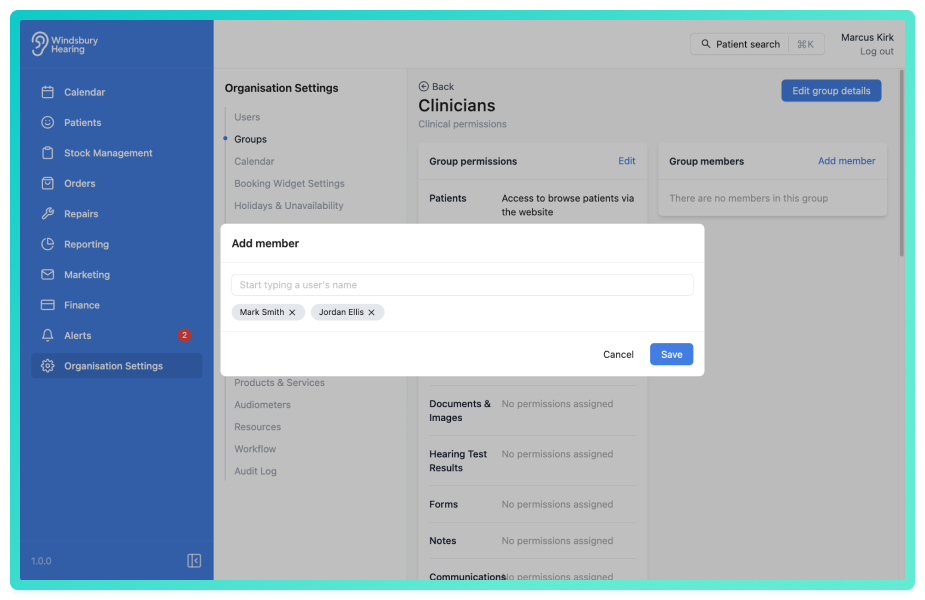
- Select the users you want to add to the group.
- Click Save to save your changes.
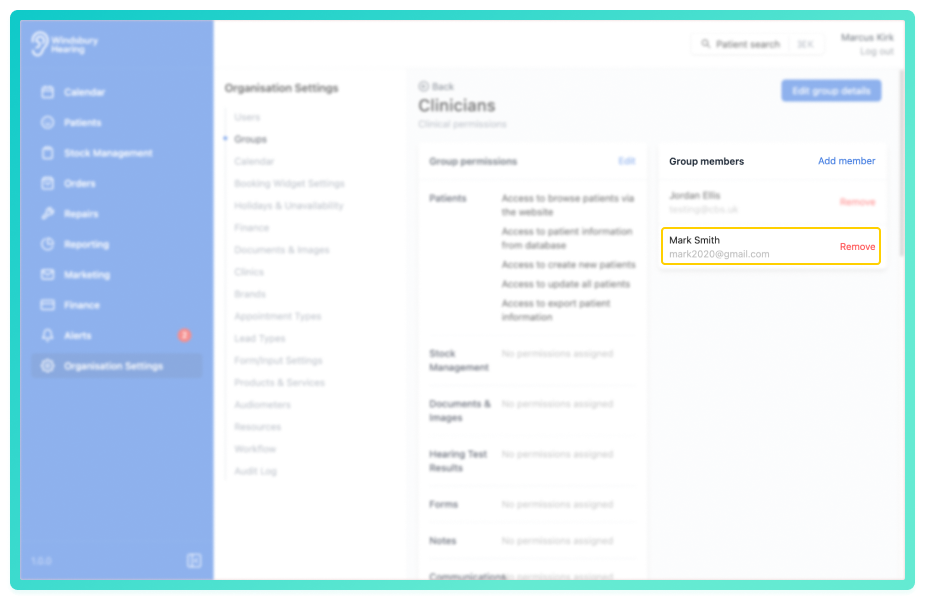
You'll be redirected to the Group Details page, and the new members will be listed under the group.
Remove a member from a group
- Locate and click the Remove text next to the member's name.
- You'll be shown a warning message.
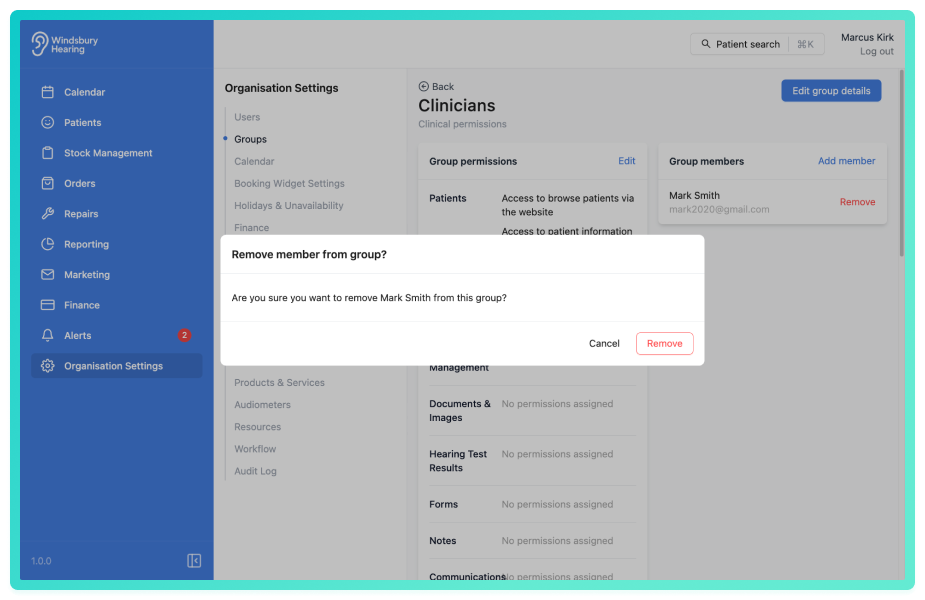
- Click Remove to confirm and remove the member from the group.
To add a user back to a group follow the steps under Add a member to a group.
Was this article helpful?
That’s Great!
Thank you for your feedback
Sorry! We couldn't be helpful
Thank you for your feedback
Feedback sent
We appreciate your effort and will try to fix the article