Each group in your organisation has its own set of permissions. Every part of the HearLink system has permissions attached, allowing each group to be configured with specific access based on your organisation's requirements.
In this article we'll cover how to:
- edit group permissions.
- save changes to the group configuration.
Only users with the correct permissions can edit group permissions. If you think you should have permission to perform such an action please contact the organisation owner.Edit group permissions
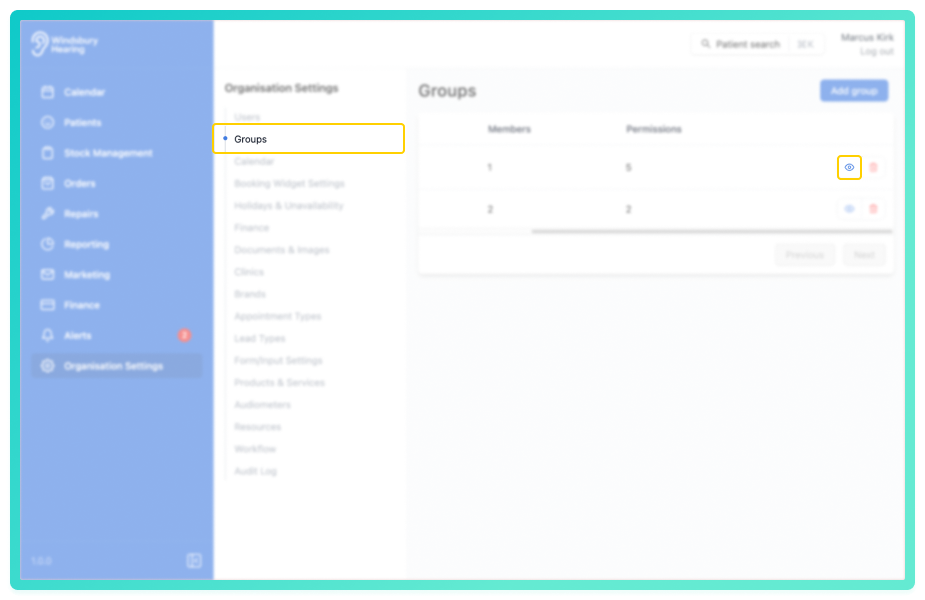
- Navigate to Organisation Settings.
- Locate and click the Groups section of the settings.
- Click the View icon
 of the group you want to manage.
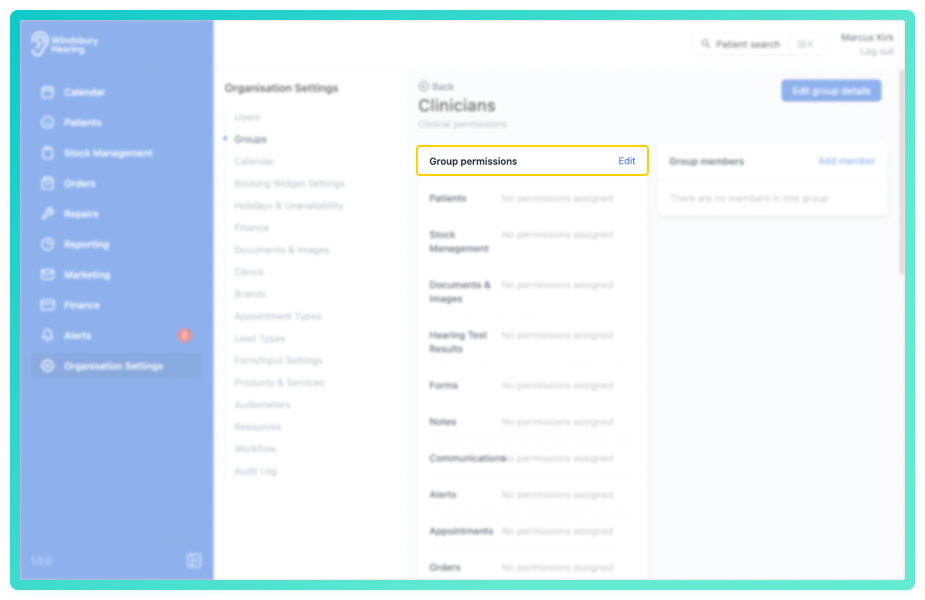
- Locate and click the Edit text on Group permissions.
Configure Group permissions to your requirements.
- Select or deselect the permissions to suit the group's access level.
Example:
You want the group to have full access to Patient actions, except the ability to delete a patient. In this case, you would leave the Delete any patient checkbox unchecked while selecting the remaining options under Patients.
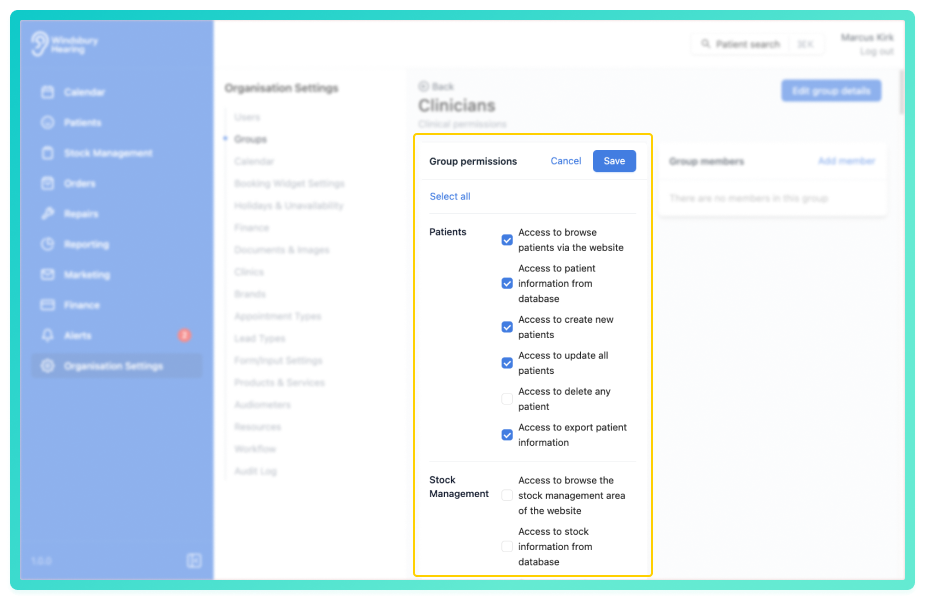
- Click Save to apply the changes
Repeat this process for each section to configure the permissions based on your organisation's needs.
Was this article helpful?
That’s Great!
Thank you for your feedback
Sorry! We couldn't be helpful
Thank you for your feedback
Feedback sent
We appreciate your effort and will try to fix the article