When adding a new user you can add that user to multiple appointment types all in one action. This saves time adding the new user individually to each appointment type.
In this article we'll cover how to:
- add a user to multiple appointment types.
Only users with the correct permissions can assign users to appointment types. If you think you should have permission to perform such an action please contact the organisation owner.Assign a user to multiple appointment types
- Navigate to Organisation settings.
- By default you'll be in the Users section.
- Locate the user to add appointment types to, then click More options
 next to their name.
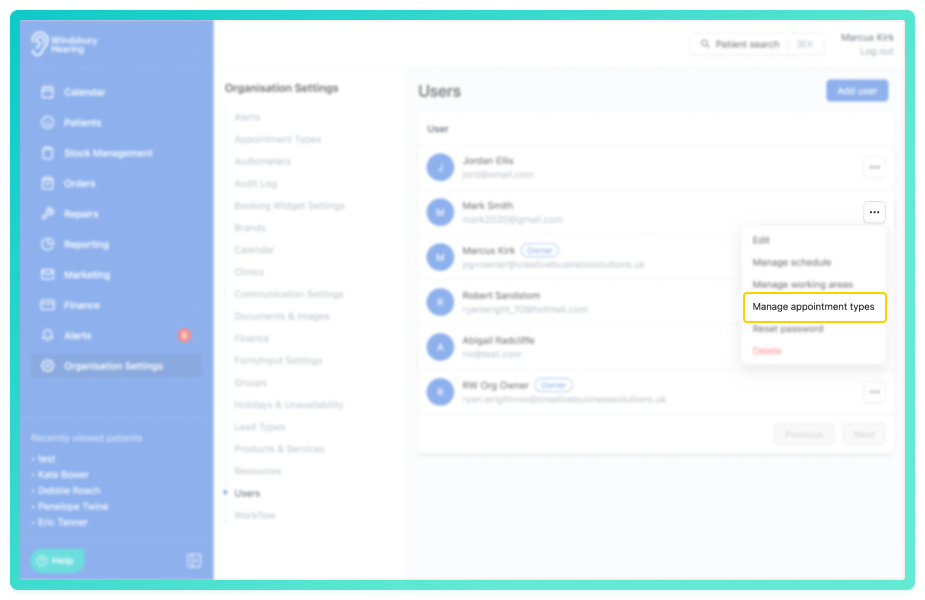
- Select Manage appointment types from the dropdown options.
- Select all appointment types you want to add a user to.
- Filter appointment types by name to narrow down your list.
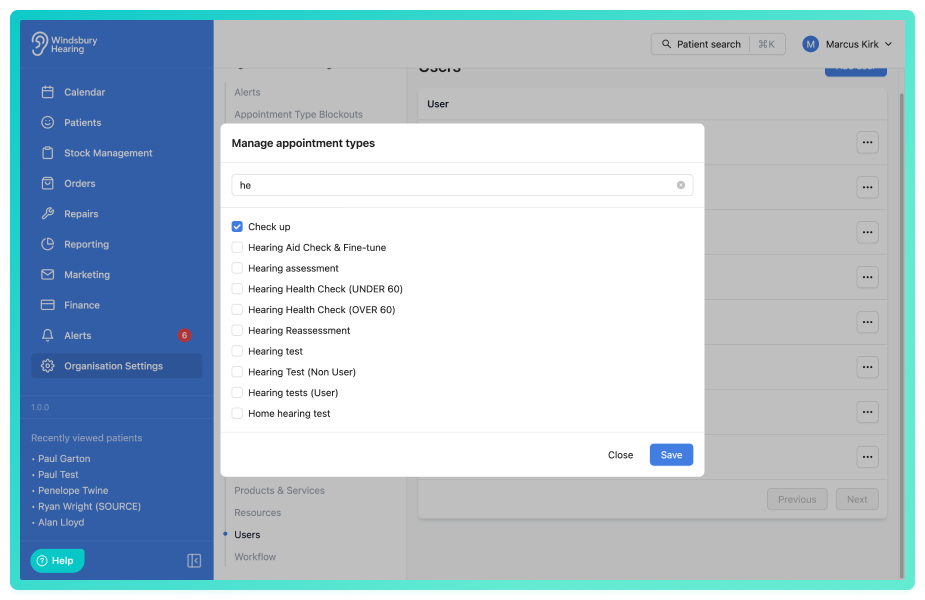
If you deselect an appointment type that was already assigned to the user, the user will be removed from the appointment type
Was this article helpful?
That’s Great!
Thank you for your feedback
Sorry! We couldn't be helpful
Thank you for your feedback
Feedback sent
We appreciate your effort and will try to fix the article