You can send an email at anytime from the communications section in the patient dashboard, using the predefined templates created in Communication settings. These pre-defined templates include a subject title, body of text and attached documents.
In this article we'll cover how to:
Send an email
- Navigate to the desired patient.
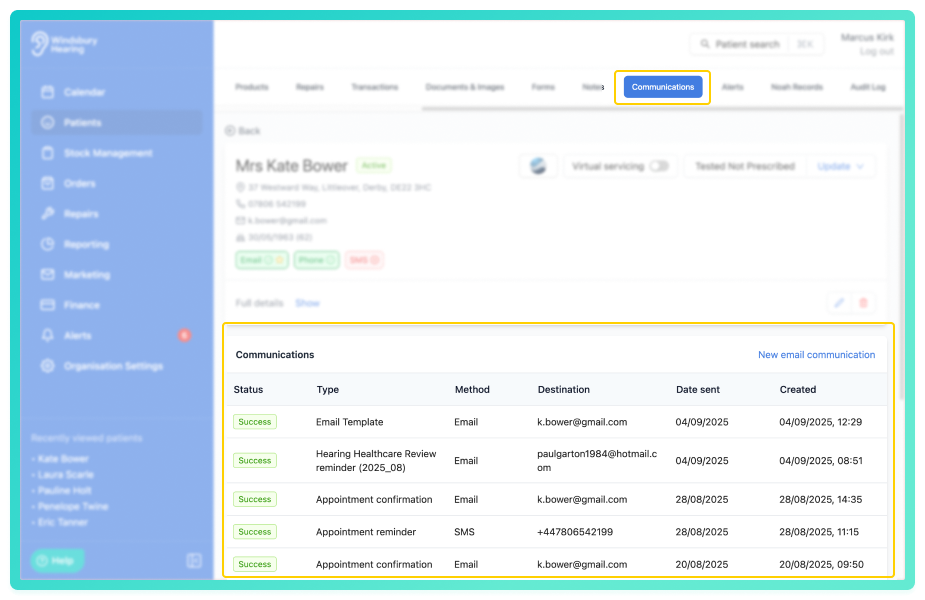
- Locate and click the Communications tab.
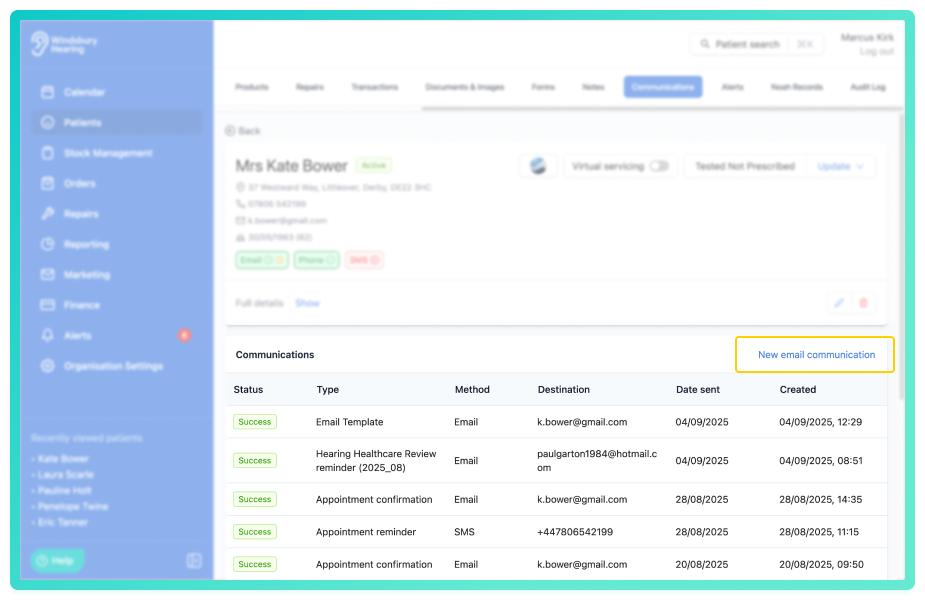
- Click the New email communication text.
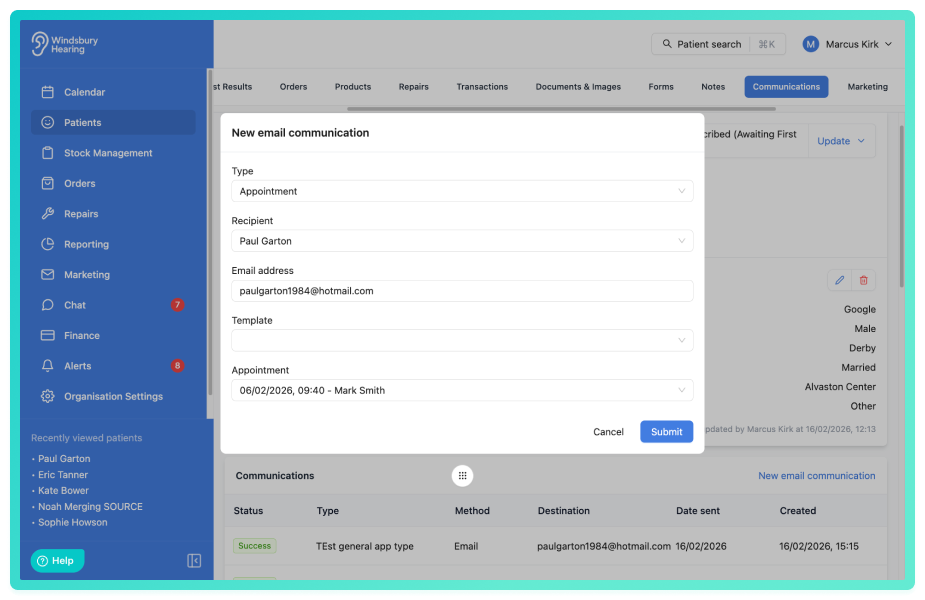
- The email address will be automatically populated with the patient's details, this can be changed if required. Alternatively you can select an external contact as a recipient.
- Select the Type of email to send. General or Appointment.
- Choosing Appointment will add another dropdown to select a linked appointment.
- Choose an Email template.
- You can make amendments to the email before sending, such as changing the subject of the email or changing the body of the message.
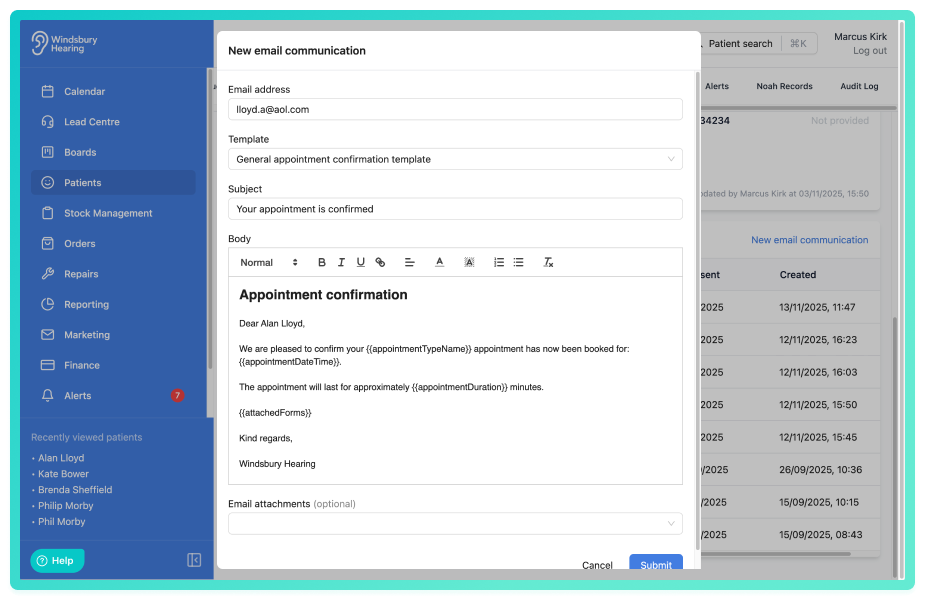
- Click Submit to send the email.
Amend attachments linked to the email template
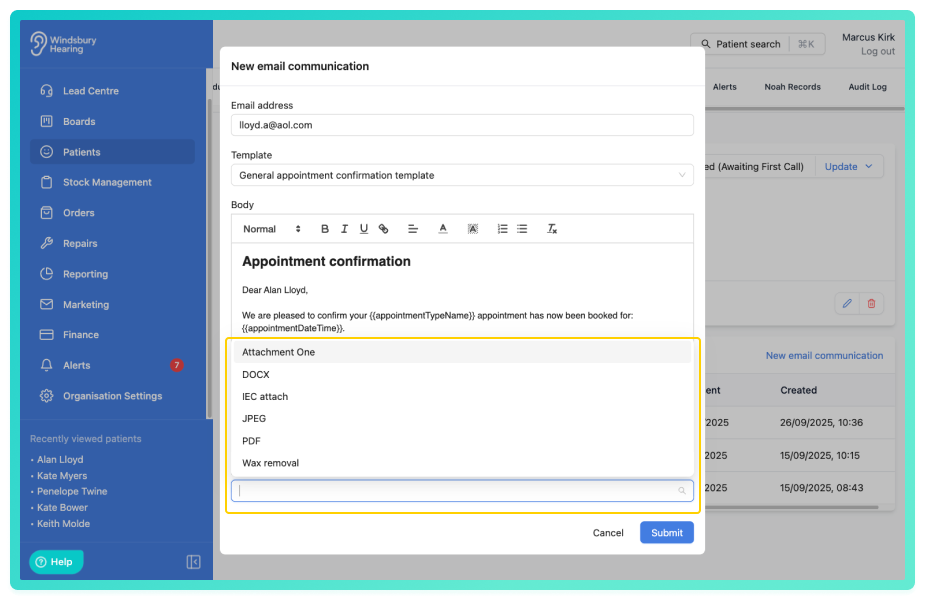
If there are any documents attached to the email template, these will be automatically added before sending the email. You can choose to add or remove them as required.
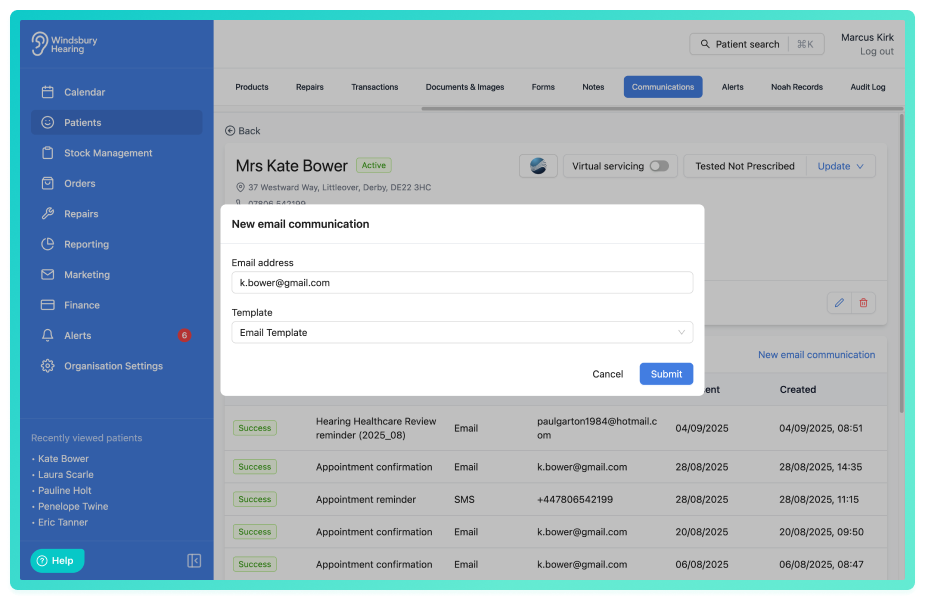
- Choose an email template.
- If there are documents attached to the template they will automatically populate the dropdown list.
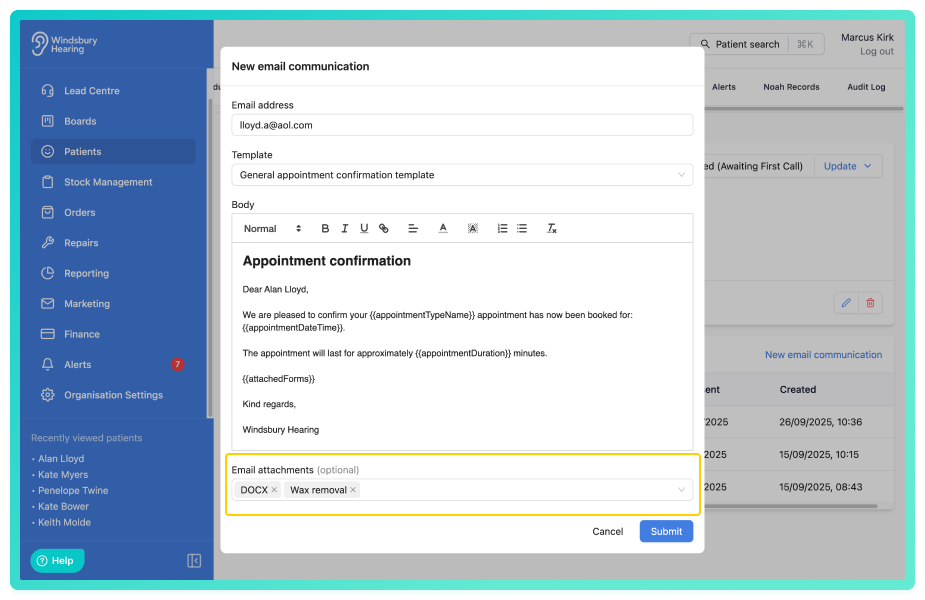
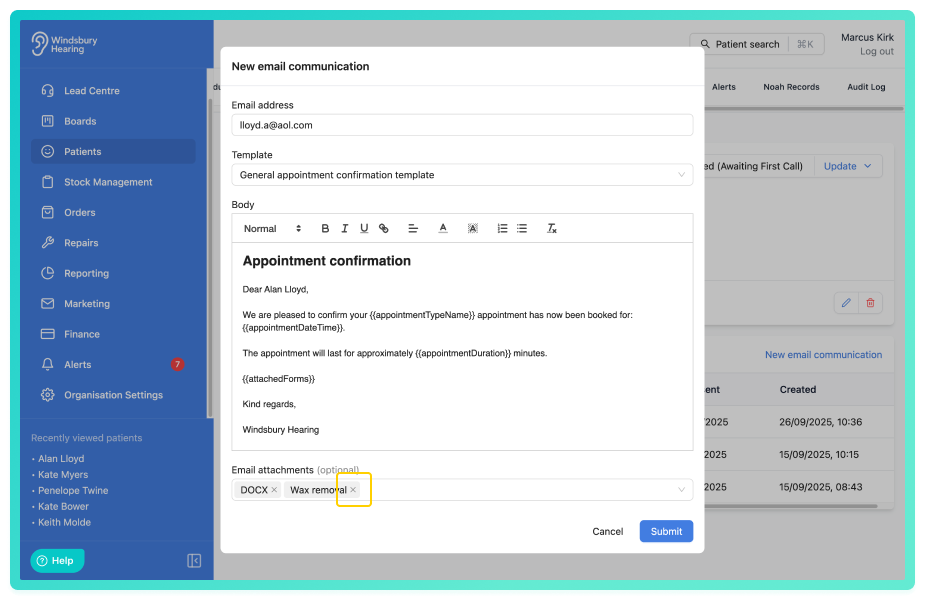
- To remove an attached document click the small X next to it.
- To add extra documents, click the dropdown and select the required documents from the list.
Was this article helpful?
That’s Great!
Thank you for your feedback
Sorry! We couldn't be helpful
Thank you for your feedback
Feedback sent
We appreciate your effort and will try to fix the article