New patients can be added to the system in a number of ways, through the patients dashboard or directly in the calendar. If needed, a patient can be created when booking an appointment. This helps reduce time when a new patient is needed to be created before an appointment can be booked. All methods result in the patient being added to the organisation's patient database.
In this article we'll cover how to:
- add a new patient from the patient dashboard.
- add a new patient via the calendar.
- add a new patient using the quick add button when creating an appointment.
- store patient's general practitioner information.
Add a new patient from patient dashboard
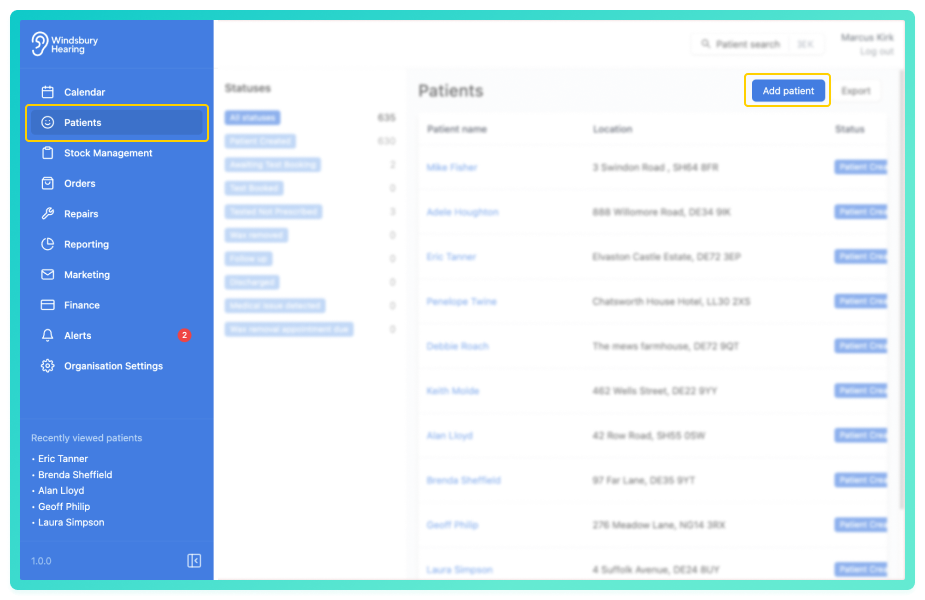
- Navigate to Patients.
- Click the Add Patient button.
quick_add_form
- Complete the form with the Patient's details.
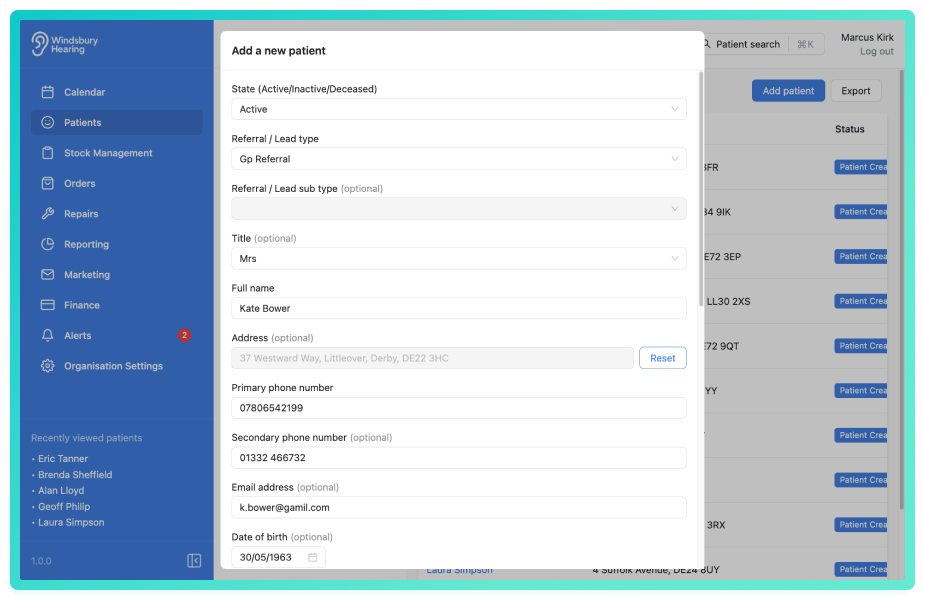
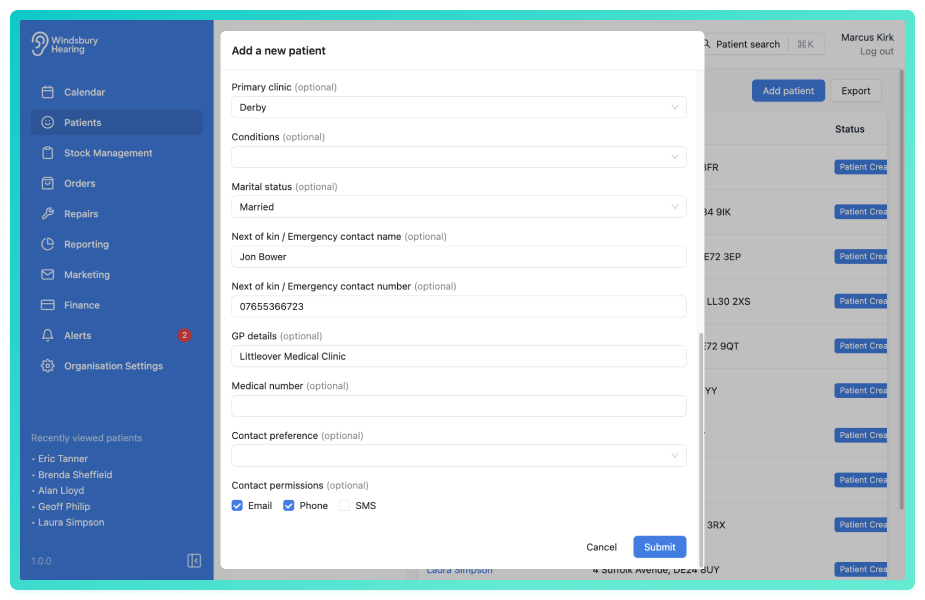
- Complete any additional custom fields if applicable.
- Click Submit to create the patient.
The new patient will now appear in the patient list and can be managed from their dashboard.
Adding a new patient via the Calendar
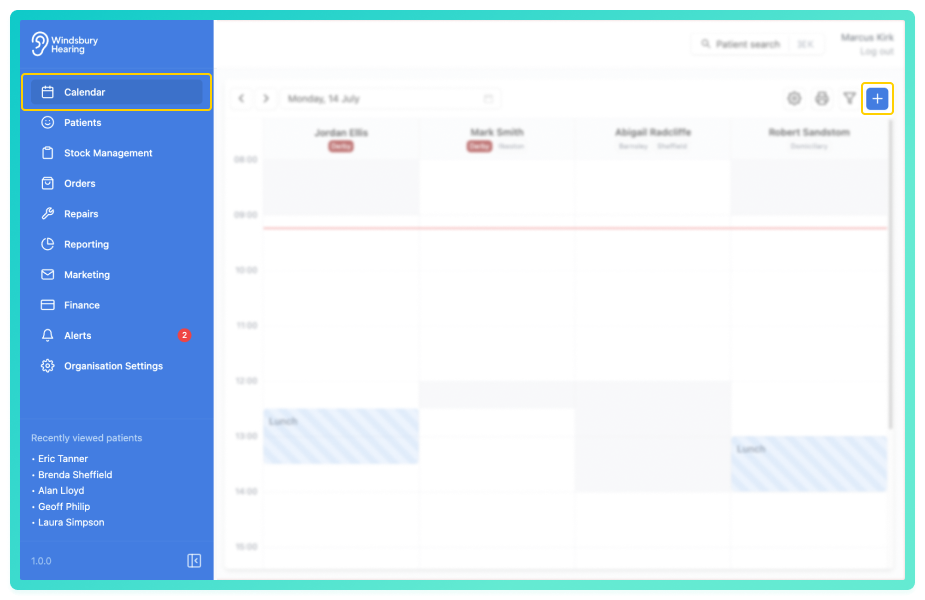
- Navigate to Calendar.
- Click + button.
- Select Patient.
- Complete the form with the Patient's details.
- Click Submit to create the patient.
The patient will now be available to book appointment's, edit their details, assign products, manage transactions, and more directly from their dashboard.
Adding a new patient via the Quick Add method when creating an appointment
When creating a patient via the Quick add during appointment booking, the fields shown depend on how the patient form is configured.
- If no fields have been enabled as Quick add form fields, the system will display only the mandatory patient fields.
- If one or more fields have been enabled as Quick add form fields, the system will display only those selected fields, mandatory fields will only display if they are also enabled as Quick add form fields.
- Locked fields will always be displayed regardless of the patient form configuration.
| Configuration | Mandatory fields Shown | Quick add fields shown |
|---|---|---|
| No Quick add fields configured | ✅ Yes | ❌ No |
| One or more Quick add fields configured | ✅ Yes (if also marked as Quick add fields) ❌ No (if not marked as Quick add fields) | ✅ Yes |
- Navigate to Calendar.
- Click your desired slot under the appropriate user to begin booking.
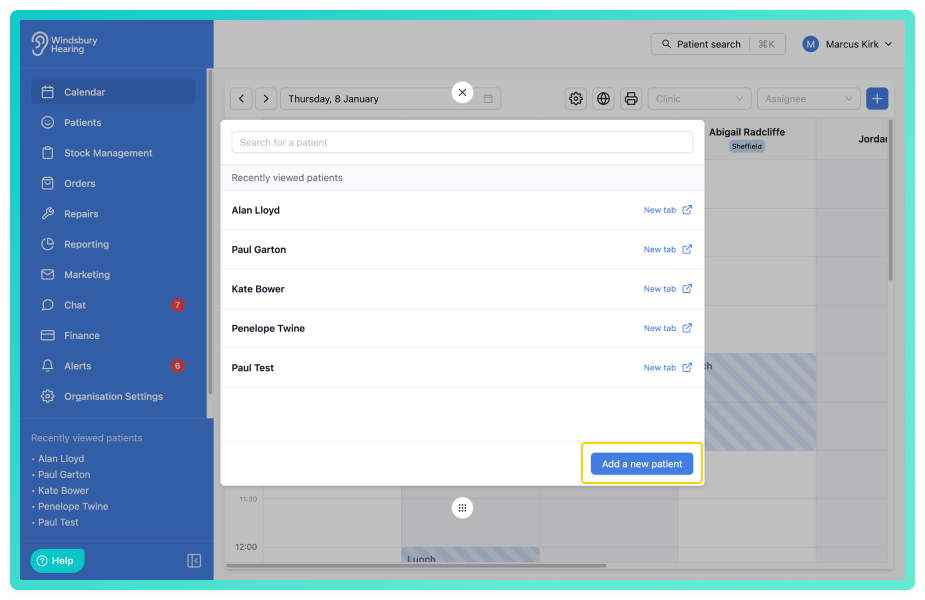
- Click the Add a new patient button.
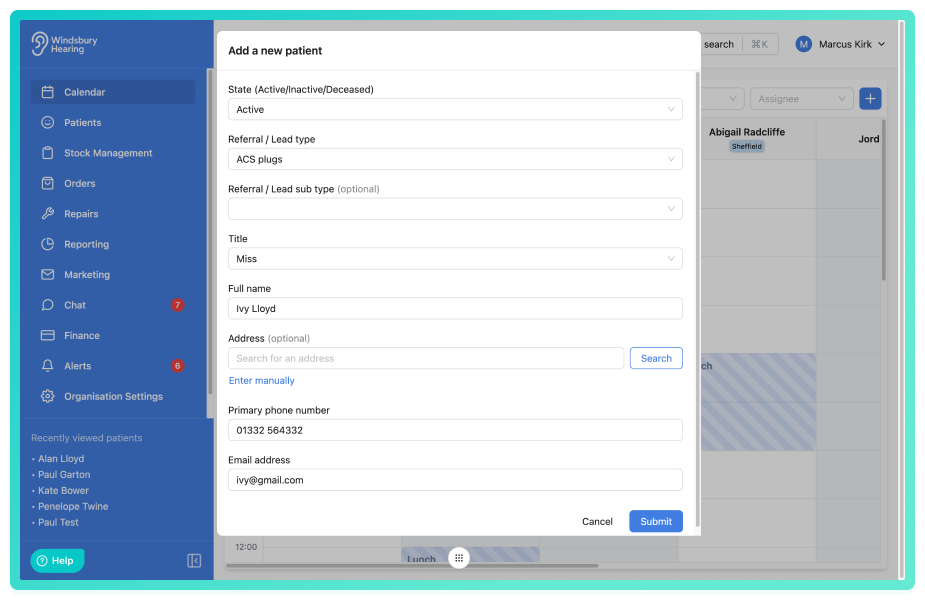
- Complete the form with the Patient's details.
- Click Submit to create the patient.
- You will then be taken through to the appointment form to complete the booking.
To see more in-depth details on how to create an appointment see this article.
Store patient's external contact (GP)
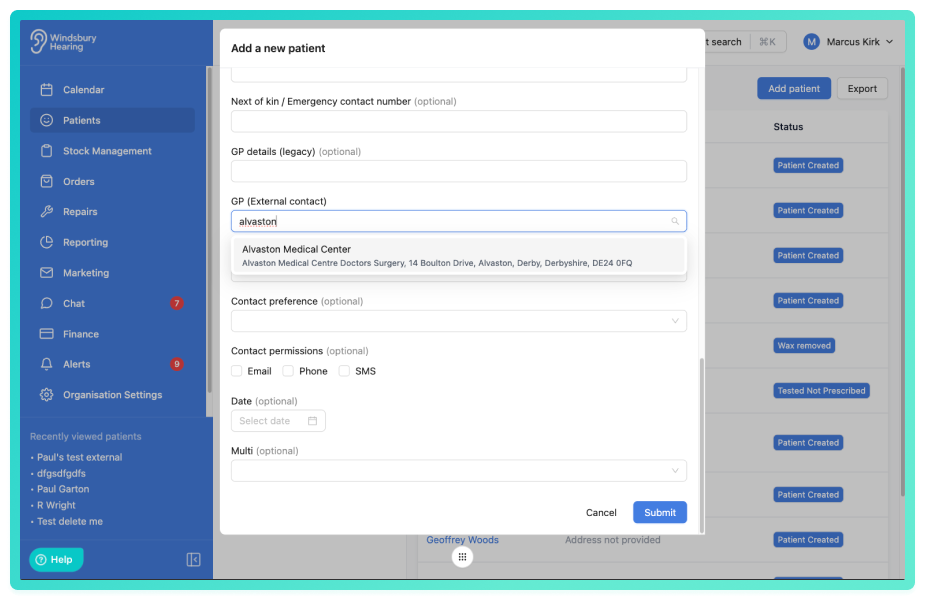
When creating or editing a patient you can select a GP from your organisation's external contacts instead of manually entering the GP details.
If the GP already exists as an external contact, begin typing the GP's name and select them from the list. If the GP is not yet stored in your external contacts, you can still enter the GP details manually.
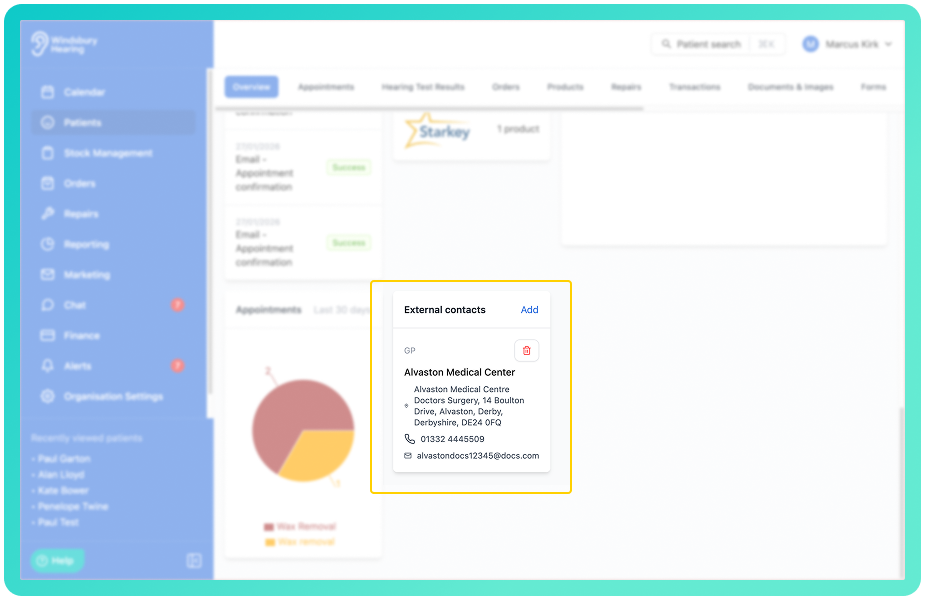
Once the patient record is saved, the selected external contact will automatically be linked as the patient's GP contact.
Was this article helpful?
That’s Great!
Thank you for your feedback
Sorry! We couldn't be helpful
Thank you for your feedback
Feedback sent
We appreciate your effort and will try to fix the article