The online bookings list allows an organisation to view a list of bookings made via the booking widget. These are automatically filtered by unconfirmed and created in the last 7 days. The table also displays the appointment statuses helping your team easily track and action new online bookings.
In this article we'll cover how to:
- view the online bookings list.
- update the status of an online booking.
Online booking list view
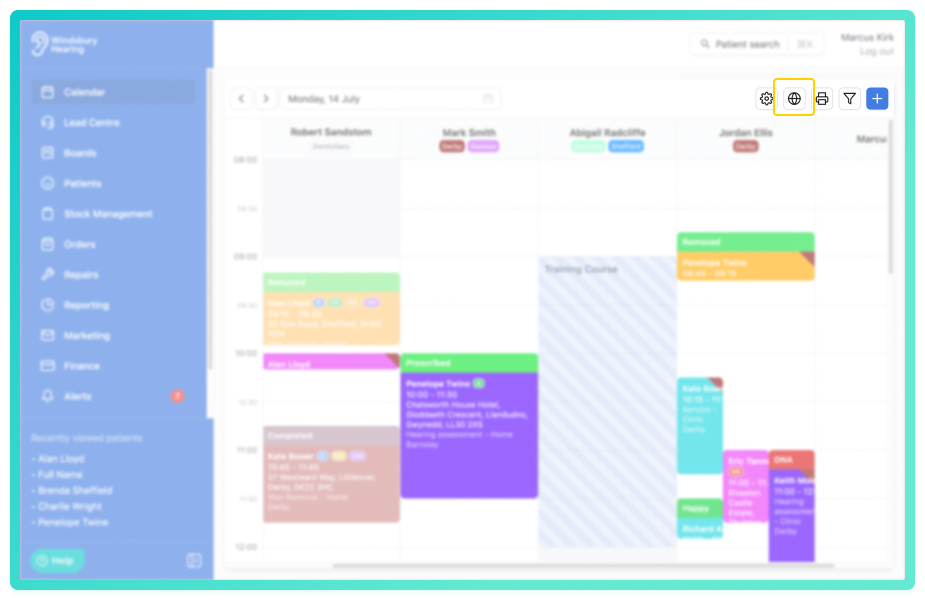
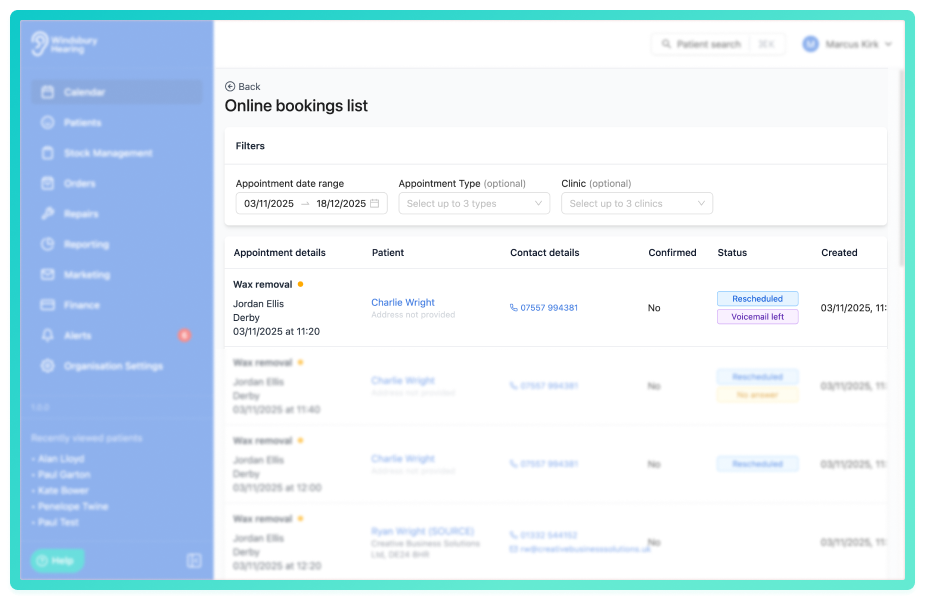
You'll see a list of unconfirmed online bookings from the previous 7 days. The shown data for each booking includes:
- Appointment details: Appointment type, assignee name, clinic location, date and time.
- Patient details: Name & address.
- Contact details: Phone number & email address.
- Confirmed: Yes or No (by default).
- Status: Any statuses attached to the appointment.
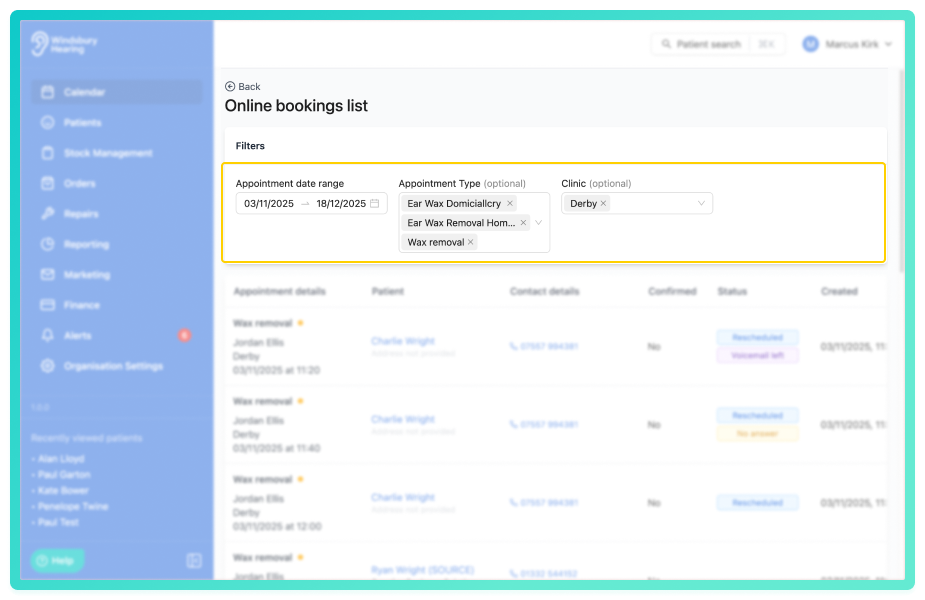
Use a combination of the filter options to view:
- up to 3 Appointment types.
- up to 3 Clinic locations.
- in a selected Date range.
Update the status of an online booking
Once an online booking is confirmed you can update it's status if required.
- Locate the 3 dots button next to the relevant online booking.
- Hover over Appointment status.
- Select Confirmed or any other status you like from the list.
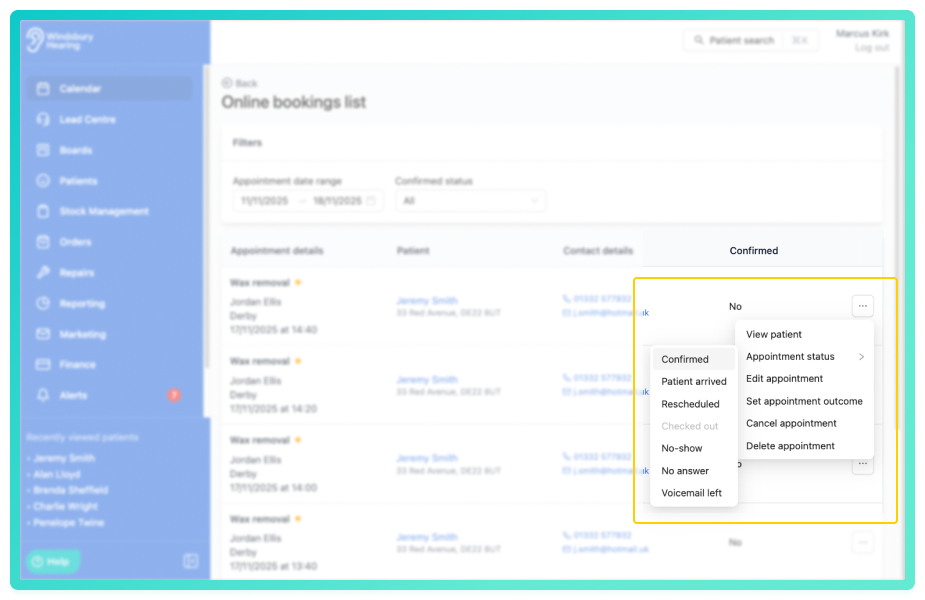
If the status is changed to Confirmed, it will automatically be removed from the list. - This will add the status of the online booking to the status column, so yourself or other uses can see, at a glance, any actions performed on that appointment.
The online bookings list ensures your organisation can effectively mange new appointment requests and keep patient communication prompt and organised. Regularly reviewing and confirming online bookings helps maintain accurate calendar scheduling and a smooth booking experience for patients.
Was this article helpful?
That’s Great!
Thank you for your feedback
Sorry! We couldn't be helpful
Thank you for your feedback
Feedback sent
We appreciate your effort and will try to fix the article