Alerts can be added to a patient's dashboard to highlight important information. Once created, these alerts will appear in both the patient record and the Alerts section of the HearLink system.
In this article we'll cover how to:
- add an alert.
- edit an alert.
- delete an alert.
- acknowledge or unacknowledge an alert.
Add an alert
- Navigate to the desired patient.
- Locate and click the Alerts tab.
- Click the Add alert text.
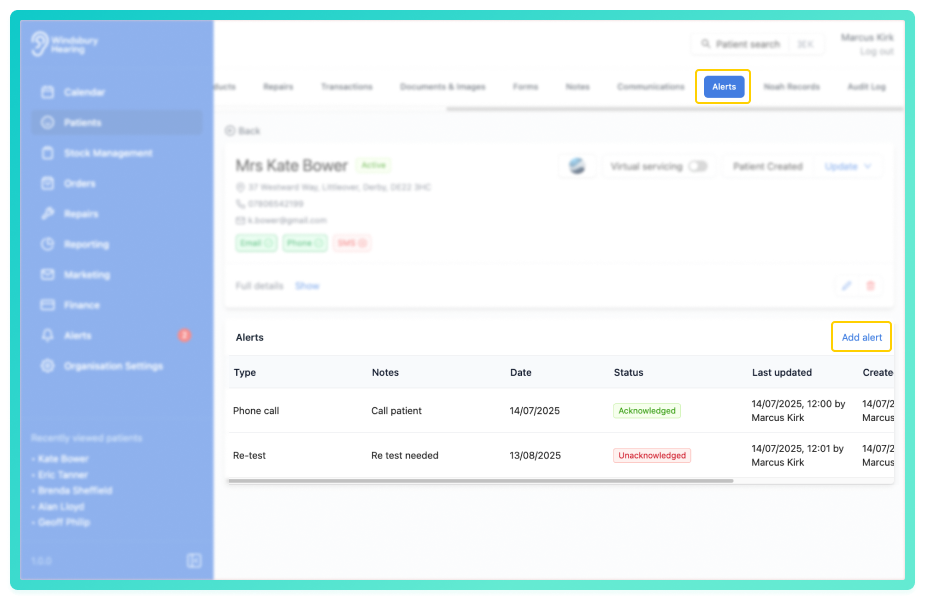
- Complete the Create a new alert form.
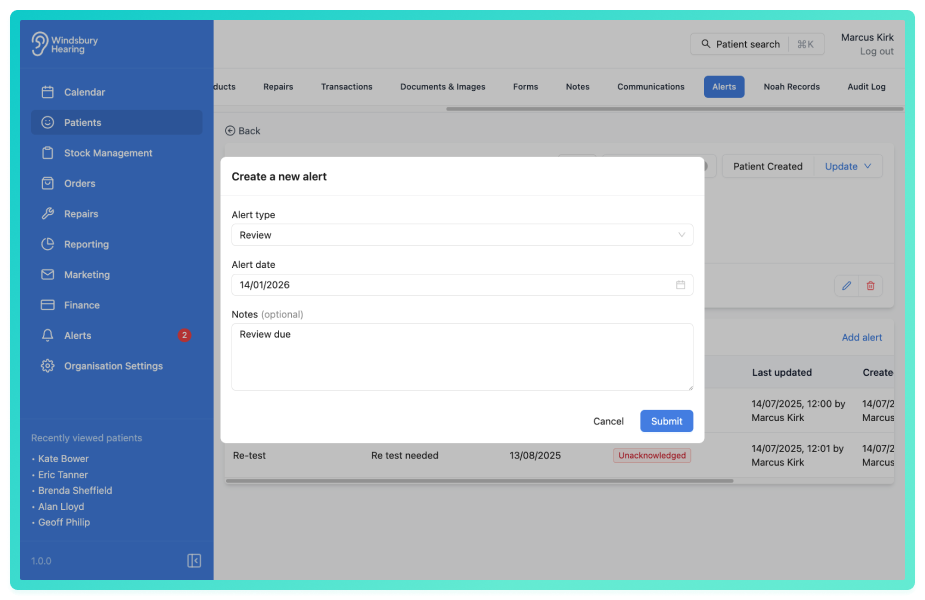
- Click Submit to save the alert.
The alert will now appear in the Alerts section of the HearLink system on the specified date.
Edit an alert
- Locate and click the Edit text on the Alert you want to edit.
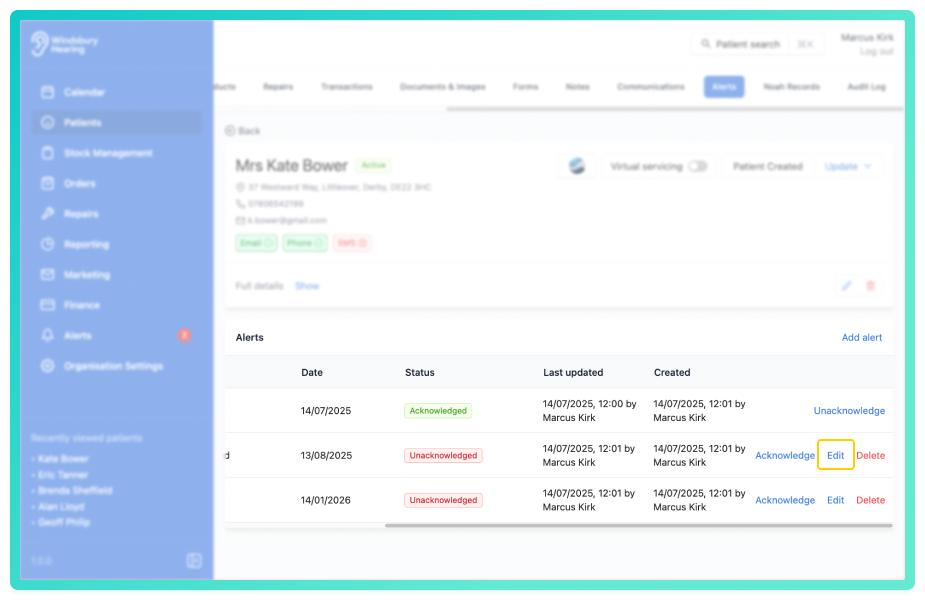
- Update the Edit alert form as required.
- Click Submit to save your changes.
Delete an alert
- Locate the Delete text on the alert you want to delete.
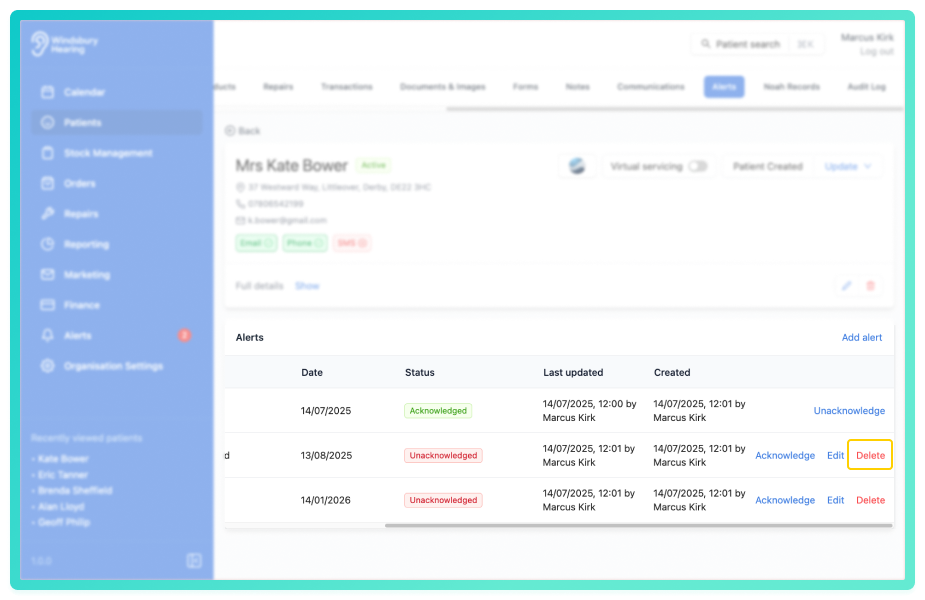
- Click the Delete text.
- You'll be shown a warning message.
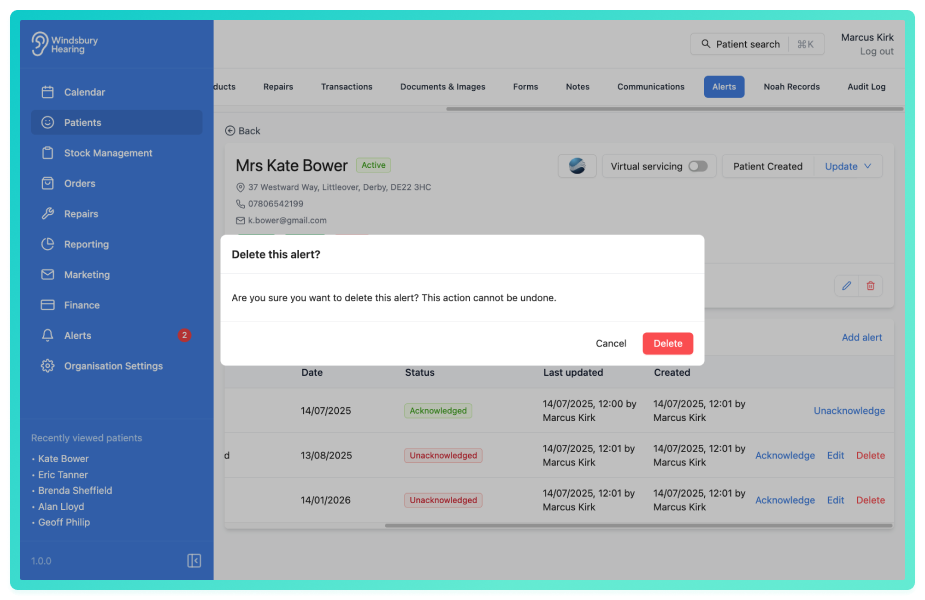
- Click Delete to confirm the delete the alert.
Warning: Once you delete an alert this action cannot be undone. Please proceed with caution!Acknowledge or unacknowledge an alert
- Locate the Acknowledge text on the alert you want to acknowledge. either from the patient's Alert tab or the main Alerts section of HearLink.
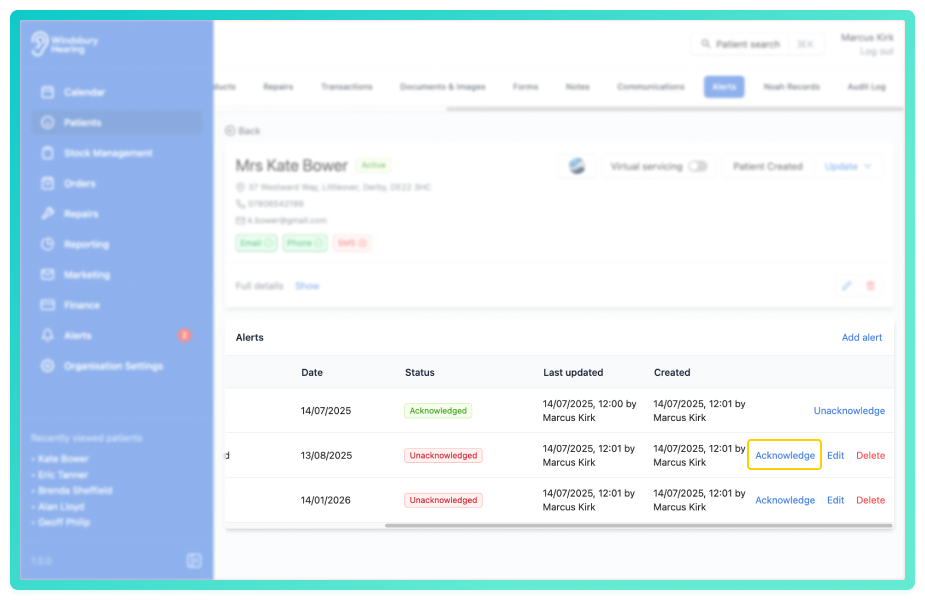
- Click the Acknowledge text to mark the alert as Acknowledged.
If needed, click Unacknowledge to reverse the status and allow further edits or deletion.
Was this article helpful?
That’s Great!
Thank you for your feedback
Sorry! We couldn't be helpful
Thank you for your feedback
Feedback sent
We appreciate your effort and will try to fix the article