Sender Configuration allows you to define the full email address used when sending communications from HearLink. This is done by selecting a verified domain and assigning an inbox name (the part before the @).
You can also configure different sender details for each clinic, allowing more flexible and branded communication across your organisation.
In this article we'll cover how to:
- assign a domain and inbox name.
- configure sender settings per clinic.
 Reminder: Only administrators or users with the correct permissions can manage sender configurations. If you think you should have permission to perform such an action, please contact the organisation owner.
Assign a domain and inbox name
- Navigate to Organisation settings.
- Locate and click the Communication Settings section of the settings.
- Click the Edit icon
 next to Sender Configuration.
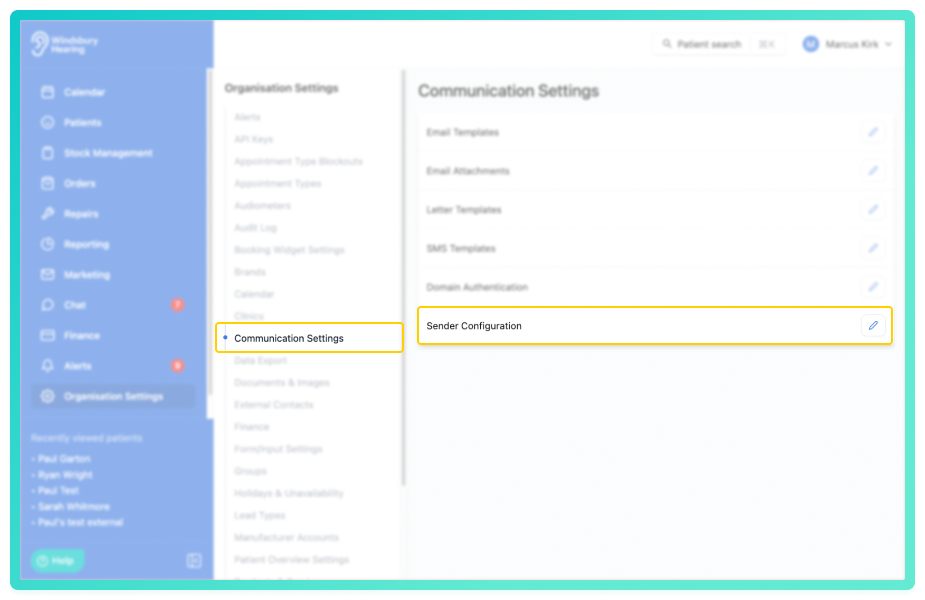
Once on the Sender Configuration page you will be on the default automatically.
- Select a Domain from the dropdown.
- Enter an Inbox name (the part of the email address before the @).
In the example here we have:
- Domain - hearl.ink
- Inbox name - info
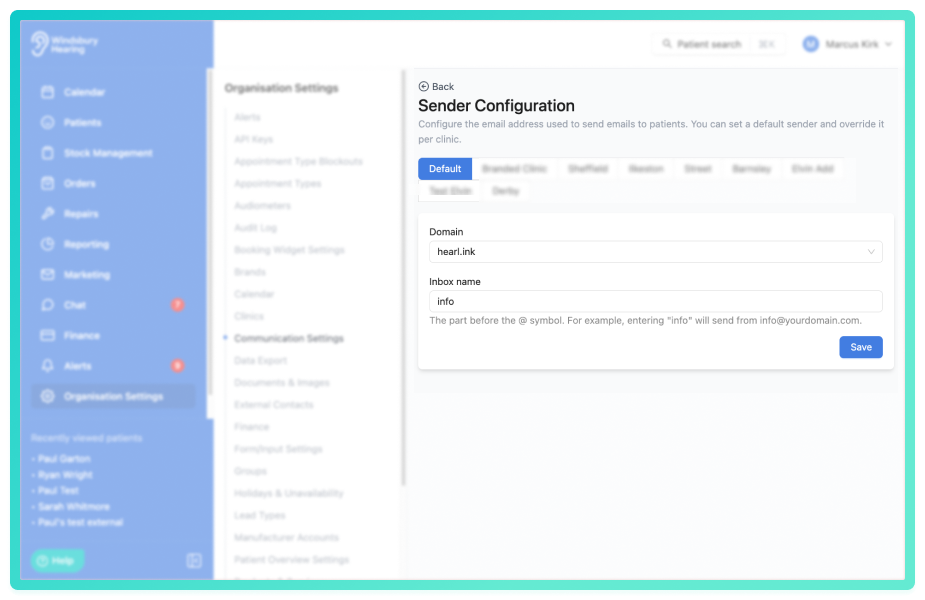
This will result in the sender address: info@hearl.ink
- Click Save to save the configuration.
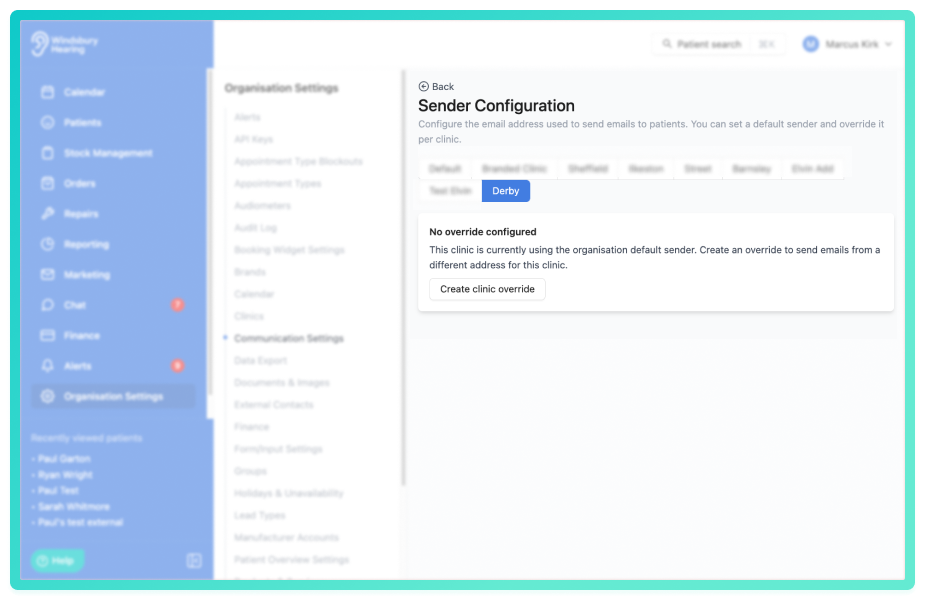
Configure sender per clinic
You can assign different sender configurations to different clinics within your organisation.
This allows each clinic to have it's own sender address, for example:
Select the relevant clinic when creating or editing the sender configuration and apply the required domain and inbox name.
Was this article helpful?
That’s Great!
Thank you for your feedback
Sorry! We couldn't be helpful
Thank you for your feedback
Feedback sent
We appreciate your effort and will try to fix the article