If a form is attached to an appointment email or SMS confirmation but patients are not receiving the form link, the issue is usually related to the template content.
For a form to be included in a message, the correct form variable must be present in the SMS or Email template and the form must be attached to the appointment type.
Why this happens
When you attach a form to an appointment type, HearLink does not automatically insert the form into the message.
The system looks for a specific form variable inside the template. If the variable is missing, the message will send, but without the form. This is designed to give organisations full control over where and how the form appears in the message.
How to fix it
Step 1 - Check the appointment type:
- Navigate to Organisations settings.
- Click Appointment Types.
- Click the View
 icon on the relevant appointment type.
 - Go to the Confirmations section.
- Confirm a Form is attached.
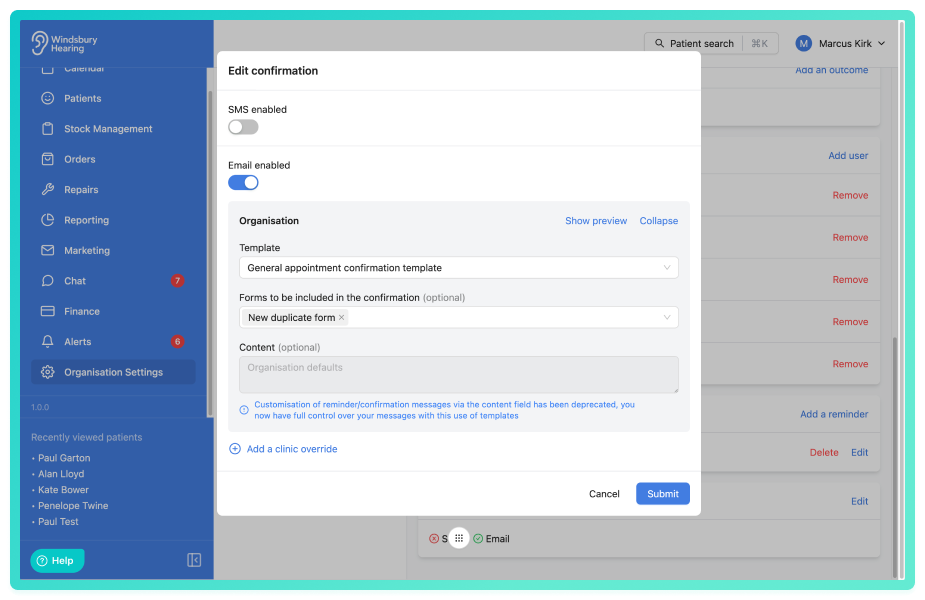
If no form is attached, none will be sent.
Step 2 - Check the template content:
- Navigate to Organisation settings.
- Click SMS Templates or Email Templates.
- Click the Edit
 icon on the relevant template.
 - Ensure the form variable is included in the message content.
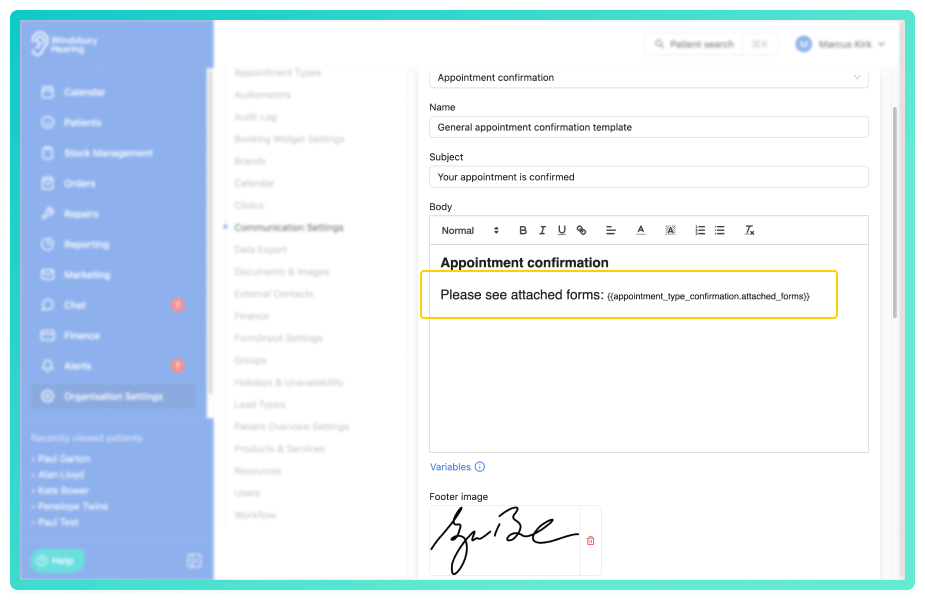
The variable must appear in the body of the message where you want the link to be displayed. You can find a list of variables to use by clicking Variables under the message content.
Important things to know
| Situation | Outcome |
|---|---|
| Form attached & variable included | Form link is sent to the patient |
| Form attached & variable missing | Message sends with no form link |
| Variable included but no form attached | Variable will not return a link |
Best Practice
Always:
- Attach the form in the Appointment type.
- Add the form variable into the template.
- Use Preview before saving to confirm the placement.
Still not working?
Check:
- The correct template is selected for the appointment type.
- The patient has valid contact details.
- The message type (confirmation) matches the template type.
If everything looks correct and the form still isn't sent, contact HearLink support with the appointment type and template name.
Was this article helpful?
That’s Great!
Thank you for your feedback
Sorry! We couldn't be helpful
Thank you for your feedback
Feedback sent
We appreciate your effort and will try to fix the article