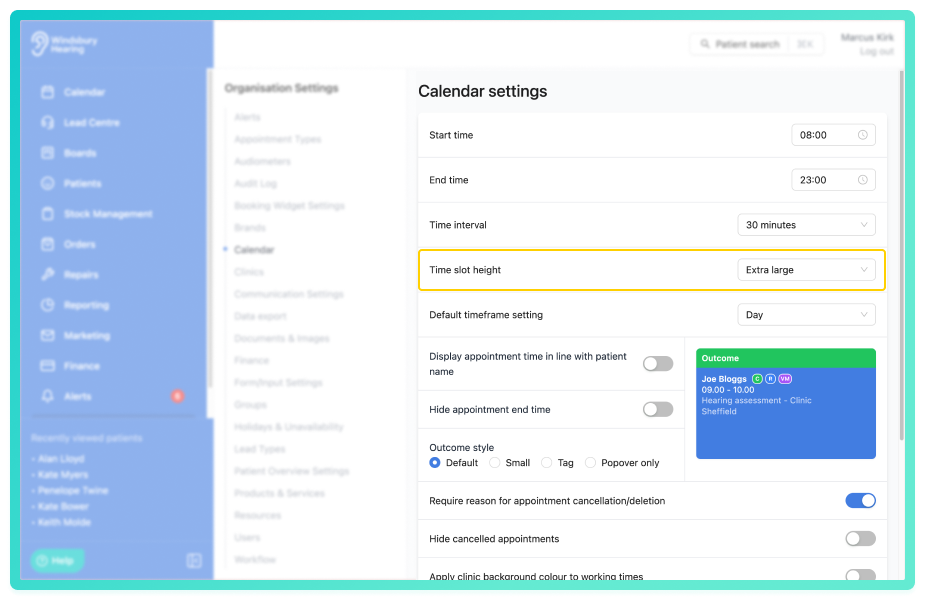
The time slot height on the calendar can be set using the predefined options. This works in tandem with the interval settings to determine how appointments are displayed.
When there's more information on an appointment card, using a larger time slot height with a smaller interval provides greater visibility and detail.
In this article we'll cover:
- how to adjust the time slot height.
- how time slot height and interval work together
Adjust the time slot height
- Navigate to Organisation Settings.
- Locate the Calendar section of the settings.
- Choose your preferred Time slot height from the available options.
Combination examples
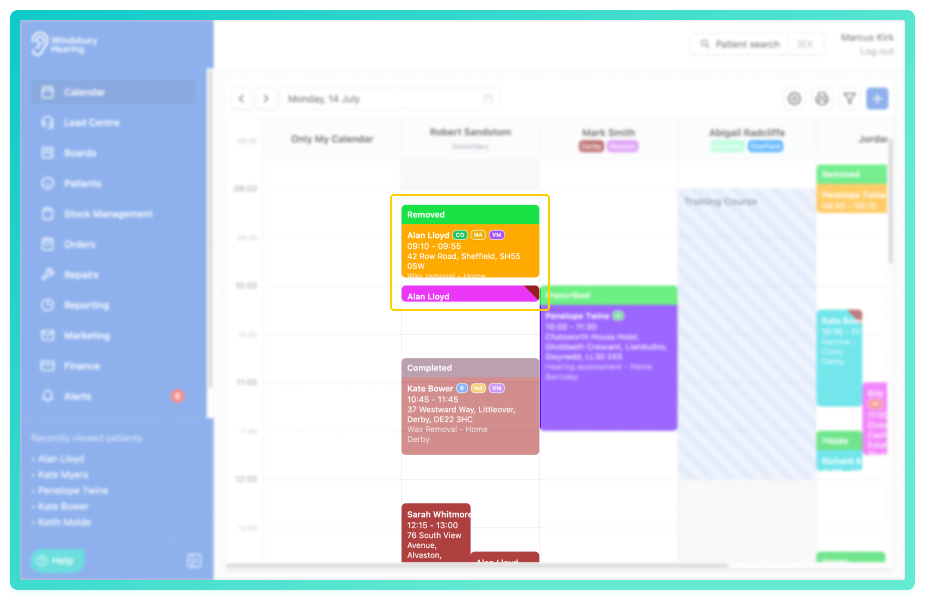
Below are two examples with the Time interval set to 30 minutes.
Example 1: Regular time slot height (default)
- Provides a balanced view of appointments and overall day structure.
- Best for users who want to see more of the day at a glance.
Example 2: Extra large time sot height
- Displays more detail within each appointment card.
- Ideal for clinic's with shorter appointments or where appointment cards contain more information
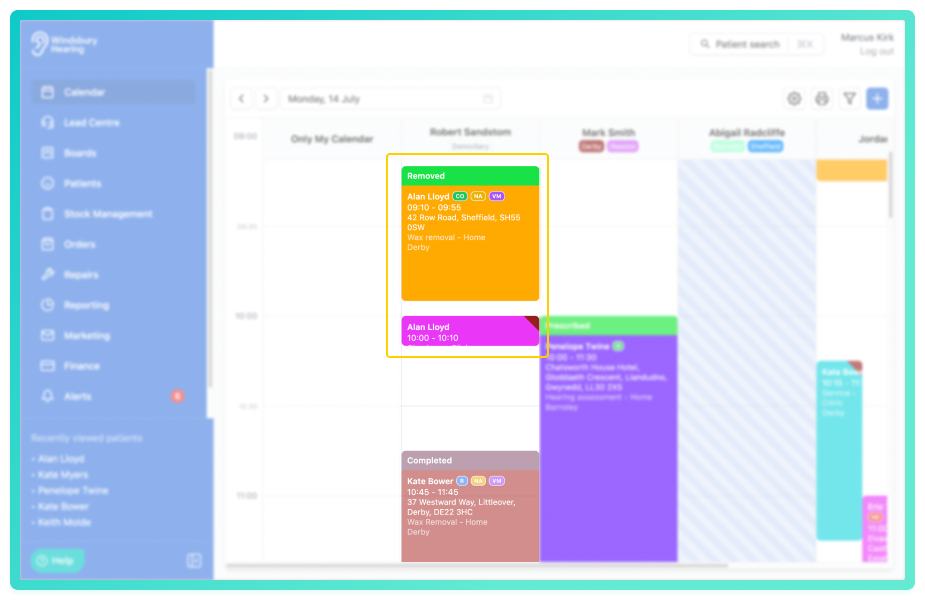
The time slot height and time interval settings work closely to determine how much vertical space each hour of the calendar occupies.Was this article helpful?
That’s Great!
Thank you for your feedback
Sorry! We couldn't be helpful
Thank you for your feedback
Feedback sent
We appreciate your effort and will try to fix the article