You can merge duplicate patient records in HearLink to keep your patient database accurate and up to date. This allows you to move all data from one patient record to another without cancelling or recreating the information.
Important Information:
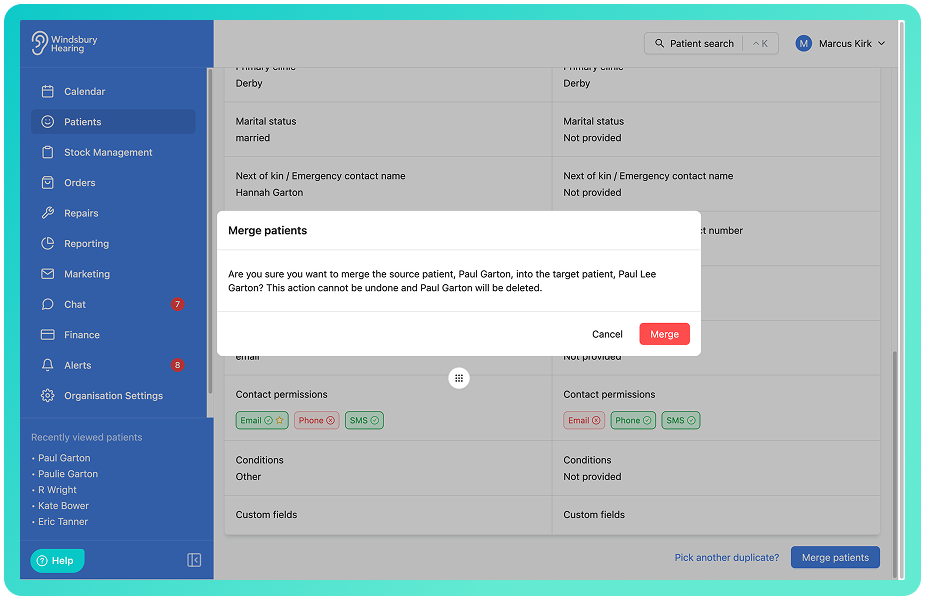
- The source patient will be deleted once the merge is completed.
- Merging patients cannot be undone.
- Ensure all required information is saved on the target patient before merging.
If the source patient contains NOAH data, the merge cannot be completed automatically. Please contact HearLink Support so this can be resolved safely.
In this article we'll cover how to:
- merge two patient records.
- review and update patient details before merging.
Merge patients
- Navigate to the source patient (the patient you want to merge and delete).
- Locate and click the Merge patient
 icon.
icon.
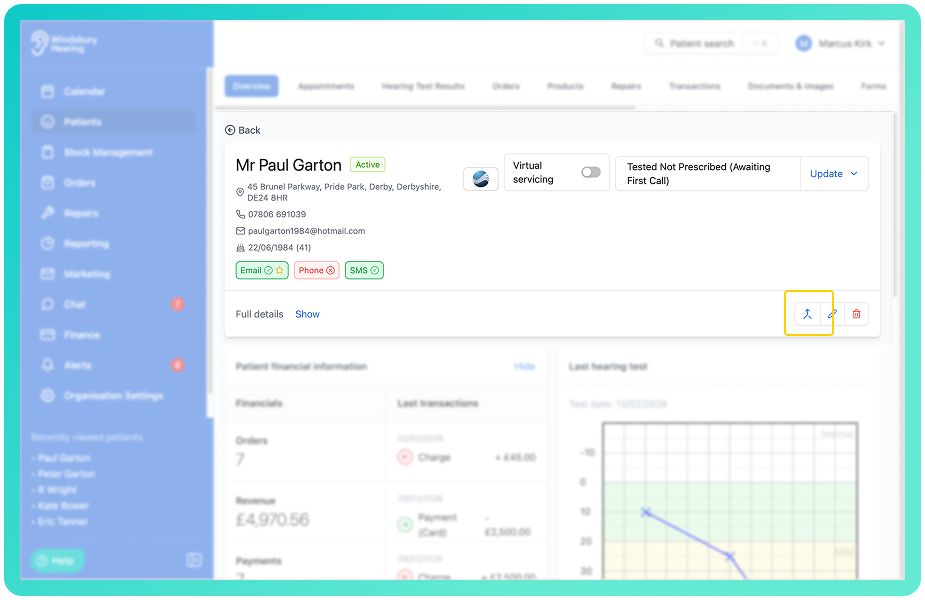
- You will be taken to a merge screen, where a list of possible duplicate patients will be displayed.
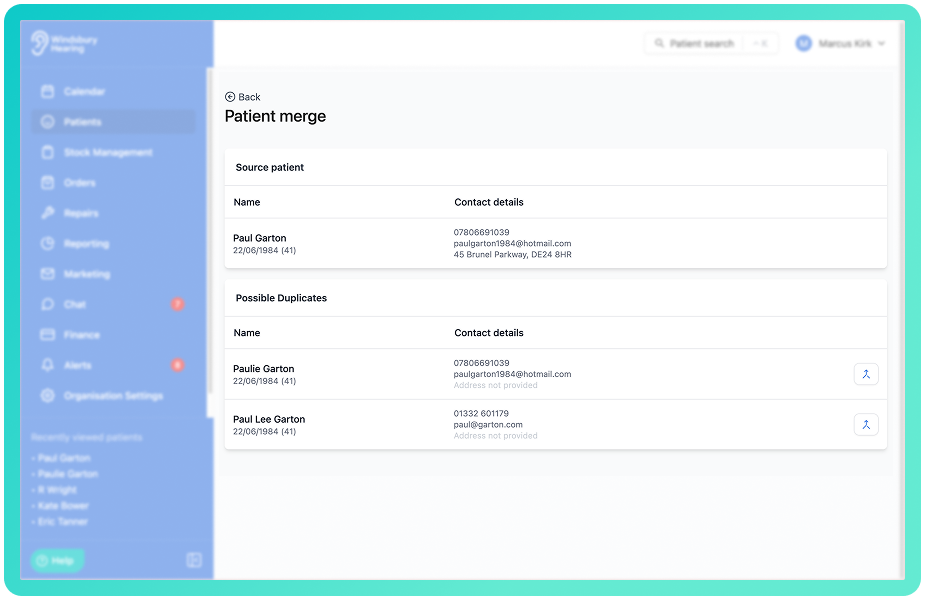
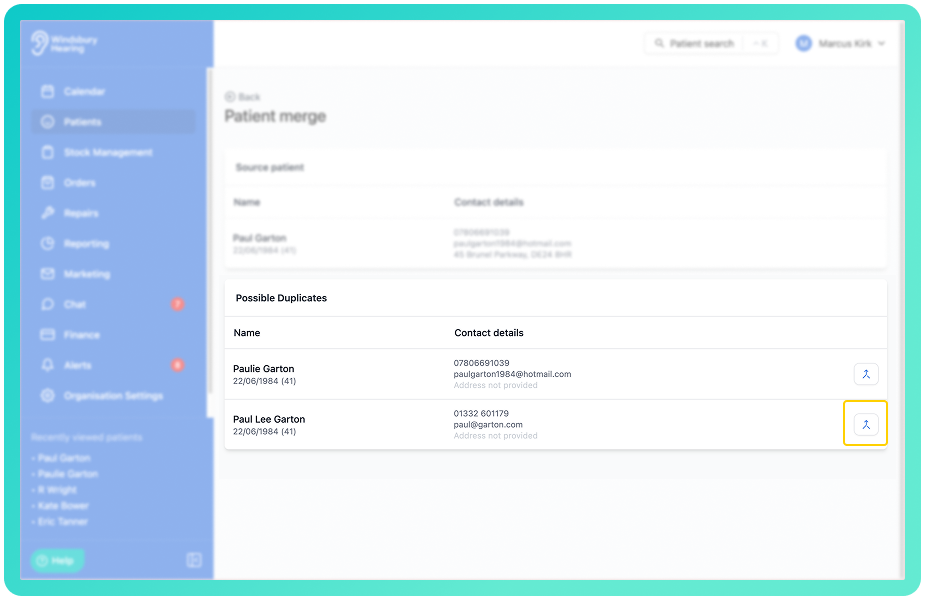
- Locate the patient you want to keep as the Target patient.
- Click the Merge patienticon next to their name.
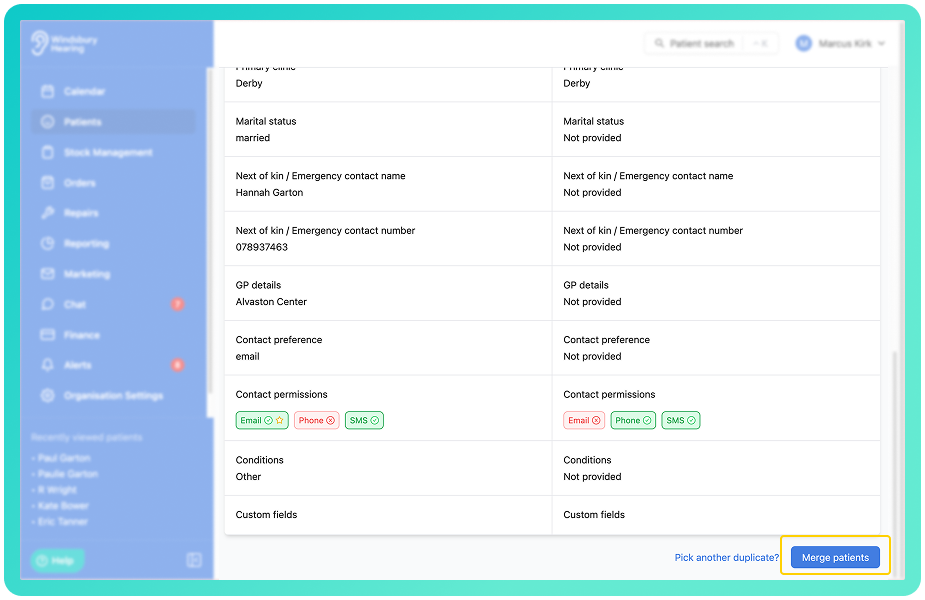
- The source and the target patient will now be displayed side by side, showing the patient demographic information as originally entered.
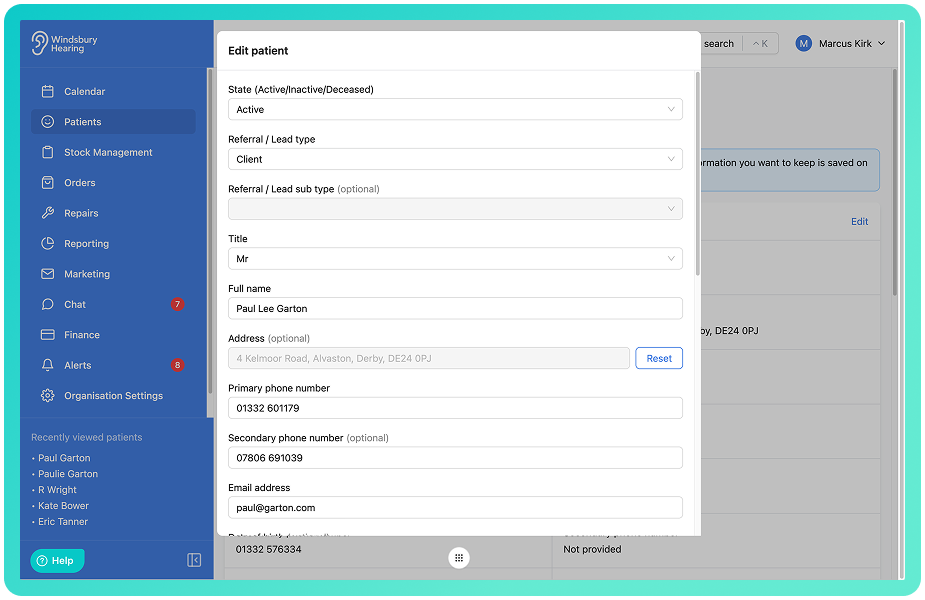
- If required click Edit on the target patient to update any information.
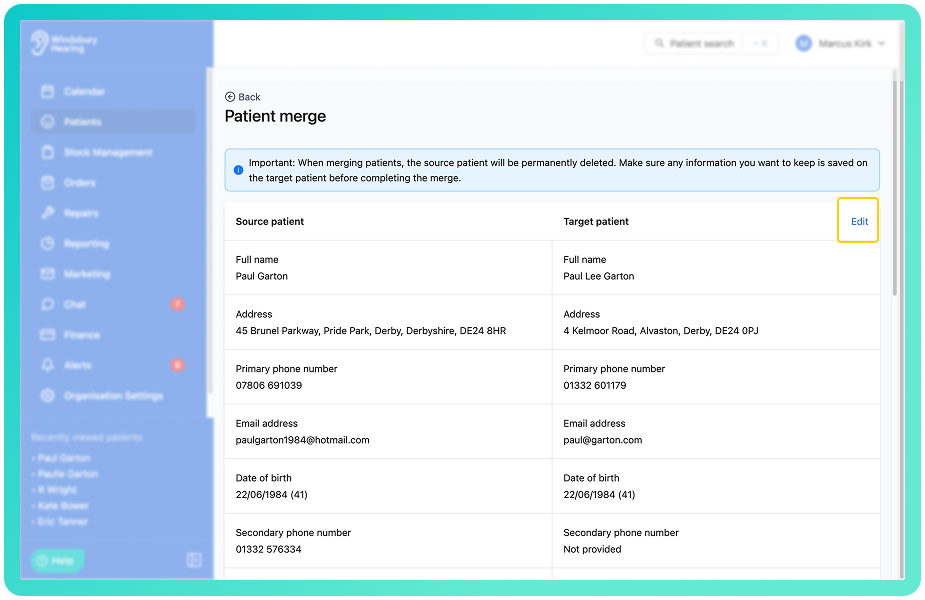
- Save any changes before continuing.
- Click Merge patients.
- Follow the confirmation to complete the merge.
You will be redirected to the target patients profile. All related data will be moved to the target patient, including appointments, orders, notes, documents and communications.
The source patient will then be permanently deleted.
Was this article helpful?
That’s Great!
Thank you for your feedback
Sorry! We couldn't be helpful
Thank you for your feedback
Feedback sent
We appreciate your effort and will try to fix the article