Custom variables allow you to create your own placeholders for information that isn't covered by HearLink's built-in variables. These are particularly useful for clinic-specific information like review links, booking URLs, or custom terms and conditions.
In this article we'll cover:
- what are custom variables?
- common use cases.
- how to create a custom variable.
- how to use custom variables in templates.
- how to manage custom variables.
What are custom variables?
Custom variables work the same way as built-in variables, but you define what they contain. When you create a custom variable, you can set different values for each clinic in your organisation.
Common use cases:
Review links - Direct patients to clinic-specific Google, Trustpilot, or other review platforms.
Local information - Parking instructions, accessibility details, or location-specific notes.
Custom terms - Clinic-specific policies, opening hours, or service information.
Create a custom variable:
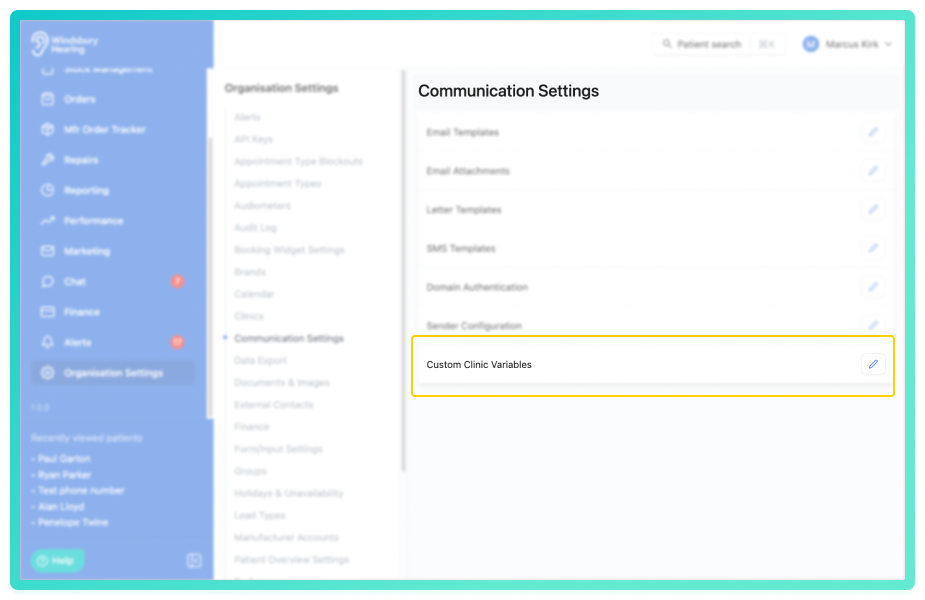
- Navigate to Organisation Settings.
- Locate and click Communication Settings section.
- Click the Edit
 icon next to Custom Clinic Variables.
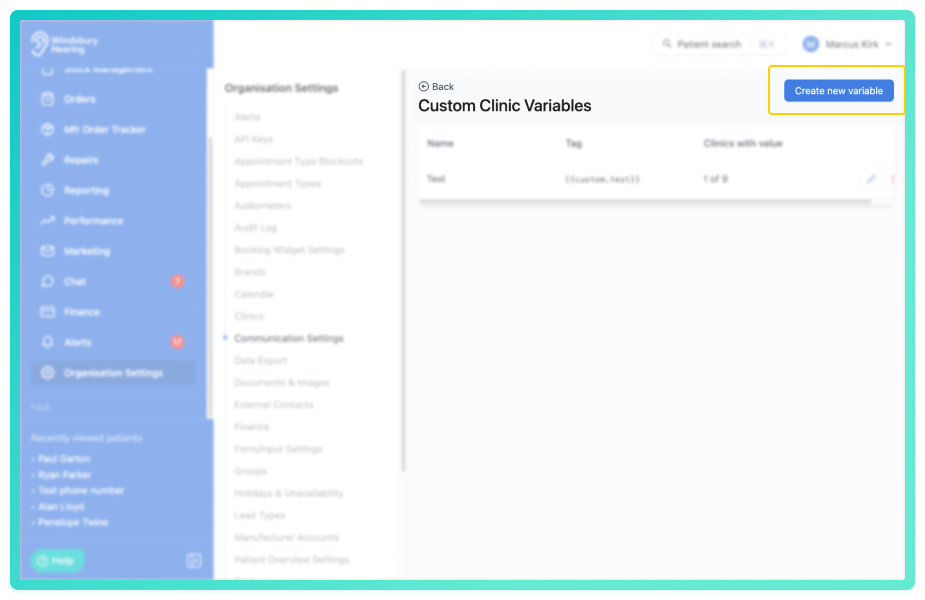
- Click Create new variable.
- Enter a Name - this becomes your variable placeholder.
The variable name you enter here determines how you'll use it in templates. For example, if you name it "Review Link", you'll use {{custom.review_link}} in your templates.
- Add values for each clinic (optional but recommended).
- Leave blank for clinics where this variable doesn't apply.
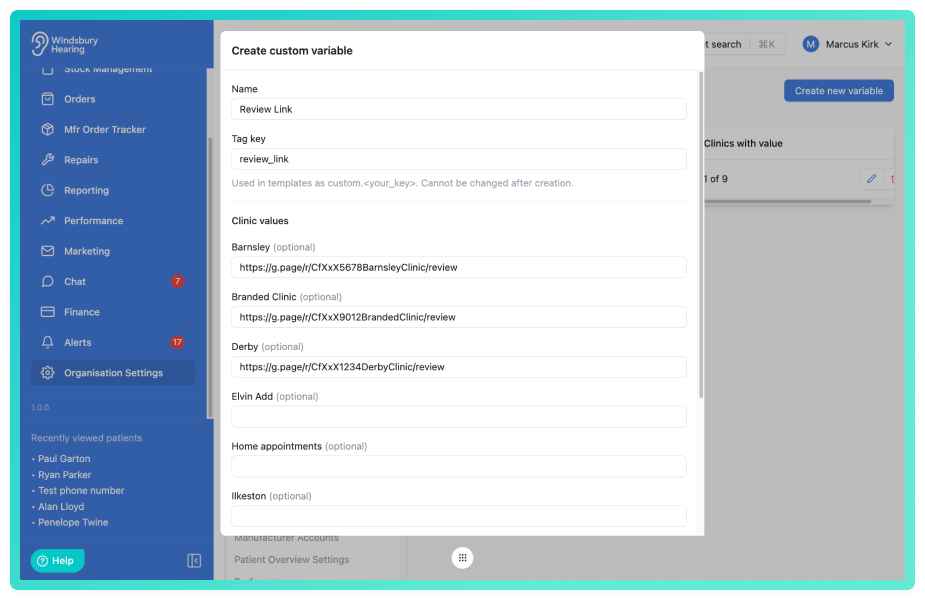
- Click Submit to save the custom variable.
How to use custom variables in templates
Once created, custom variables are available in:
- Email templates
- SMS templates (confirmations and reminders)
- Letter templates
Insert them using this format: {{custom.variable_name}}
Example:
If you created a custom variable named "Review Link", use it like this:
We'd love to hear about your experience. Please leave us a review: {{custom.review_link}}
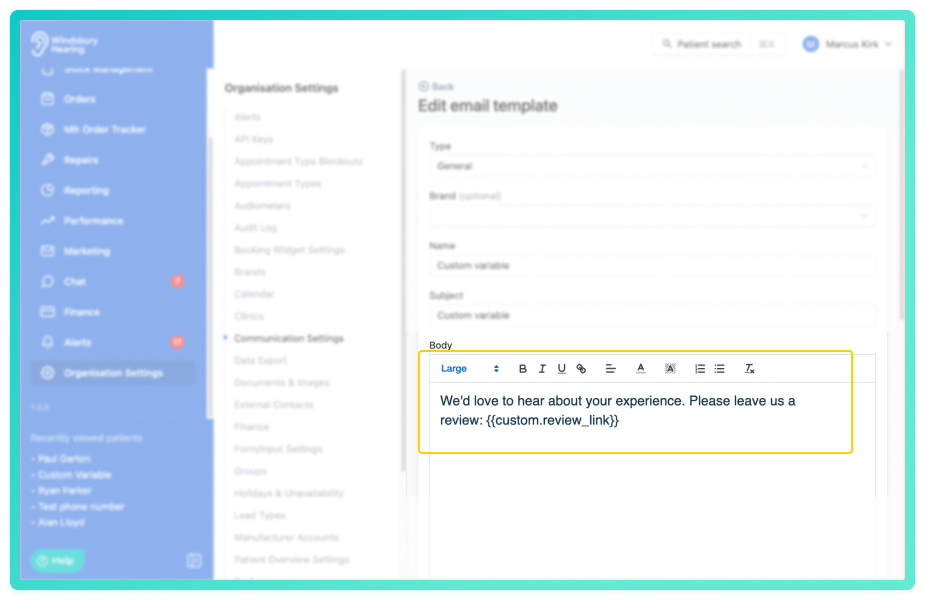
When the communication is sent, HearLink replaces {{custom.review_link}} with the specific URL you configured for that clinic.
How clinic selection works:
Custom variables automatically use the value from the appointment's assigned clinic. If you send an appointment confirmation for an appointment at your Derby clinic, HearLink uses the Derby value for all custom variables.
What happens if a clinic has no value set:
If a clinic doesn't have a value configured for a custom variable, the variable will appear blank in the communication. This won't break the template, but you'll see empty space where the variable should appear.
Best practice: Set values for all clinics when creating custom variables, even if it's the same value across all locations. This prevents blank spaces in communications.
Example: Setting up review links
Let's say you have three clinics and want each to link to their own Google review page:
- Create custom variable named "Review Link"
- Set values:
- Derby Clinic: https://g.page/r/derby-reviews
- Nottingham Clinic: https://g.page/r/nottingham-reviews
- London Clinic: https://g.page/r/london-reviews
- Use in template:
Thank you for visiting us! We'd love your feedback: {{custom.review_link}}
Patients at Derby receive the Derby link, Nottingham patients receive the Nottingham link, and so on - all from one template.
Managing custom variables:
- View all custom variables in Organisation Settings > Communication Settings > Custom Variables
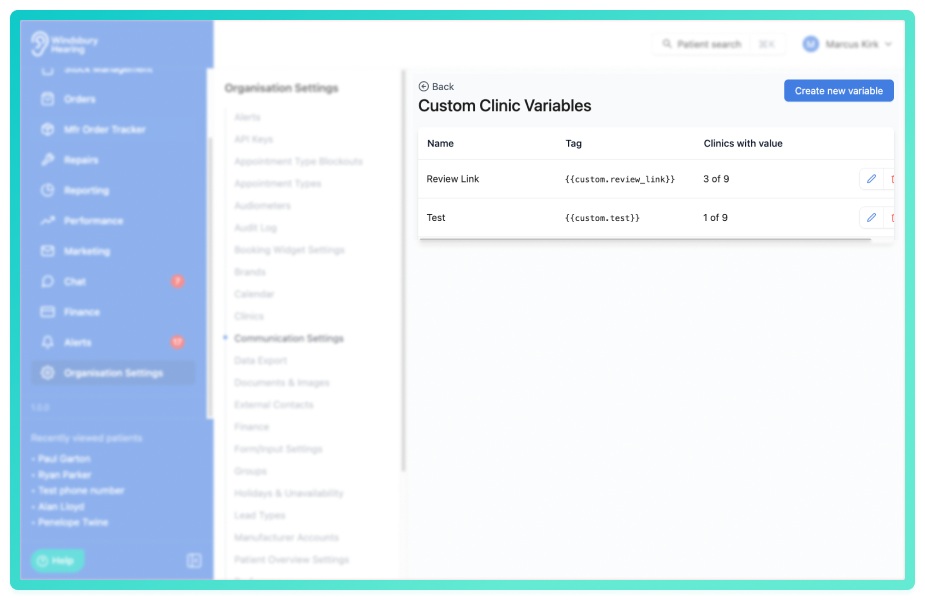
- Edit existing variables to update values for any clinic
- Delete variables you no longer need
Deleting a custom variable doesn't remove it from existing templates, but it will appear blank in future communications until you create it again or remove it from the template.Was this article helpful?
That’s Great!
Thank you for your feedback
Sorry! We couldn't be helpful
Thank you for your feedback
Feedback sent
We appreciate your effort and will try to fix the article