HearLink now allows your organisation to take payments or deposits when patients book an appointment online. This helps reduce no shows and secure booking commitments.
To accept payments and deposits you will need to connect an existing Stripe account or create a new one. This can be done directly from HearLink.In this article we'll cover how to:
- connect your Stripe account.
- enable payments for specific appointment types.
- add invoice items to be charged.
- set the required payment amount or deposit.
- manage payments made through online booking.
Only users with the correct permissions can enable or disable the ability to accept payments or deposits. If you think you should have permission to perform such an action please contact the organisation owner.Connect Stripe
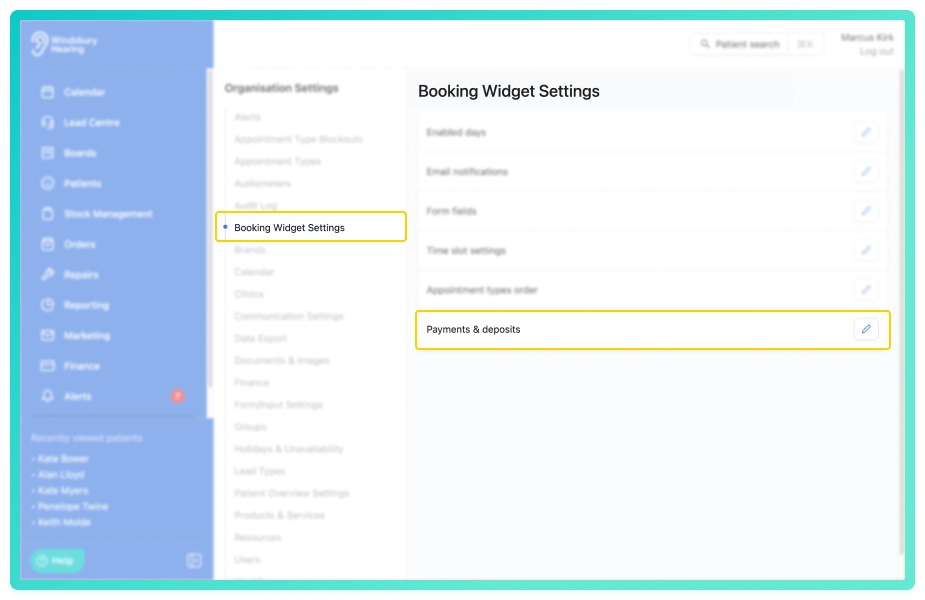
- Navigate to Organisation settings.
- Locate and click the Booking Widget Settings section of the settings.
- Click the Edit icon
 next to Payments & Deposits.
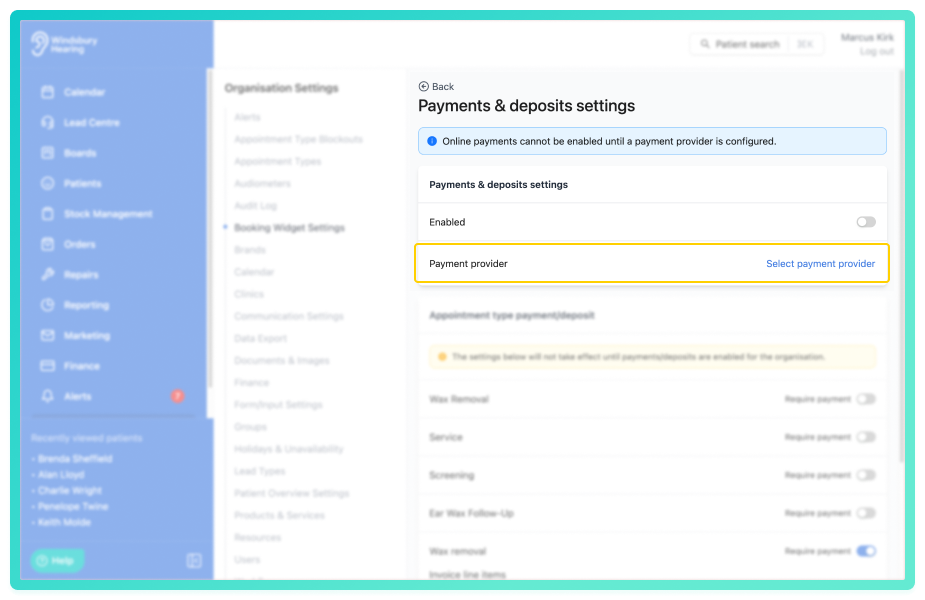
In the Payments & deposits settings section:
- Locate Payment provider.
- Click Select payment provider.
- Follow the instructions to sign-in or create a Stripe account.
Once connected click Enabled, HearLink will securely link your Stripe account to handle online booking payments.
Enable payments for specific appointment types
In the Appointment type payment/deposit section, you will see a list of appointment types that have available in the booking widget enabled.
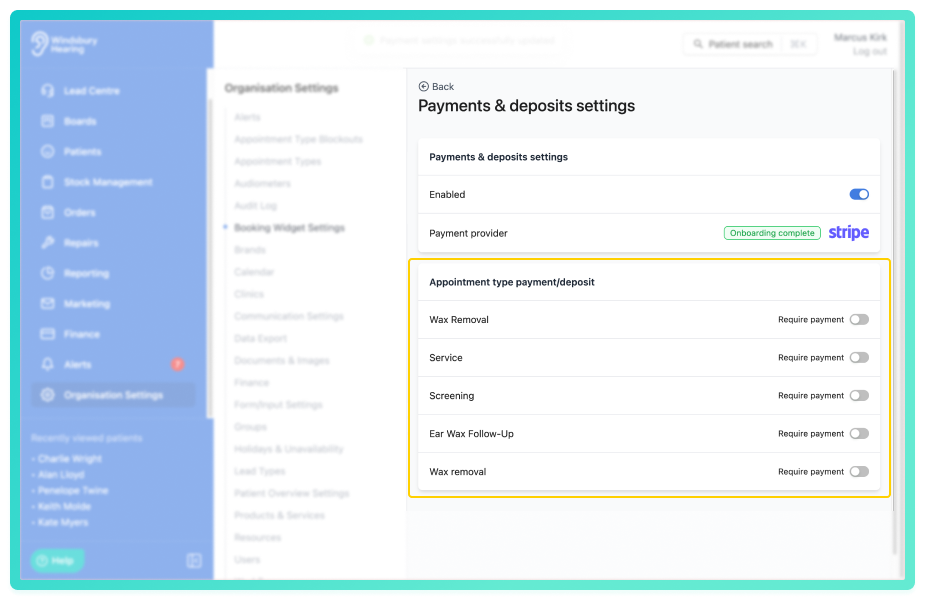
For each appointment type you can:
- Enable Require payment.
Example: You might require a deposit or full payment for Wax removals but not for Hearing aid tests.
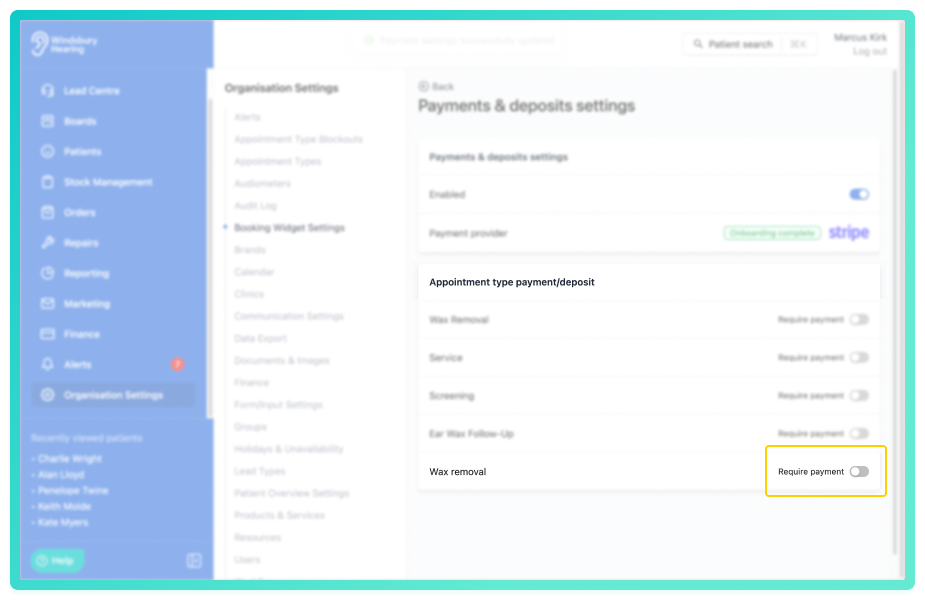
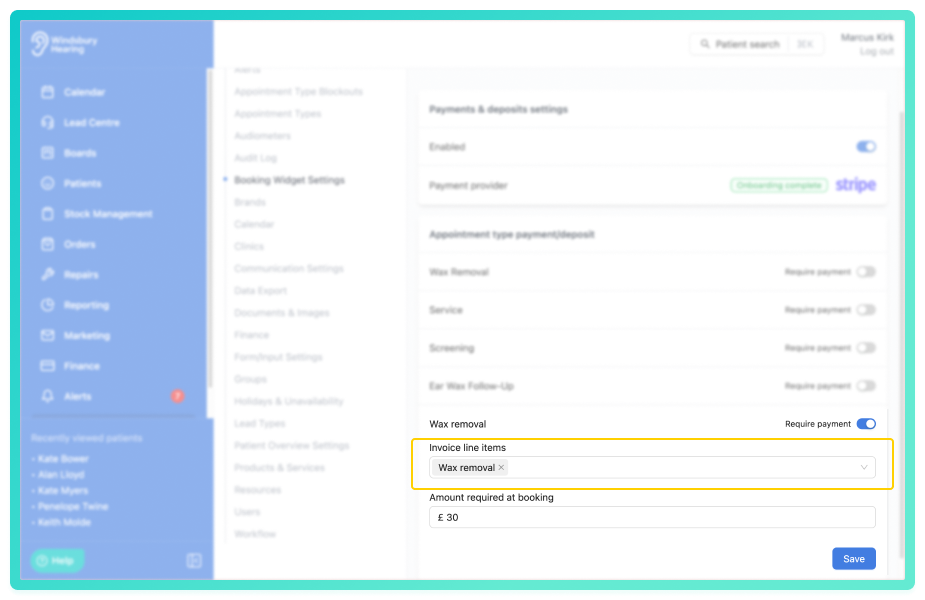
- Add Invoice line items.
These items will appear automatically on the generated invoice once the booking is confirmed. (See Managing payments below)
Example: For a wax removal appointment, you might select the Wax removal service as your line items.
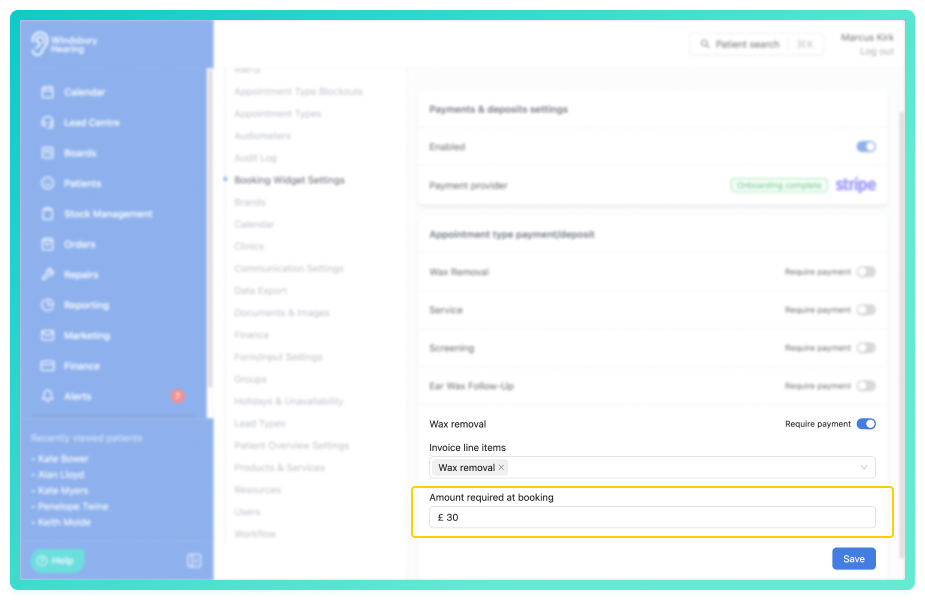
- Set the Amount required at booking.
- This can be the full amount or a deposit.
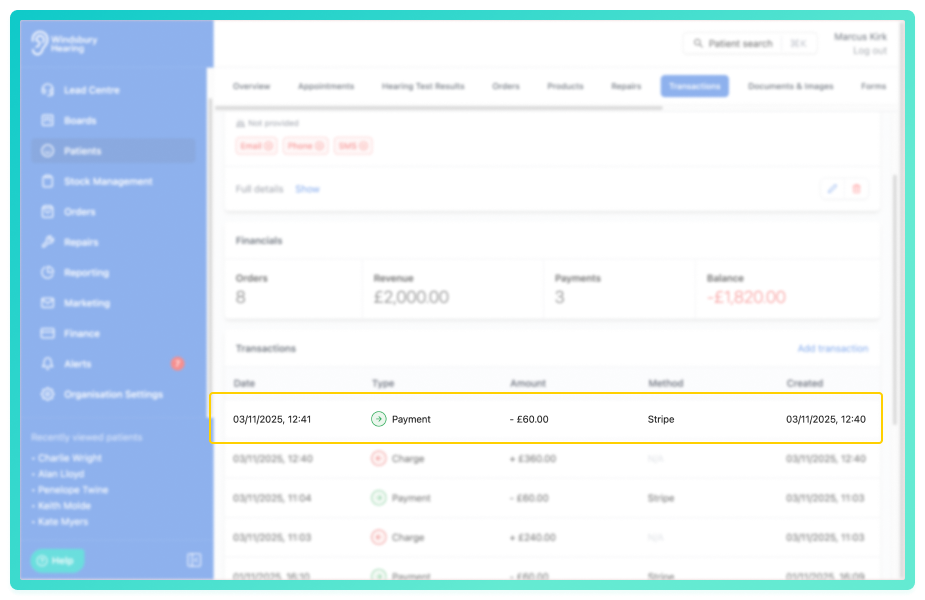
The amount is collected at the time of booking via Stripe and automatically recorded in the patient's transaction history once payment is confirmed.
Click Save to save the changes.
Managing payments
Payments and deposits collected online appear in Patient Transactions and an Invoice will be created for full visibility.
If an appointment is cancelled, refunds can be managed directly through Stripe or as per your organisation's refund policy.
Was this article helpful?
That’s Great!
Thank you for your feedback
Sorry! We couldn't be helpful
Thank you for your feedback
Feedback sent
We appreciate your effort and will try to fix the article