Your organisation can customise the appointment form used when creating a new appointment. You can enable or disable options such as Location and Referral as needed.
In this article we'll:
- cover how to edit the appointment from settings.
- explain the options in more detail.
Only users with the correct permissions can edit the appointment form settings. If you think you should have permission to perform such an action please contact the organisation owner.Edit the appointment form settings
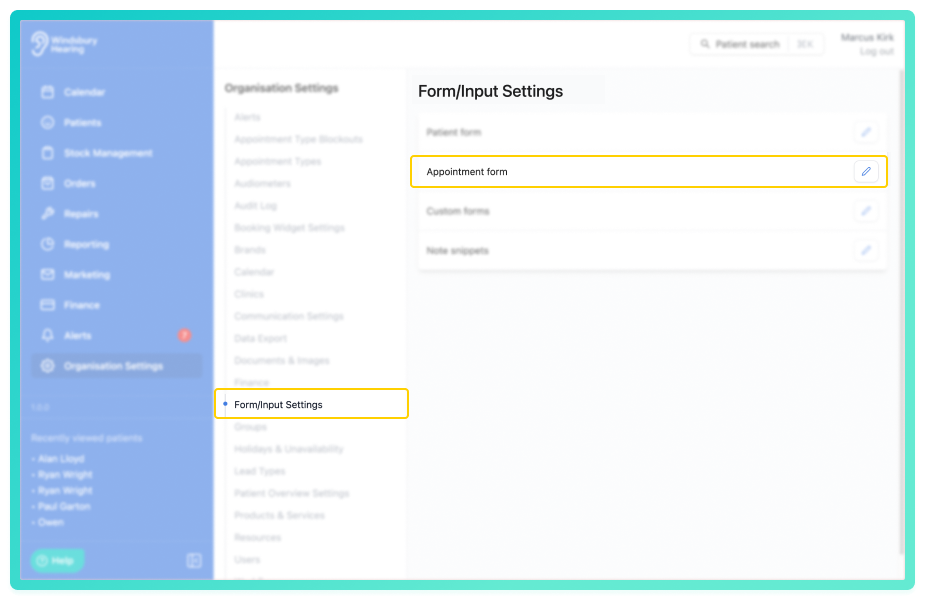
- Navigate to Organisation settings.
- Locate and click the Form/Input Settings section of the settings.
- Click the Edit icon
 next to Appointment form.
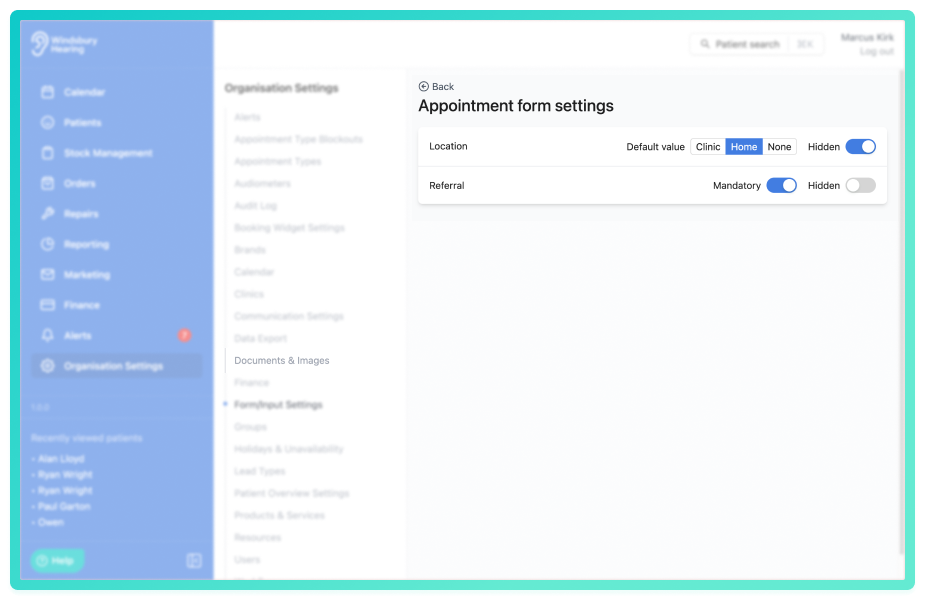
- Select which fields you want to enable or disable, or set a Default value to.
Appointment form fields explained
There are two options in the appointment form settings. Location and Referral. We will go into each option in more detail below.
Location
The Location option in appointment form settings has two options:
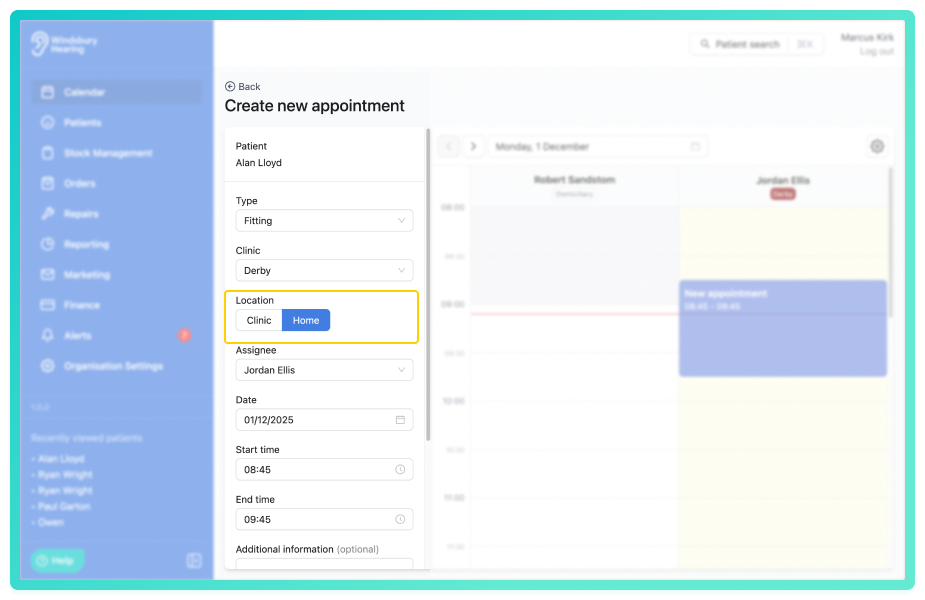
- Default value - When creating an appointment this selection will be the default value when filling out the appointment details. The options for this section are Clinic, Home and None. This can be changed when creating an appointment.
Example: Appointment form when the Default value is set to Home.
- Hidden - When this setting is enabled the Location section when creating an appointment will be hidden and it will inherit the Default value.
Clinic or Home must be selected before the Location option can be hiddenReferral
The Referral option in the appointment form settings has two options:
- Mandatory - When creating an appointment an organisation can make the Referral field mandatory, this means that a user MUST enter a referral source when creating the appointment.
- Hidden - If a referral source isn't something your organisation records when creating an appointment, it can be hidden form the create an appointment form.
Was this article helpful?
That’s Great!
Thank you for your feedback
Sorry! We couldn't be helpful
Thank you for your feedback
Feedback sent
We appreciate your effort and will try to fix the article