You can automate appointment communications directly from within an appointment type. This allows emails to be sent automatically when specific outcomes or appointment statuses are applied, either immediately or after a scheduled time period. These communications use email templates.
These communications are service led and therefore marketing permissions are not applied.In this article we will cover how to:
- add communication automations to an appointment type.
- understanding triggers and timings.
- a working example.
- edit or delete a communication automation.
Only users with the correct permissions can set communication automations. If you think you should have permission to perform such an action please contact the organisation owner.Add a communication automation to an appointment type
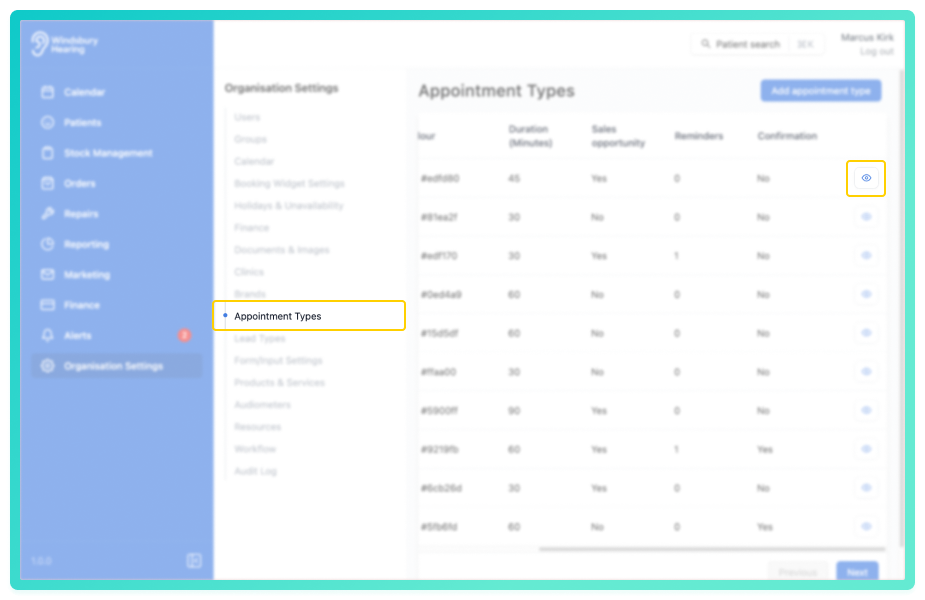
- Navigate to Organisation Settings.
- Locate and click the Appointment Types section of the settings.
- Click the View icon
 on the appointment type you want to add an automation to.
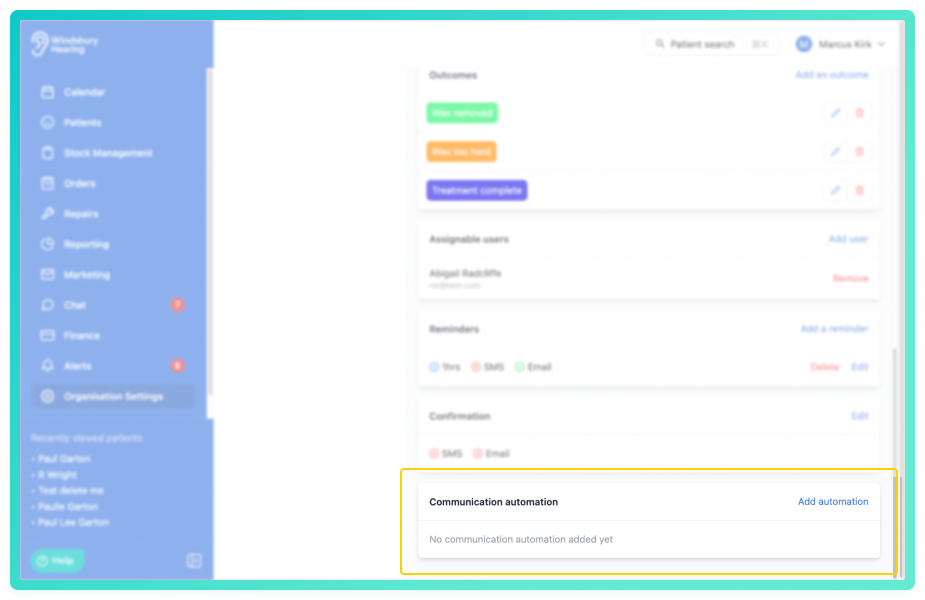
- Locate the Communication automations section.
- Click the Add automation text.
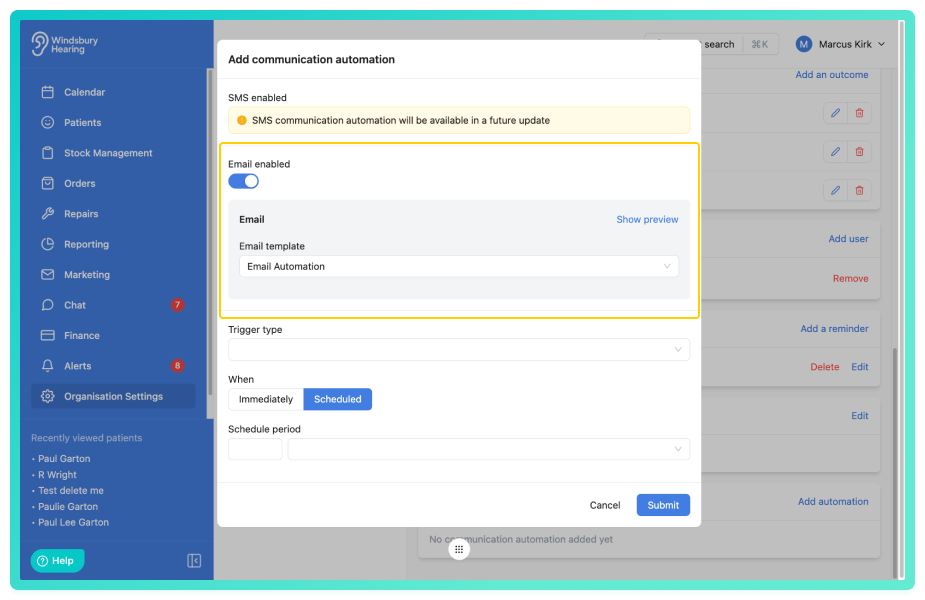
- Enable email and select a template.
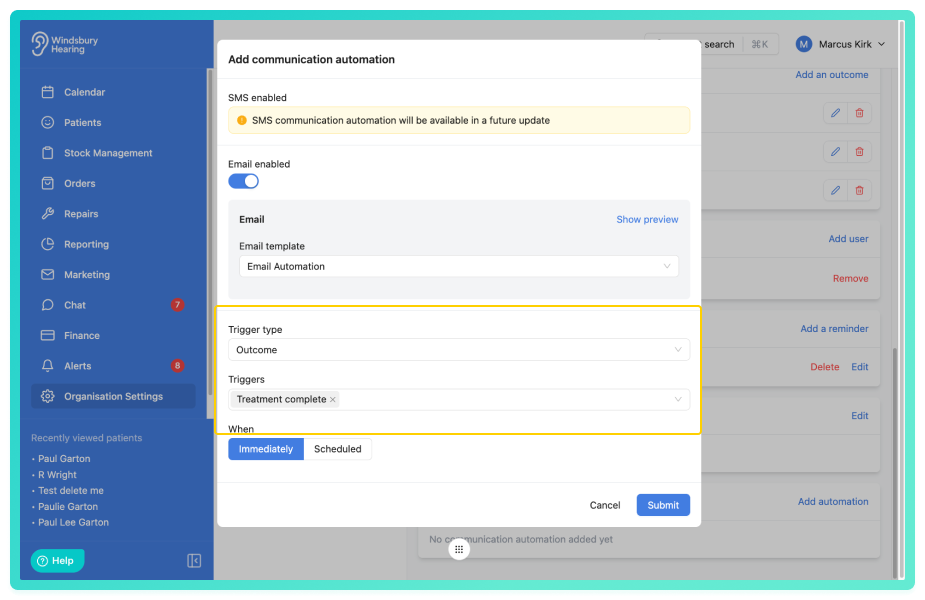
- Choose when the automation is to be sent, Immediately or Scheduled.
- If Scheduled, choose a Schedule period.
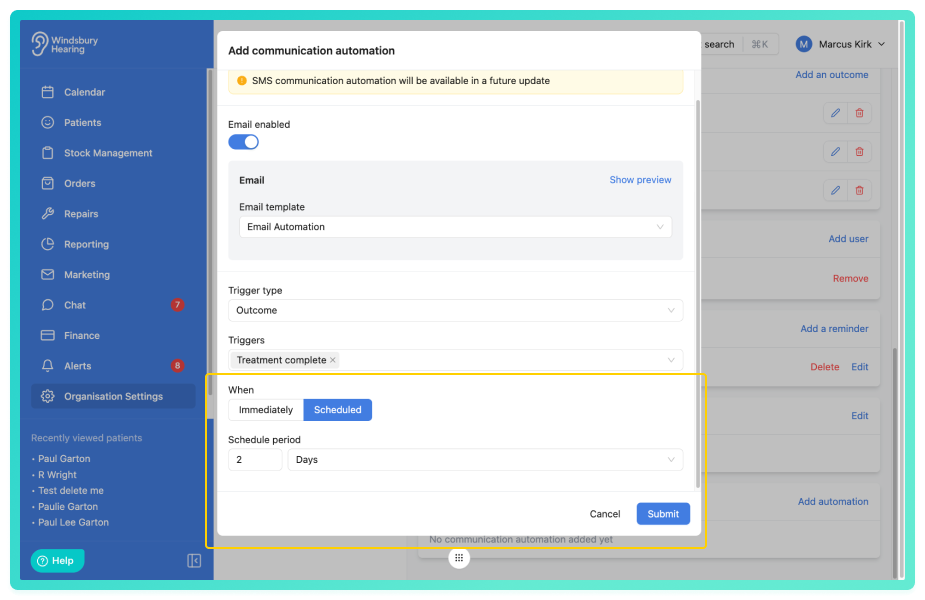
- Click Submit.
- You will see a short description of the automation.
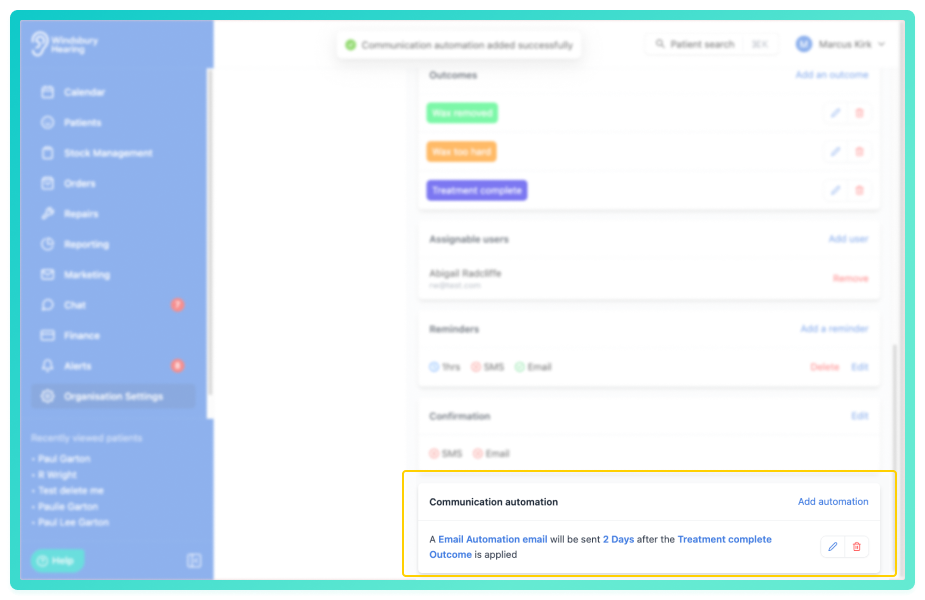
Multiple communication automations can be added to the same appointment type.
Understanding triggers and timings
When setting up an automation, you first choose what should trigger the communication. You can choose:
- Appointment outcome
- Appointment status
If you select Outcome, choose one or multiple outcomes that are linked to that appointment.
If you select Appointment status, choose one or multiple statues, including any custom statuses you have configured. Any disabled statuses will be omitted from list.
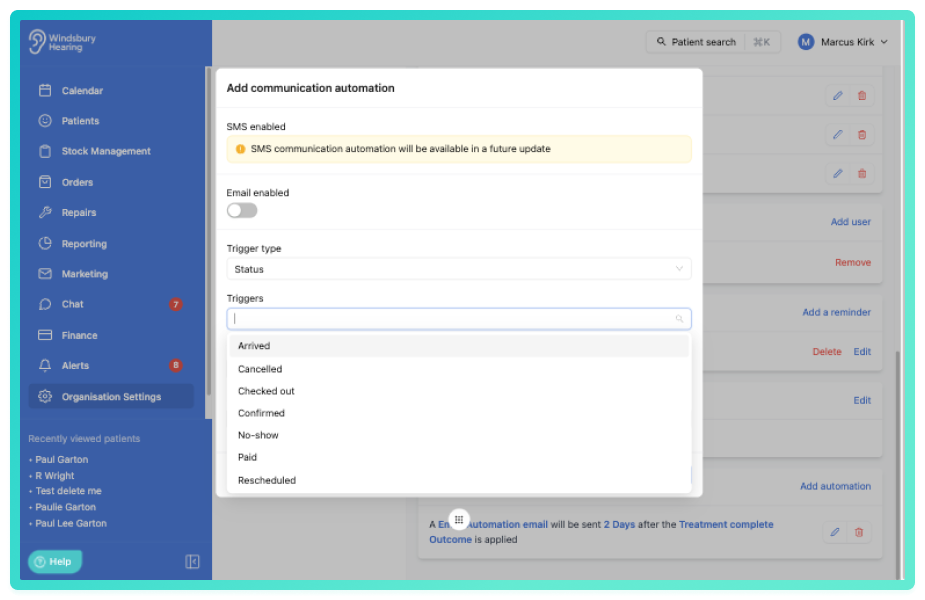
Next, decide when the communication should be sent. You can choose:
- Immediately
- Schedule period
If Immediately is selected, the email will send at the exact moment the outcome or appointment status is applied.
If Schedule period is selected, define how long after the trigger the email should be sent.
You can schedule the the email to send after a specified number of hours, days, weeks or months form when the outcome or status is applied.
Example
As an example, you may want to send a follow-up email when an appointment outcome is marked as Treatment completed.
- Select Outcome as the Trigger type.
- Choose Treatment completed as the Trigger.
- Select Scheduled.
- Set the Schedule period to 2 days.
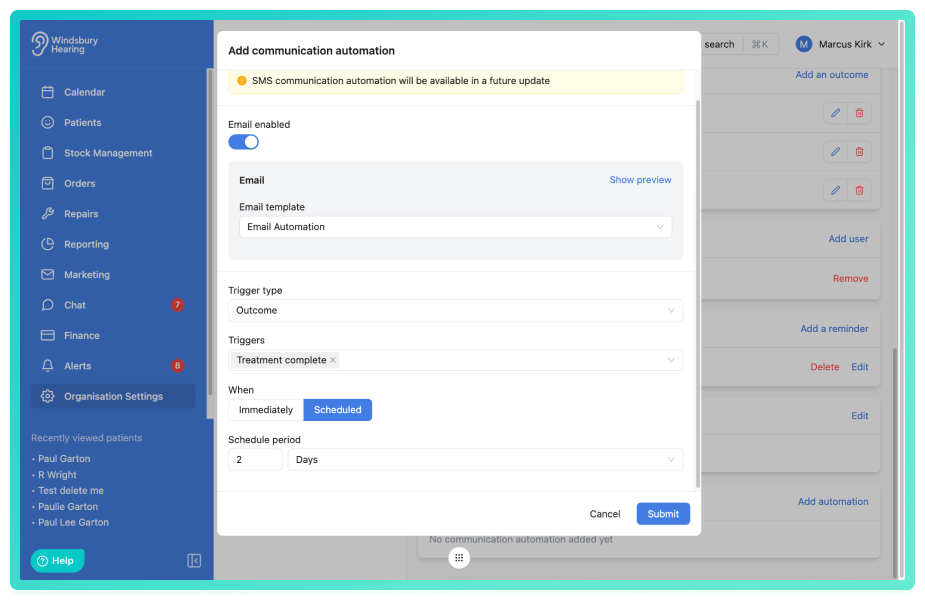
Once saved, the system will automatically send the selected email template two days after the Treatment completed outcome is applied to the appointment.
The communication automation applies only to the Appointment type it has been configured against and will run automatically each time the selected trigger conditions are met.
Edit or delete communication automations
Select the automation you want to edit or delete.
- To edit click the Edit
 icon and make any changes required.
 - To delete click the Delete
 icon, follow the prompt to delete the automation.
Warning: Once a communication automation has been deleted this action cannot be undone. Please proceed with caution!Was this article helpful?
That’s Great!
Thank you for your feedback
Sorry! We couldn't be helpful
Thank you for your feedback
Feedback sent
We appreciate your effort and will try to fix the article