Email marketing campaigns allow you to send targeted email communications to groups of patients directly from within HearLink. Campaigns can be created using Marketing Groups, Manual Queries or queries received by Tonee, helping you build accurate recipient lists based on your organisation's needs.
Marketing preferences and email validity are automatically respected to ensure compliant and reliable delivery.
Campaign emails can be created from scratch, loaded from a saved template, or saved as a template for reuse in future campaigns.
For this article we will use a marketing group, but the process is the same for manual and Tonee queries.In this article we'll cover how to:
- create a marketing campaign.
- design a campaign email.
- use and save email templates.
- preview and send a campaign.
- remove a recipient from a draft campaign.
- understand unsubscribing from email campaigns.
- understand campaign progress and engagement.
Create a marketing campaign
- Navigate to Marketing.
- Locate your desired data source (in this case we will use Marketing groups.)
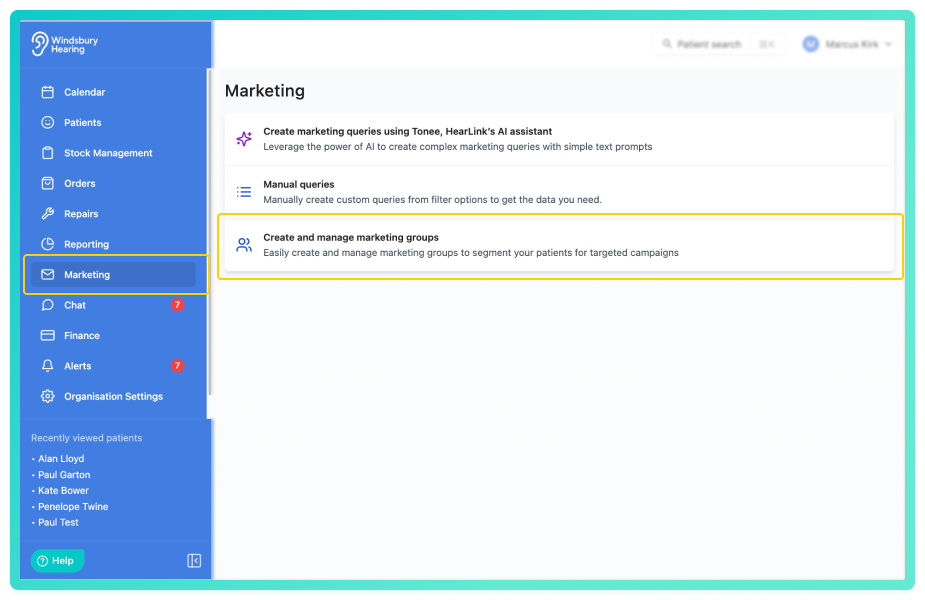
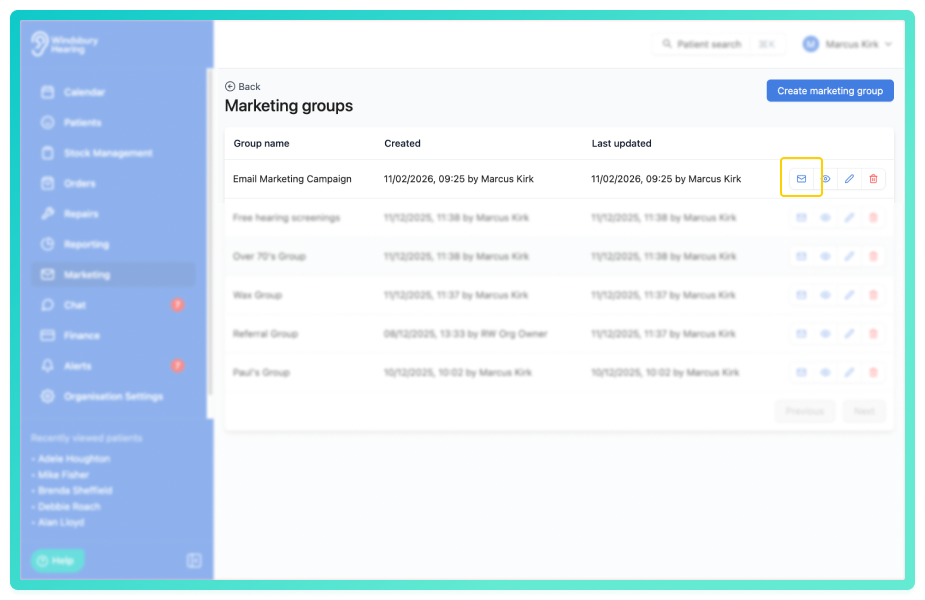
- Enter a Campaign name and click Submit.
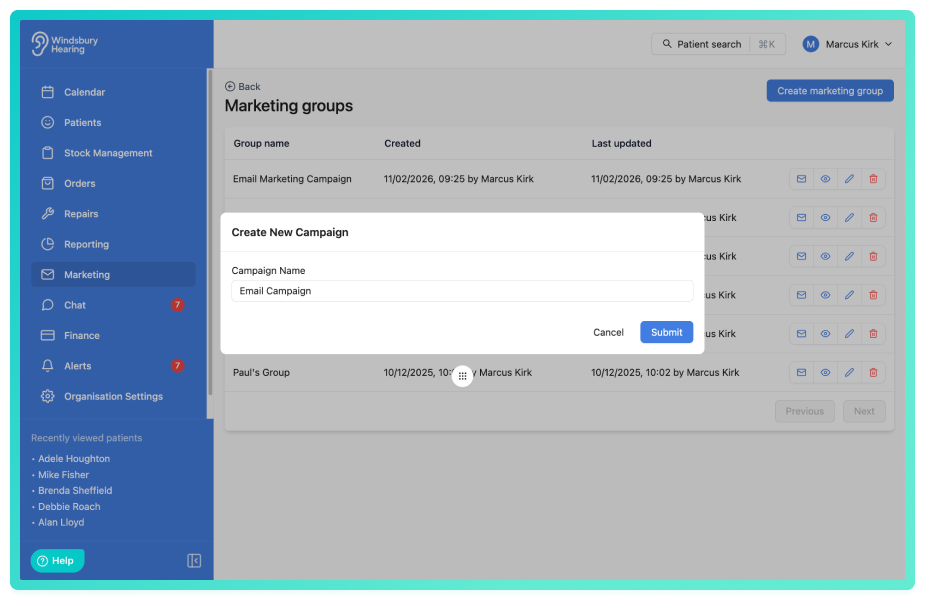
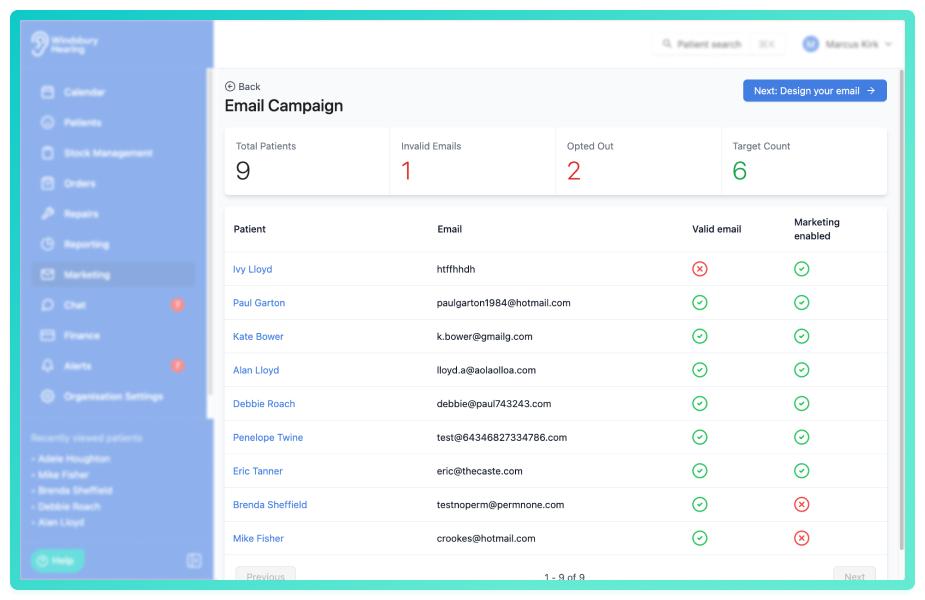
Once created you will be taken to the campaign overview.
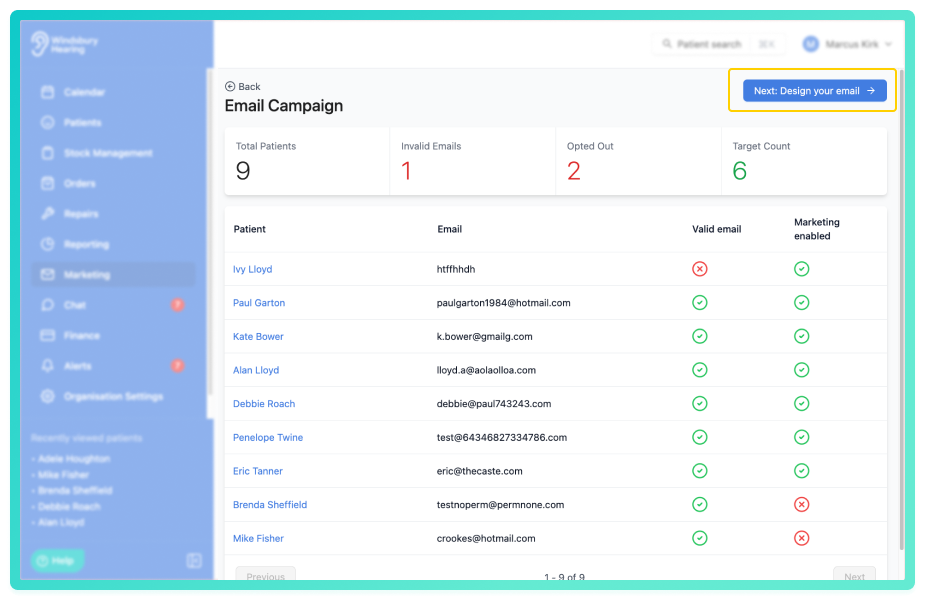
At the top of the page you will see:
- Total Patients - total records returned by the query or group.
- Invalid Emails - patients with invalid or missing email addresses.
- Opted Out - patients who have marketing disabled.
- Target Count - total recipients who will receive the campaign.
The table below displays:
- Patient name.
- Email address.
- Valid email status.
- Marketing enabled status.
Patients who have opted out or have invalid email addresses will automatically be excluded from the target count.
The campaign is now saved and can be deleted if no longer required.
Design the email campaign
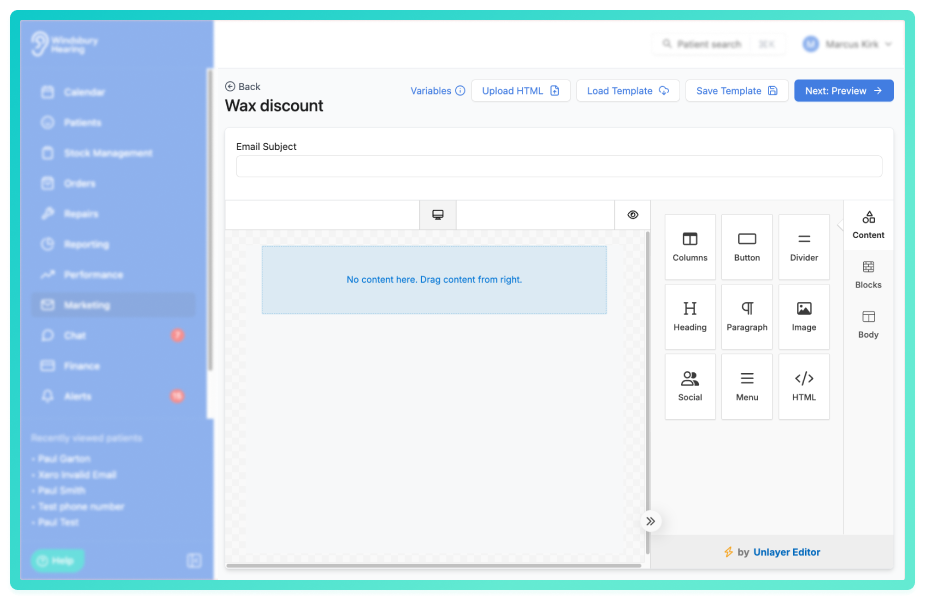
You can create your email directly within HearLink using the available formatting tools. A variety of layouts, styles and variables are available, allowing you to personalise content using patient and organisation data.
You can also load an email template or upload HTML to start your campaign from an existing design.
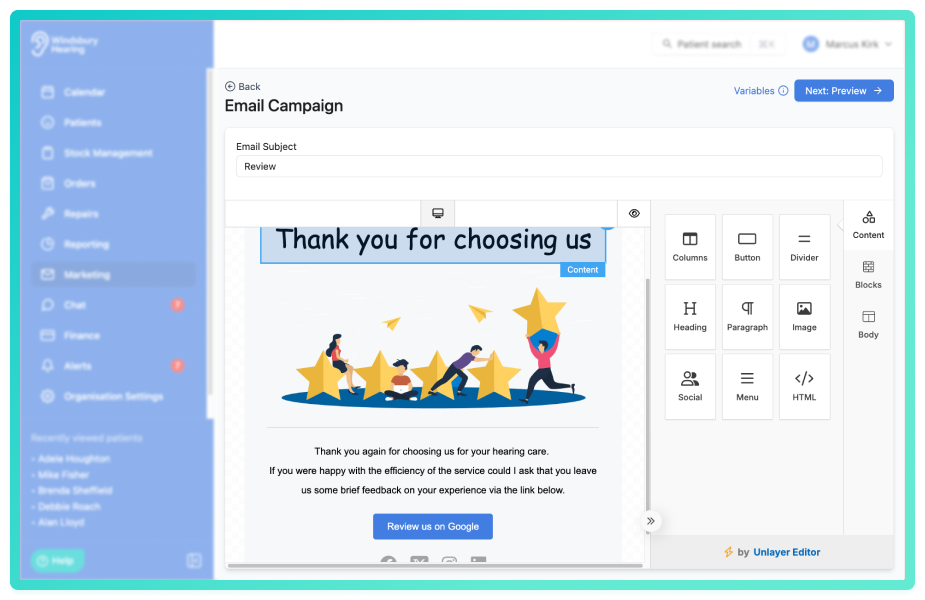
Here is an external link to an article explaining how to make templates using this software: https://docs.unlayer.com/builder/email-builder
Example:
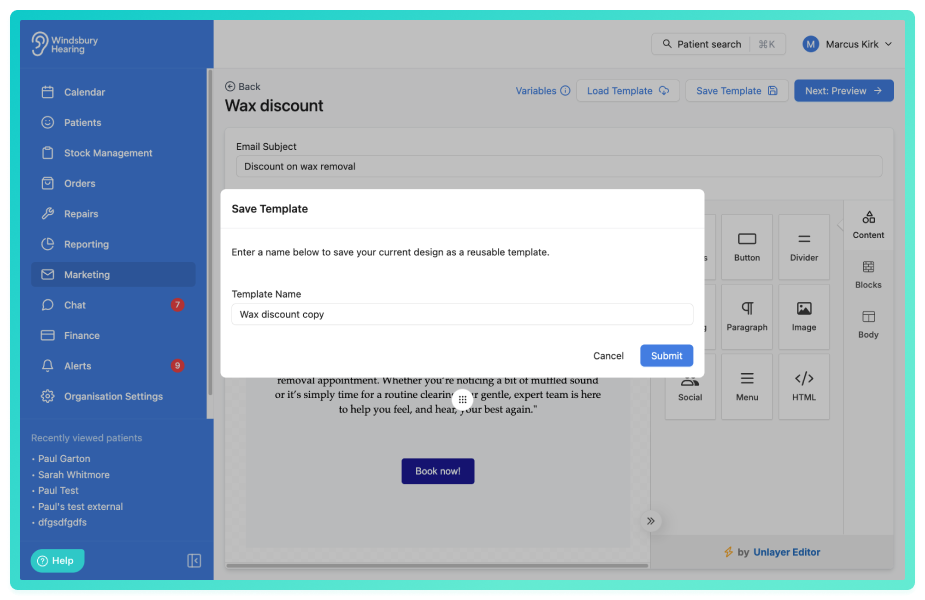
If required, you can save the email you create as a new template, allowing it to be reused for future campaigns.
- Once complete, click Next: Preview.
At this point the template is saved, you can leave this page and come back to your template. To do this click the Edit icon next to the required campaign.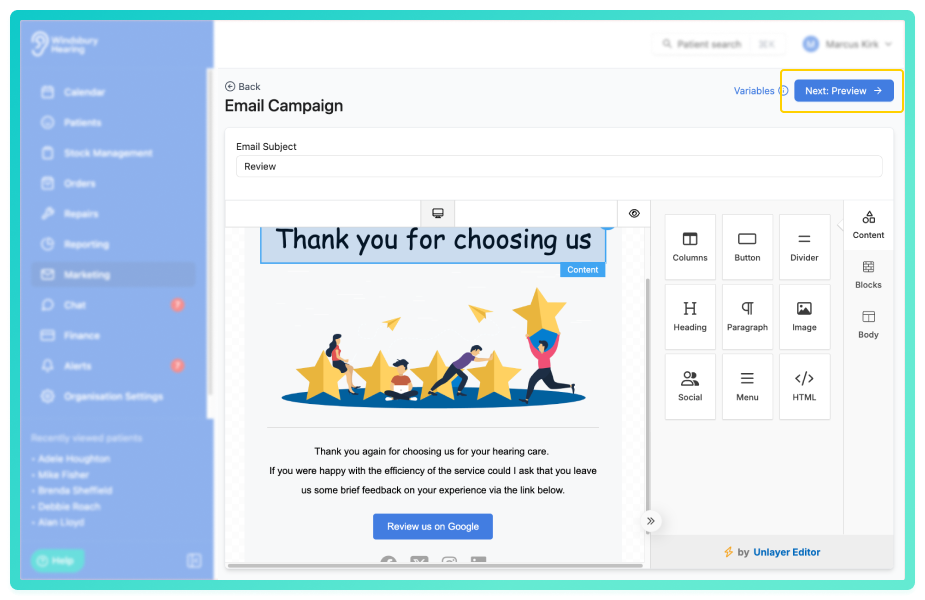
Preview and send campaign
The preview screen allows you to:
- Review how the email will appear to recipients.
- Confirm the total number of recipients.
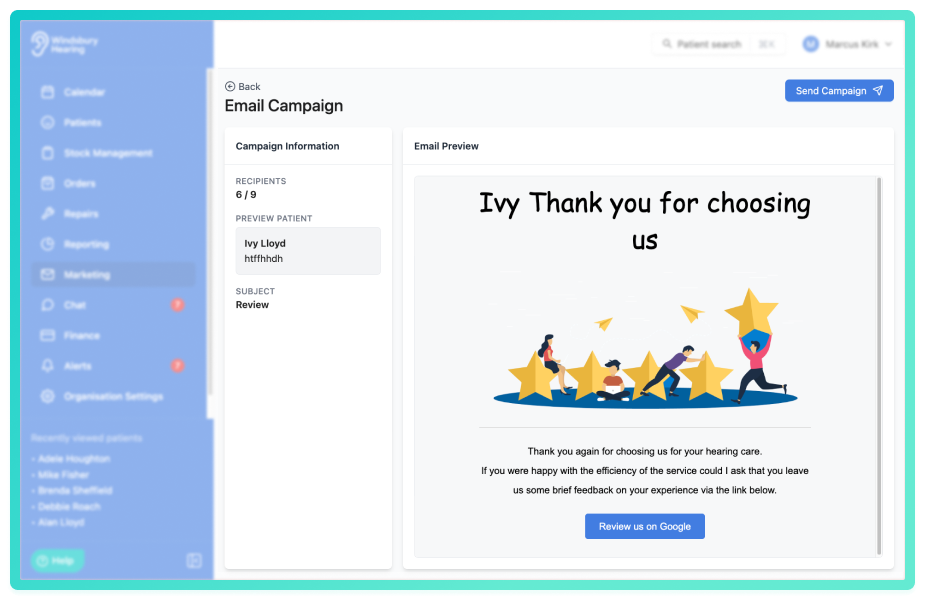
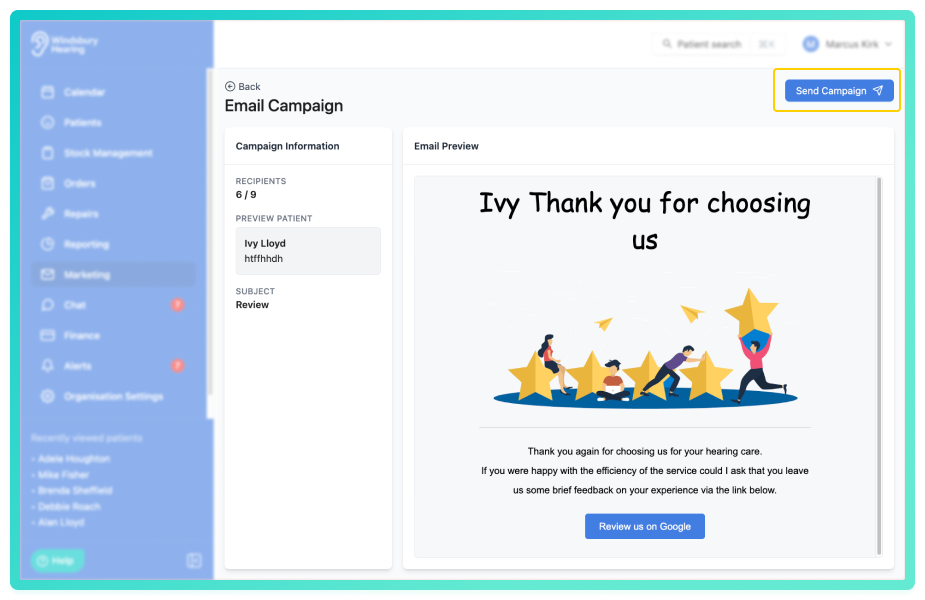
- When you are ready, click Send Campaign.
- You'll see a final check.
- When ready, click Confirm & Send.
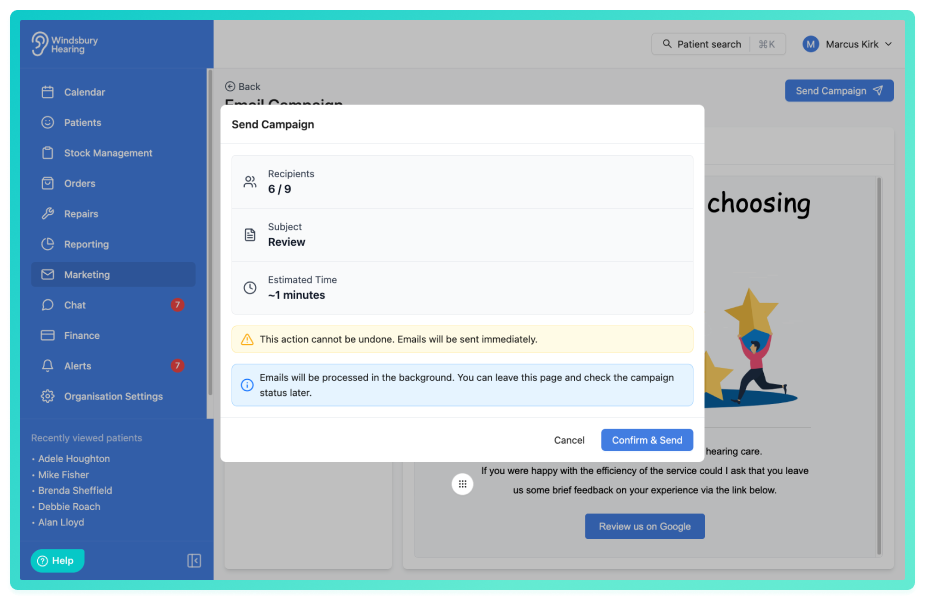
Remove a recipient from a draft campaign
You can remove individual recipients from a draft campaign before sending. This action is only available for campaigns that have not yet been submitted.
- Navigate to the draft campaign you want to modify.
- Locate the recipients table in the campaign details.
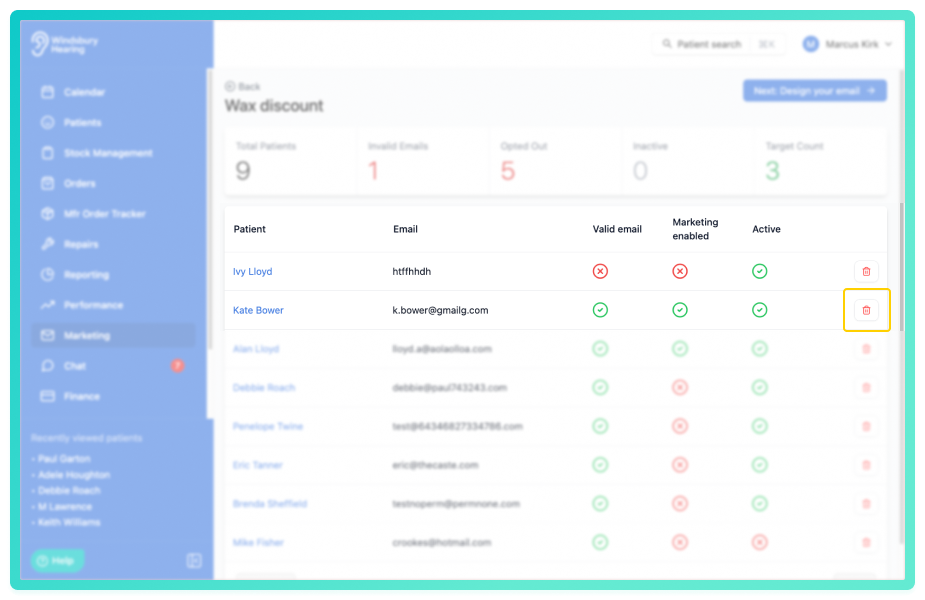
- Find the recipient you want to remove and click the Delete icon

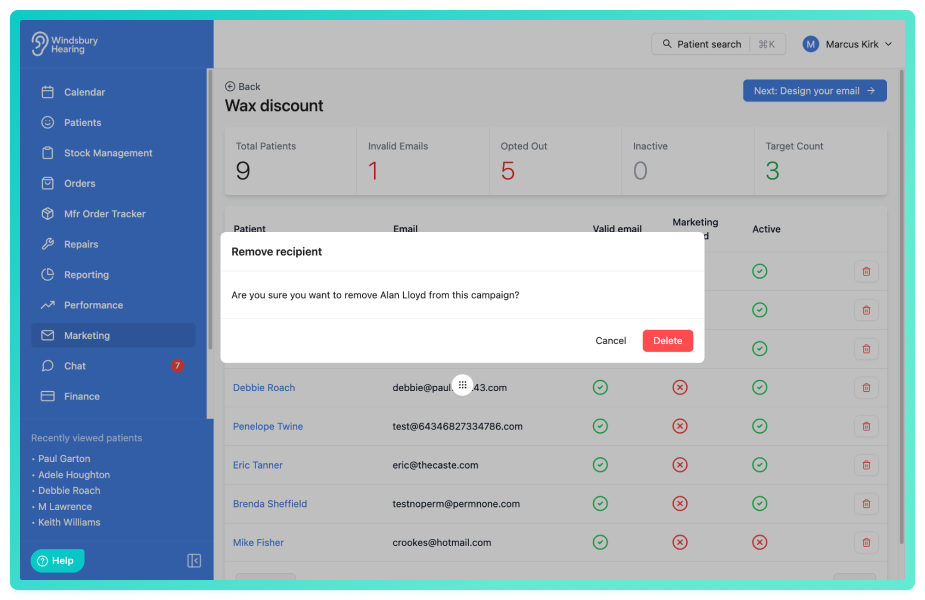
The recipient will be removed from the campaign and the campaign statistics will update automatically.
Unsubscribe links in HearLink campaigns
Every campaign email sent through HearLink includes a secure unsubscribe link by default. Each link is unique to the patient and cannot be reused or changed. HearLink adds the link to the email footer automatically.

Reminder: HearLink generates the unsubscribe link automatically for every campaign email. You don't need to create or manage these links yourself.When a patient clicks the link, they are taken to a confirmation page in your organisation's colours.
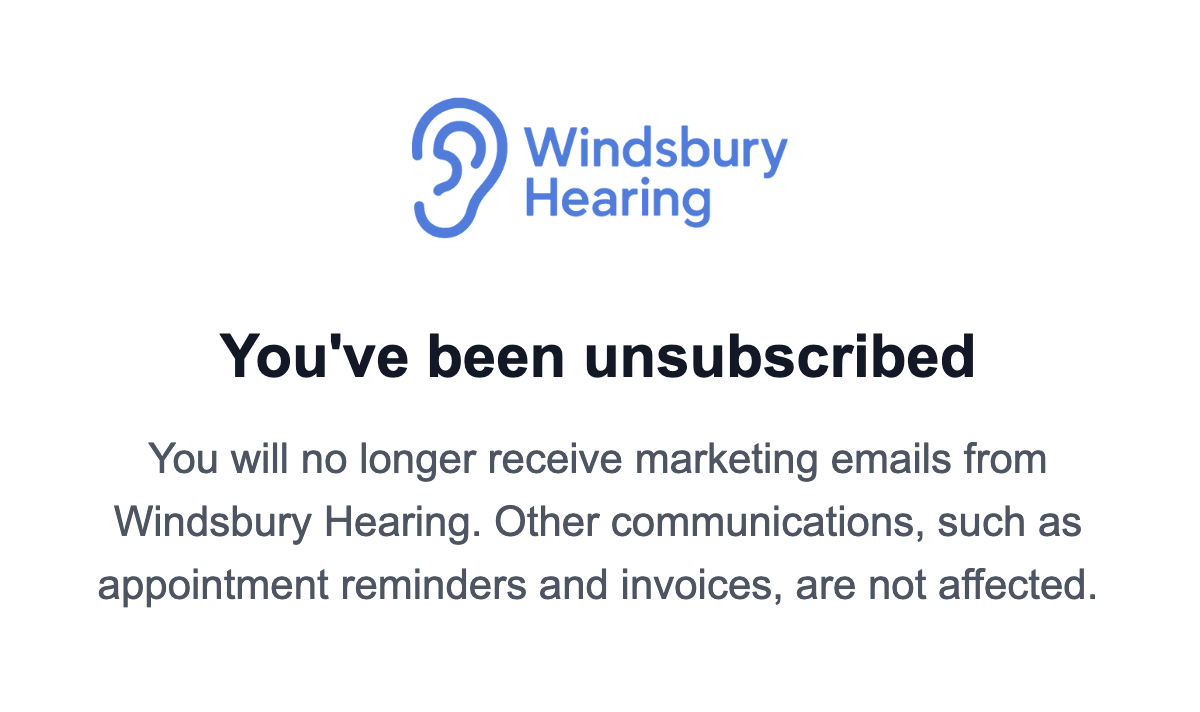
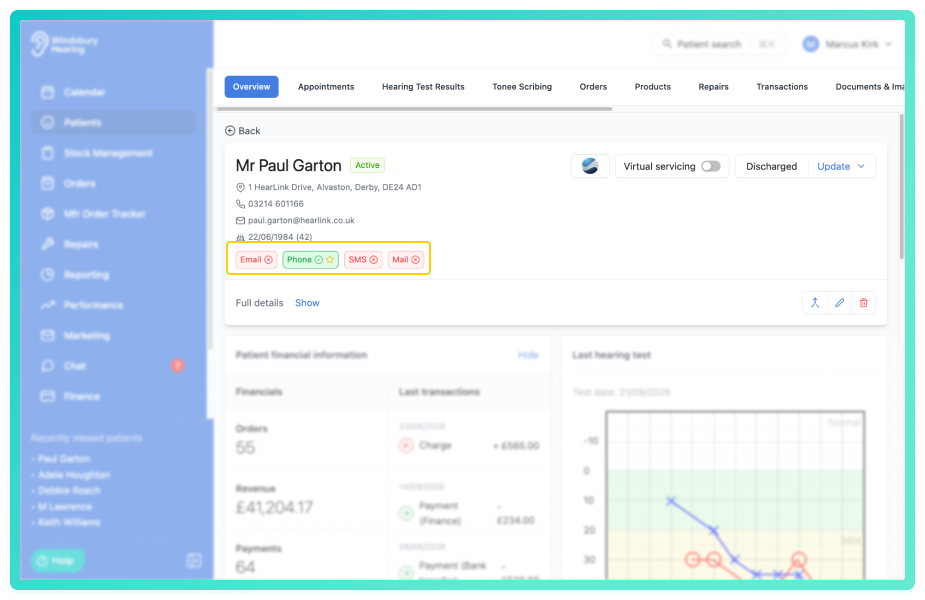
After they confirm, they stop receiving campaign emails and their contact permissions are updated to show they have opted out.
Campaign progress and engagement
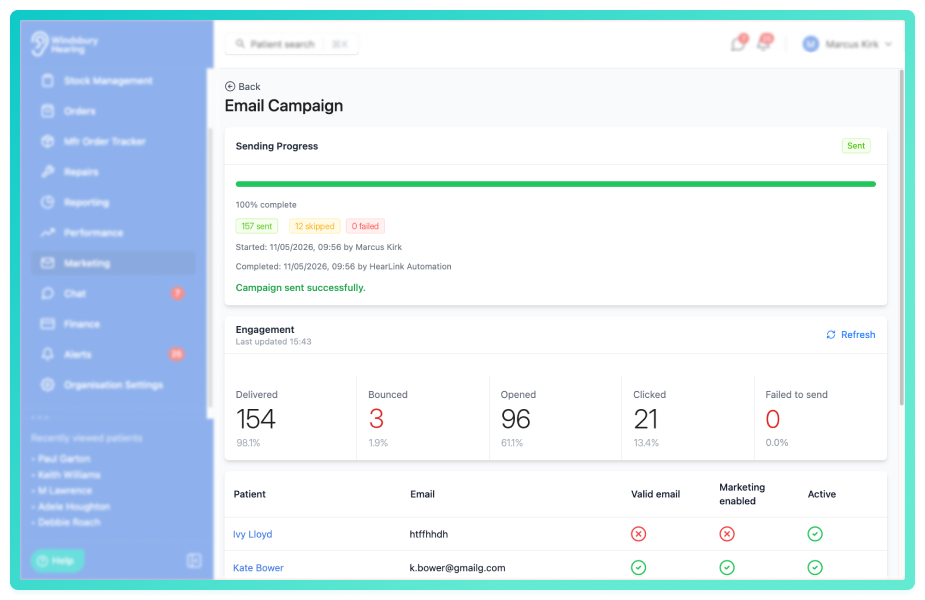
Once you submit a campaign, a progress card displays real-time information about the sending status and including the current status.
After sending the campaign will display delivery information, including:
- Status - Draft, Processing or Sent.
- Sent - successfully delivered emails.
- Skipped - excluded due to invalid email or marketing preferences.
- Failed - emails that could not be delivered.
The engagement statistics show how your sent campaign performed. The engagement section displays delivery, bounce, open and click metrics for any campaign that has been sent.
Was this article helpful?
That’s Great!
Thank you for your feedback
Sorry! We couldn't be helpful
Thank you for your feedback
Feedback sent
We appreciate your effort and will try to fix the article