Letter templates allow your organisation to create reusable documents such as appointment letters, general correspondence, or clinical letters. Templates can include formatted text, images and dynamic variables to automatically populate patient and appointment information. HearLink provides a default layout including recipient name, clinic address and logo. These can be changed as required.
Once created, templates can be used to generate PDF letters directly from a patient profile.
In this article we'll cover how to:
- create a letter template.
- use variables in letter templates.
- edit a section in the letter template.
- duplicate a letter template.
- edit a letter template.
- delete a letter template.
Only users with the correct permissions can manage letter templates. If you think you should have permission to perform such an action please contact the organisation owner.Create a letter template
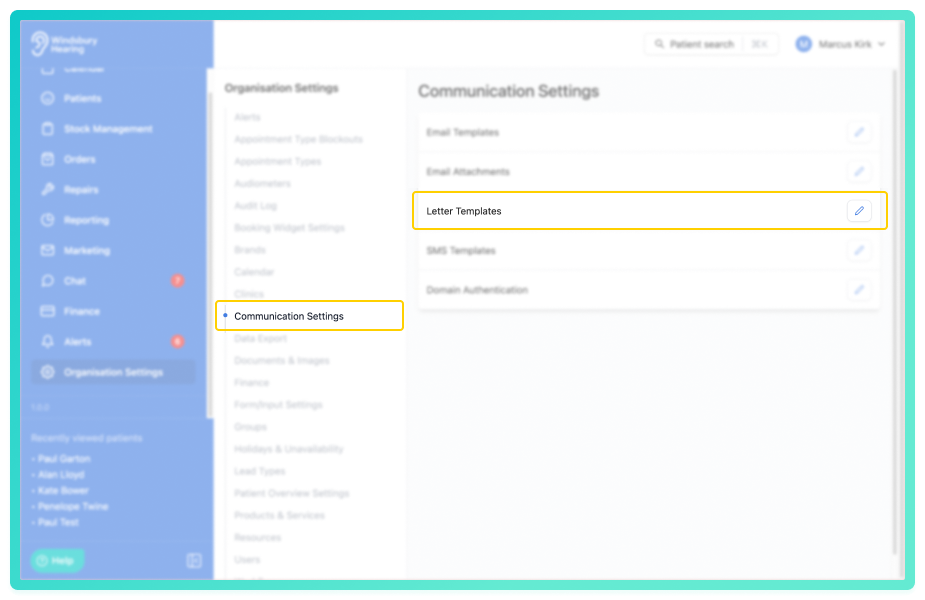
- Navigate to Organisation settings.
- Locate and click the Communication Settings section of the settings.
- Click the Edit icon
 next to Letter Templates.
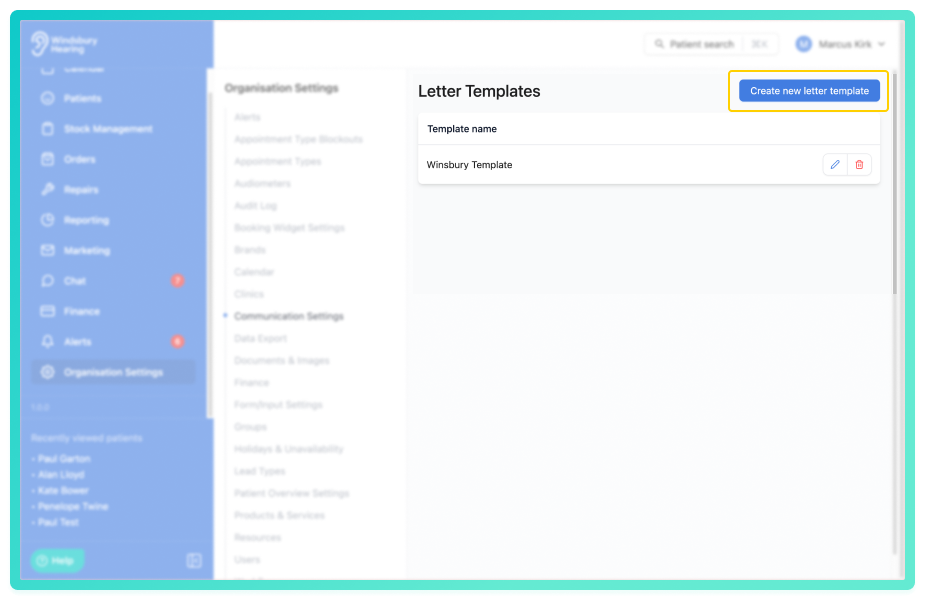
- Click the Create new letter template button.
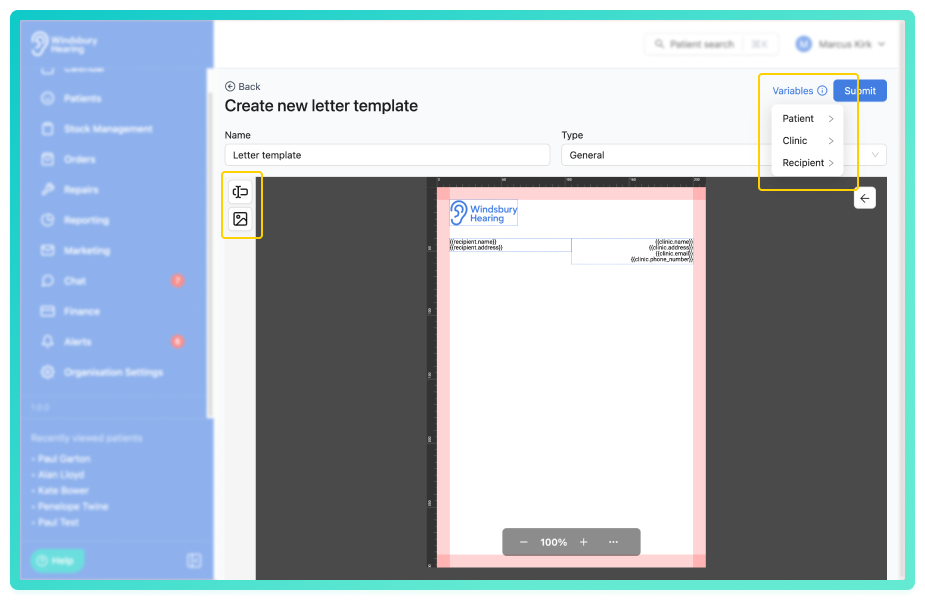
Complete the letter template setup:
- Enter a template Name.
- Select a Type.
General: for non-appointment related letters.
Appointment: unlocks additional appointment specific variables. When using this type on the patient profile you must link it to an appointment.
- Create and format the letter content by adding new text boxes and images.
- Insert variables to automatically populate patient, clinic or appointment details.
- Click Submit to save the letter template.
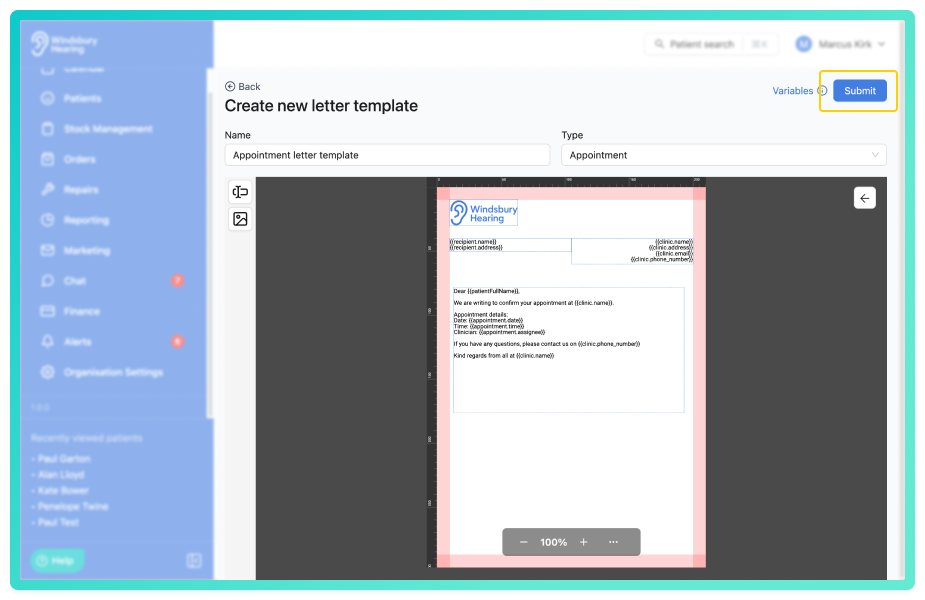
The new letter template will be created and ready for use in the patient profiles.
When Create new letter document, a user can edit a letter before sending.Use variables in letter templates
When creating a letter template, there are a multitude of variables including patient, clinic and appointment. These variables are then populated automatically when you create a new letter document in the patient profile.
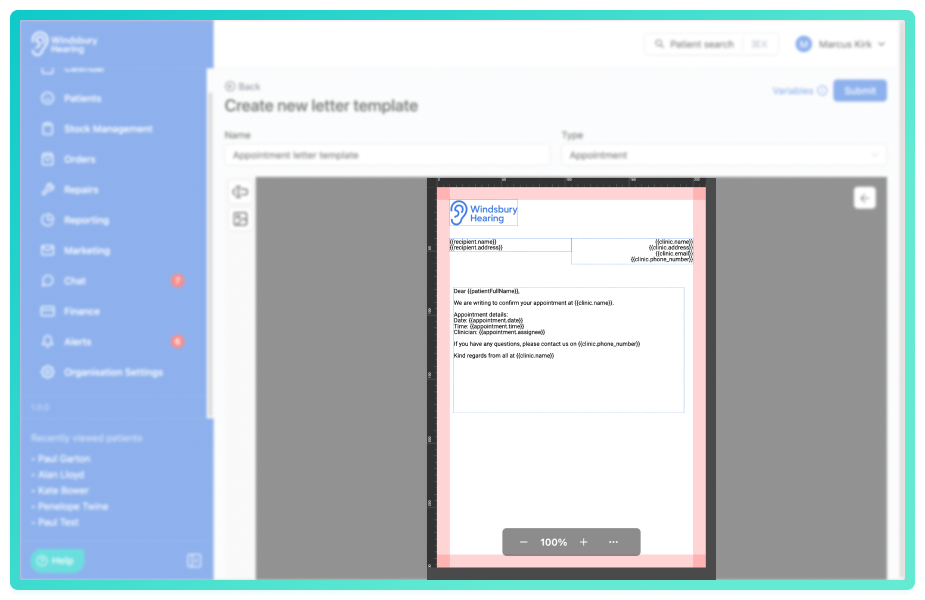
As an example below we have an appointment letter template with:
- Logo.
- Recipient name and address.
- Clinic details.
- Appointment details
- When the letter is created in the patient profile, the variables are automatically replaced with the correct patient, clinic and appointment information.
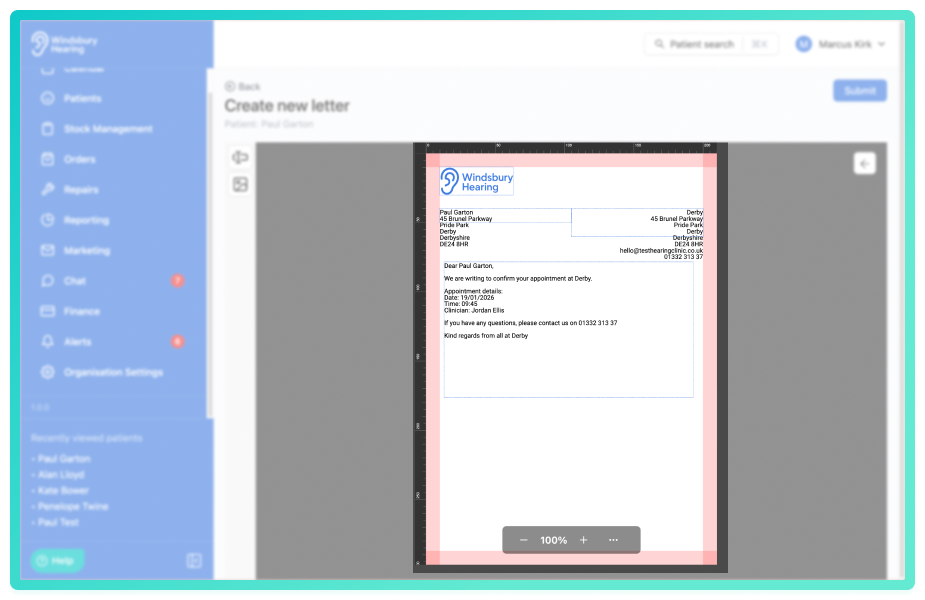
If a variable has no data, it may appear blank in the final letter.Edit section in the letter template
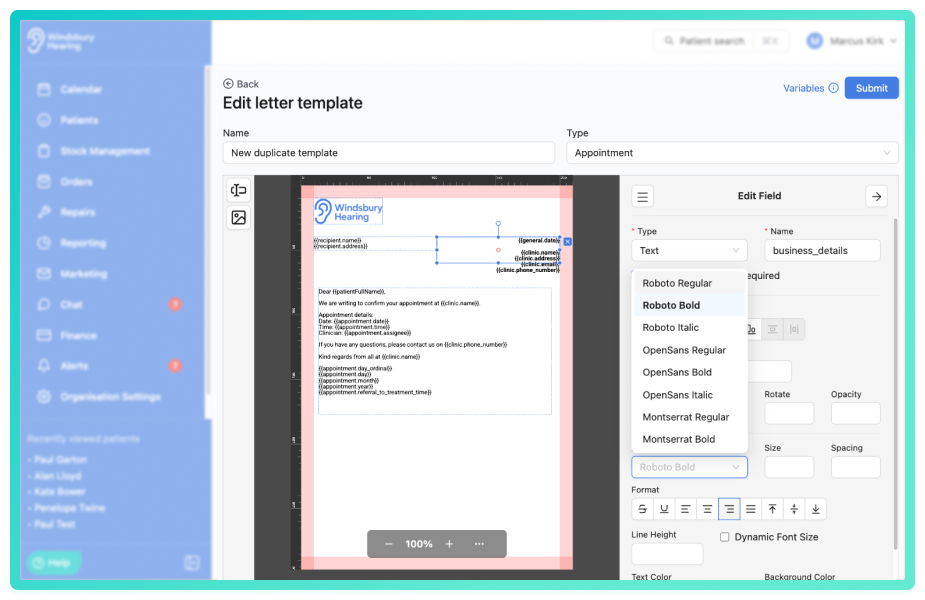
You can edit each section of the letter template, changing things like alignment, width, height, line height, text colour, font type (including bold and italics) and more.
- Click the Arrow button in the top right hand corner when creating the letter template.

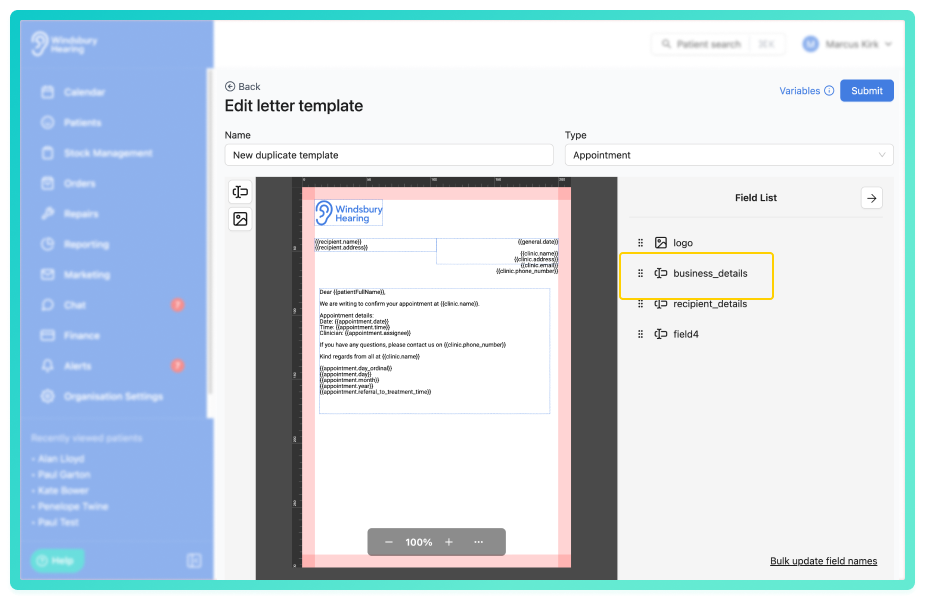
- Make any required changes.
Duplicate a letter template
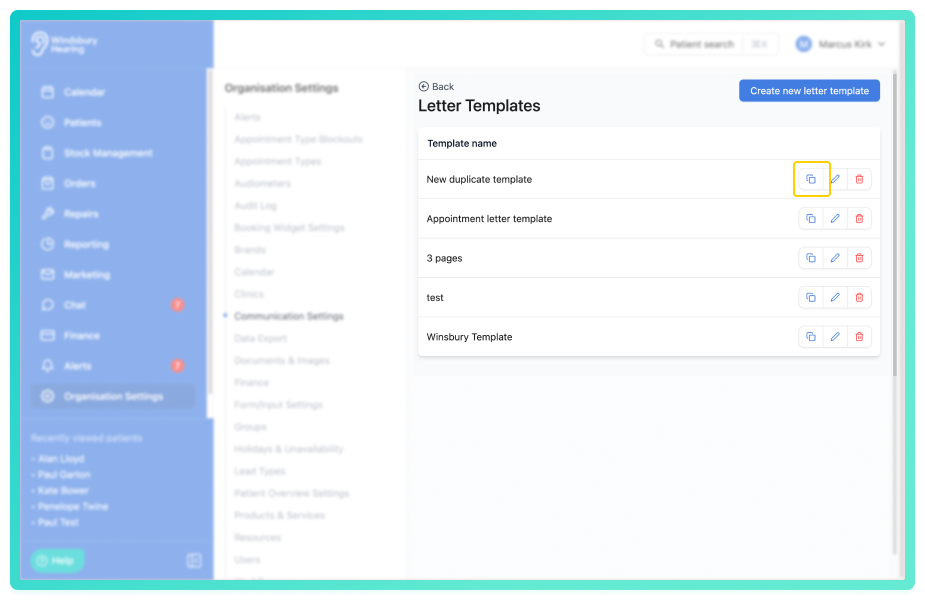
You may want to duplicate letters if you are sending similar communications with different variables or content. Instead of creating a completely new letter template, a user can duplicate an existing template and change what is required.
- Click the Duplicate icon on the Letter Template you want to duplicate.
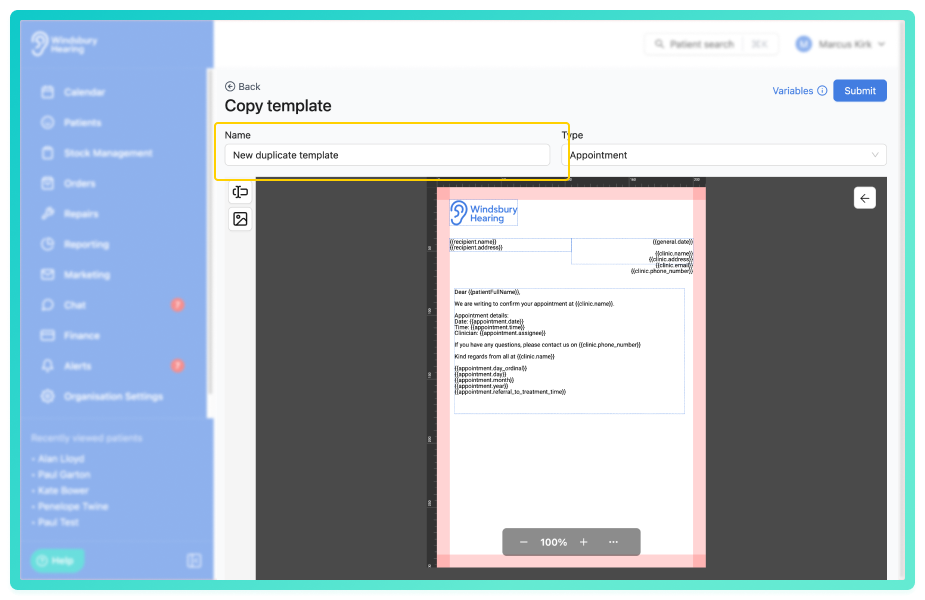
- Click Submit to save your changes.
The new letter template will be available to use in the system.
Edit a letter template
- Navigate to Organisation settings.
- Locate and click the Communication Settings section of the settings.
- Click the Edit iconnext to Letter Templates.
- Click the Edit iconof the Letter template you want to modify.
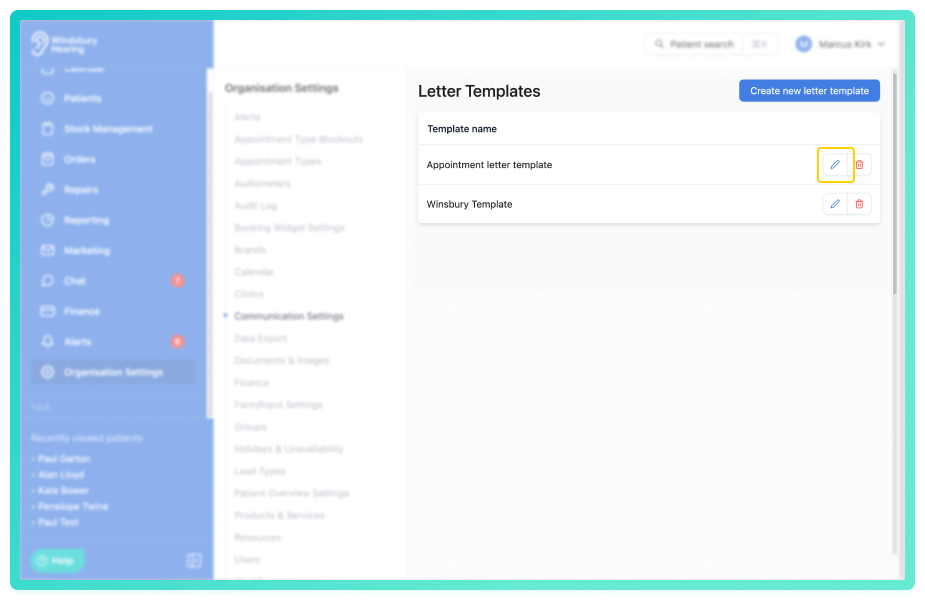
- Update the Letter template as required.
- Click Submit to save your changes.
Delete a letter template
- Locate the Delete icon
 of the Letter template you want to delete.
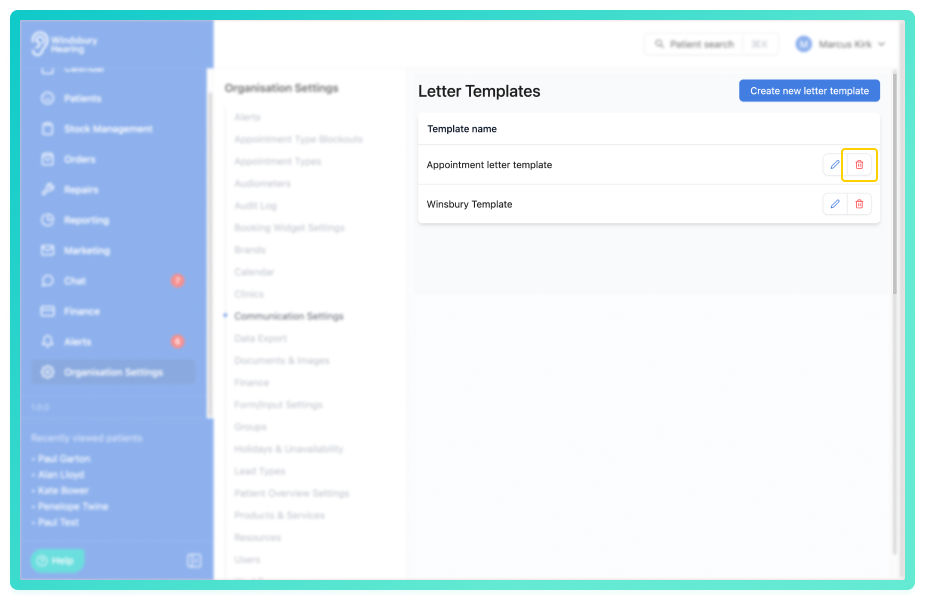
- Click the Delete icon.
- You'll be shown a warning message.
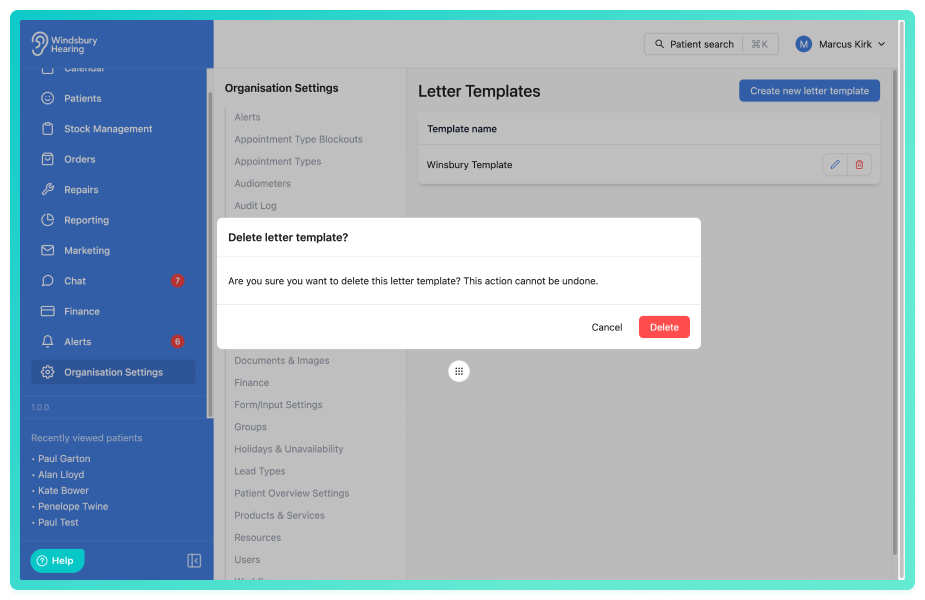
- Click Delete to confirm and delete the letter template.
Warning: Once a letter template has been deleted this action cannot be undone. Please proceed with caution!Was this article helpful?
That’s Great!
Thank you for your feedback
Sorry! We couldn't be helpful
Thank you for your feedback
Feedback sent
We appreciate your effort and will try to fix the article