An organisation can mange alert types by enabling or disabling pre-defined options. Additionally, custom alert types can be added or deleted as needed.
In this article we'll cover how to:
- enable or disable alert type.
- add a custom alert type.
- edit a custom alert type name.
- delete a custom alert type.
Only users with the correct permissions can configure alert types. If you think you should have permission to perform such an action please contact the organisation owner.Enable or disable alert types
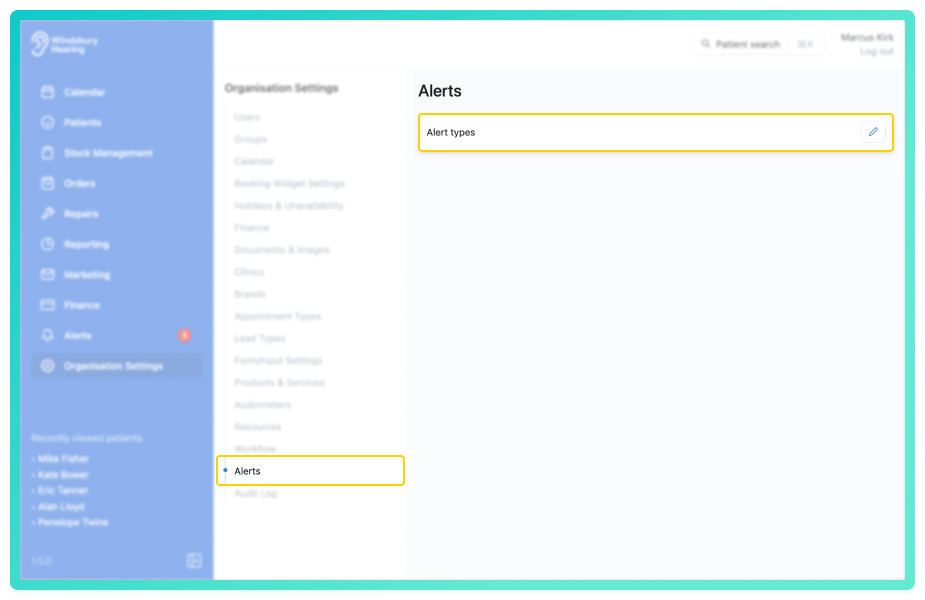
- Navigate to Organisation settings.
- Locate and click the Alerts section of the settings.
- Click the Edit icon
 next to the Alert types.
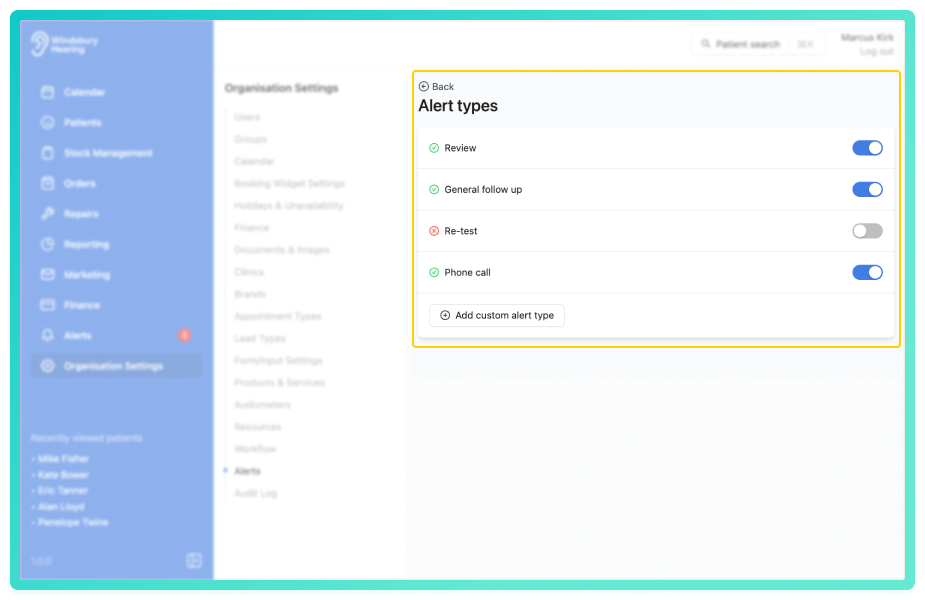
- Select which pre-defined Alert types to enable or disable.
Example: Enable Review, General follow up and Phone Call, disable the others as needed.
Add a custom alert type
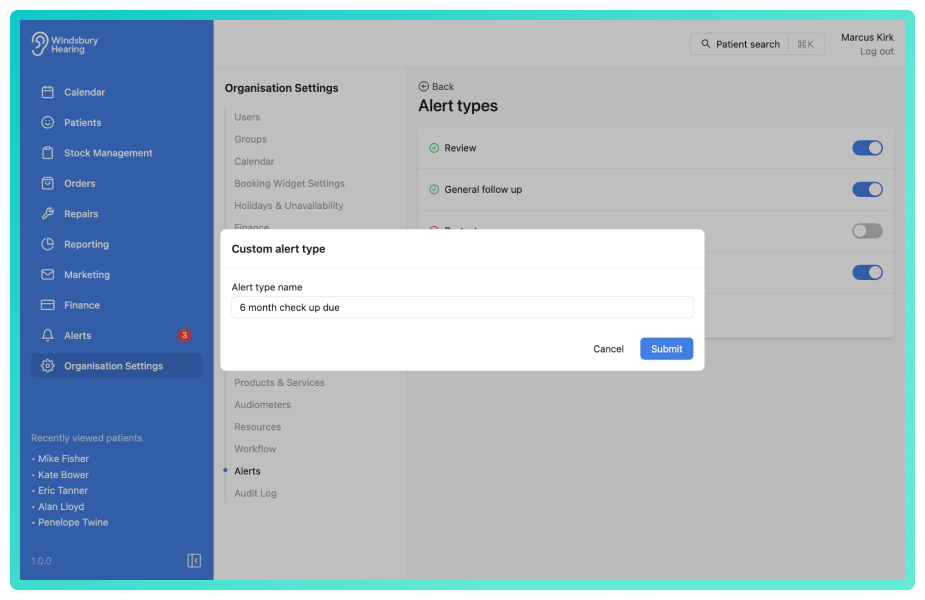
- Click the Add custom alert type button.
- Enter the name of the new alert type.
- Click Submit to save.
You can edit the name of a custom alert to keep your alert labels accurate and relevant to your organisation's needs. When you update an alert type name, any future alerts using that type will display the new name.
Custom alert types are always enabled and cannot be disabled like the pre-defined types.Edit a custom alert type name
You can edit the name of a custom alert to keep your alert labels accurate and relevant to your organisation's needs. When you update an alert type name, any future alerts using that type will display the new name.
- Locate the custom alert type you want to edit.
- Click the Edit icon next to it.
- Update the alert name as required.
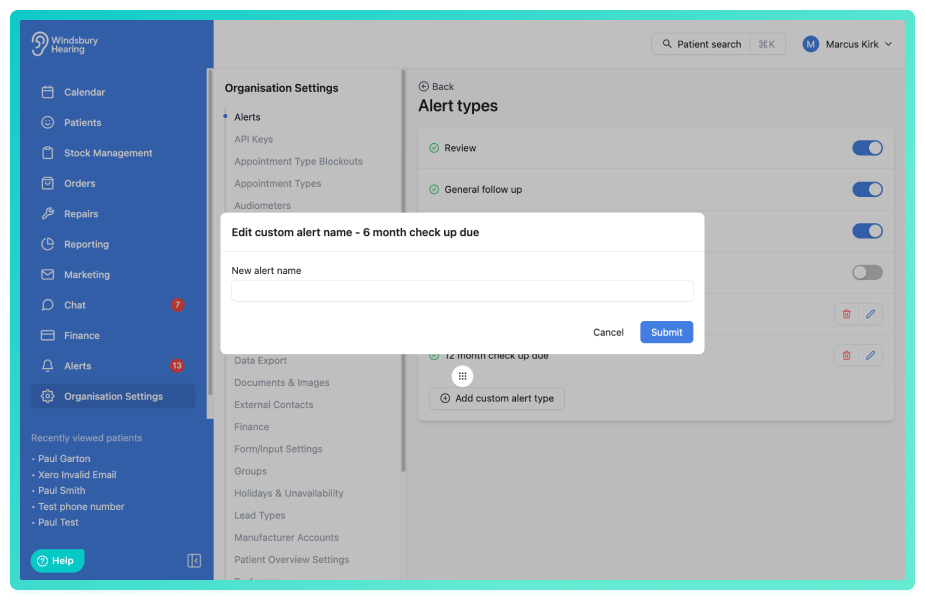
- Click Submit to save.
Delete a custom alert type
When you delete a custom alert type, HearLink will check for any future unacknowledged alerts using that type.
- Locate the custom alert type you want to delete.
- Click the Delete icon
 next to it.
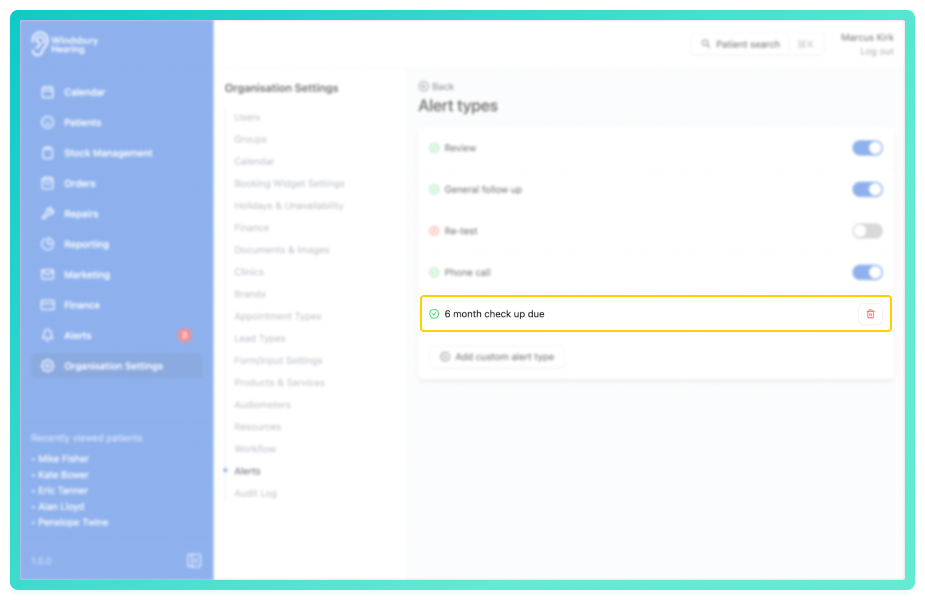
The system will respond in one of two ways:
If there are no future unacknowledged alerts assigned to the type, a warning confirmation dialog will appear.
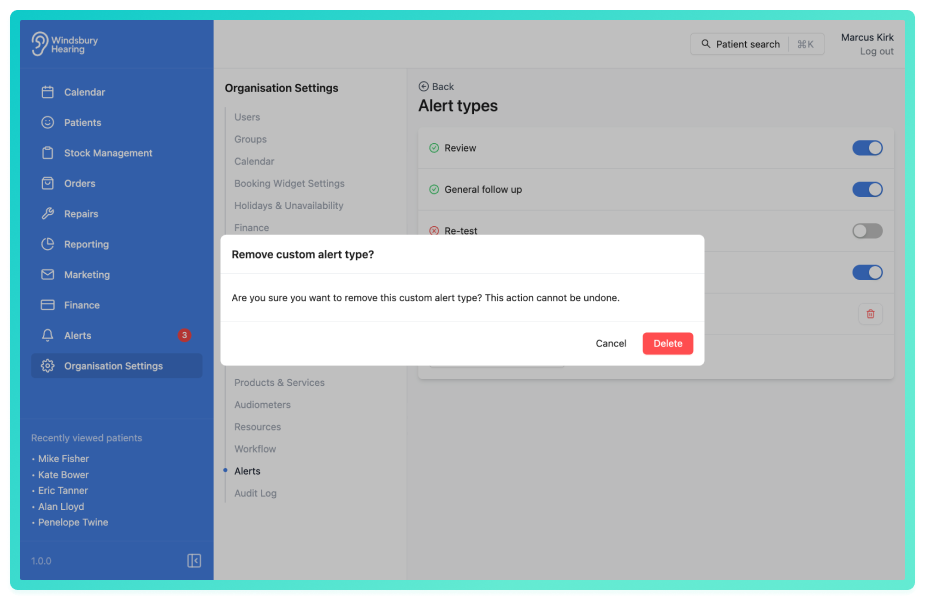
- Click Delete to confirm and delete the alert type.
If future unacknowledged alerts exist, a dialog will appear with a dropdown menu. Select the alert type you want to reassign the future alerts to, then click Delete. All future alerts will be reassigned to the selected type and the original type will be deleted.
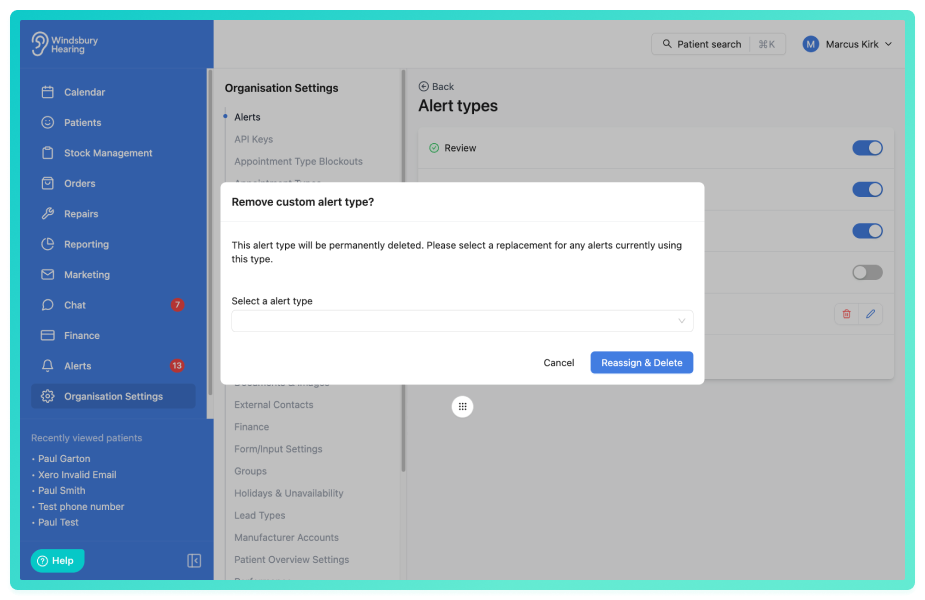
You can add a deleted alert type again anytime by following steps to Add a new custom alert type.Was this article helpful?
That’s Great!
Thank you for your feedback
Sorry! We couldn't be helpful
Thank you for your feedback
Feedback sent
We appreciate your effort and will try to fix the article