Your organisation can customise the patient form used when adding a new patient. You can choose a number of pre defined fields (such as Gender, Primary Clinic and Title) and enable or disable them as needed, make fields mandatory and set up which fields should appear with the Quick add. You can add your own custom fields with different field types to collect additional patient information.
In this article we'll cover how to:
- edit the basic patient form.
- make specific form fields mandatory.
- make specific form fields Quick add form fields.
- re-order the patient form fields.
- add a custom field.
- edit a custom field.
- delete a custom field.
- understand the patient form fields with type example.
Only users with the correct permissions can manage patient form's. If you think you should have permission to perform such an action please contact the organisation owner.Edit the patient form
- Navigate to Organisation settings.
- Locate and click the Form/Input Settings section of the settings.
- Click the Edit icon
 next to Patient form.
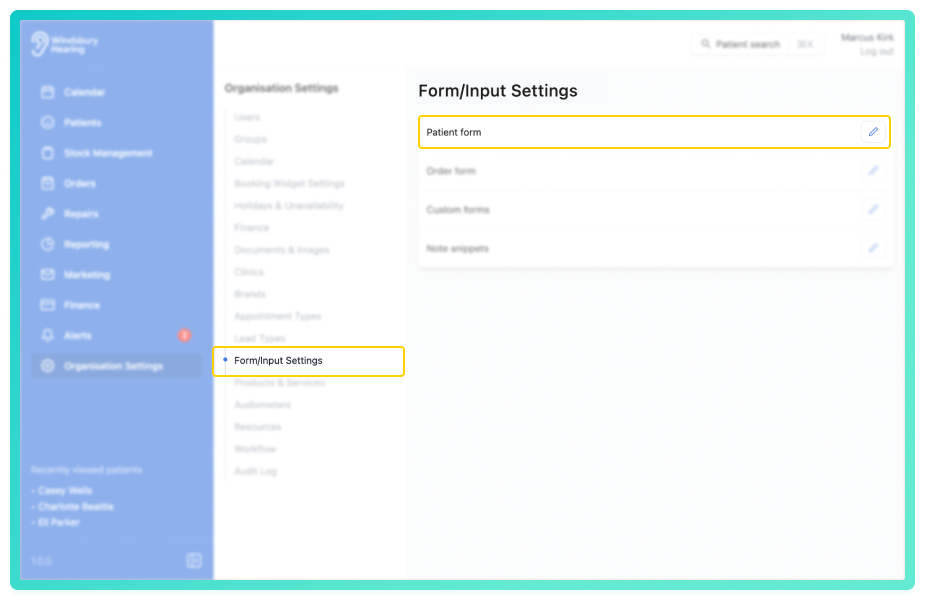
- Select which pre defined fields you want to enable or disable.
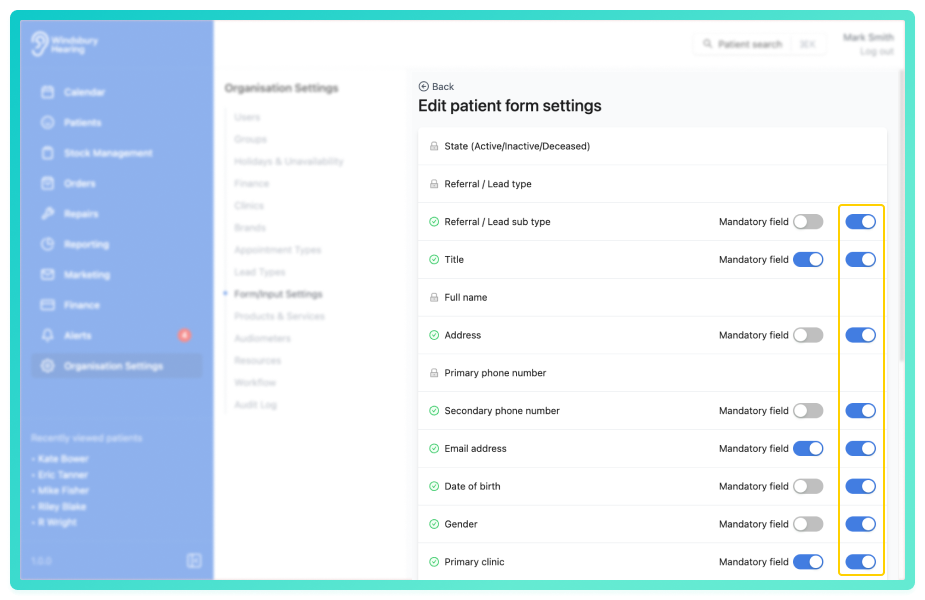
Enabled fields (e.g. Address or Date of Birth) will be visible when adding a new patient. Disabled fields (e.g. Conditions or GP Details) will not appear.
Make a field mandatory
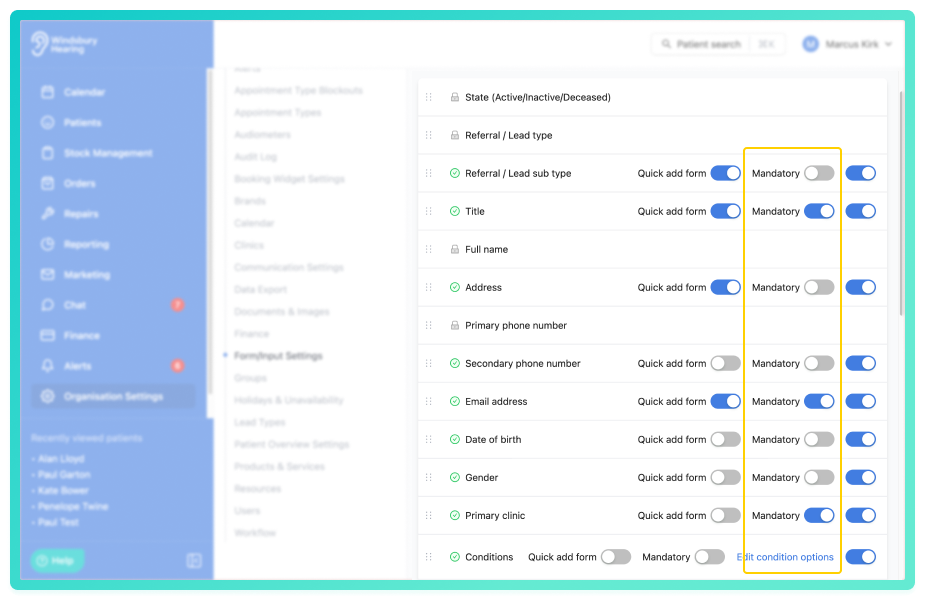
All patient form fields can be enabled as mandatory, meaning a patient is required to complete the field, or disabled as optional.
- Locate the desired form field.
- Enable the Mandatory field settings as required.
Enable Quick add form fields
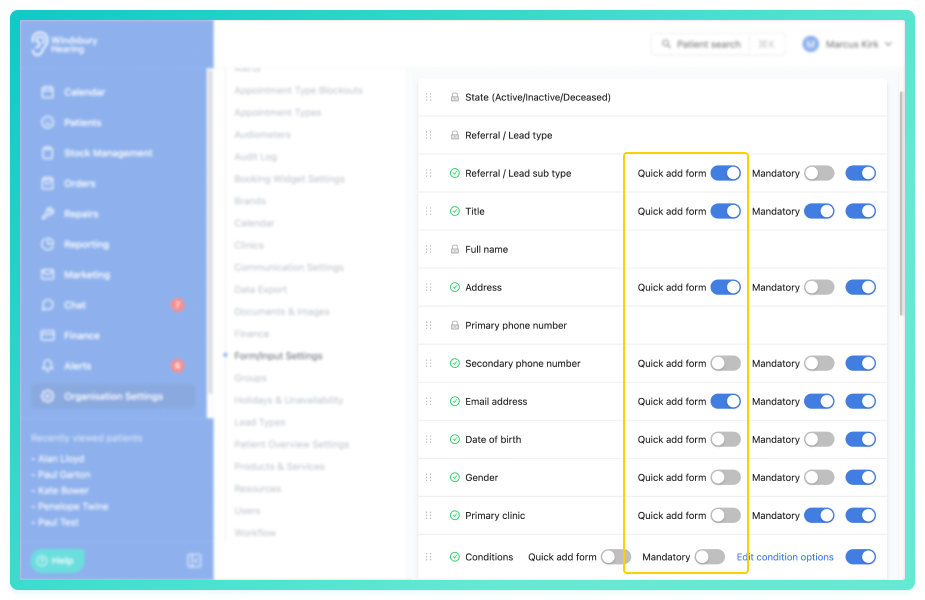
You can define which fields should appear when a patient is created during the appointment booking process.
- If no Quick add fields are selected, HearLink will display the mandatory patient fields by default.
- If Quick add fields are selected, only those fields will be shown when using the Quick add form, mandatory fields will only be shown in this case if they are also enabled as Quick add form fields..
- Fields can be configured as both mandatory and Quick add form fields.
- Locked fields are displayed regardless of configuration
| Configuration | Mandatory fields Shown | Quick add fields shown |
|---|---|---|
| No Quick add fields configured | ✅ Yes | ❌ No |
| One or more Quick add fields configured | ✅ Yes (if also marked as Quick add fields) ❌ No (if not marked as Quick add fields) | ✅ Yes |
- Locate the desired form field.
- Enable the Quick add form settings as required.
Re-order the patient form fields
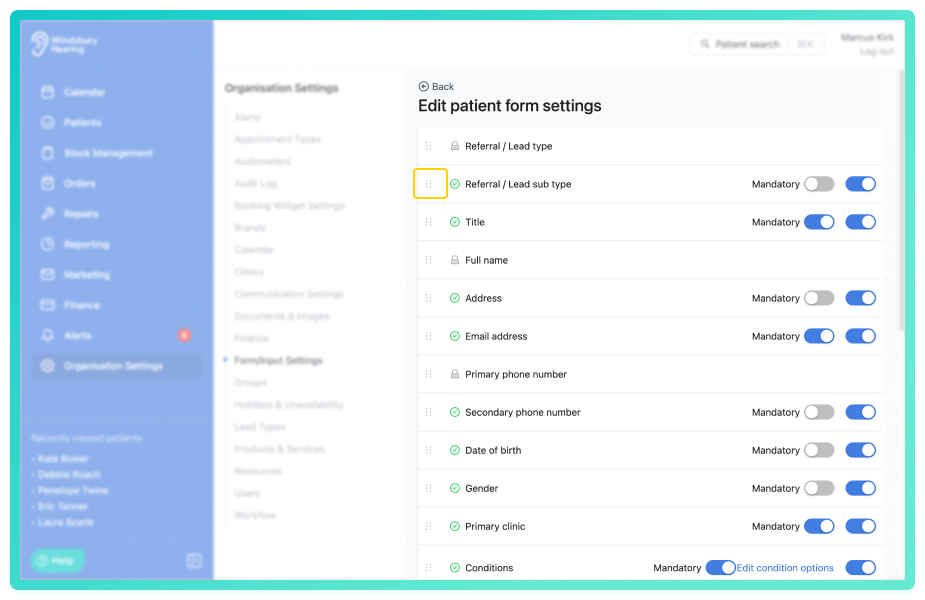
All patient form fields can be sorted into any order the organisation requires
- Locate the desired form field.
- Click the drag icon and move the form field to the desired permission.
- Repeat with all required form fields.
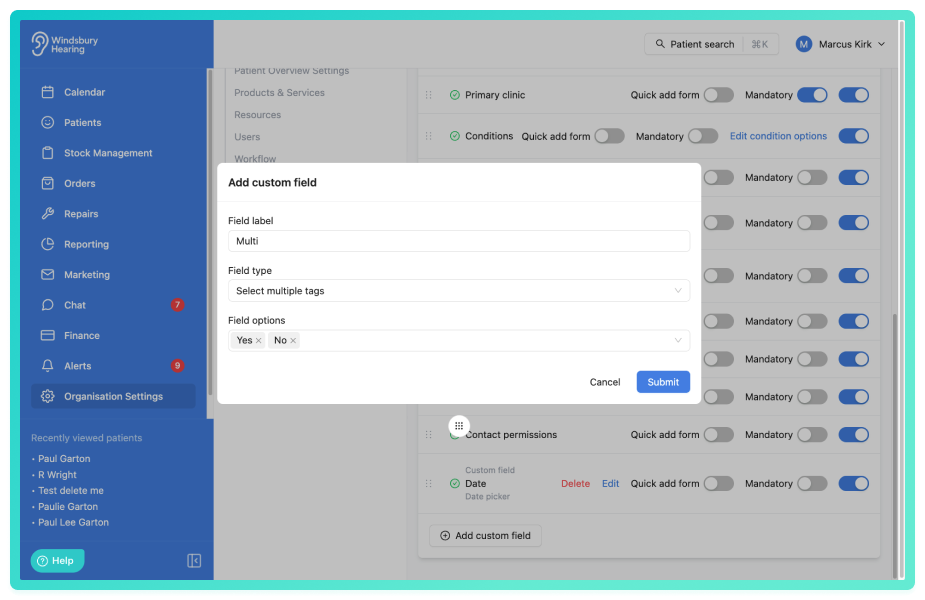
Add a custom field
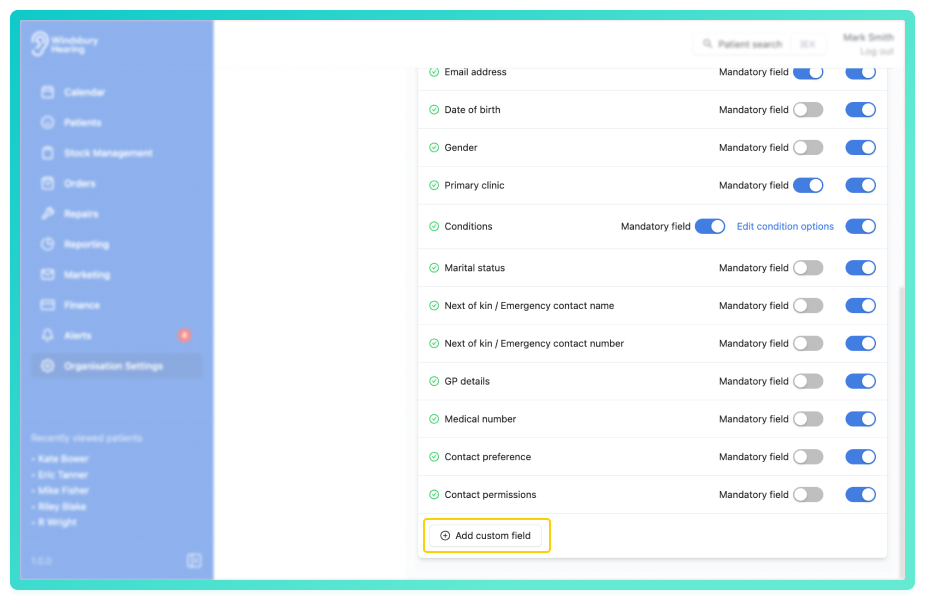
- Locate and click the Add custom field button.
- Select a Field label.
- Select a Field type.
- Click Submit to save your changes.
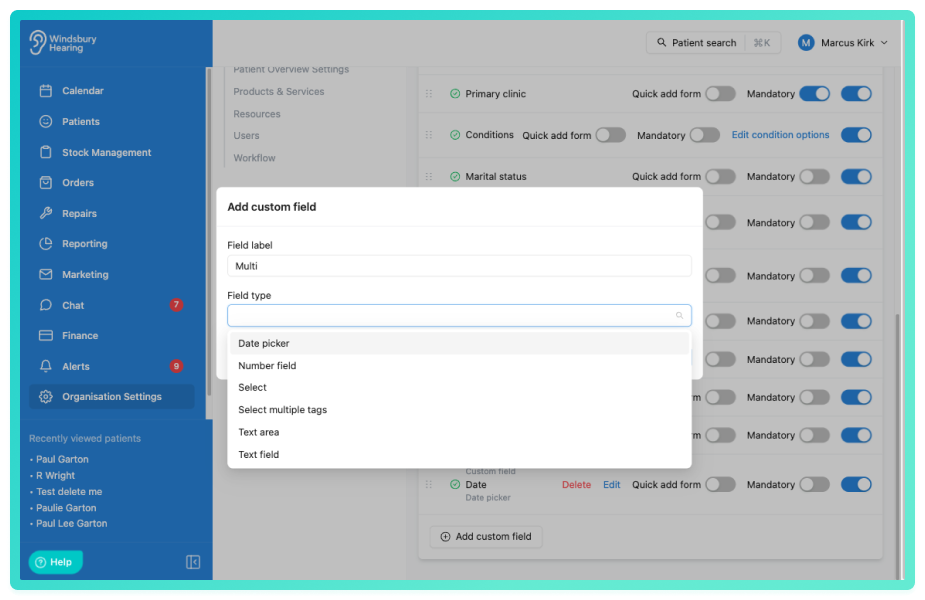
The custom field will now be available to enable or disable in the patient form.
Edit a custom field
- Locate the custom field you want to Edit.
- Click the Edit text.
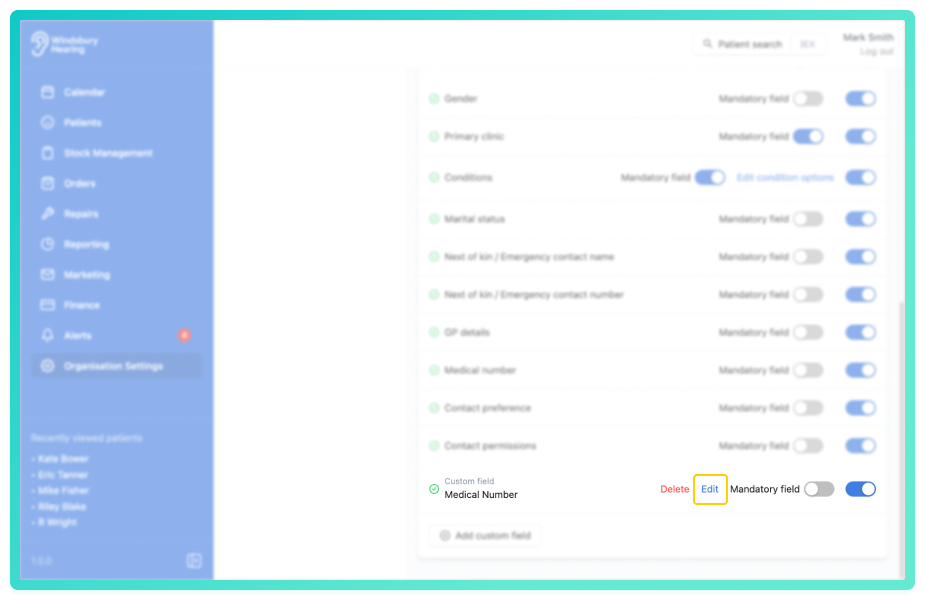
- Update the label as required.
- Click Submit to save your changes.
Delete a custom field
- Locate the Delete text on the Custom field you want to delete.
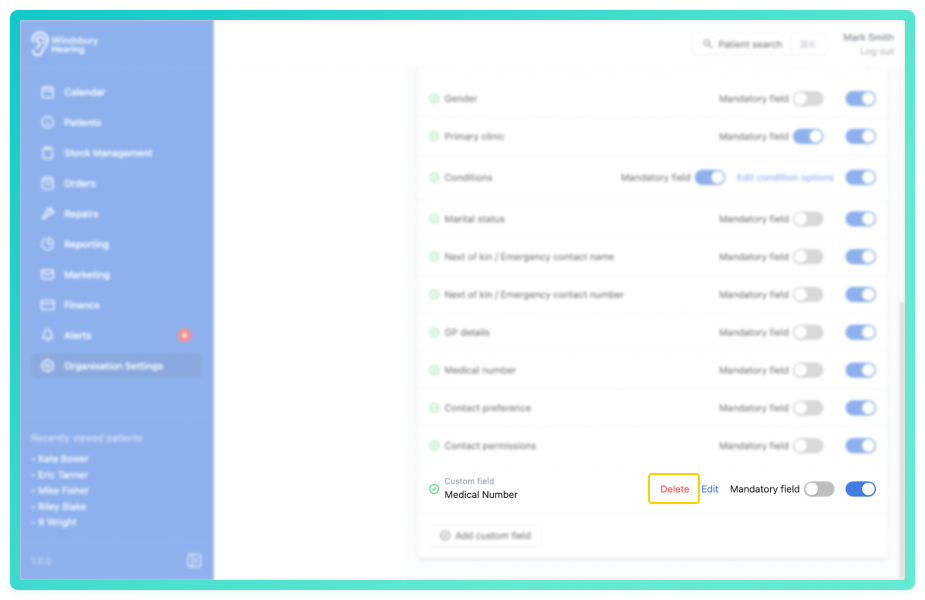
- Click the Delete text.
- You'll be shown a warning message.
- Click Delete to confirm and delete the field.
Warning: Once a custom field has been deleted this action cannot be undone. Please proceed with caution!Patient form fields explained
State
Active, Inactive or Deceased. Determines the patient's current status within the organisation.
Referral/Lead Type
Describes how the patient came to your organisation (e.g. GP, marketing campaign).
Referral/Lead sub type
Further specifies the referral (e.g. which GP or campaign).
Title
The patient's preferred title (e.g. Mr, Mrs, Dr).
Full name
Patient's first and last name.
Address
Postal address of the patient.
Primary phone number
Main contact number. This is required.
Secondary phone number
Optional additional number for contact.
Email address
Patient's email for communication.
Date of birth
Used for identification and patient record accuracy.
Gender
Optional gender information.
Primary clinic
The clinic location primarily associated with the patient.
Conditions
Any relevant hearing or medical conditions.
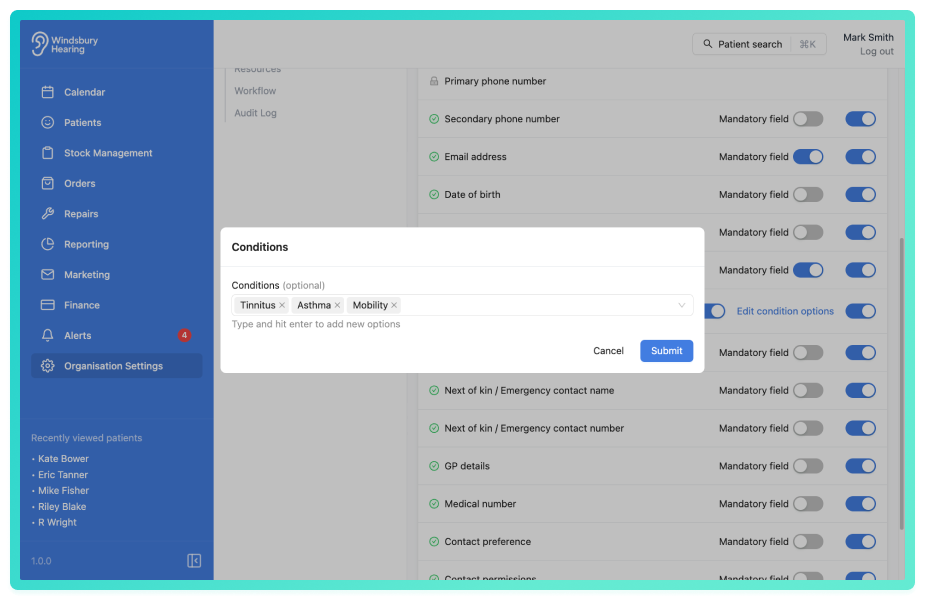
You can add as many conditions as required. Enable Conditions and click the Edit condition options to add conditions.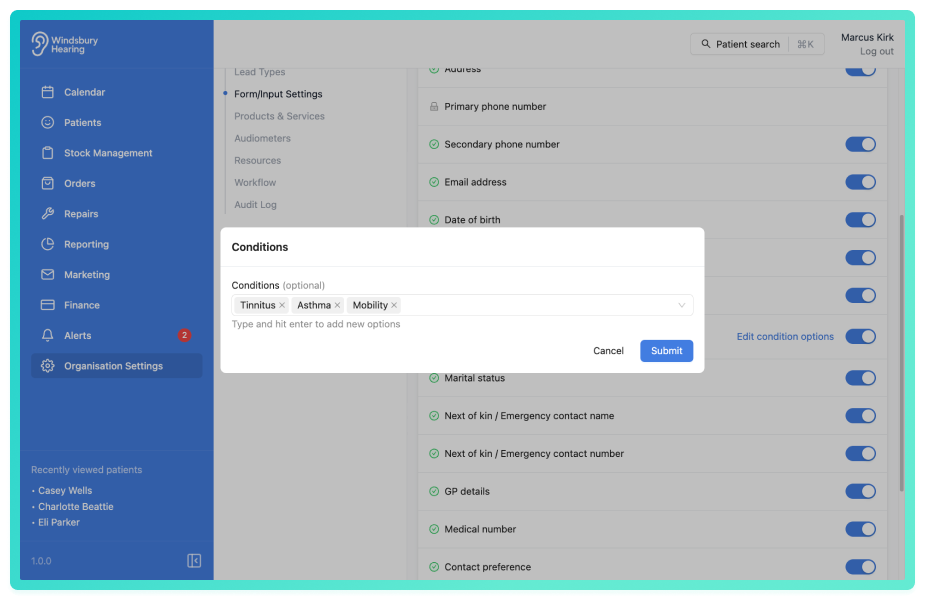
Marital status
Optional personal detail.
Next of kin / Emergency contact name
Who to contact in an emergency.
Next of kin / Emergency contact number
Contact number for the next of kin.
GP details (legacy)
The patient's general practitioner information in free text form.
GP (External contact)
The patient's general practitioner, search information using the built in external contacts. This will automatically set the external contact on the patient to these details.
Medical number
An internal or external medical ID (if applicable).
Contact preferences
How the patient prefers to be contacted (e.g. phone, email, post).
Contact permissions
Stores consent for different types of communication.
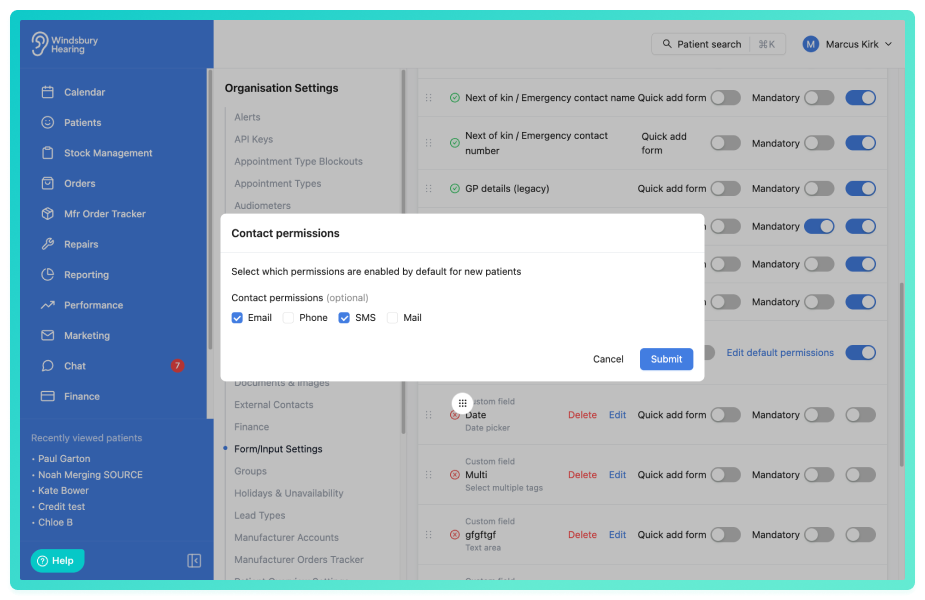
You can set default contact permissions that automatically apply to all new patient records created manually. Click the Edit default permissions link next to the Contact Permissions field to select which permissions should be enabled by default. These defaults are applied to new patients only, existing patient records are not affected.
Custom field
Any additional field your organisation has added. Available field types include:
- Text field - standard text field
- Text area - larger text area for more information
- Date - date picker type
- Number - number field
- Select - a type with a number of of option to select (select one)
- Select multiple tags - a type where you can select multiple options
Example:
- Type - Select multiple tags
- Field options - Yes or No (both can be selected when creating a patient)
Was this article helpful?
That’s Great!
Thank you for your feedback
Sorry! We couldn't be helpful
Thank you for your feedback
Feedback sent
We appreciate your effort and will try to fix the article