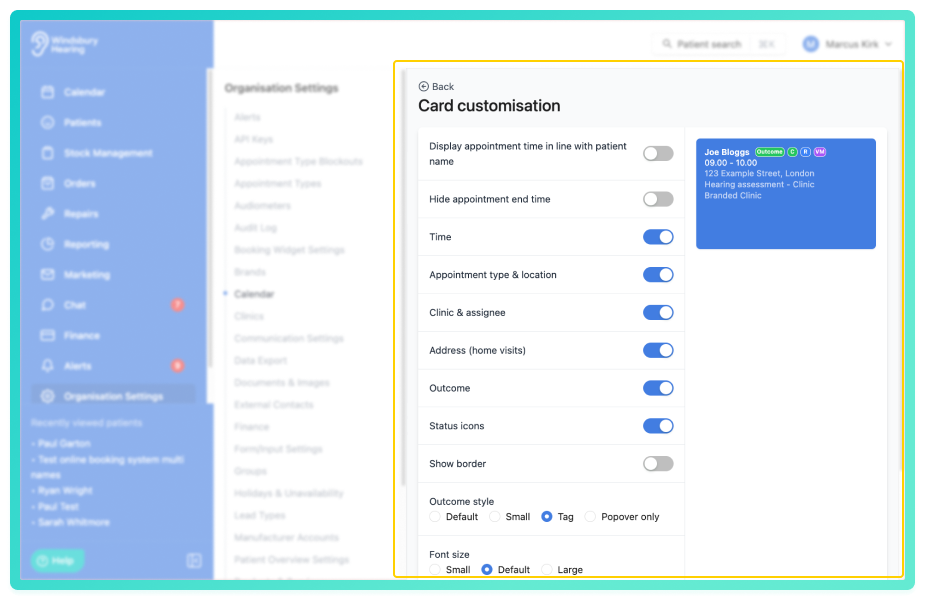
You can customise how appointment cards appear on the calendar to suit your clinic's preferences. The card customisation page provides a live preview that updates immediately as you adjust settings, allowing you to control field visibility, borders, font size, padding and popover behaviour.
In this article we'll cover how to:
- access the calendar customisation page.
- adjust card appearance settings.
Only users with the correct permissions can update calendar settings. If you think you should have permission to perform such an action, please contact your organisation owner.Access card customisation
- Navigate to Organisation settings.
- Locate the Calendar section.
- Click the Edit icon
 next to Calendar appointment customisation.
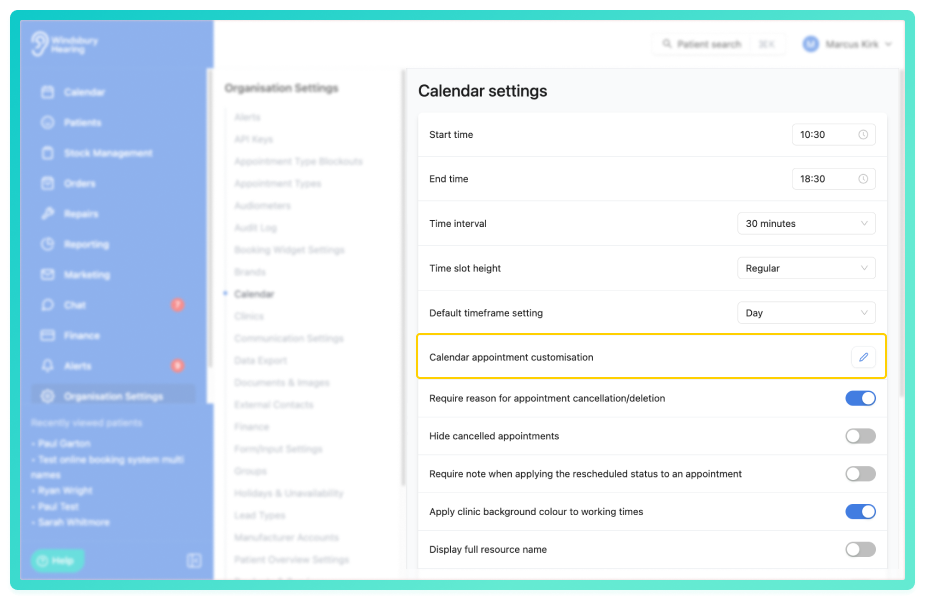
You will be taken to the card customisation page, which displays a live preview of your appointment card on the right side of the screen.
Understanding the calendar customisation settings
Display appointment time in line with patient name
When enabled the appointment time appears on the same line as the patient name, creating a more compact card layout. When disabled, the time appears on a separate line.
Hide appointment end time
When enabled, only the start time is shown on the appointment card. When disabled, both start and end times are displayed.
Time
Toggle to show or hide the appointment start time on the card.
Appointment type & location
Toggle to show or hide the appointment type and clinic location on the card.
Clinic & assignee
Toggle to show or hide the clinic name and assigned practitioner on the card.
Address (home visits)
Toggle to show or hide the patient's address for home visit appointments on the card.
Outcome
Toggle to show or hide the outcome once it has been recorded.
Status icons
Toggle to show or hide status icons that indicate the current state of the appointment.
- Default - outcome shown as standard banner.
- Small - outcome shown as small banner.
- Tag - outcome shown as tag similar to status.
- Popover only - outcome hidden from card but visible when the popover is opened.
Font size
Choose between Small, Default, or Large to adjust the text size displayed on the card. Larger font sizes improve readability, particularly on larger screens or when more detail is needed at a glance.
Padding
Choose between Compact, Default, or Comfortable to control the spacing inside the appointment card. More padding creates a less dense appearance and can improve readability when displaying multiple fields.
Popover trigger
Choose how the appointment detail popover is triggered:
- Hover — popover appears when the cursor hovers over the appointment card.
- Click — popover appears when the appointment card is clicked.
Click is recommended for touch devices or when you want deliberate control over when details appear. Hover is useful for quickly scanning multiple appointments without needing to click.
Date of birth (shown in popover)
Toggle to show or hide the patient's date of birth in the appointment popover.
Patient alerts (shown in popover)
Toggle to show or hide the patient alerts in the appointment popover and on the Add appointment and Edit appointment screens. Patient alerts are hidden by default. If a patient has no alerts, no banner is shown.
Was this article helpful?
That’s Great!
Thank you for your feedback
Sorry! We couldn't be helpful
Thank you for your feedback
Feedback sent
We appreciate your effort and will try to fix the article