An organisation may need to disable certain appointment types for specific days. As an example, if a clinician is not available on a Monday, but they are the only person that can do that appointment type, you can disable being able to book that appointment type on a Monday.
In this article we'll cover how to:
- disable days per appointment type.
Only users with the correct permissions can disable days for appointment types. If you think you should have permission to perform such an action please contact the organisation owner.Disable days for an appointme
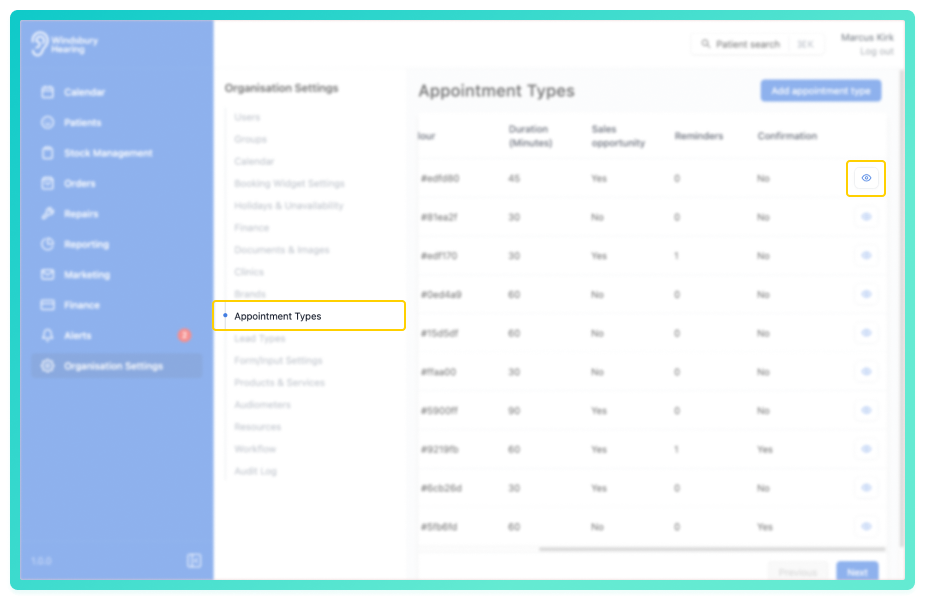
- Navigate to Organisation settings.
- Locate and click the Appointment Types section of the settings.
- Click the View icon
 of the appointment type you want to disable days.
- Locate the Disabled days section.
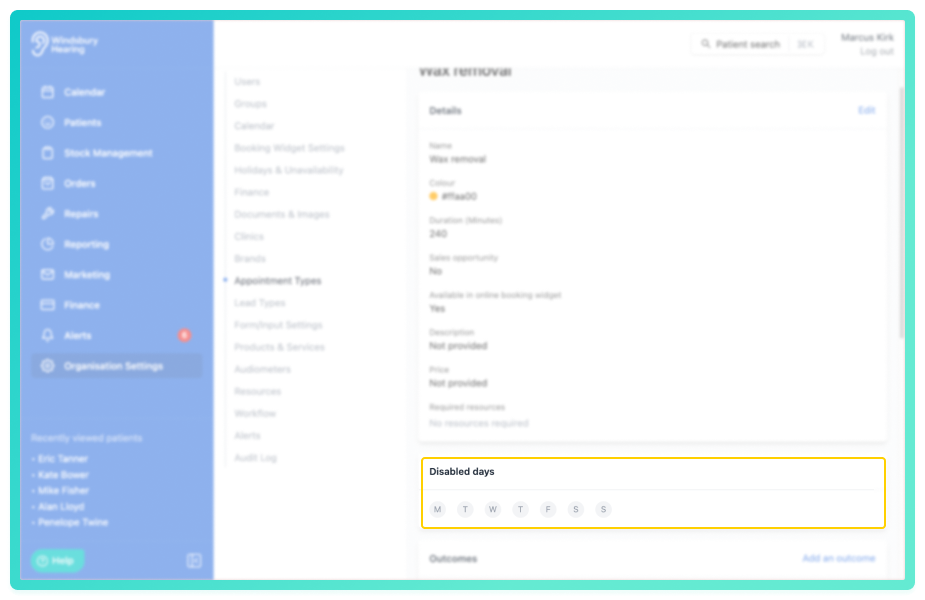
- Disable the required days.
Disabled days are highlighted as a Red background, making it clear they cannot be booked.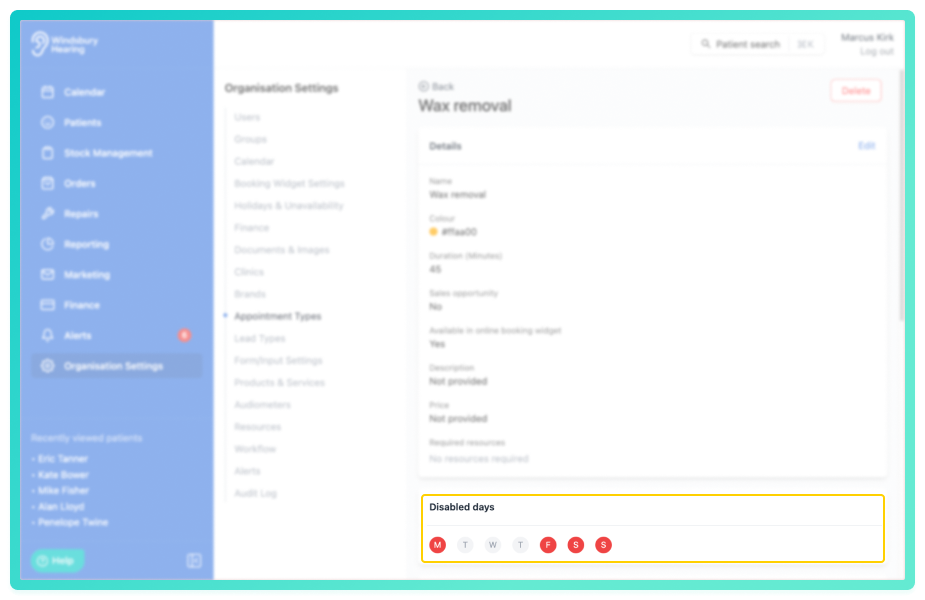
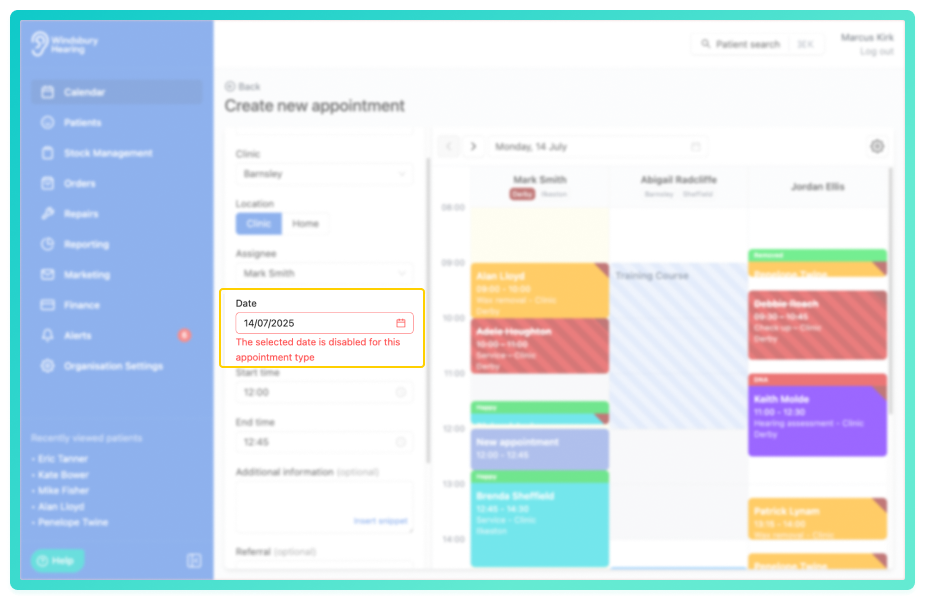
If you attempt to book this appointment type on a disabled day, HearLink will stop the booking from proceeding and display a warning.
Was this article helpful?
That’s Great!
Thank you for your feedback
Sorry! We couldn't be helpful
Thank you for your feedback
Feedback sent
We appreciate your effort and will try to fix the article