Services can be added to your organisation settings for use when creating an order. You can add a single service manually or bulk import multiple services when first setting up. Once added, services will be available for use when creating an order.
In this article we'll cover how to:
- add a single service.
- bulk import services.
Only users with the correct permissions can add a service. If you think you should have permission to perform such an action please contact the organisation owner.Add a service
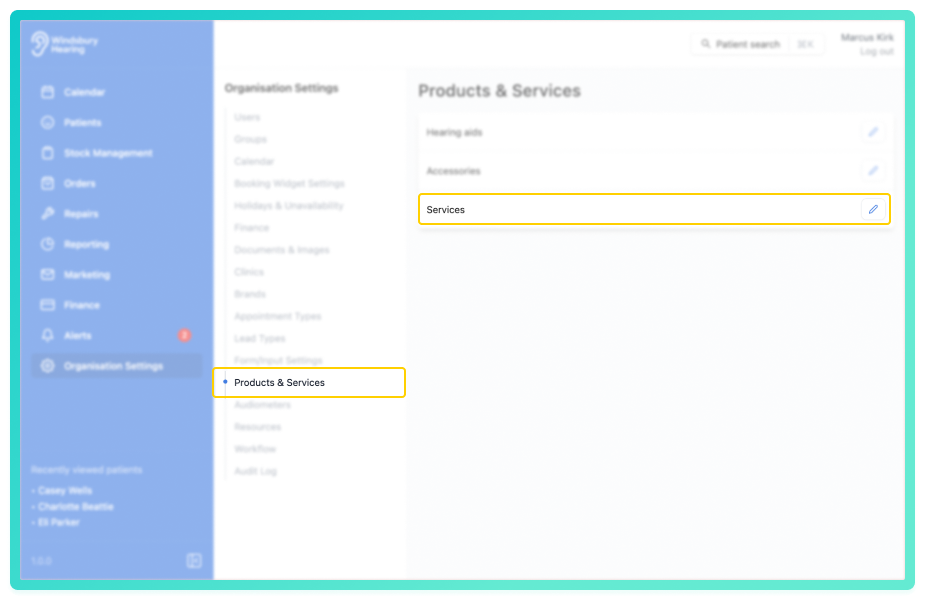
- Navigate to Organisation settings.
- Locate and click the Products & Services section of the settings.
- Click the the Edit icon
 on Services.
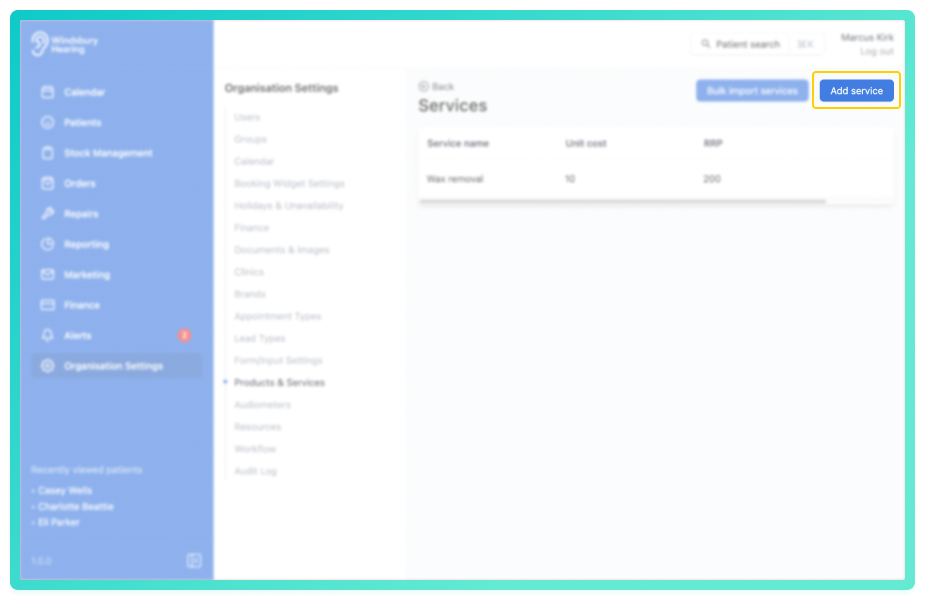
- Click the Add services button.
- Complete the form with the Service details.
- Click Submit to save the service.
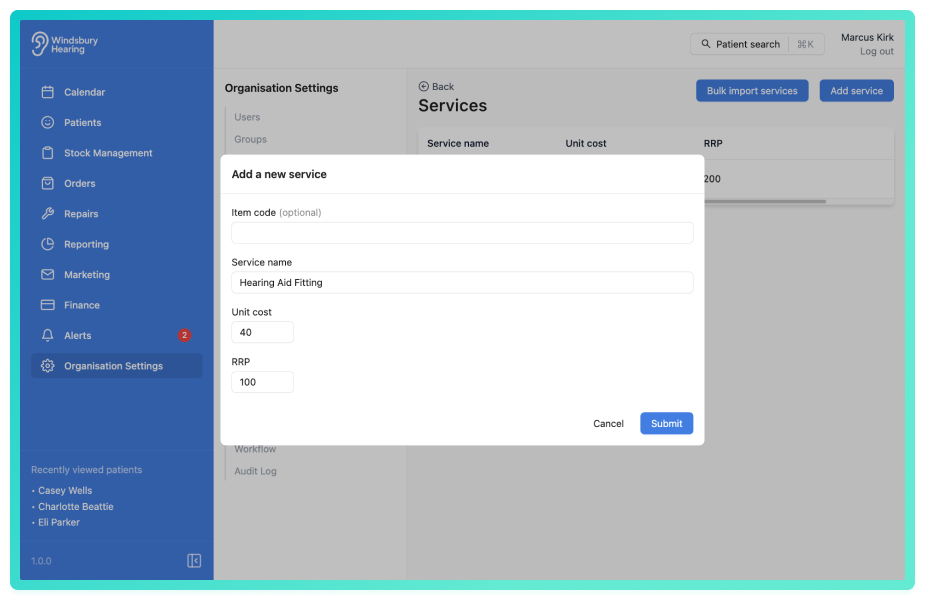
The new Service will now be available when creating an order.
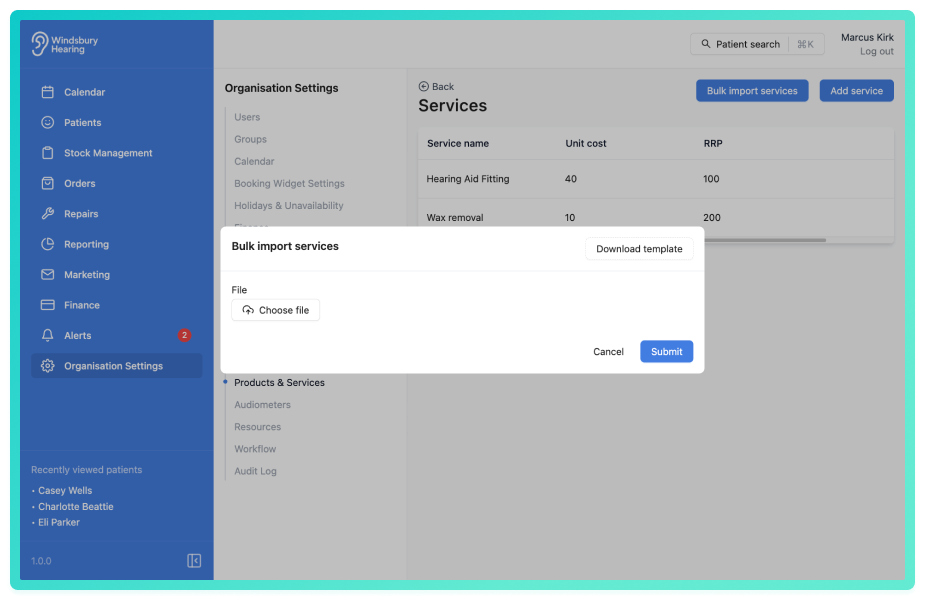
Bulk import services
- Click the Bulk import services button.
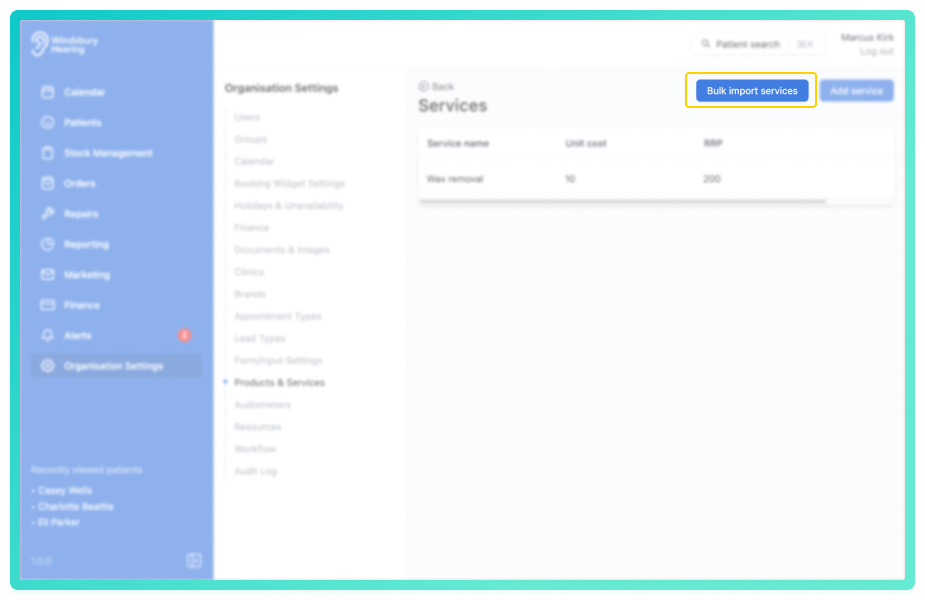
- Choose an existing file or download the import template.
- Upload the completed file and click Submit to import the data.
Was this article helpful?
That’s Great!
Thank you for your feedback
Sorry! We couldn't be helpful
Thank you for your feedback
Feedback sent
We appreciate your effort and will try to fix the article