Your organisation can customise the patient form used when adding a new patient. You can choose a number of pre defined fields (such as Gender, Primary Clinic and Title) and enable or disable them as needed. You can add your own custom fields to collect additional patient information.
In this article we'll cover how to:
- edit the basic patient form.
- make specific form fields mandatory.
- re-order the patient form fields.
- add a custom field.
- edit a custom field.
- delete a custom field.
Only users with the correct permissions can edit a patient form. If you think you should have permission to perform such an action please contact the organisation owner.Edit the patient form
- Navigate to Organisation settings.
- Locate and click the Form/Input Settings section of the settings.
- Click the Edit icon
 next to Patient form.
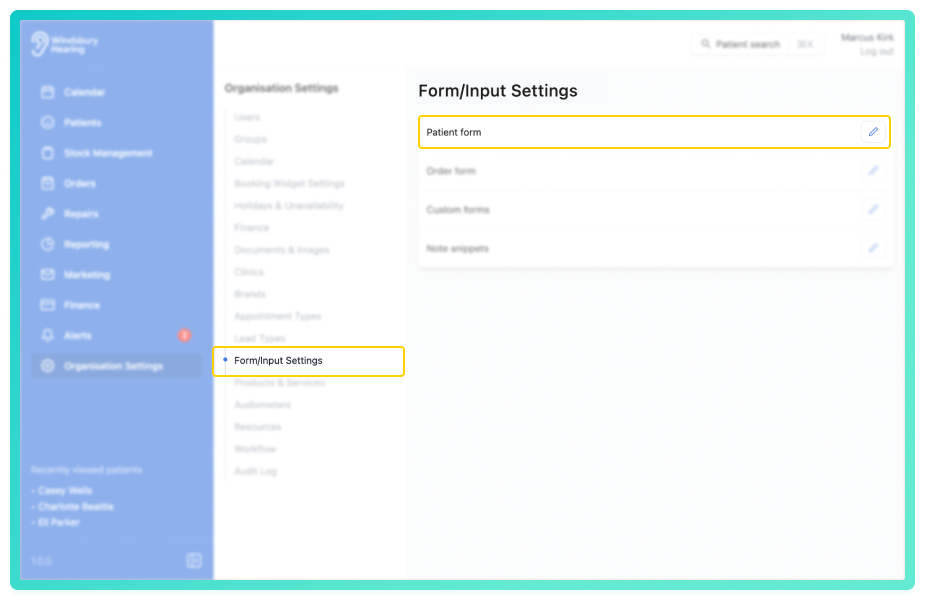
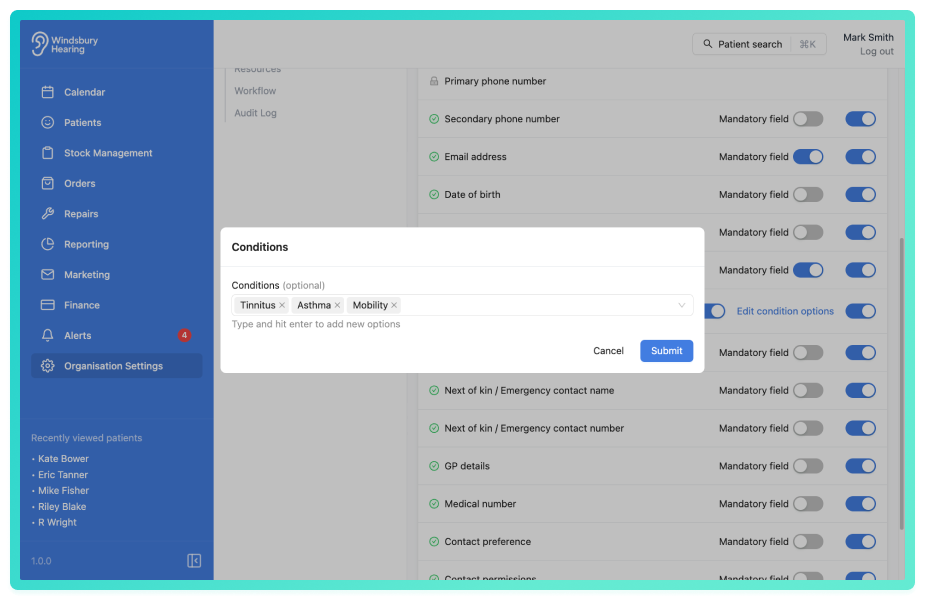
- Select which pre defined fields you want to enable or disable.
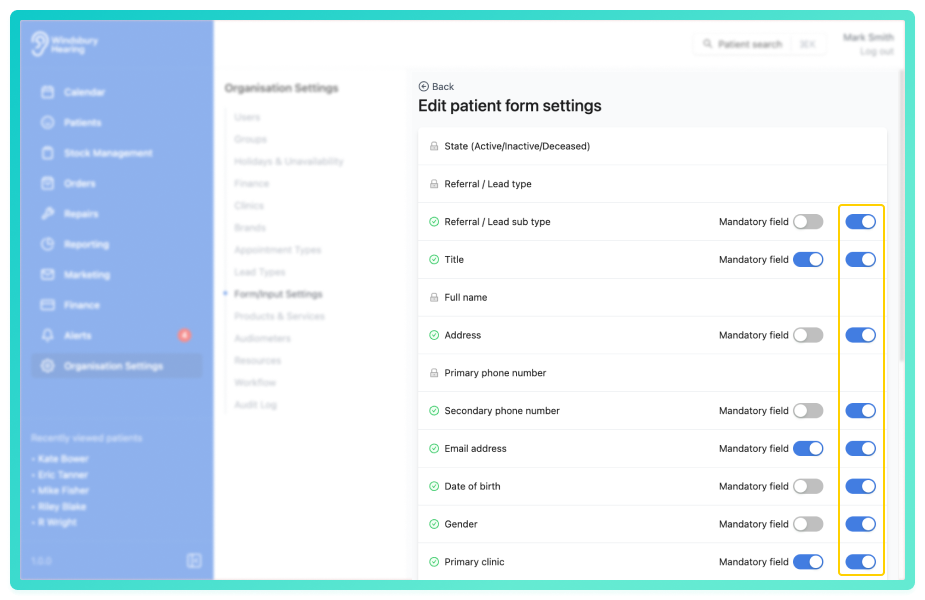
Enabled fields (e.g. Address or Date of Birth) will be visible when adding a new patient. Disabled fields (e.g. Conditions or GP Details) will not appear.
Make a field mandatory
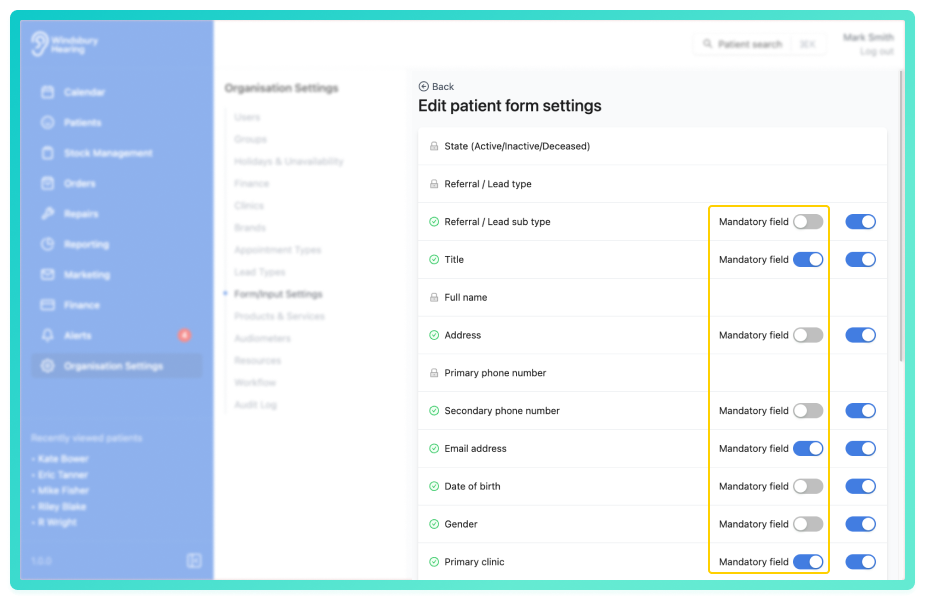
All patient form fields can be enabled as mandatory, meaning a patient is required to complete the field, or disabled as optional.
- Locate the desired form field.
- Enable the Mandatory field settings as required.
Re-order the patient form fields
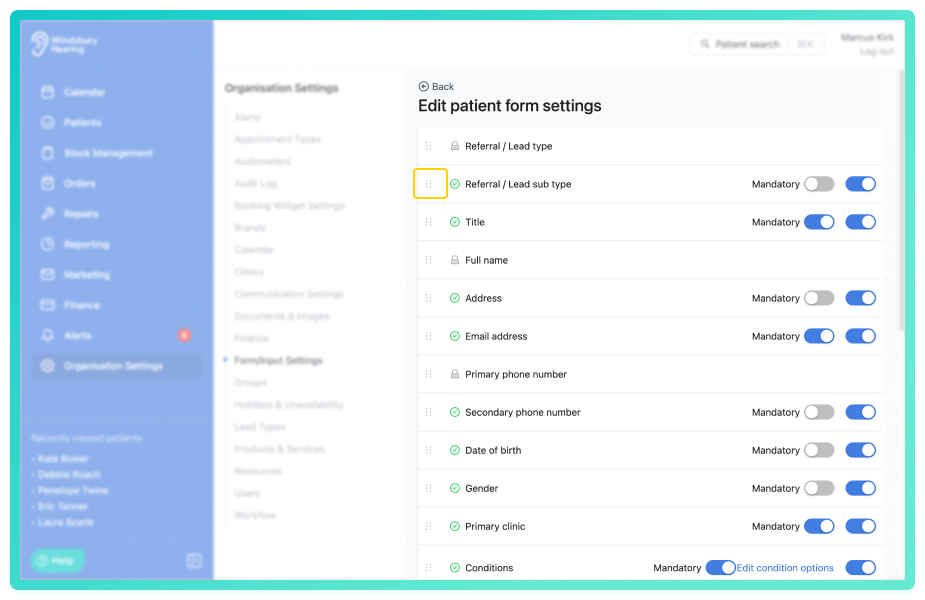
All patient form fields can be sorted into any order the organisation requires
- Locate the desired form field.
- Click the drag icon and move the form field to the desired permission.
- Repeat with all required form fields.
Add a custom field
- Locate and click the Add custom field button.
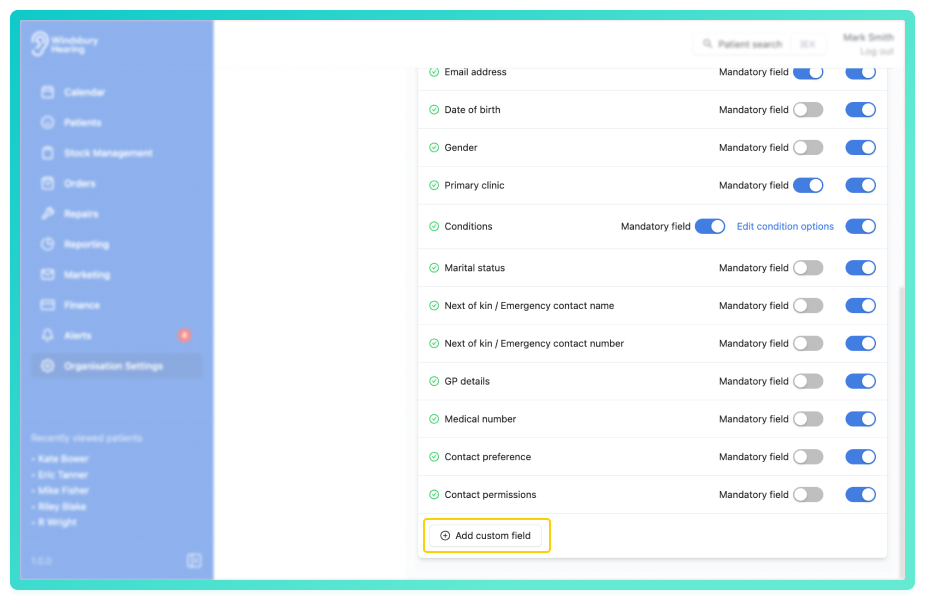
- Fill in the required details for the new field.
- Click Submit to save your changes
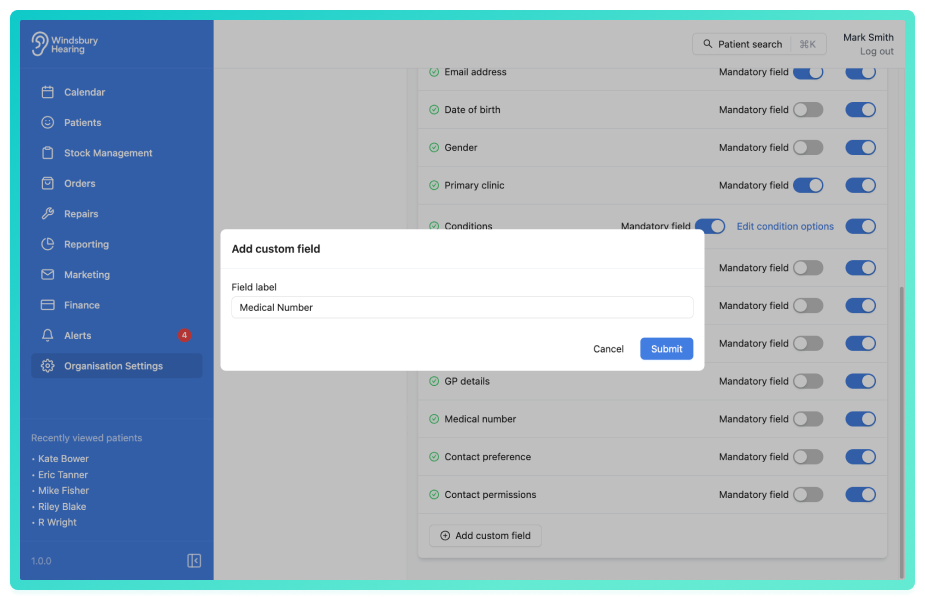
The custom field will now be available to enable or disable in the patient form.
Edit a custom field
- Locate the custom field you want to Edit.
- Click the Edit text.
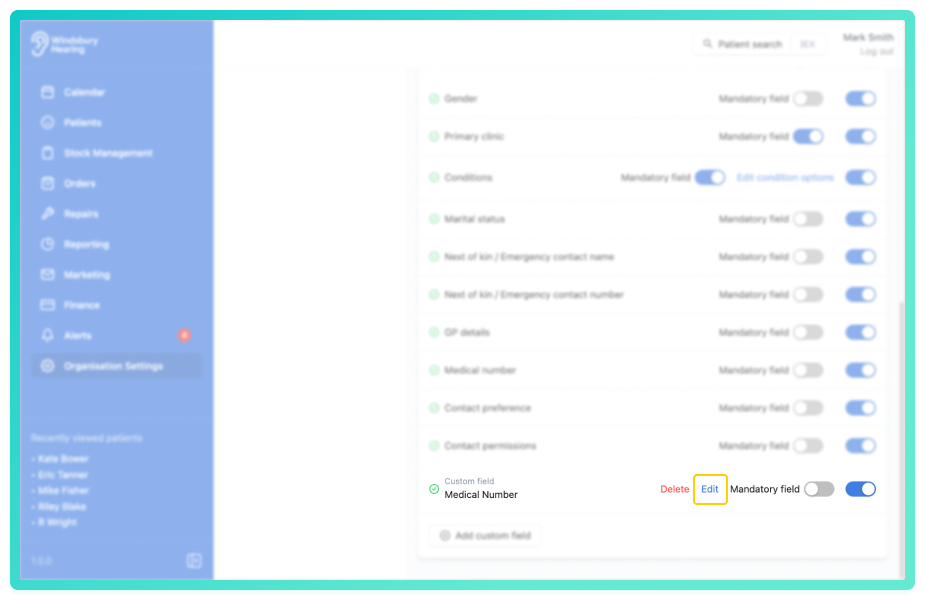
- Update the label as required.
- Click Submit to save your changes.
Delete a custom field
- Locate the Delete text on the Custom field you want to delete.
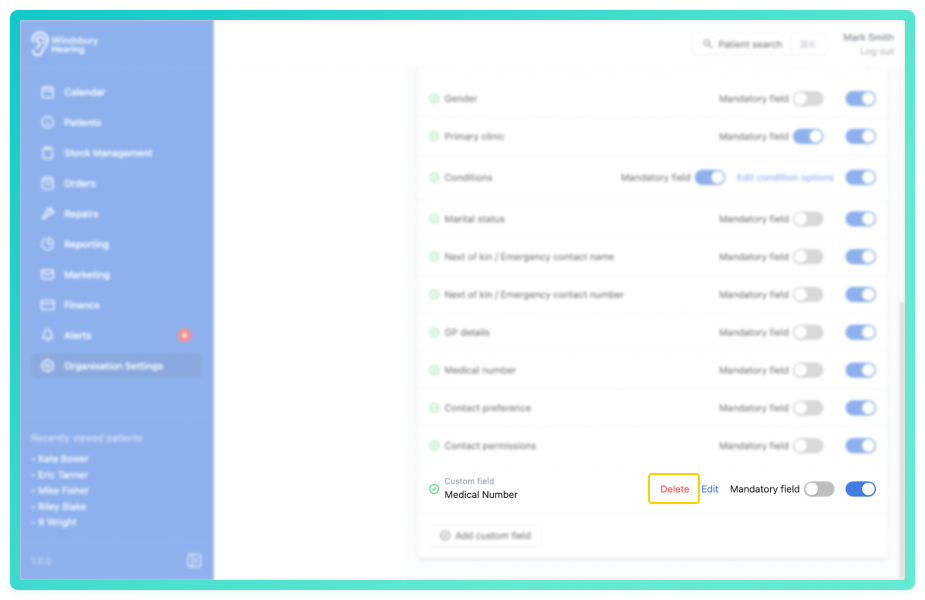
- Click the Delete text.
- You'll be shown a warning message.
- Click Delete to confirm and delete the field.
Warning: Once a custom field has been deleted this action cannot be undone. Please proceed with caution!Was this article helpful?
That’s Great!
Thank you for your feedback
Sorry! We couldn't be helpful
Thank you for your feedback
Feedback sent
We appreciate your effort and will try to fix the article