Organisations can update or remove custom forms as needed to ensure they remain relevant and accurate.
In this article we'll cover how to:
- edit a custom form.
- delete a custom form.
Only users with the correct permissions can edit or delete a custom form. If you think you should have permission to perform such an action please contact the organisation owner.Edit a custom form
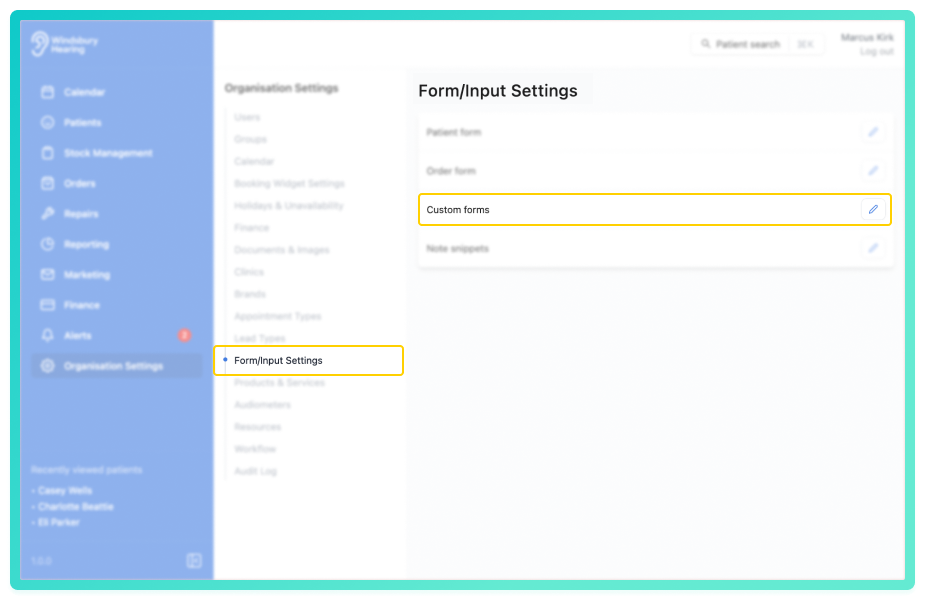
- Navigate to Organisation settings.
- Locate and click the Form/Input Settings section of the settings.
- Click the Edit icon
 next to Custom forms.
- Locate and click the Edit iconon the custom form you want to update.
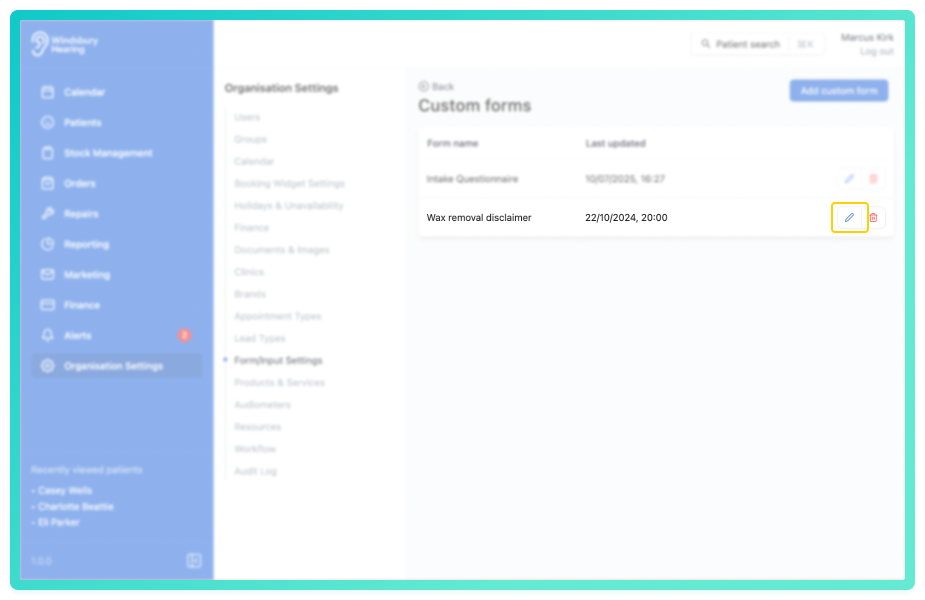
- Update the Custom form details as required.
- Click Submit to save your changes.
For more on custom forms and components, see the custom forms article.
Delete a custom form
- Locate the Delete icon
 on the custom form you want to delete.
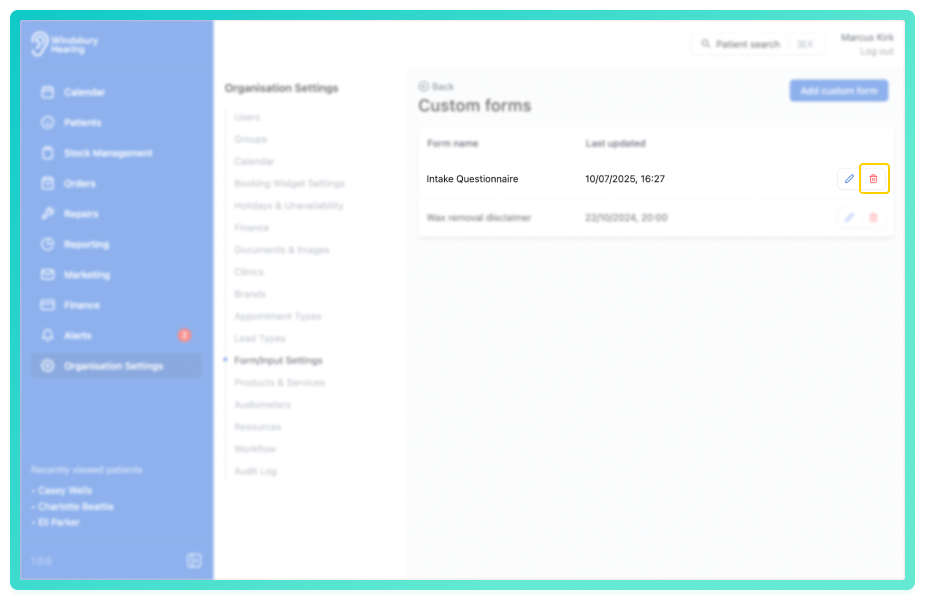
- Click the Delete icon.
- You'll be shown a warning message.
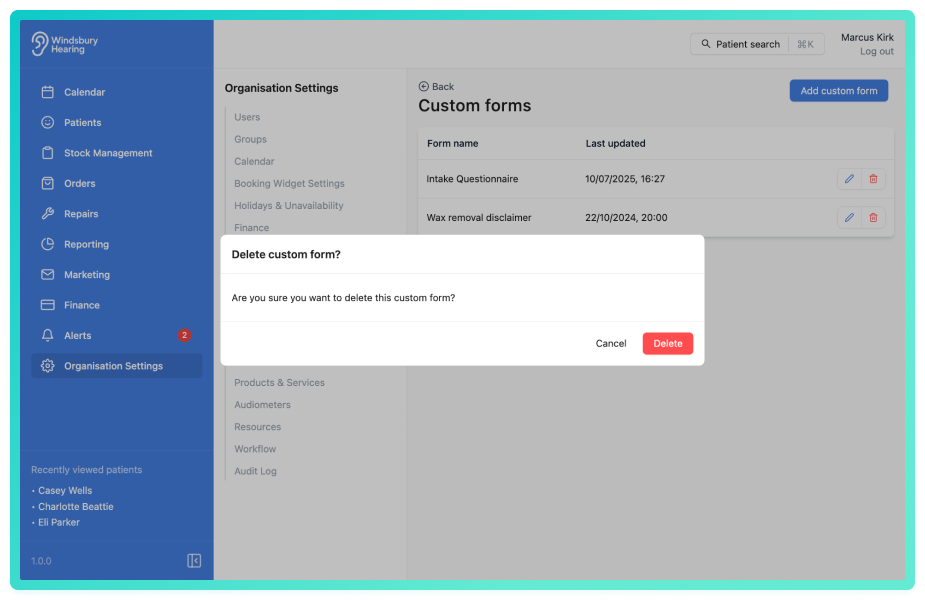
- Click Delete to confirm and delete the custom form.
Warning: Once a custom form has been deleted this action cannot be undone. Please proceed with caution!
Was this article helpful?
That’s Great!
Thank you for your feedback
Sorry! We couldn't be helpful
Thank you for your feedback
Feedback sent
We appreciate your effort and will try to fix the article