Your organisation may need to temporarily prevent specific appointment types being booked for certain users, or block appointment types being booked on a recurring schedule. As an example, when a clinician is unavailable or a specific service is not offered on certain days.
Appointment type blockouts allow you to control this directly within HearLink, ensuring that affected appointment types cannot be scheduled, either online or within the calendar, for the chosen assignee during the blocked period.
In this article we'll cover how to:
- create an appointment type blockout.
- create an appointment type blockout with repeats.
- duplicate an appointment block.
- edit or delete and appointment block.
- filter appointment blocks.
- understand how blockouts affect appointment scheduling.
- view blockout visual indicators on the calendar.
Only users with the correct permissions can create appointment type blockouts. If you think you should have permission to perform such an action please contact the organisation owner.Create an appointment type blockout
- Navigate to Organisation settings.
- Locate and click the Appointment Types section of the settings.
- Locate the Add appointment type blockout button.
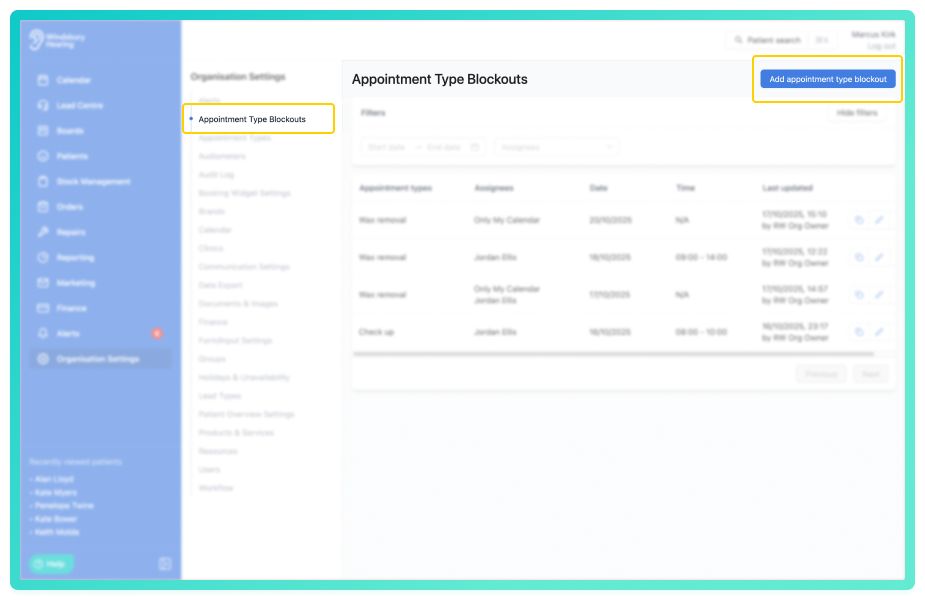
- Click the Add appointment type blockout button.
- Complete the form with the relevant appointment type(s), user(s) and the date and optional start and end times.
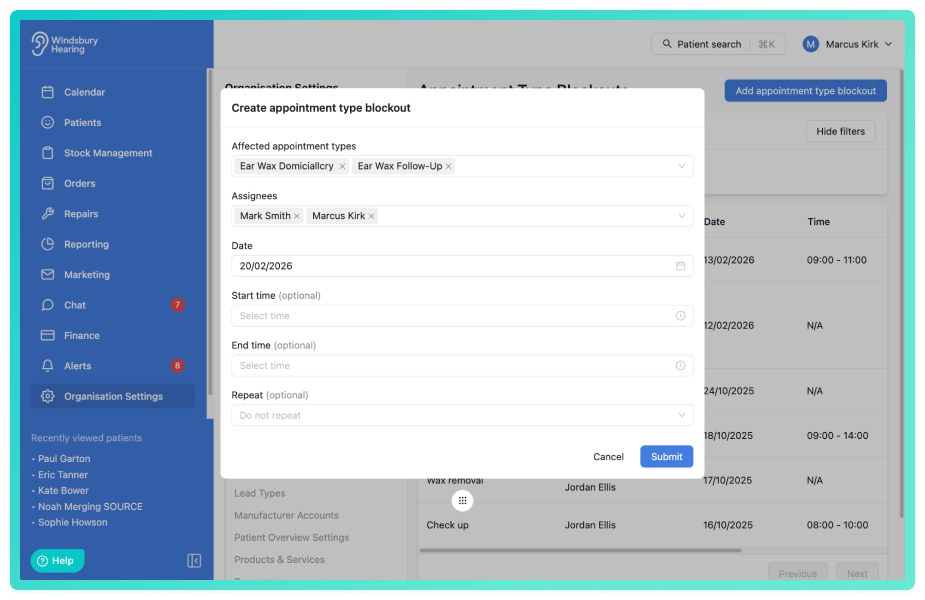
If the start and end time are left blank the appointment type will be blocked out for the selected date all day.- Click Submit to block out the appointment type for the specified duration.
Repeat an appointment type blockout
- Follow the same steps from Create an appointment type blockout.
- Select an option from Repeat. These include every day, week, month or Custom.
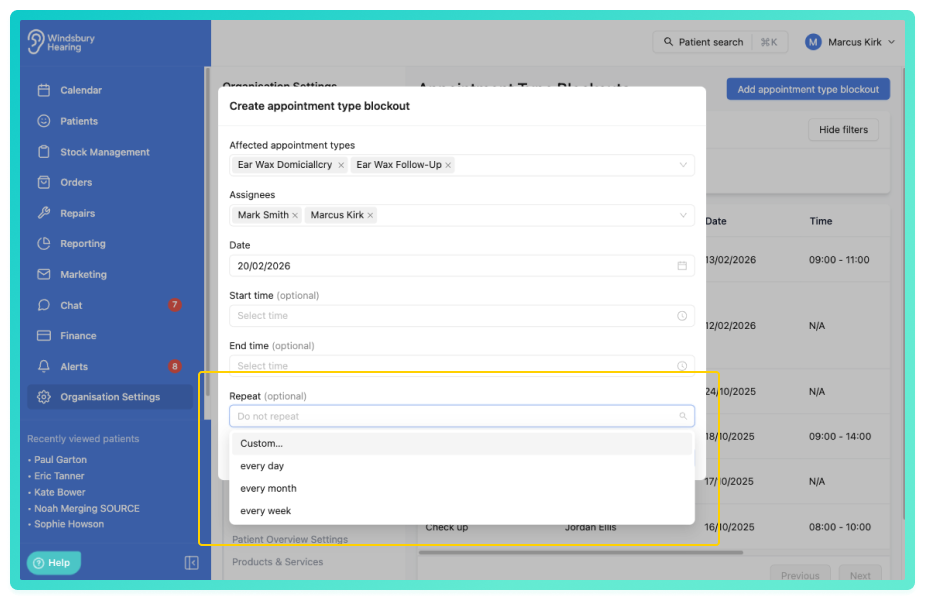
- Click Submit to save the repeating appointment type blockout.
Custom Recurrence:
If you select custom recurrences, an additional window will open. From here you can:
- Choose to repeat every specific number of days, weeks, months or years.
- Select which days of the week the blockout should apply to.
- Set an end date or choose to end after a specific number of occurrences.
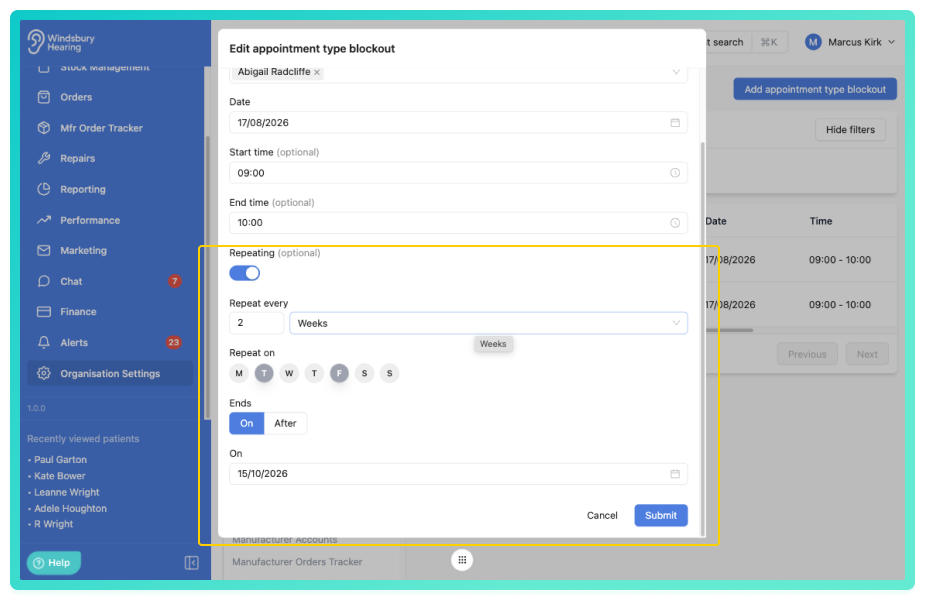
- Save the Custom Recurrence.
Example from above:
The Appointment type blockout will occur -
- Every other week.
- On Tuesday's and Friday's .
- Until the specified End date.
Duplicate an appointment type blockout
A user can quickly duplicate an appointment type blockout. Once an appointment type blockout is set, it can be reused instead of editing the blockout.
- Locate and click the Duplicate icon next to the relevant entry.
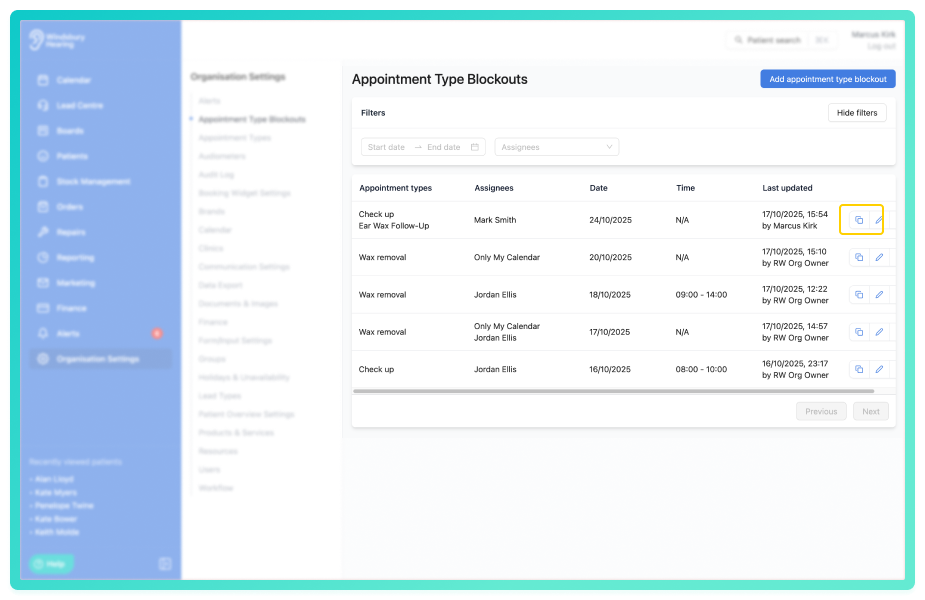
- Change the details in the form to the new appointment type blockout.
- Click Submit to save the new appointment type blockout.
Edit or delete an appointment type blockout.
Edit from organisation settings:
- Locate and click the Edit icon
 next to the relevant entry.
 - Update the details in the form to the new requirements.
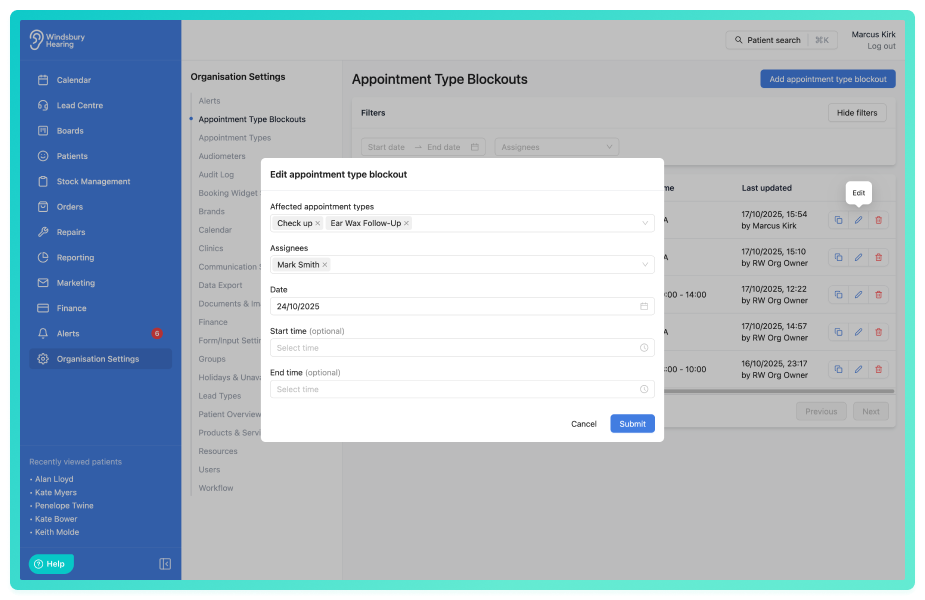
- Click Submit to apply the changes.
Delete from organisation settings:
- Locate and click the Delete icon
 next to the relevant entry.
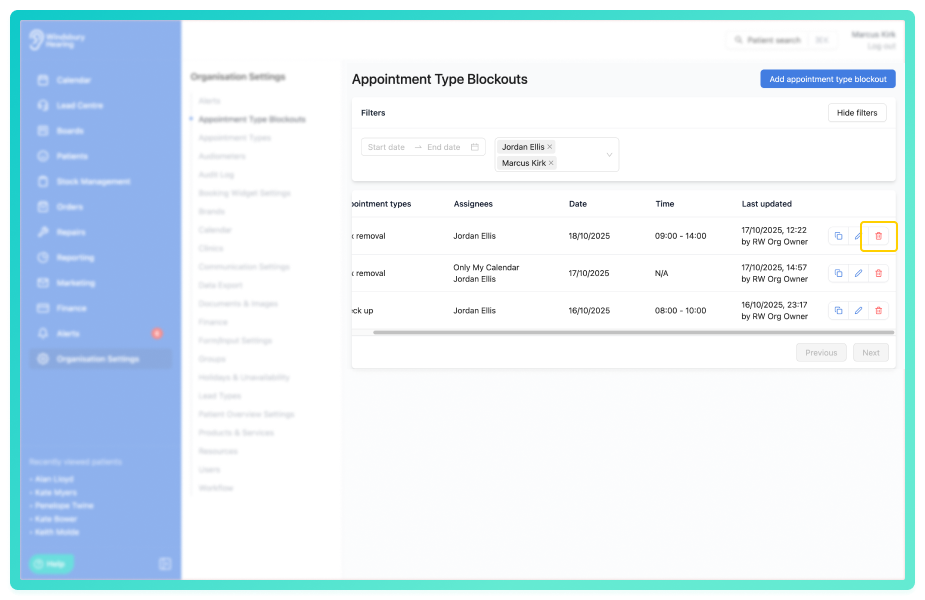
- You'll be shown a warning message.
- Click Delete to confirm and remove the entry.
Warning: Once an appointment type blockout has been deleted this action cannot be undone. Please proceed with caution!For repeating blockouts, you can edit or delete an individual occurrence without affecting the rest of the series.
Edit a single occurrence of a repeating blockout:
- Navigate to the calendar view where the blockout is displayed.
- Right click on the blockout bar for the occurrence you want to edit.
- Select Edit and choose This occurrence or All occurrences.
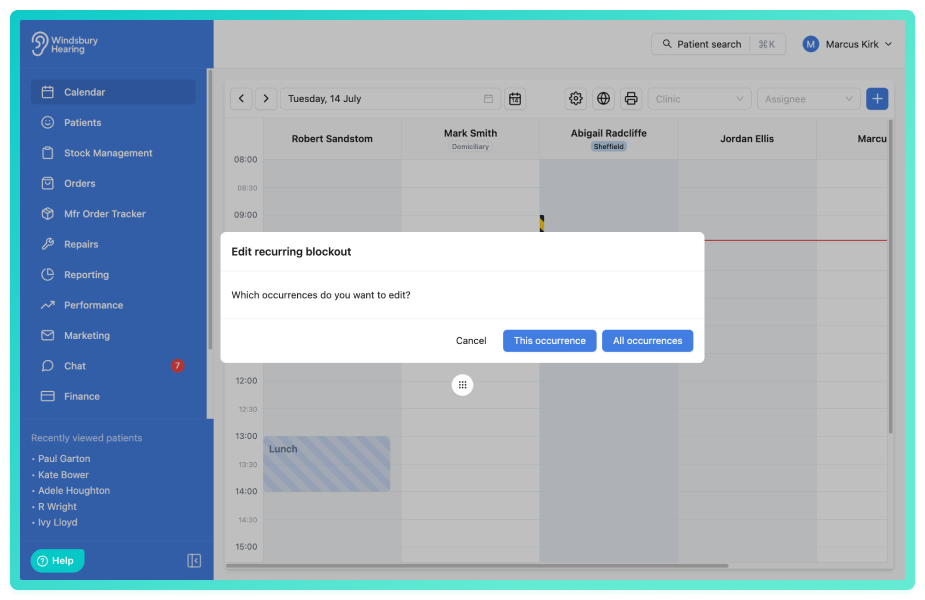
- The override form will open, pre-populated with the current blockout values.
- Update the assignees, appointment types or time range as needed.
- Click Submit to apply the changes for this occurrence only.
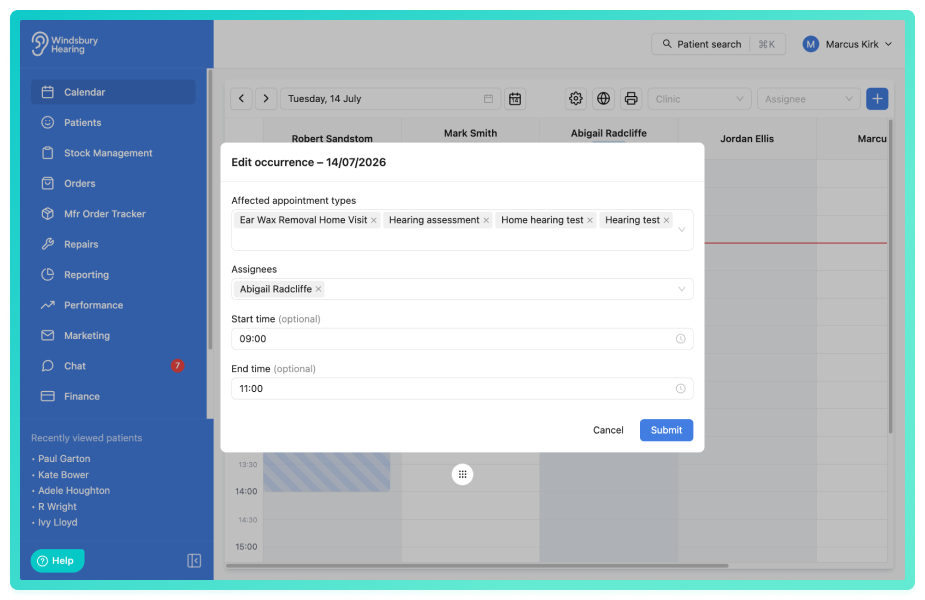
The blockout for this date will now reflect your changes, whilst all other occurrences in the series remain unchanged.
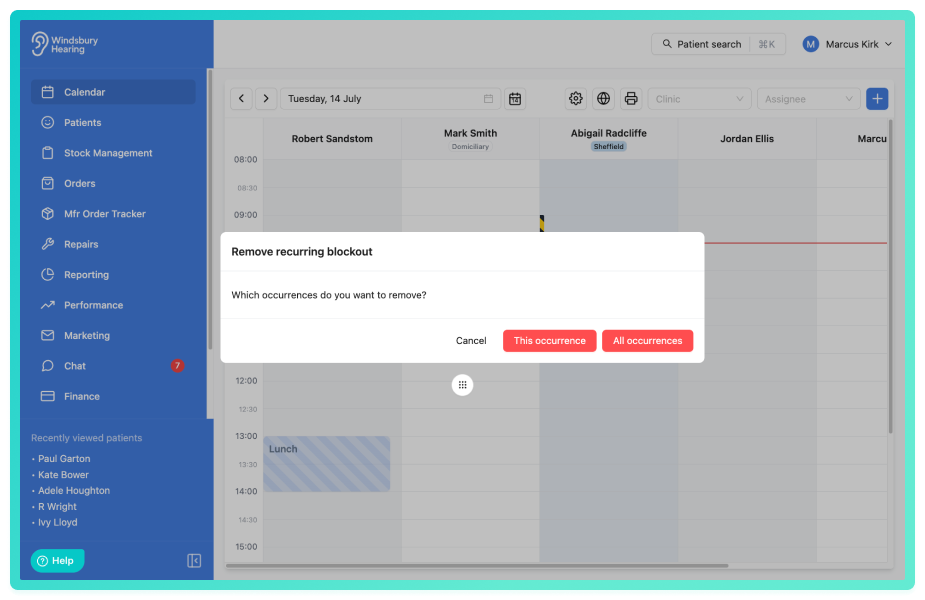
Delete a single occurrence of a repeating blockout:
- Right click on the blockout bar for the occurrence you want to delete.
- Choose if you want to delete This occurrence or All occurrences.
- Confirm the deletion.
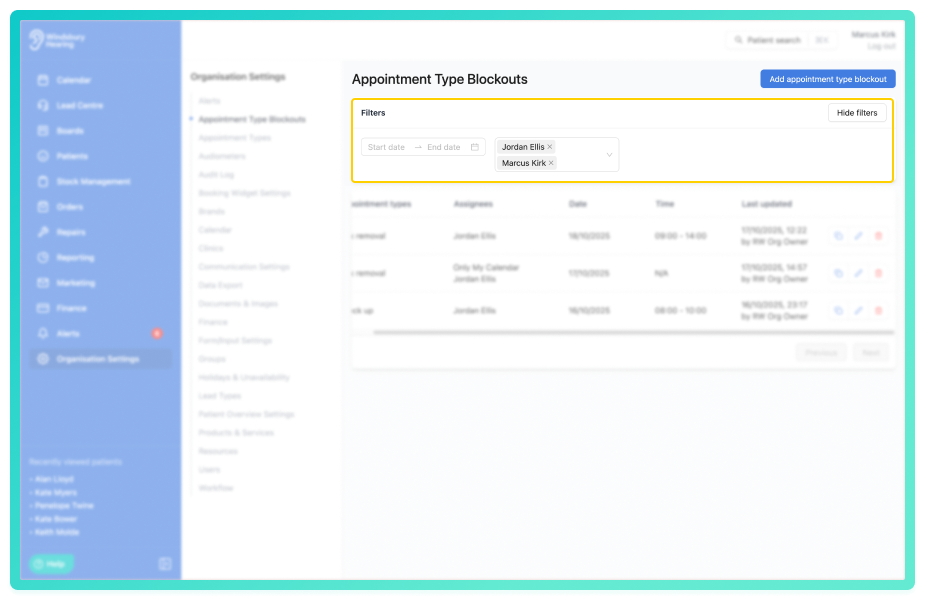
Filter appointment type blockouts
A user can filter the list of blockouts by user or date range.
- In the filters section select the start and end data and/or assignees to filter the list of appointment type blockouts.
Understanding appointment type blockouts.
- When a blockout is active, users attempting to book that appointment type for the selected assignee will see warning messages appear on the start and end time when creating a new appointment.
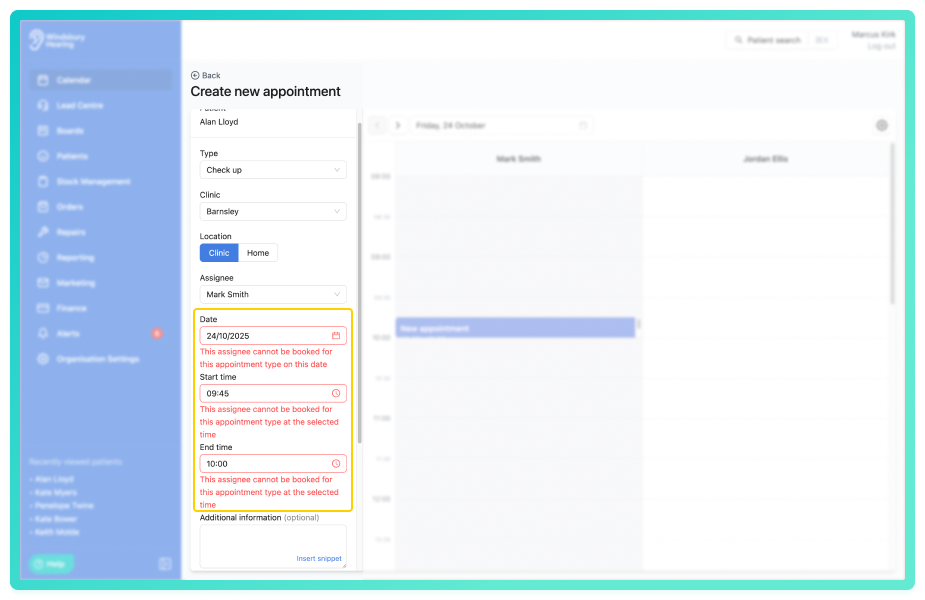
- Blockouts apply only to the chosen appointment type and assignee, other appointment types remain available.
By using Appointment type blockouts, your organisation can manage clinician availability more effectively, preventing scheduling conflicts and maintain a smooth and accurate booking process.
An appointment type blockout also applies to the online booking widget. A patient will not be able to book the appointment type while there is a blockout in place.Blockout visual indicators on the calendar.
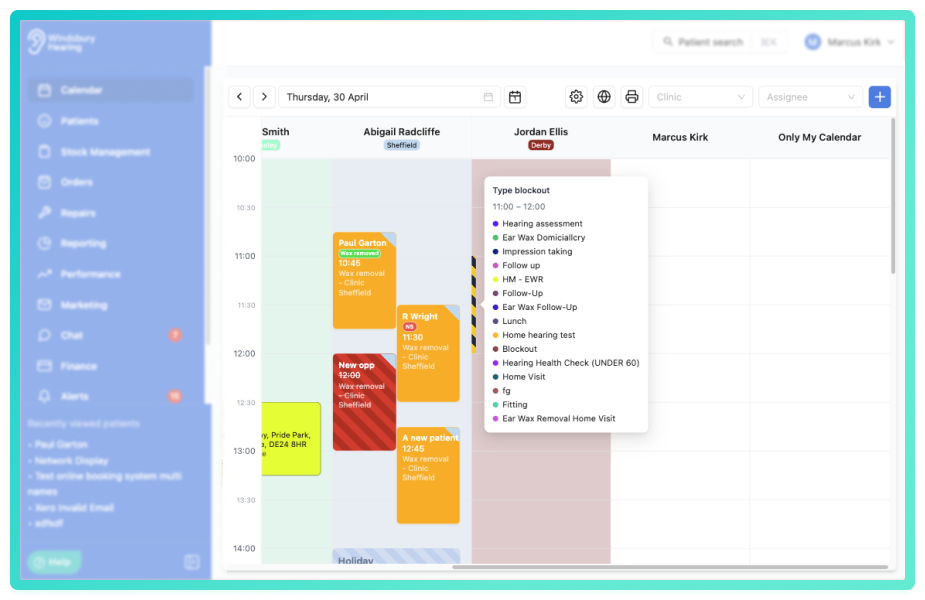
Appointment type blockouts are displayed as visual indicators on the calendar, making it easier for staff to identify when time slots are blocked and unavailable for scheduling.
Hover over a blockout indicator to view additional information about the blockout.
Was this article helpful?
That’s Great!
Thank you for your feedback
Sorry! We couldn't be helpful
Thank you for your feedback
Feedback sent
We appreciate your effort and will try to fix the article