Email marketing campaigns allow you to send targeted email communications to groups of patients directly from within HearLink. Campaigns can be created using Marketing Groups, Manual Queries or queries received by Tonee, helping you build accurate recipient lists based on your organisation's needs.
Marketing preferences and email validity are automatically respected to ensure compliant and reliable delivery.
Campaign emails can be created from scratch, loaded from a saved template, or saved as a template for reuse in future campaigns.
For this article we will use a marketing group, but the process is the same for manual and Tonee queries.In this article we'll cover how to:
- create a marketing campaign.
- design a campaign email.
- use and save email templates.
- preview and send a campaign.
- understand campaign statuses.
Create a marketing campaign
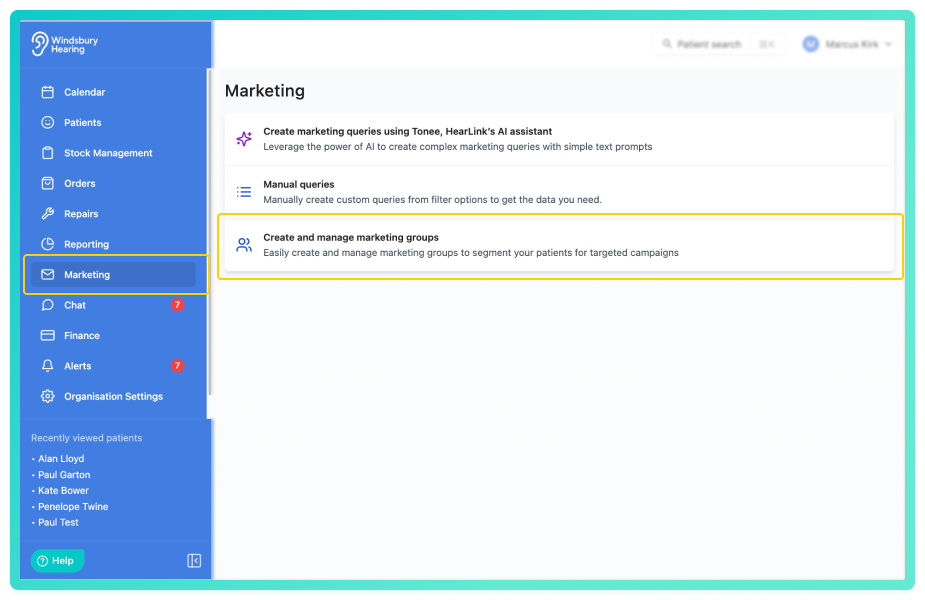
- Navigate to Marketing.
- Locate your desired data source (in this case we will use Marketing groups.)
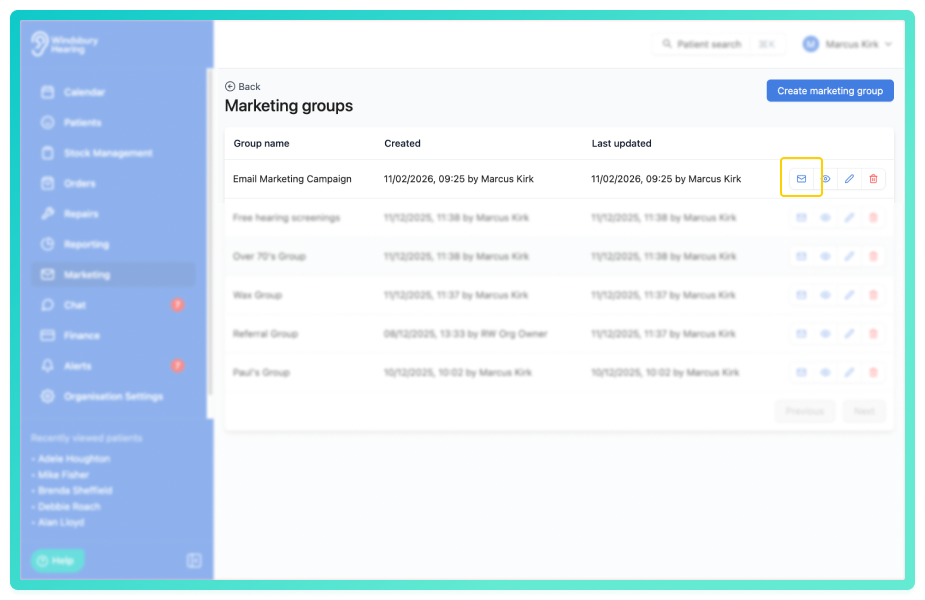
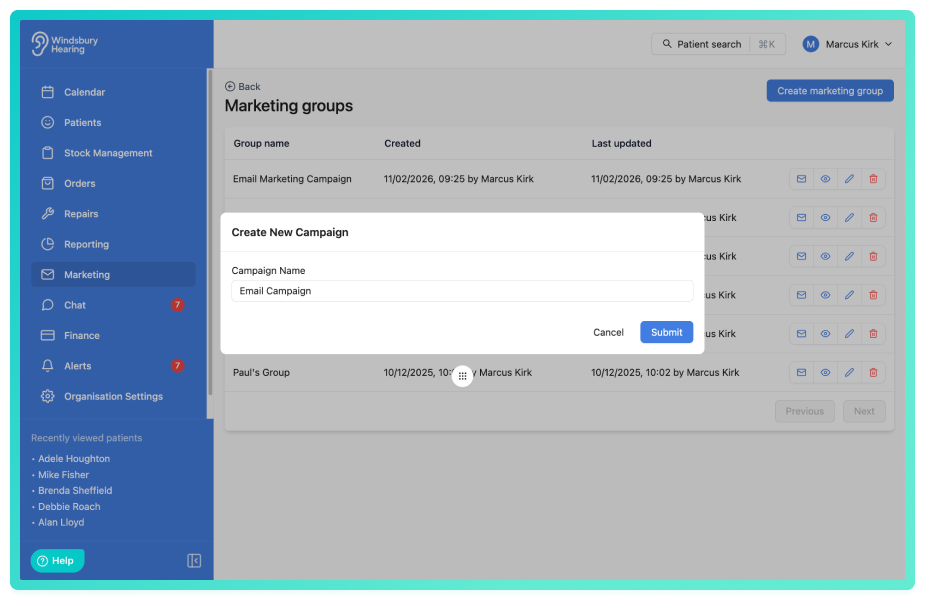
- Enter a Campaign name and click Submit.
Once created you will be taken to the campaign overview.
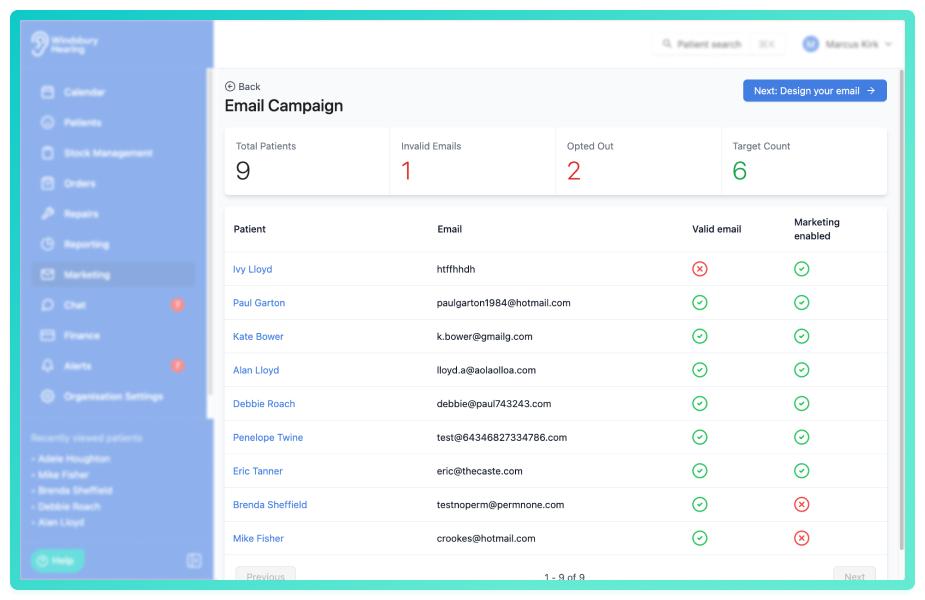
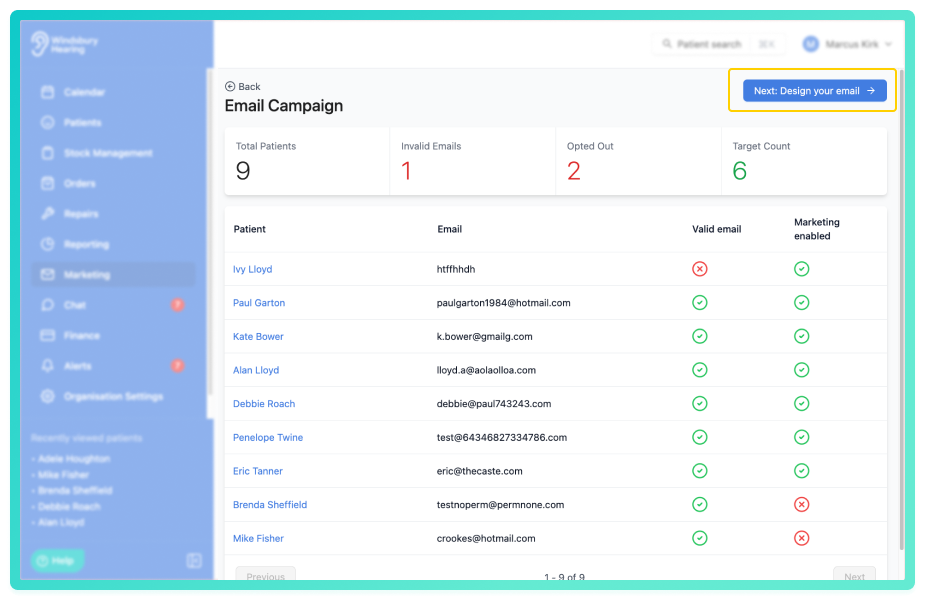
At the top of the page you will see:
- Total Patients - total records returned by the query or group.
- Invalid Emails - patients with invalid or missing email addresses.
- Opted Out - patients who have marketing disabled.
- Target Count - total recipients who will receive the campaign.
The table below displays:
- Patient name.
- Email address.
- Valid email status.
- Marketing enabled status.
Patients who have opted out or have invalid email addresses will automatically be excluded from the target count.
The campaign is now saved and can be deleted if no longer required.
Design the email campaign
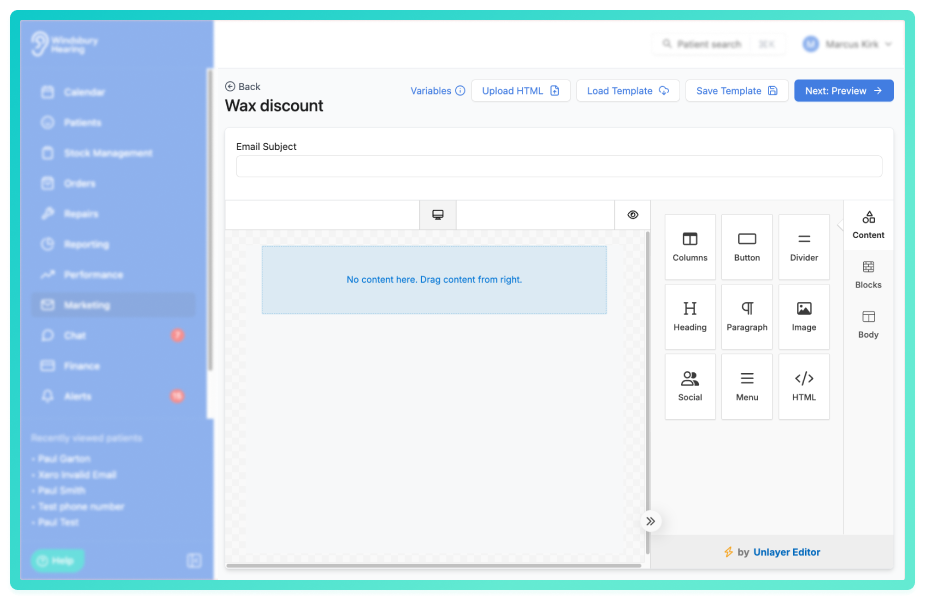
You can create your email directly within HearLink using the available formatting tools. A variety of layouts, styles and variables are available, allowing you to personalise content using patient and organisation data.
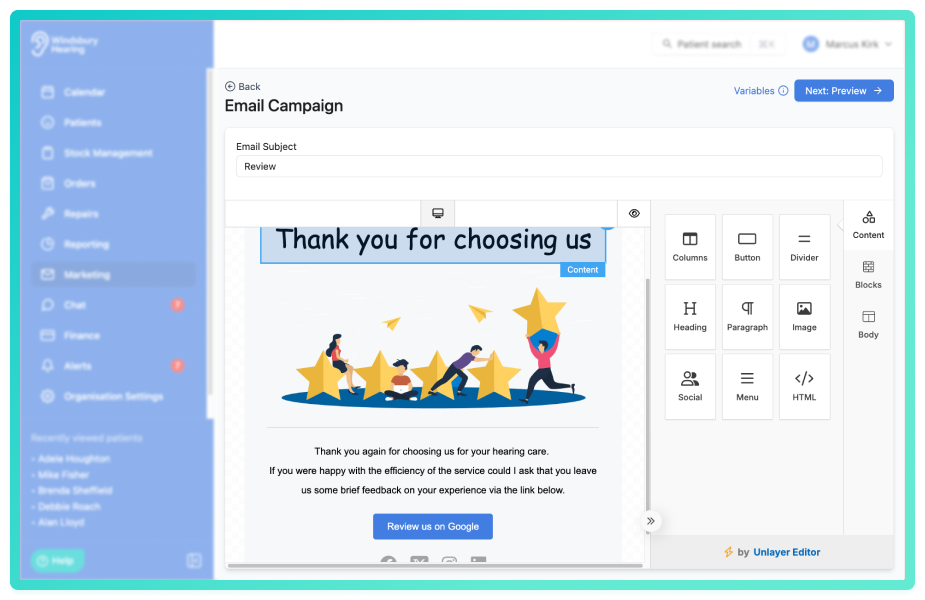
You can also load an email template or upload HTML to start your campaign from an existing design.
Here is an external link to an article explaining how to make templates using this software: https://docs.unlayer.com/builder/email-builder
Example:
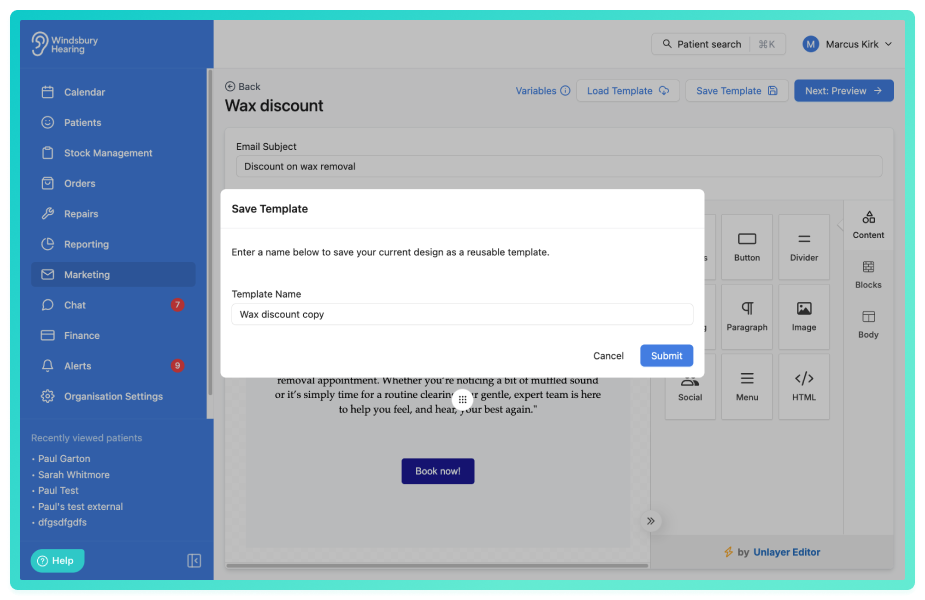
If required, you can save the email you create as a new template, allowing it to be reused for future campaigns.
- Once complete, click Next: Preview.
At this point the template is saved, you can leave this page and come back to your template. To do this click the Edit icon next to the required campaign.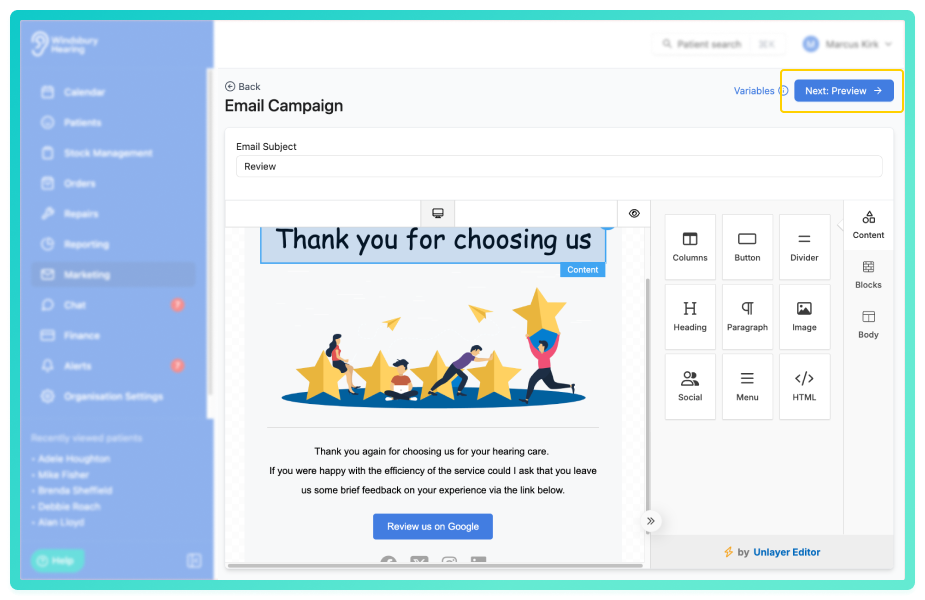
Preview and send campaign
The preview screen allows you to:
- Review how the email will appear to recipients.
- Confirm the total number of recipients.
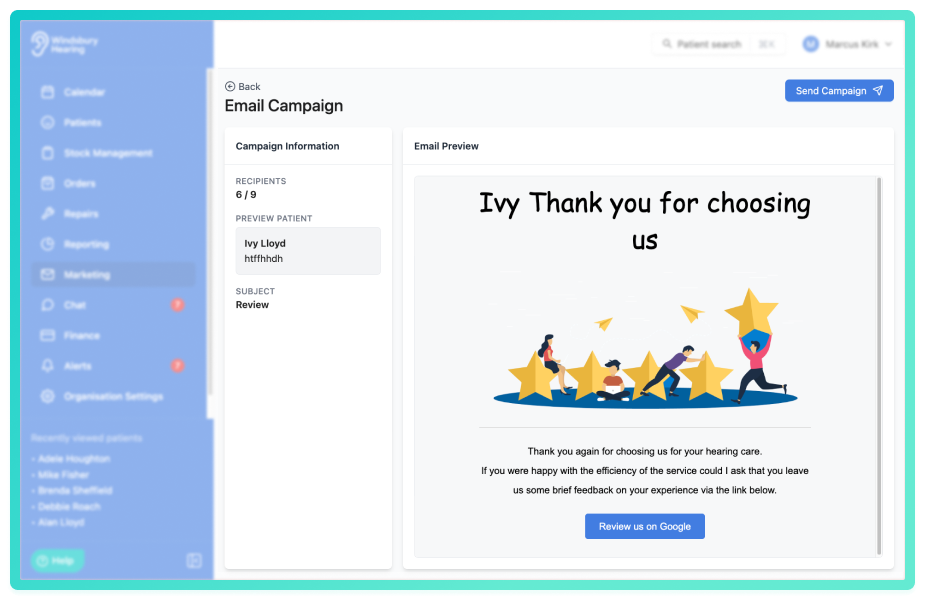
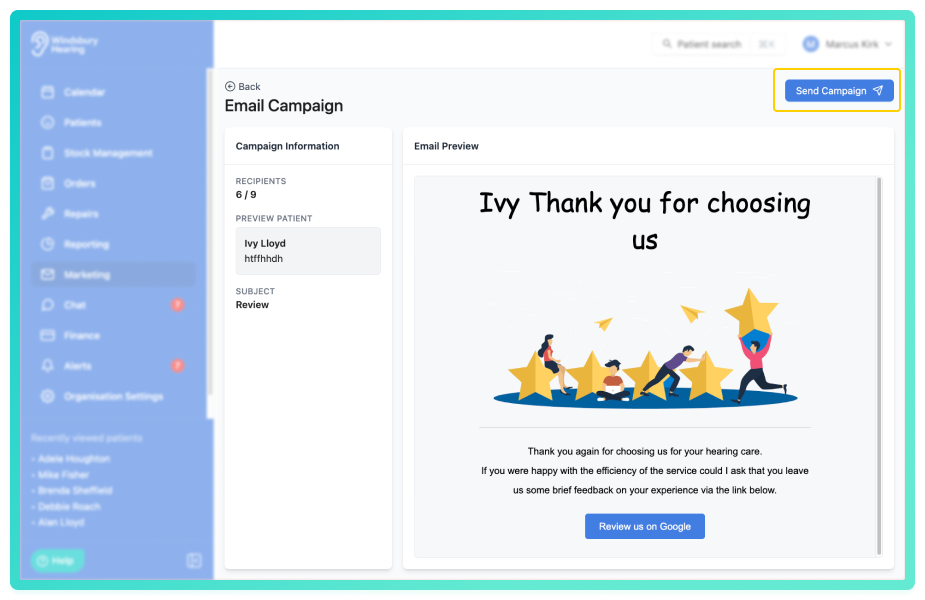
- When you are ready, click Send Campaign.
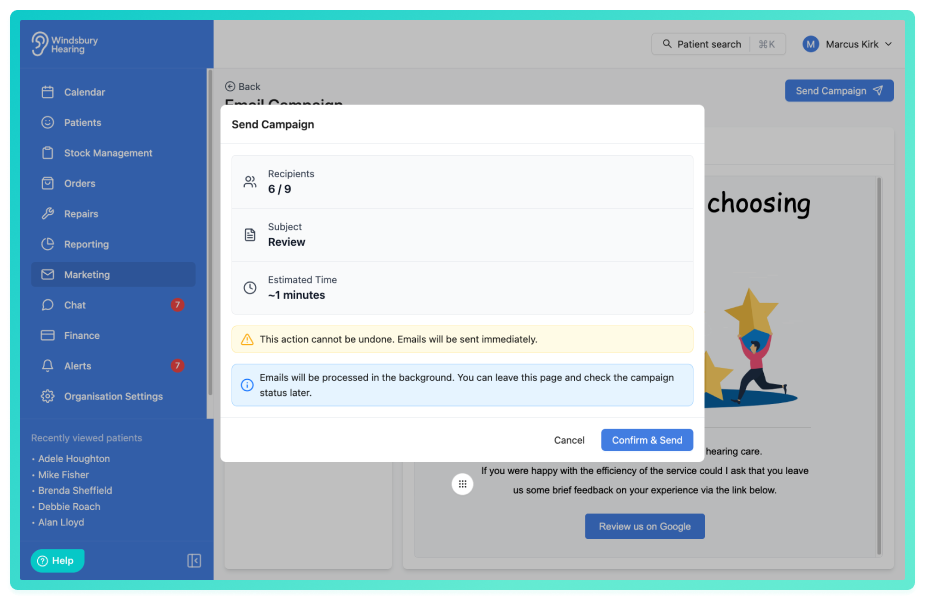
- You'll see a final check.
- When ready, click Confirm & Send.
Campaign statuses
After sending the campaign will display delivery information, including:
- Status - Draft, Processing or Sent.
- Sent - successfully delivered emails.
- Skipped - excluded due to invalid email or marketing preferences.
- Failed - emails that could not be delivered.
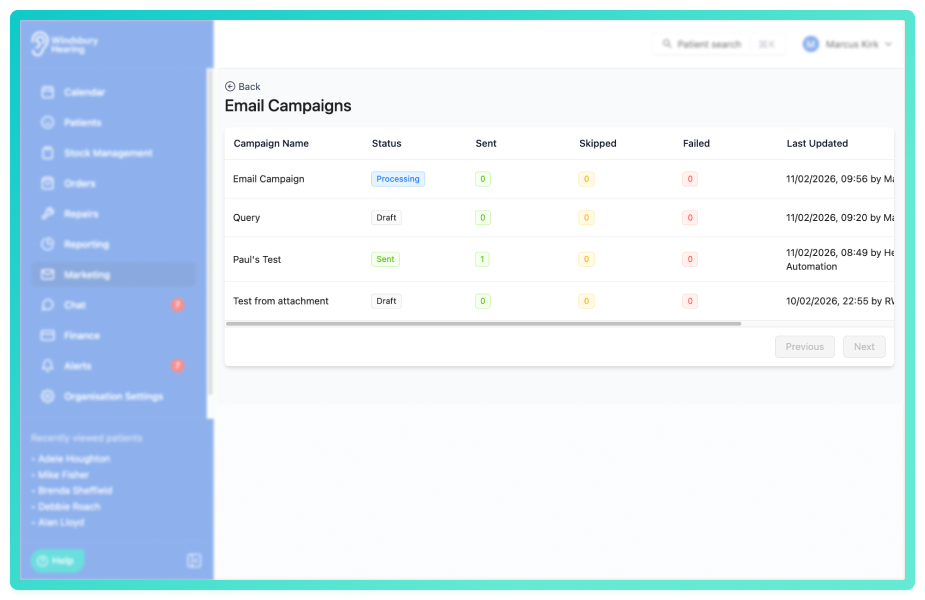
Once a marketing campaign is complete, you can view the the details of the patients that received the campaign or delete the campaign using the Delete icon
icon
Was this article helpful?
That’s Great!
Thank you for your feedback
Sorry! We couldn't be helpful
Thank you for your feedback
Feedback sent
We appreciate your effort and will try to fix the article