You can connect your HearLink organisation to Xero to keep your accounting in sync without double-entry. Once connected, invoices, credit notes, and payments recorded in HearLink are posted to Xero automatically (or on demand), with each line item tagged against the revenue account and tax rate you configure per product category.
 Tip: Before enabling automatic synchronisation, we strongly recommend starting with manual synchronisation mode and thoroughly testing all scenarios. This will help you understand how Hearlink manages data in Xero and ensure you are aware of any limitations before allowing the system to operate autonomously. Please review the article below for full details.
In this article we'll cover how to:
- connect your HearLink organisation to Xero.
- configure default revenue accounts and tax rates.
- create an override for a specific clinic.
- choose between Automatic and Manual sync modes.
- understand Draft and Authorised invoice syncs.
- see what is and isn’t synced to Xero.
- view sync logs and retry failed syncs.
- manually sync or resync a single order.
- reconnect Xero if the connection is lost.
- export data as a CSV for import into Xero.
Only users with the correct permissions can integrate HearLink with Xero. If you think you should have permission to perform such an action please contact the organisation owner.Connect HearLink & Xero
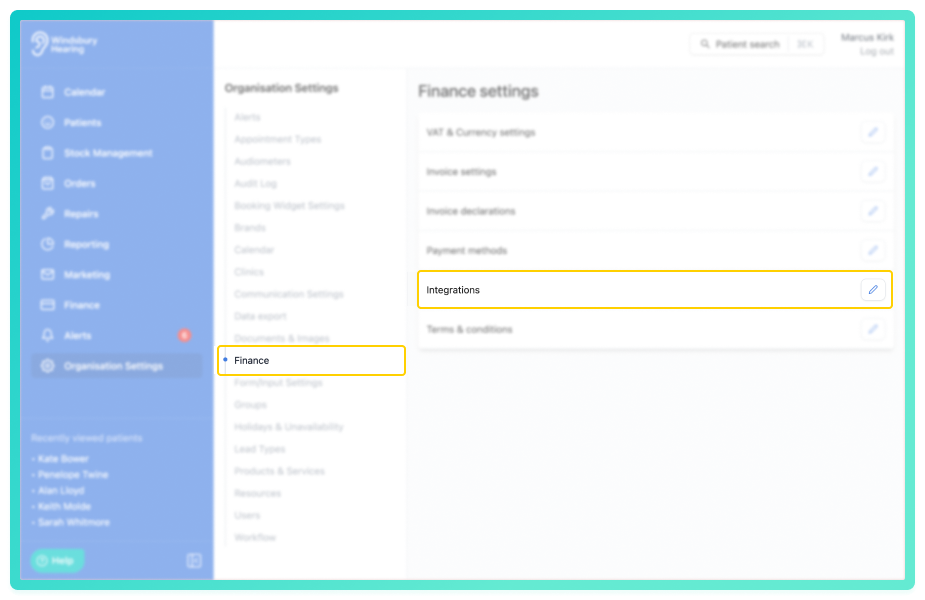
- Navigate to Organisation settings.
- Locate and click the Finance section of the settings.
- Click the Edit icon
 next to Integrations.
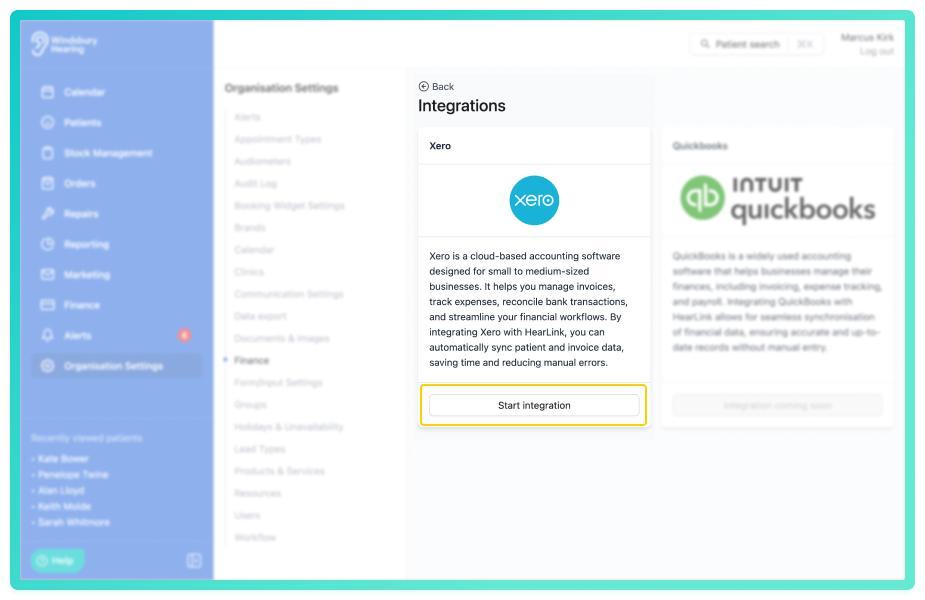
- Click Start Integration.
- Log in with your Xero credentials when prompted (follow the on screen instructions).
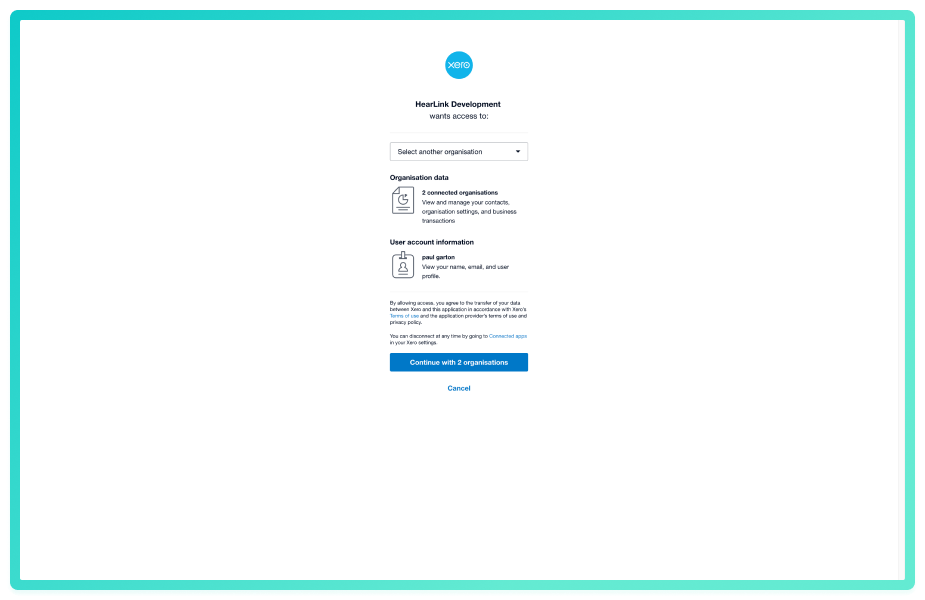
Once connected, you will be redirected to the Xero configuration page in HearLink.
Configure Xero
These settings apply as the organisation-wide defaults. You can optionally create per-clinic overrides afterwards.
- Choose the Xero organisation/tenant.
- Choose the Default payment account — this is the bank or payment account where payments recorded in HearLink will be posted in Xero.
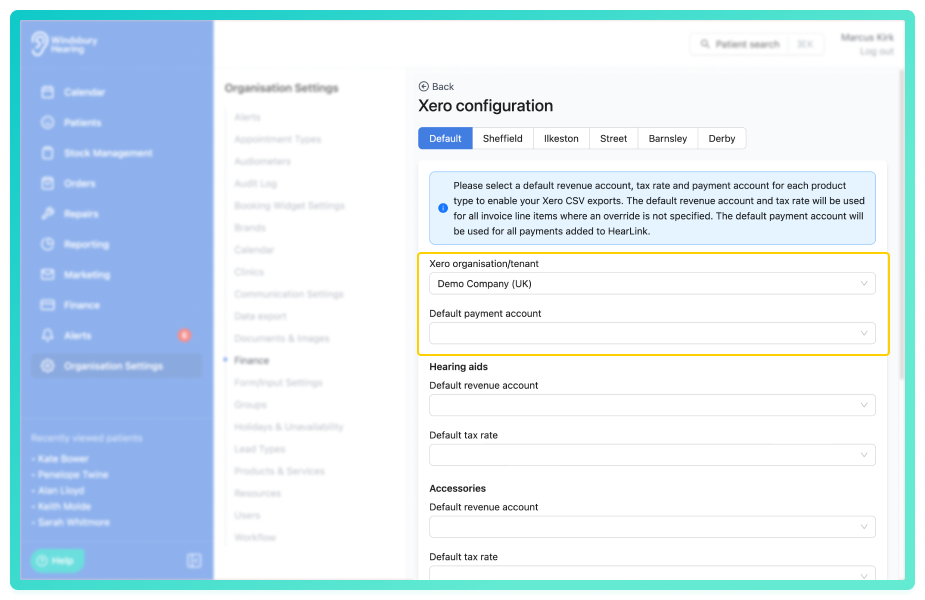
For each of the four product categories — Hearing Aids, Accessories, Services and Custom Items — choose:
- Default revenue account: the Xero income account that sales in this category should post to.
- Default tax rate: pulled directly from Xero, e.g. Standard VAT or 0% Exempt.
Example: Hearing aids may require a 0% VAT rate while services remain at the standard rate.
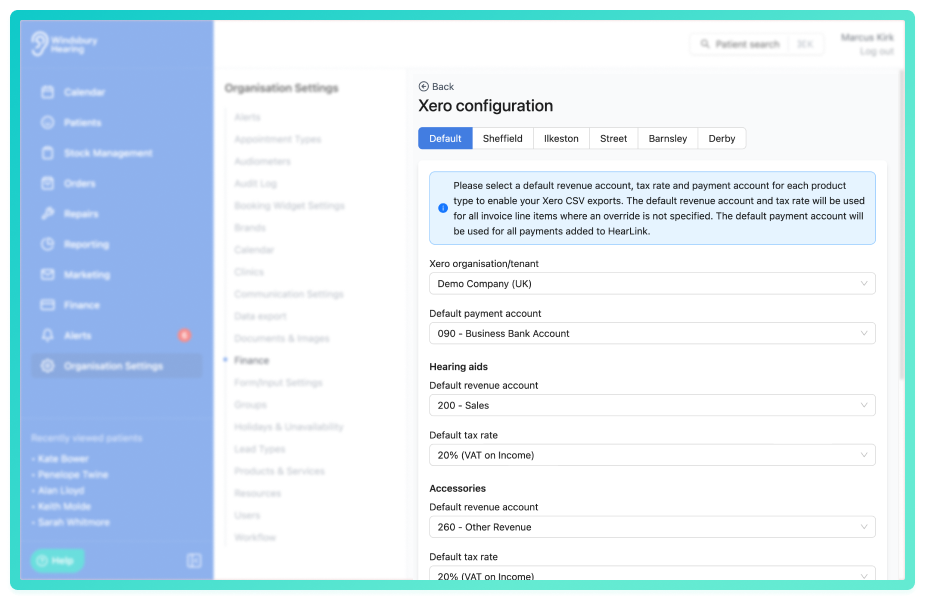
- Turn on Synchronisation enabled to allow HearLink to post invoices, credit notes, and payments to Xero. If this is off, no sync will happen — not even a manual one.
- Choose a Synchronisation mode (see below) and whether new invoices should be created in Xero as Draft or Authorised (see below).
- Click Submit. These defaults will be applied whenever an invoice is synced.
Clinic override
You can override the Xero organisation/tenant, sync settings, default revenue accounts, default tax rates, and payment account per clinic. Any clinic without an override will use the organisation defaults.
- Select a Clinic.
- Click Create Override.
- Make the required changes and click Submit.
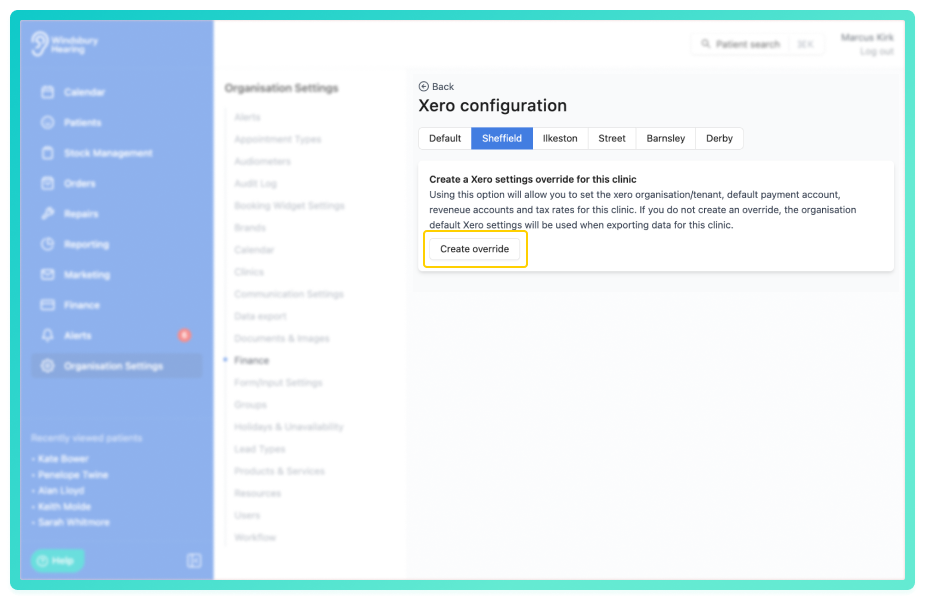
If a clinic has no Xero tenant selected (on the default or an override), invoices from that clinic will not sync until a tenant is chosen. HearLink will display a warning on the Xero settings page listing the clinics that are affected.Synchronisation modes: Auto vs Manual
Once synchronisation is enabled, you choose how invoices are posted to Xero:
Auto: invoices, credit notes, and payments created or updated in HearLink are posted to Xero automatically in the background. No user action is needed.
Manual: nothing is posted to Xero automatically. A user will need to click on the Sync to Xero button on each invoice. Use this if you want a human review step before each invoice leaves HearLink.
The Sync to Xero button on an individual invoice works regardless of the mode, as long as Synchronisation enabled is turned on. This means you can still manually push an invoice in Auto mode — useful for retrying failures or pushing invoices that predate the clinic’s override.Draft vs Authorised sync
Draft:
Invoices synced as Draft appear in Xero awaiting review.
This is useful when:
- You want accounts staff to check invoices first.
- Changes may still be required before approval.
- You prefer final approval to happen in Xero.
Authorised:
Invoices synced as Authorised are automatically approved when they arrive in Xero.
This is useful when:
- HearLink invoices are final when created.
- You want invoices ready for payment immediately.
- You want a more automated workflow with less manual processing.
Invoices set to sync as Draft will be automatically moved to Authorised in Xero as soon as a payment is recorded against them in HearLink. This is a Xero limitation — Xero does not allow payments to be allocated to Draft invoices.What is and isn’t synced
The Xero integration is a one-way push from HearLink to Xero. Changes in Xero are not reflected back in HearLink. It’s important to understand exactly what is covered so that you can manage the rest directly in Xero.
What HearLink pushes to Xero
- Invoices — created as Draft or Authorised (per your setting), with one line item per product, each tagged with the correct revenue account and tax rate.
- Invoice updates — if you edit an invoice in HearLink that has already been synced, the changes are pushed to Xero (subject to the limitations below).
- Credit notes — posted to Xero as Authorised credit notes and automatically allocated against the parent invoice.
- Credit note deletions — if you delete a credit note in HearLink, it is voided in Xero.
- Payments — posted to Xero against the invoice, using the default payment account configured for the clinic. Payment amount, date, and method changes in HearLink will be resynced to Xero. Deleted payments are removed from Xero.
- New patient contacts — when an invoice is first synced for a patient, a matching Xero contact is created using their name, email, phone, and address at that moment.
- Patient name changes — if a patient is renamed in HearLink, the corresponding Xero contact is automatically renamed the next time you sync an invoice or credit note for that patient.
What HearLink does not push to Xero
- Invoice deletions in HearLink. If you delete an invoice in HearLink, the Xero invoice is not voided automatically. You are responsible for voiding or deleting it in Xero.
- Invoices that already have payments or credit notes allocated in Xero. HearLink cannot update these — Xero blocks the change. You’ll see a failed sync log explaining this. Adjust the invoice directly in Xero instead.
- Patient address, phone, or email updates. Only the patient’s name is kept in sync after the Xero contact is first created. Other contact details must be updated in Xero directly if they change.
- Attachments, tracking categories, branding themes, or invoice custom fields. None of these are set by HearLink; configure them in Xero as needed.
- Refunds as a separate concept. Refunds are handled via credit notes in HearLink, which are synced to Xero as credit notes. Standalone Xero refunds must be managed directly in Xero.
What does not come back from Xero into HearLink
- Payments recorded in Xero are not reflected in HearLink. Record payments in HearLink and let them sync outward.
- Invoice edits made in Xero are not reflected in HearLink. If you need a change to appear in both systems, make it in HearLink.
- Invoices created directly in Xero (not originating from HearLink) are invisible to HearLink. They won’t appear on patient orders or HearLink reports.
- Contact edits in Xero do not update the HearLink patient record.
Rule of thumb: HearLink is the source of truth for anything that originates from a patient interaction (invoices, credits, payments). Xero is the source of truth for your ledger (reconciliation, reporting, manual journal entries). Do each piece of work in the system it belongs to.Sync logs and retrying failures
Every sync operation (invoice create, invoice update, payment create, credit note create, etc.) is recorded in the Xero sync log. Successful operations confirm the push worked; failed operations include the Xero error message so you can diagnose the issue.
- From Finance → Integrations → Xero, click View logs.
- Filter or page through the list to find the operation you’re interested in.
- For a failed entry, click the retry icon to re-run the sync for that order (including its payments and credit notes).
Common reasons for a failed sync include:
- Xero is disconnected — reconnect Xero and retry.
- No Xero tenant selected for the clinic — set the tenant on the default or clinic override.
- The invoice has payments or credit notes allocated in Xero and cannot be updated — make the change directly in Xero.
- A revenue account or tax rate has been deleted or renamed in Xero — re-select a valid option in HearLink’s configuration.
Manually sync or resync a single order
From an individual invoice in HearLink you can push that specific order to Xero on demand.
- Open the invoice.
- Click Sync to Xero (first-time push) or Resync to Xero (re-post after changes).
- Confirm in the dialog. HearLink will create or update the Xero invoice and re-sync all related payments and credit notes to match.
Manual sync works regardless of the clinic’s mode (Auto or Manual), as long as Synchronisation enabled is on for that clinic.Reconnecting Xero
The connection to Xero can be lost if access is revoked in Xero or if the refresh token expires. When this happens HearLink shows a Xero is disconnected banner at the top of the Xero settings page, and new sync attempts will fail with a “Xero is disconnected” message in the sync logs.
- Go to Finance → Integrations → Xero.
- Click Reconnect Xero and complete the Xero login again.
- Once reconnected, retry any failed syncs from the sync logs page.
Invoices created while Xero was disconnected are not lost — they remain in HearLink. Once you reconnect, you can either wait for new events to trigger a re-sync, or use the retry option on the sync logs page to push them through manually.Export data to Xero (CSV)
In addition to live sync, you can export invoice and credit note data as Xero-ready CSV files for a date range — useful for historical imports, audit exports, or when running a parallel reconciliation. See the Xero data export article for the full steps.
Was this article helpful?
That’s Great!
Thank you for your feedback
Sorry! We couldn't be helpful
Thank you for your feedback
Feedback sent
We appreciate your effort and will try to fix the article