You can customise your organisation's VAT and currency settings to align with your invoicing and regional requirements.
In this article we will cover how to:
- enable and set VAT.
- configure taxable percentages.
- enable product catalogue prices include VAT.
- configure currency settings.
Only users with the correct permissions can edit the VAT and currency settings. If you think you should have permission to perform such an action please contact the organisation owner.Configure VAT & currency settings
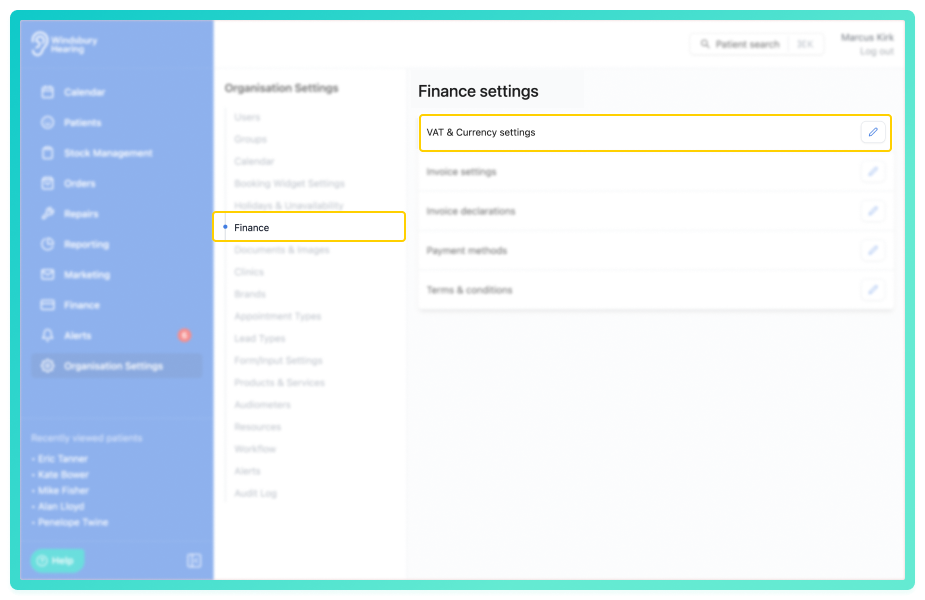
- Navigate to Organisation settings.
- Locate and click the Finance section of the settings.
- Click the Edit icon
 next to VAT & Currency settings.
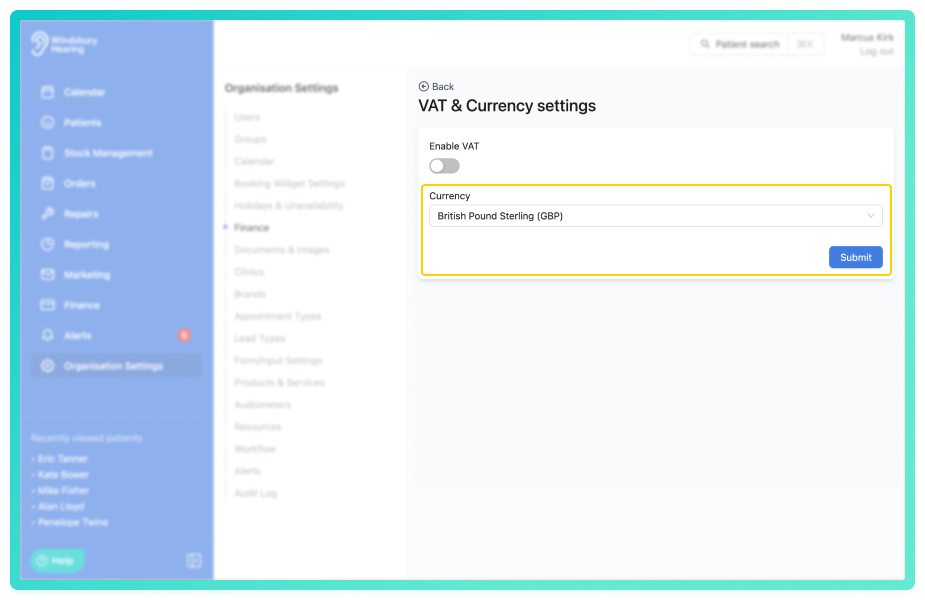
- Configure the currency according to your organisation's requirements.
- Click Submit to save your changes.
Enable VAT
If your organisation is registered for VAT, you can enable VAT and define a taxable percentage for each type of sale.
Example:
- Windsbury Hearing has a taxable percentage on hearing aids at 35% and a standard VAT rate of 20%.
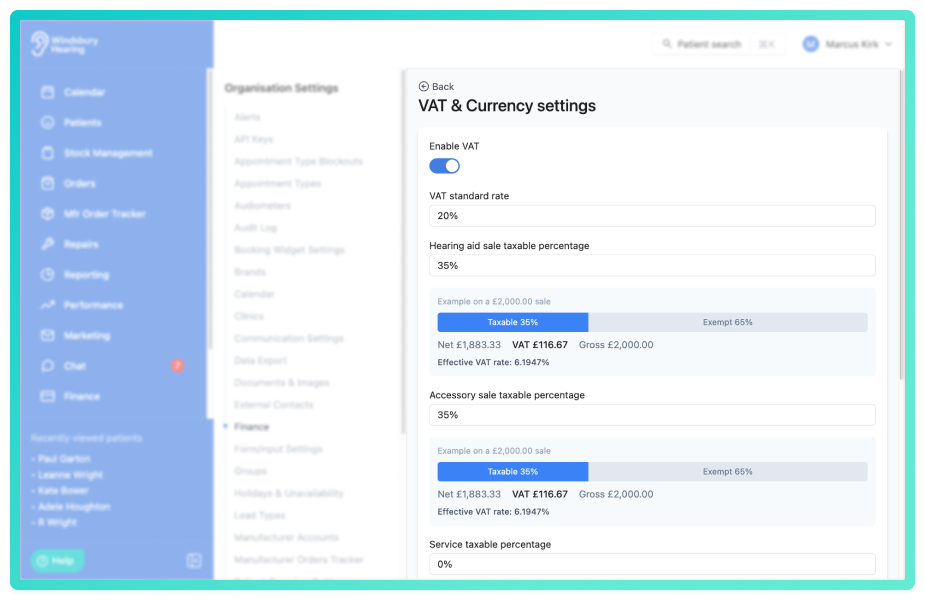
- They sell a Hearing aid for the price of £2000.
- The affective tax rate applied will be %6.1947 (£116.67).
- The calculation for this is the standard tax rate (20%) multiplied by the taxable percentage (0.30%) = affective tax rate of 6.1947% OR 6.1947% divided by the standard tax rate (20%) multiplied by 100.
Enable product catalogue prices include VAT
An organisation can enable the products to include VAT.
- Enable or disable the setting.
- Click Submit.
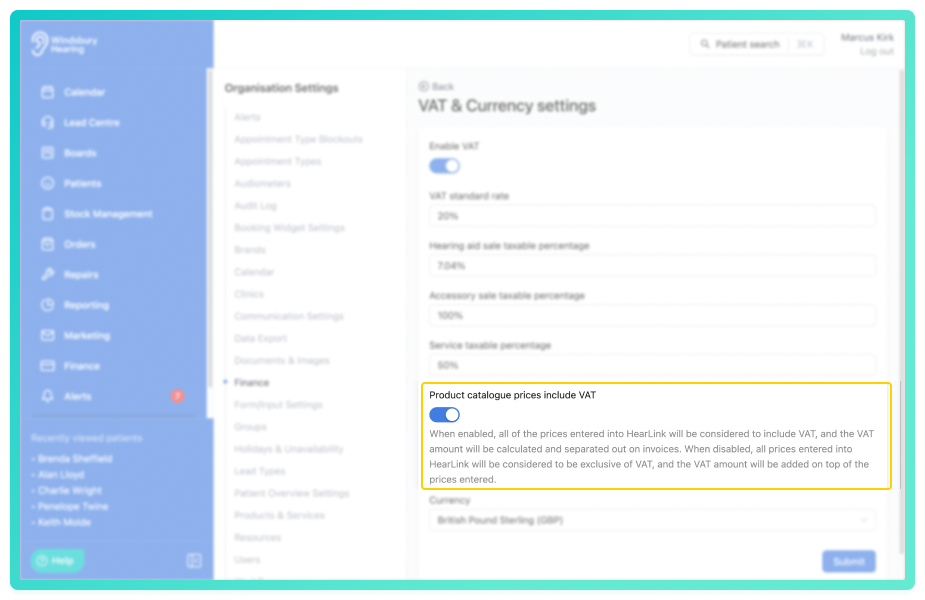
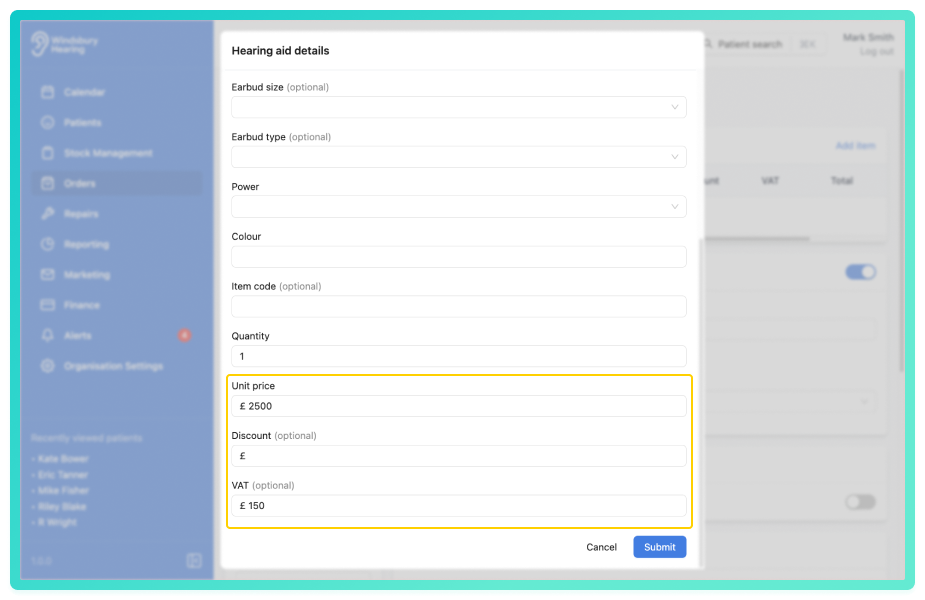
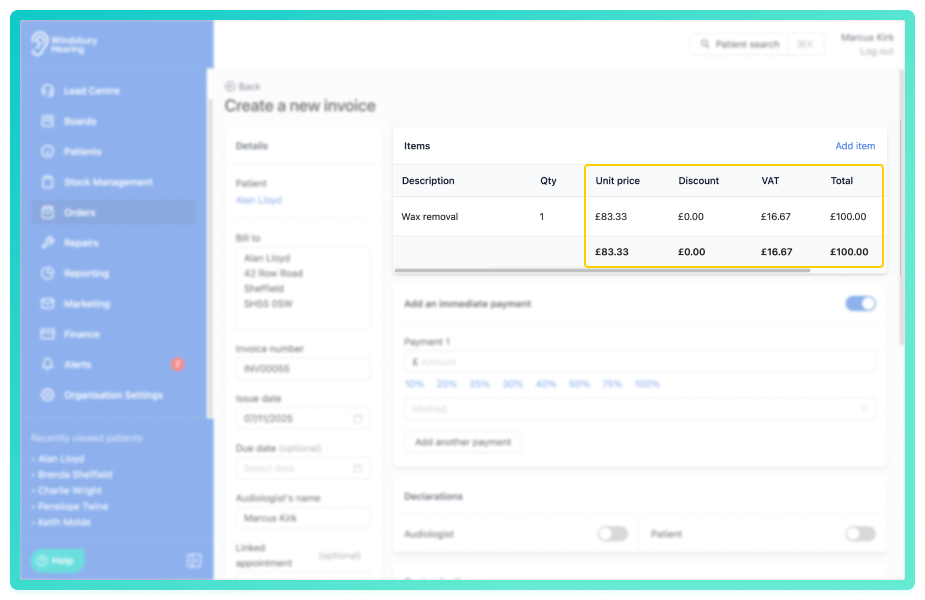
- When enabled, prices entered will be considered VAT inclusive, HearLink calculates and separates the VAT portion automatically on invoices.
Example with the setting enabled:
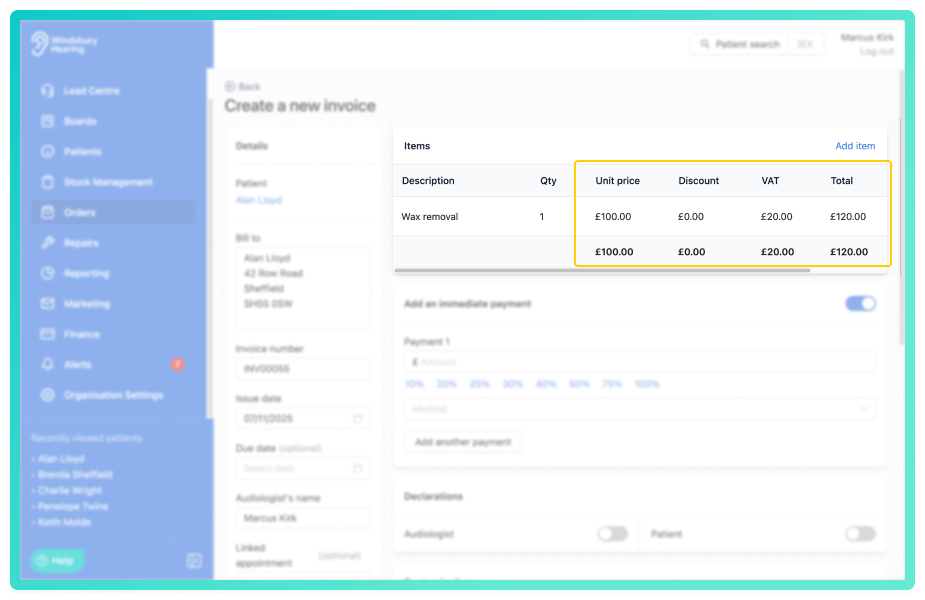
- When disabled, prices entered are considered VAT exclusive, and VAT is added on top when invoiced.
Example with the setting disabled:
Understanding the settings
VAT
Enable VAT if your organisation is registered for it.
- Set the standard VAT rate as a percentage (e.g. 20%).
- Set each sale types taxable percentage.
- VAT will be applied to relevant invoices automatically taking into account the taxable percentage to apply the affective rate.
Currency
Select your preferred Currency from the dropdown list. This sets the displayed currency on all generated invoices.
Was this article helpful?
That’s Great!
Thank you for your feedback
Sorry! We couldn't be helpful
Thank you for your feedback
Feedback sent
We appreciate your effort and will try to fix the article