An organisation may have multiple email templates to use across the system. An email template can have a subject, body and documents attached to it. These email templates can be amended at point of sending to the patient.
In this article we'll cover how to:
- create an email template.
- attach documents to the template.
Only users with the correct permissions can create an email template. If you think you should have permission to perform such an action please contact the organisation owner.Create an email template
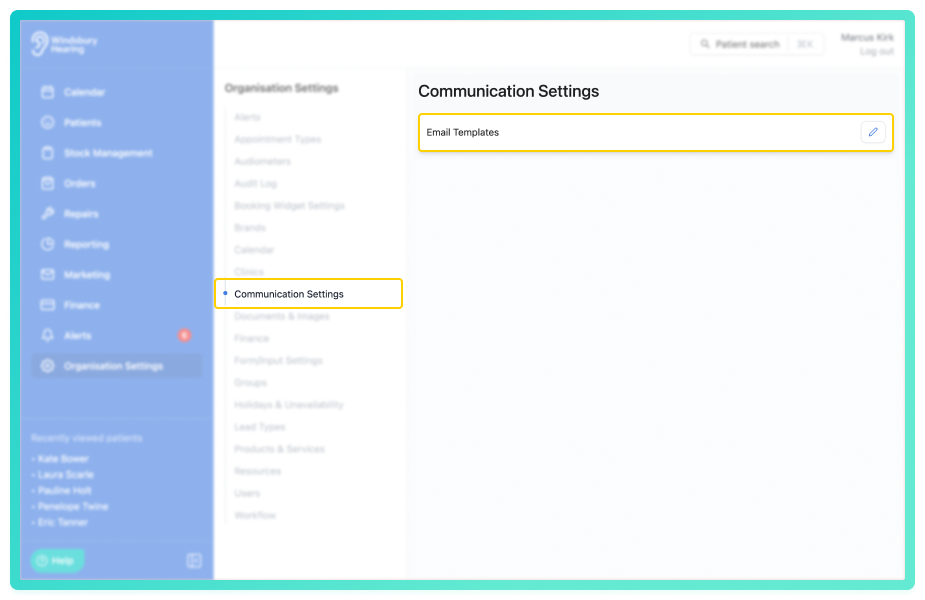
- Navigate to Organisation settings.
- Locate and click the Communication Settings section of the settings.
- Click the Edit icon
 next to Email Templates.
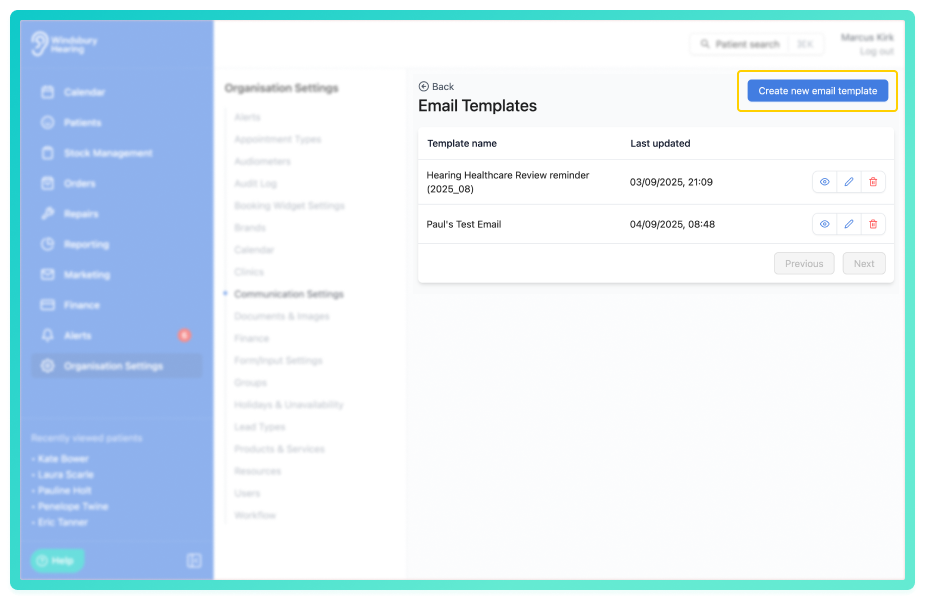
- Click the Create new email template button.
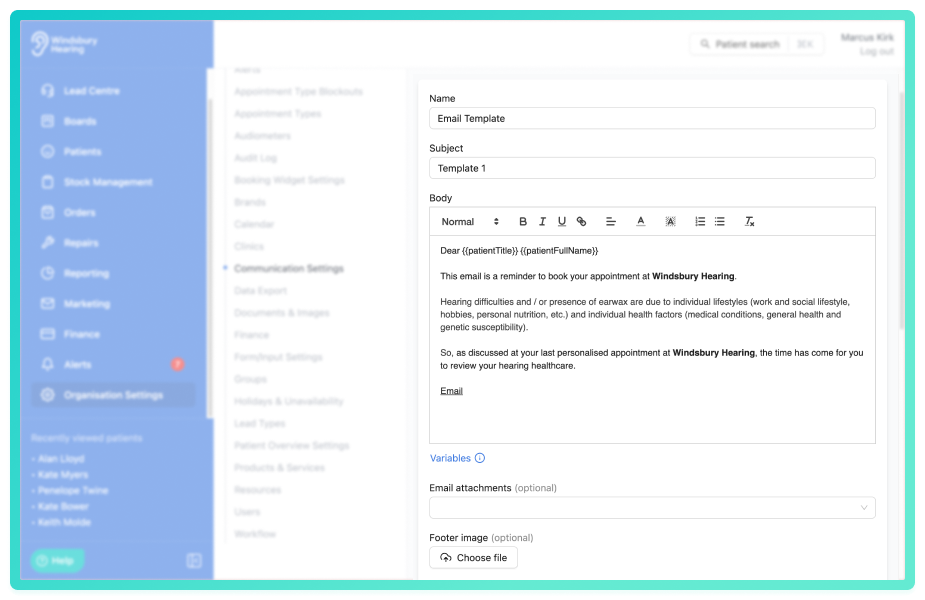
Complete the email template setup:
- Enter a template Name.
- Add a Subject title.
- Create the Body of the email template.
- Add optional uploaded documents.
- Add an optional Logo.
- Click Submit to save the email template.
As you are creating the template, a preview will be viewable under the submit button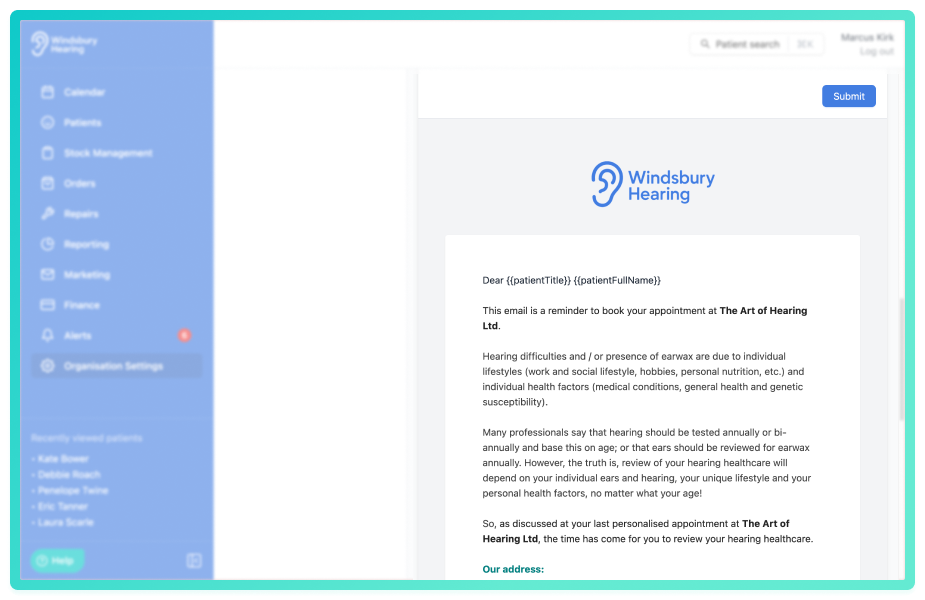
When Sending an ad hoc email, a user can edit an email before sending.Attach a document to an email template
Multiple documents can be attached to any email template. These are then sent with the template when emailing the patient.
- Select the required documents from the dropdown list.
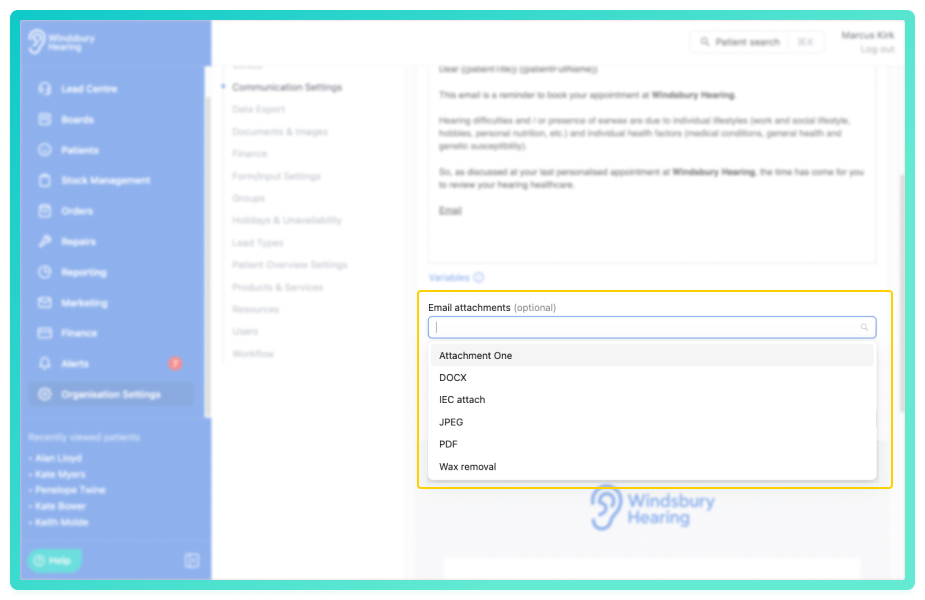
- Complete the email template and click Submit to save the email template with the documents attached..
The attached documents can be removed at point of sending an email to the patient. A user can also add attachments when sending an ad hoc email.Was this article helpful?
That’s Great!
Thank you for your feedback
Sorry! We couldn't be helpful
Thank you for your feedback
Feedback sent
We appreciate your effort and will try to fix the article