Lead types allow your organisation to track referral sources when appointments are created. These contribute to reporting insights within the HearLink system.
In this article we'll cover:
- how to add a new lead type.
- how to create and use sub types.
Only users with the correct permission can add lead types. If you think you should have permission to perform such an action please contact the organisation owner.Add a lead type
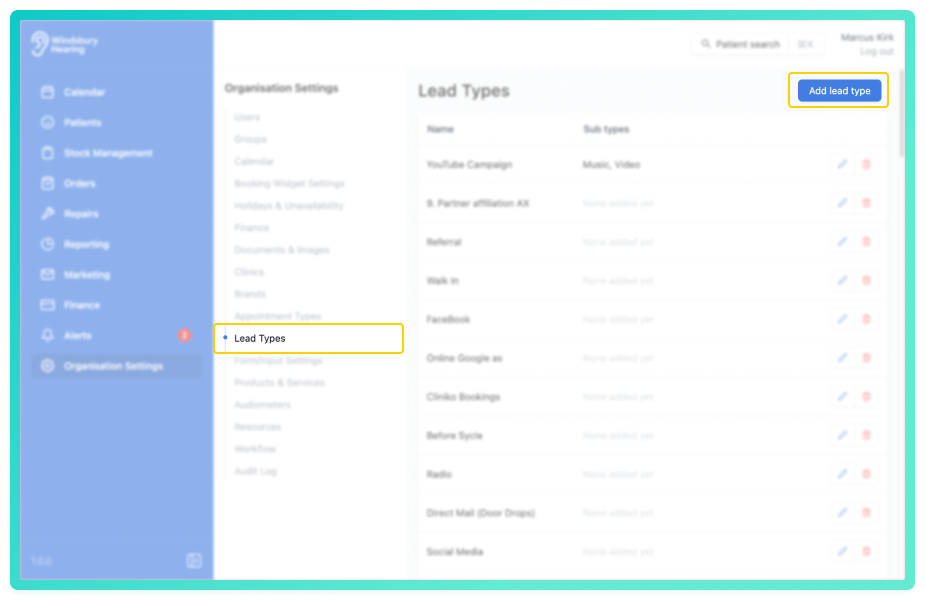
- Navigate to Organisation settings.
- Locate and click the Lead Types section of the settings.
- Click the Add lead type button.
- Complete the form to define the new Lead type.
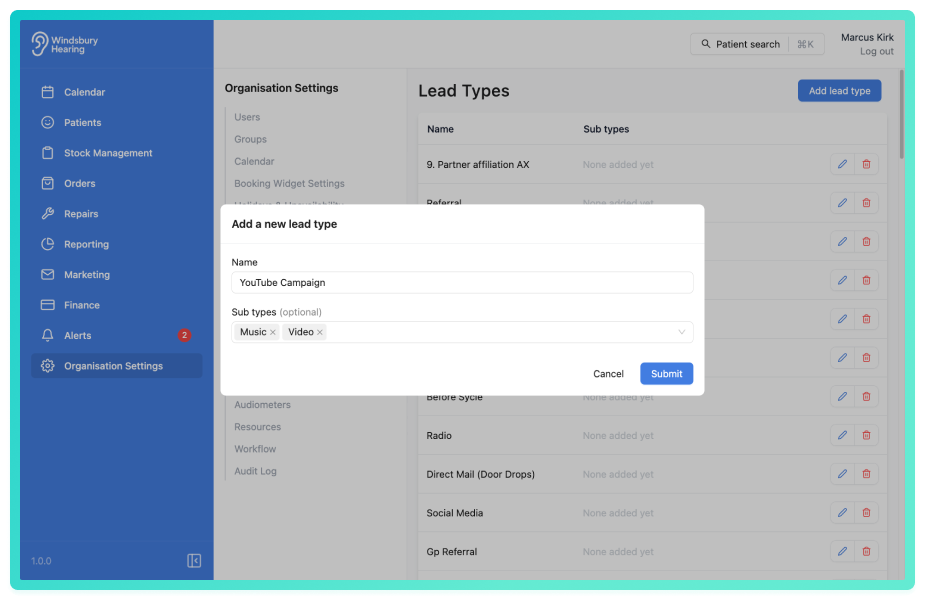
- Click Submit to save your changes.
Adding a sub type
Sub types can be used to further categorise a lead type.
Example: A referral lead type might have sub types such as Other Clinic, GP, or Patient Referral.
- Locate the lead type you want to add sub types to.
- Enter the name of a sub type, or multiples.
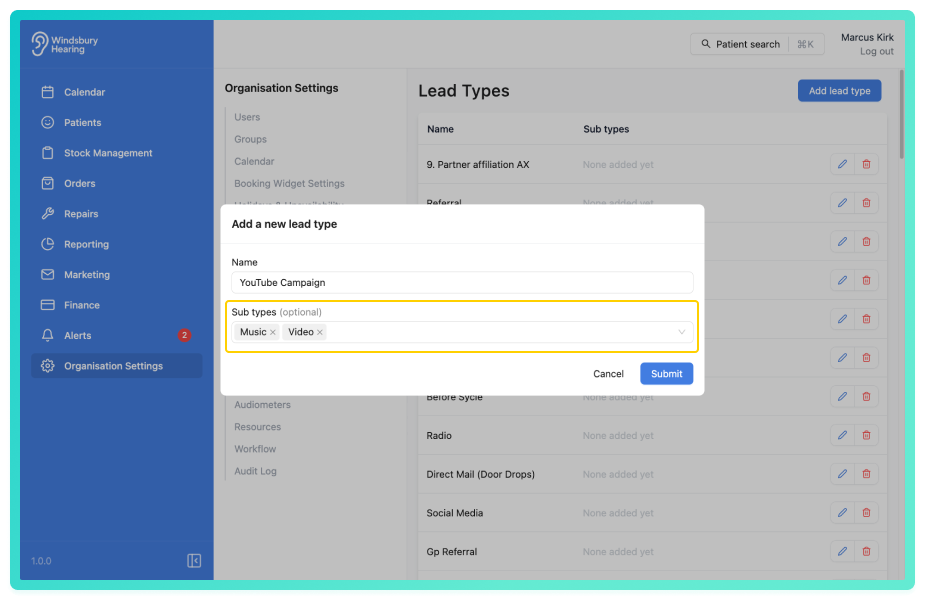
- Click Submit to save your changes.
Sub types can be viewed and selected when creating an appointment and will appear in reports.
Was this article helpful?
That’s Great!
Thank you for your feedback
Sorry! We couldn't be helpful
Thank you for your feedback
Feedback sent
We appreciate your effort and will try to fix the article