You can customise the company title and body statement that appear on fitting receipts generated in orders.
In this article we will cover how to:
- edit the company statement title
- edit the company statement body
- show both patient and manufacturer warranty dates.
Only users with the correct permissions can edit the fitting receipt settings. If you think you should have permission to perform such an action please contact the organisation owner.Edit fitting receipt settings
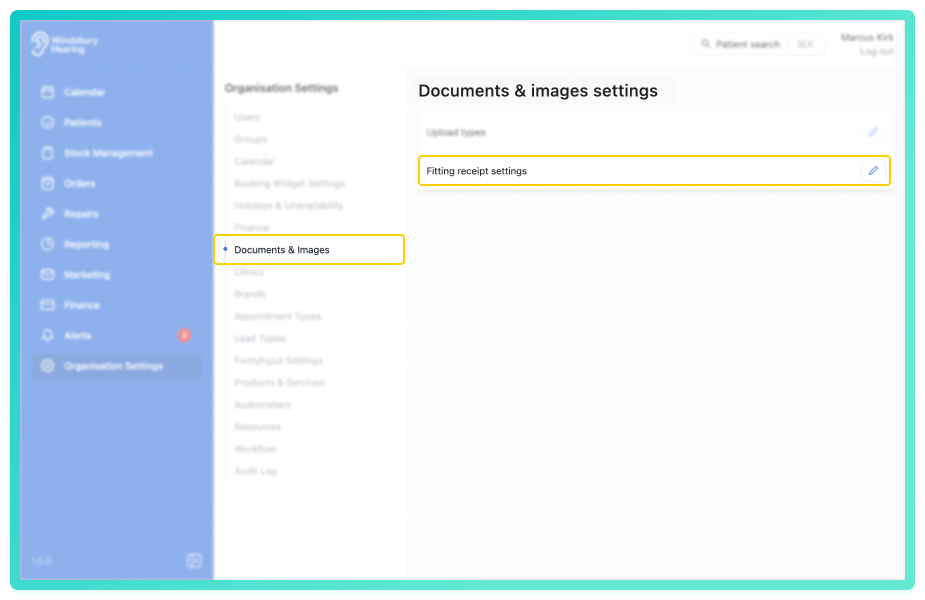
- Navigate to Organisation settings.
- Locate and click the Documents & Images section of the settings.
- Click the Edit icon
 next to Fitting receipt settings.
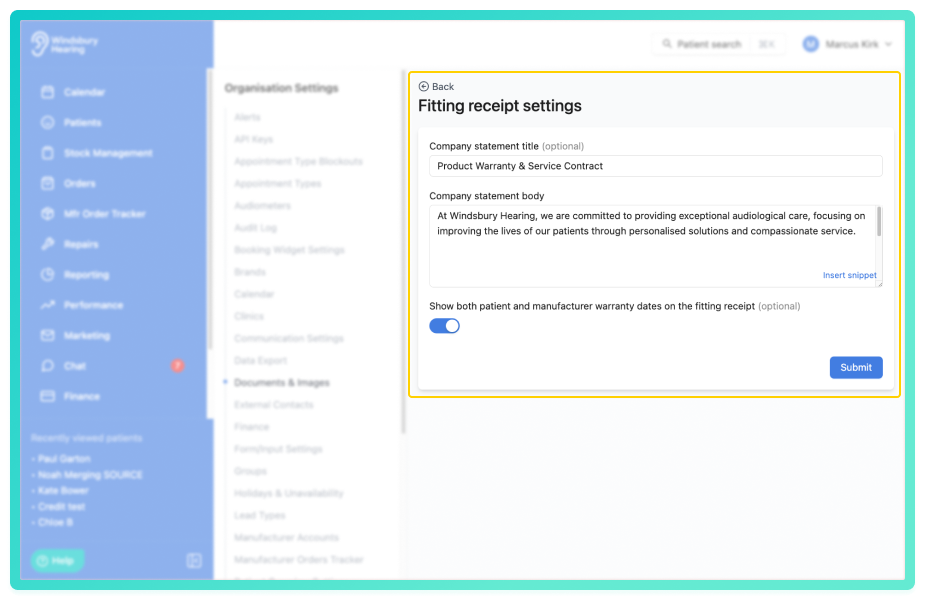
- Update the company statement title and body to your organisations requirements.
- Click Submit to save your changes.
Shoe both patient and manufacturer warranty dates
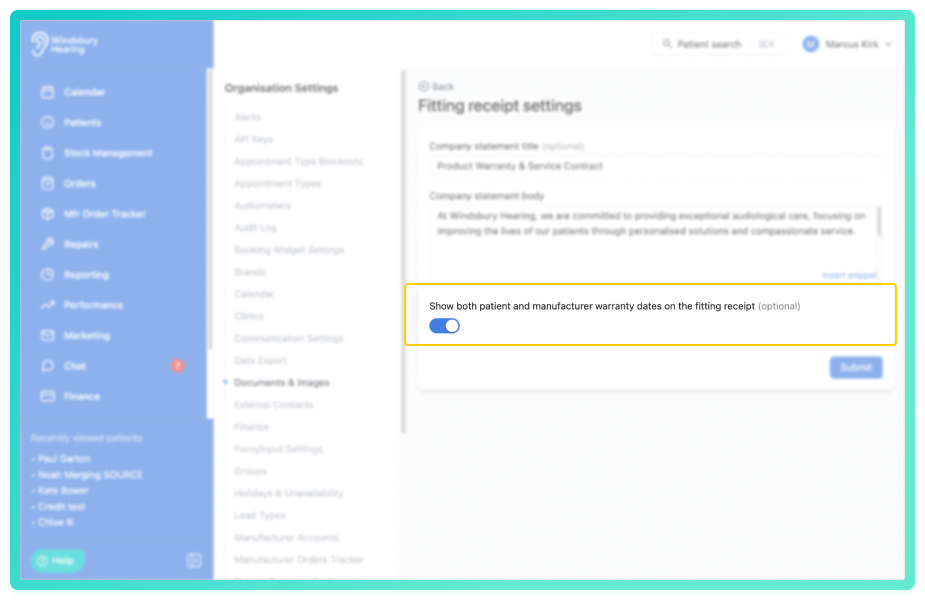
By default, fitting receipts display a single Warranty column showing only the patient warranty date. You can enable a setting to show both patient and manufacturer warranty dates in separate columns.
- Toggle the Show both warranty dates switch to enable the setting.
When enabled the fitting receipt displays two columns:
- Patient warranty - the patient's warranty expiry date.
- Manufacturer warranty - the manufacturer's warranty expiry date.
Was this article helpful?
That’s Great!
Thank you for your feedback
Sorry! We couldn't be helpful
Thank you for your feedback
Feedback sent
We appreciate your effort and will try to fix the article