Consultation templates control the structure of the report Tonee produces, what sections appear and what each one should contain. You can create a template for each type of appointment your clinic runs, allowing different structures for first assessments, follow-ups, fitting appointments and more.
In this article we'll cover how to:
Only users with the correct permissions can create consultation templates. If you think you should have permission to perform such an action please contact the organisation owner.Create a consultation template
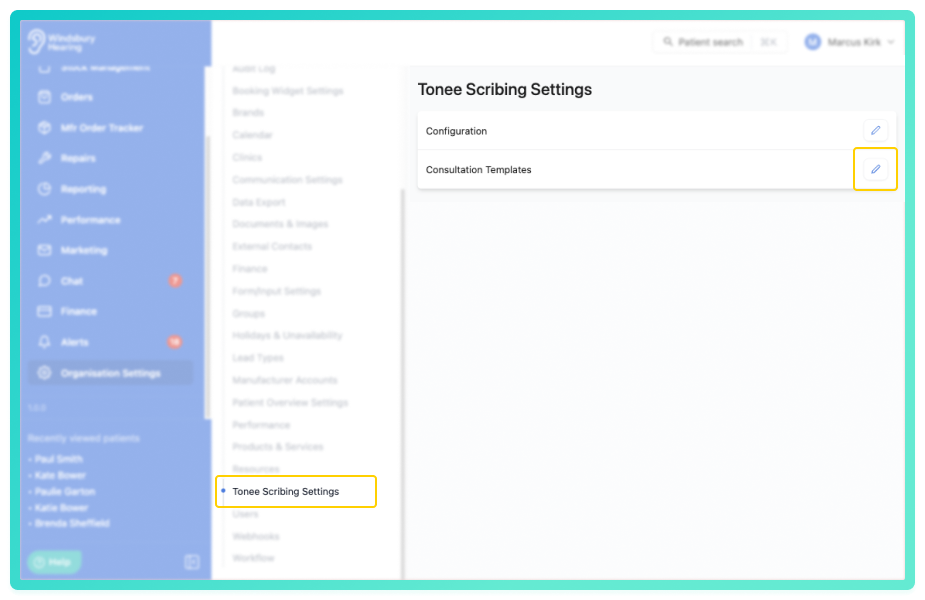
- Navigate to Organisation settings.
- Locate and click Tonee Scribing Settings.
- Click the Edit
 button on Consultation Templates.
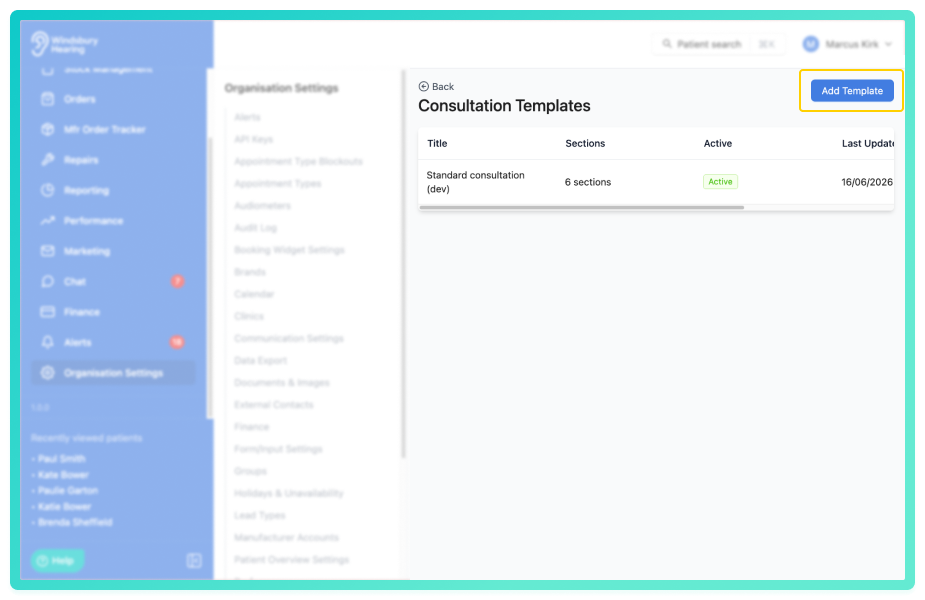
- Click Add Template.
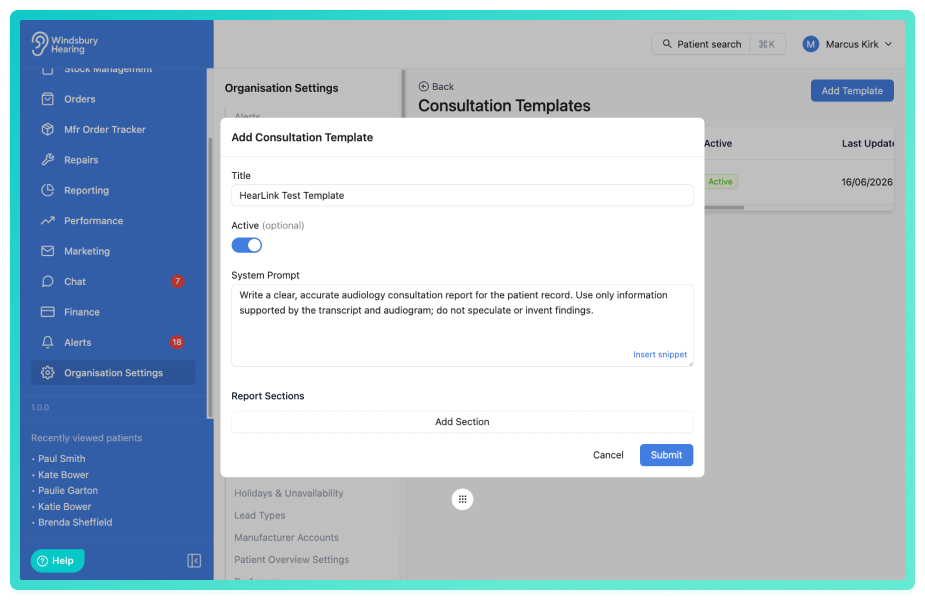
- Enter a template title, a system prompt and configure report sections
- Use the Active toggle to control whether the template is available to clinicians.
Write a system prompt
The system prompt is the overall, standing instruction Tonee follows every time this template is used. Think of it as briefing a new colleague on how this clinic writes up this type of appointment, it sets the context and any rules that always apply, before Tonee gets to the individual sections.
Use it for things that are true for every consultation of this type, what the appointment is, who the report is written for, and any house rules. Don't put details about one specific patient here; those belong in the Additional context box at the point of recording.
For example, a system prompt for a first adult assessment might say:
- "This is a first adult hearing assessment. Write the report for the referring GP. Always comment on the impact of any hearing difficulty on the patient's daily life, and note whether hearing aids were discussed and the patient's response."
Because the appointment type, audience and emphasis differ between, say, a first assessment, an aftercare review and a wax-removal appointment, each is usually best as its own template with its own system prompt.
Additional note instructions
You can add supplemental instructions to guide Tonee when generating the clinical note. These instructions are additive to the existing summarisation and allow you to specify particular information that should always be included in the generated note.
- Locate the Additional note instructions field.
- Enter the specific information you want Tonee to always include in the generated note. For example, Always note any mention of tinnitus.
- Save the template.
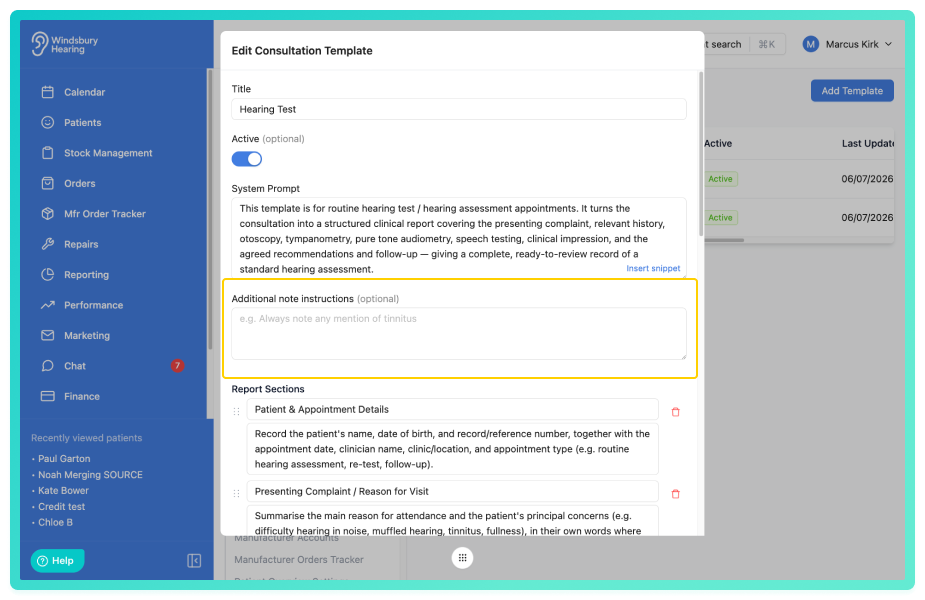
Additional note instructions are optional and work alongside the existing summarisation process. They do not override the core summarisation functionality.To update or clear instruction, return to the template, edit the field as required and save. To clear the instructions entirely, delete the text from the field before saving.
Define and order report sections
Report sections define the structure of the finished report. Tonee produces exactly the sections you list, in the order you arrange them, nothing more, nothing less. Each section has two parts:
- Heading: the title that appears on the report (for example, Presenting complaint).
- Description: an instruction telling Tonee what to write in that section. The description is not printed in the report; it only guides the content.
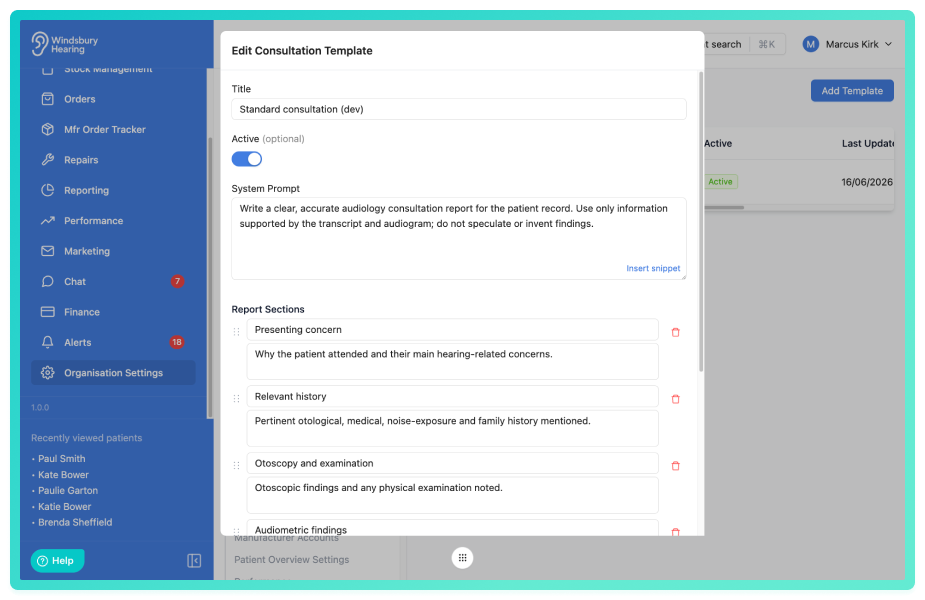
- Click Add section to add a section.
- Drag a section by its handle to reorder it, this is the order it will appear in the report.
- Remove a section you don't need.
A typical assessment template might use these sections (heading - description):
| Heading | Description |
|---|---|
| Present complaint | Summarise the patient's reported hearing difficulties, how long they have been present and their impact on daily life. |
| Otoscopy | Describe the ear canal and tympanic membrane findings fro each ear. |
| Audiometric findings | Report the pure-tone results, including the degree and configuration of any hearing loss. |
| Recommendations and plan | State what was recommended and agree the next steps. |
Tip: the more specific your descriptions, the more consistent your reports. Write each description as a clear instruction ("Describe…", "Summarise…", "State…") rather than just repeating the heading, and keep each section to a single topic.- Save the template.
Only Active templates appear in the template dropdown when you start a recording. Switch a template off to retire it without deleting it.Was this article helpful?
That’s Great!
Thank you for your feedback
Sorry! We couldn't be helpful
Thank you for your feedback
Feedback sent
We appreciate your effort and will try to fix the article