Manufacturer order tracking allows you to manage orders placed with manufacturers for hearing aids and accessories. You can add orders after creating an invoice, track their progress through the Manufacturers Order Tracking module, and monitor linked orders on the patient invoice detail page.
In this article we'll cover how to:
- add a manufacturer orders from an invoice.
- use the Manufacturer Order Tracking module to track orders.
- progress orders through their status lifecycle.
- understand why manufacturer orders tracking matters.
Only users with the correct permissions can add and manage manufacturers orders. If you think you should have permission to perform such an action contact the organisation owner.Add a manufacturer orders from an invoice
After saving an invoice that contains hearing aids or accessories, you will be prompted to add a manufacturer order tracker.
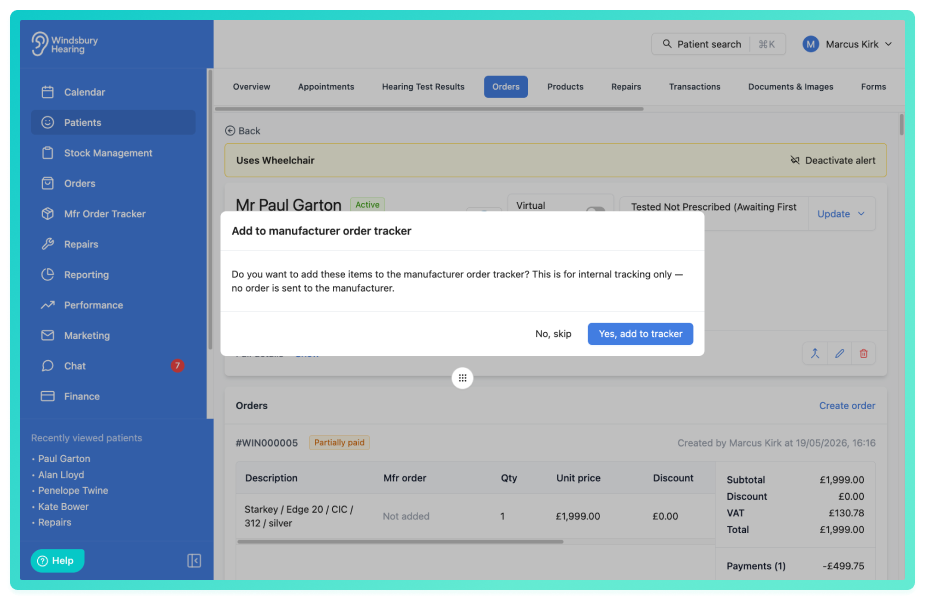
- Click Yes to open the add orders dialog.
- Click No to dismiss the prompt.
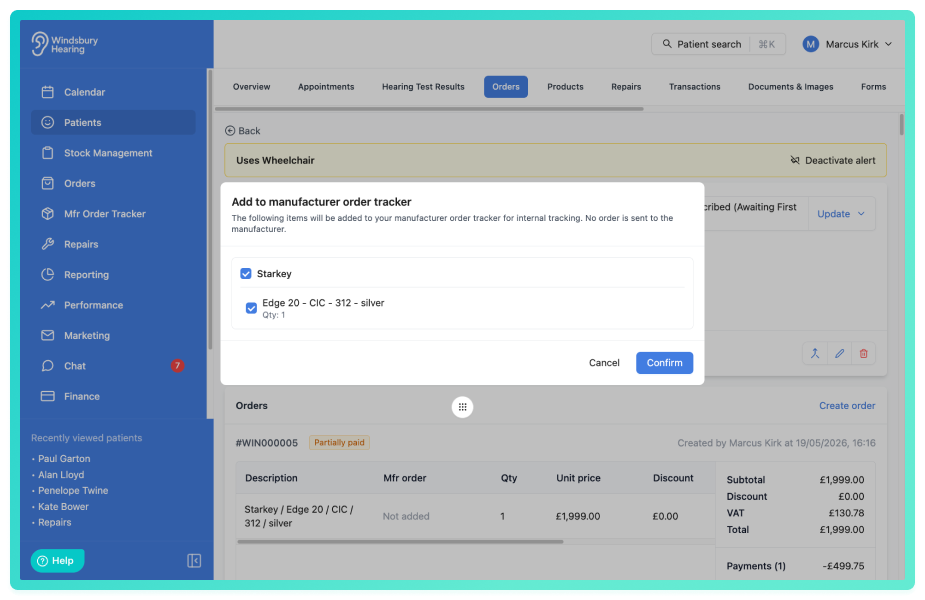
In the add orders dialog:
- Items are grouped by manufacturer.
- Use the checkbox next to each item to select which items to order.
- Use the manufacturer level toggle to select or deselect all items from that manufacturer.
- Click Confirm to create the manufacturer orders.
Add orders later
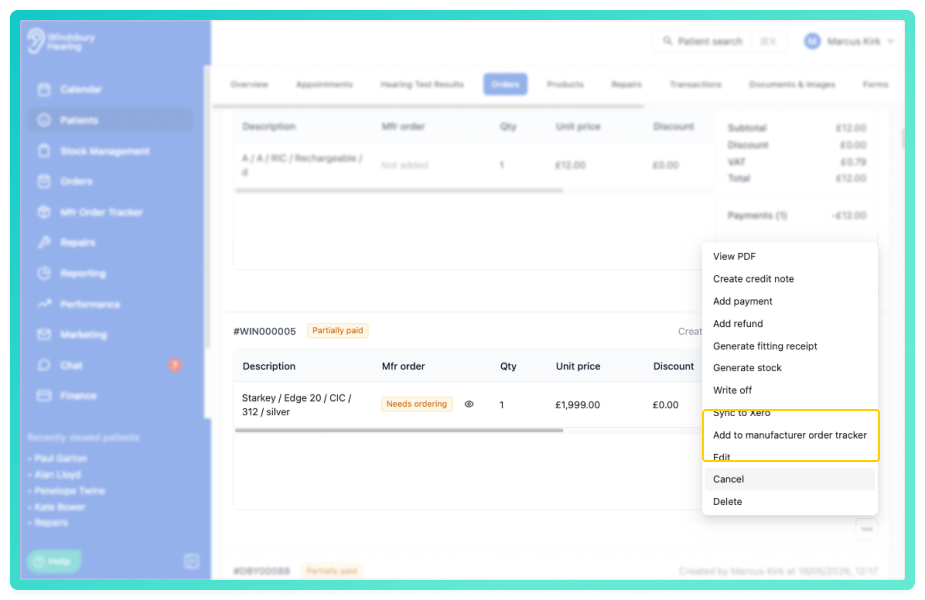
If you clicked No or need to add additional orders for an existing invoice:
- Navigate to the patient's Orders tab.
- Locate the required invoice.
- Click the three dots
 next to the invoice
 - Select Add to manufacturer order tracker.
- Follow the steps above.
Use the Manufacturer Order Tracker module to track orders
The Manufacturer Order Tracker module provides a centralised view of all manufacturer orders across your organisation.
- Navigate to Mfr Order Tracker.
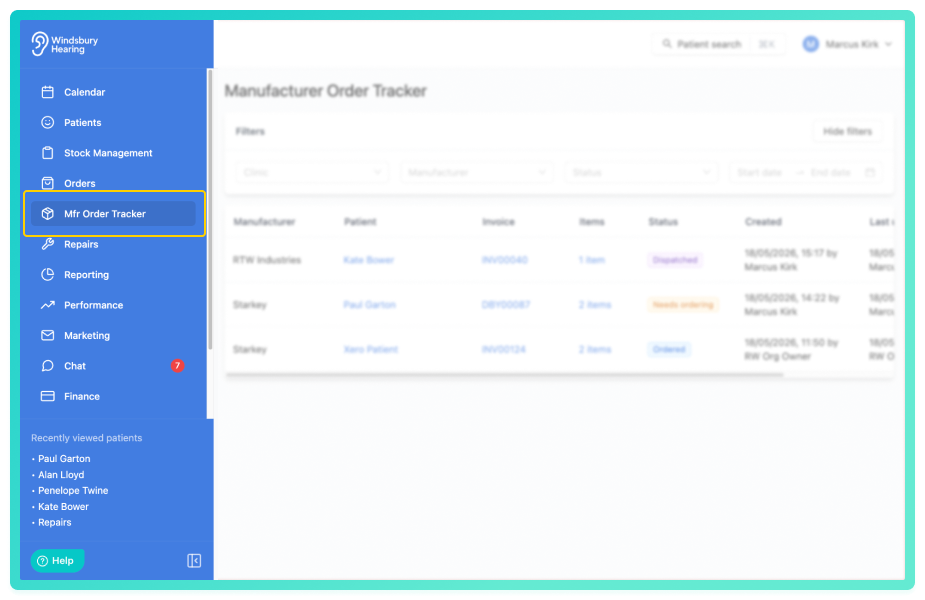
The table displays all active manufacturers orders with details including:
- Patient name
- Manufacturer
- Order date
- Current status
- Invoice No
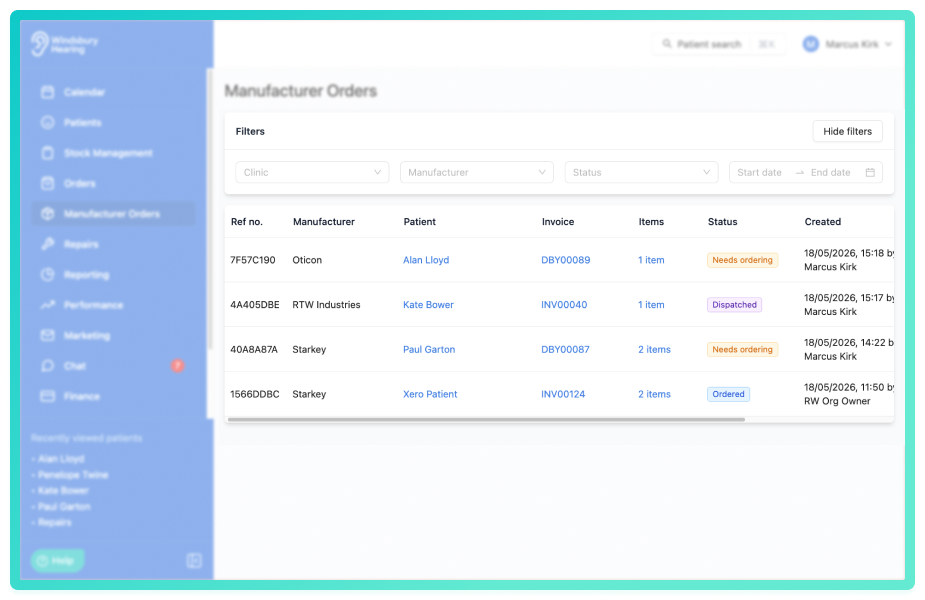
Use the filters to narrow the orders displayed.
Progress orders through their status lifecycle
Manufacturers orders move through the following statuses:
- Needs ordering - Order has been raised but not yet placed with the manufacturer.
- Ordered - Order has been placed with the manufacturer and is being processed.
- Dispatched - Manufacturer has dispatched the order for delivery.
- Delivered - Order has been received at your clinic.
- Cancelled - Order has been cancelled and will not be fulfilled.
Update an order status:
- Locate the order in the Manufacturer Order Tracker module or on the patient's Orders tab.
- Click the current status tag
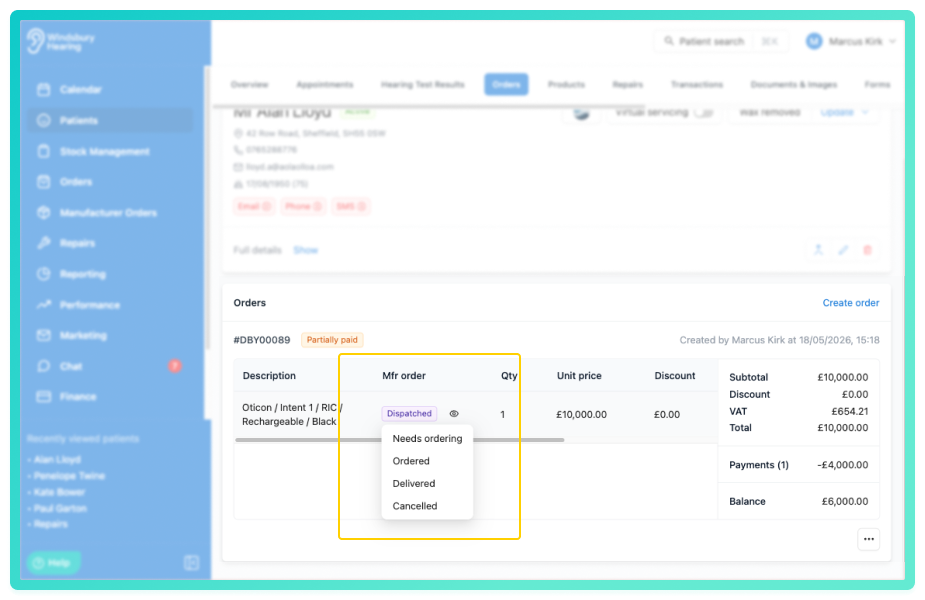
- Select the new status from the dropdown.
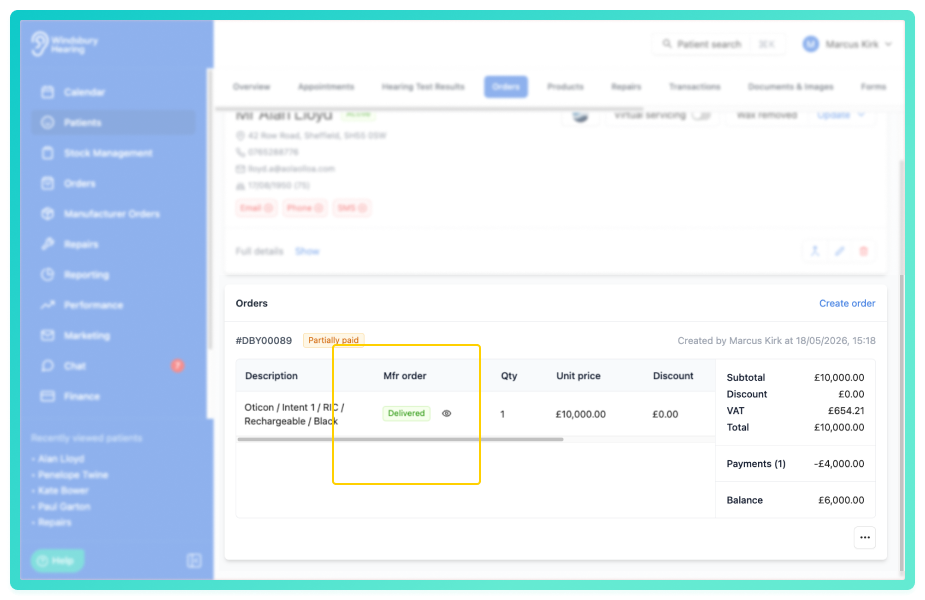
Delete a manufacturer order:
- Locate the order in the Manufacturer Order Tracker module.
- Click the Delete
 icon and follow the prompt to remove the manufacturer order.
Deleting a manufacturer order removes it from tracking but does not affect the associated invoice. The invoice remains active.
Understand the invoice cancellation warning:
When you attempt to cancel an invoice that has manufacturer orders attached, HearLink displays a warning if any orders are not yet delivered or cancelled.
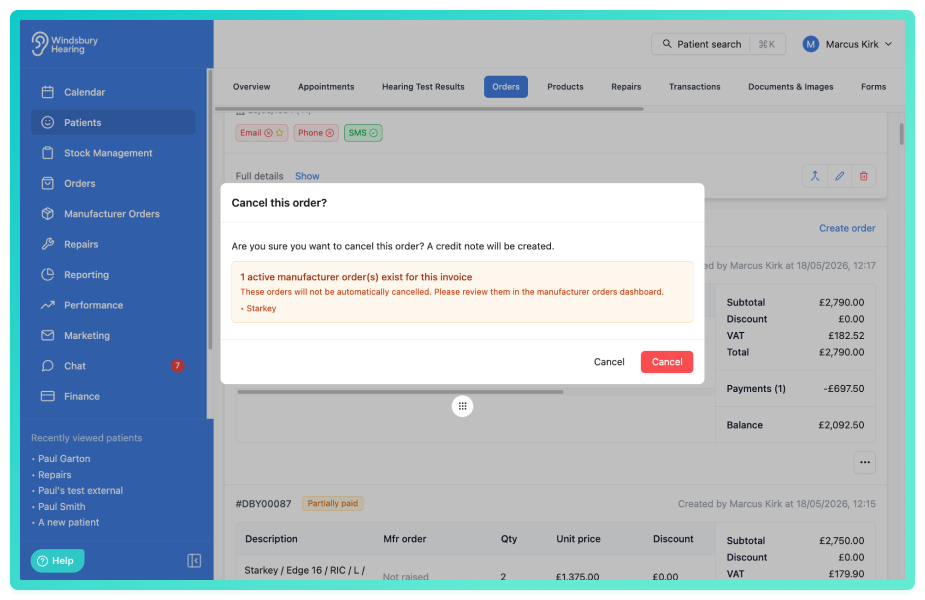
This warning alerts you that:
- The invoice has manufacturer orders that are still in progress
- Cancelling the invoice will not automatically mark these manufacturer orders as cancelled.
- The manufacturer orders status will still be visible on the patient's order page.
Why manufacturer orders tracking matters
Manufacturer order tracking closes the gap between placing an order and generating stock. Previously, once an invoice was created and an order placed with a manufacturer, there was no systematic way to track that order's progress until stock arrived and was manually generated.
This feature provides visibility and accountability throughout the fulfilment process, helping you:
- Know exactly which orders are pending with which manufacturers.
- Track expected deliveries.
- Identify delays or issues with manufacturer fulfilment.
- Maintain accurate records for each patient order.
Future enhancements will build on this foundation, including automatic stock generation prompts when orders are marked as delivered.
Was this article helpful?
That’s Great!
Thank you for your feedback
Sorry! We couldn't be helpful
Thank you for your feedback
Feedback sent
We appreciate your effort and will try to fix the article