Webhooks allow you to receive automatic notifications when events happen in HearLink. When something changes, such as a new patient being created or an appointment being updated, HearLink sends a message to a URL you specify so your systems can react in real time.
In this article we'll cover how to:
- create a webhook.
- choose which events to subscribe to.
- test a webhook.
- rotate a webhook secret.
- view delivery logs.
- understand retries and automatic disabling.
 Reminder: You need the Webhooks permission or Organisation Owner access to create and manage webhooks.
Create a webhook
- Navigate to Organisation Settings > Webhooks.
- Click Create Webhook.
- Enter a Name to help you identify the webhook, e.g. CRM Integration.
- Enter the URL that HearLink should send events to. This must be an HTTPS address.
- Select the Events you want to subscribe to.
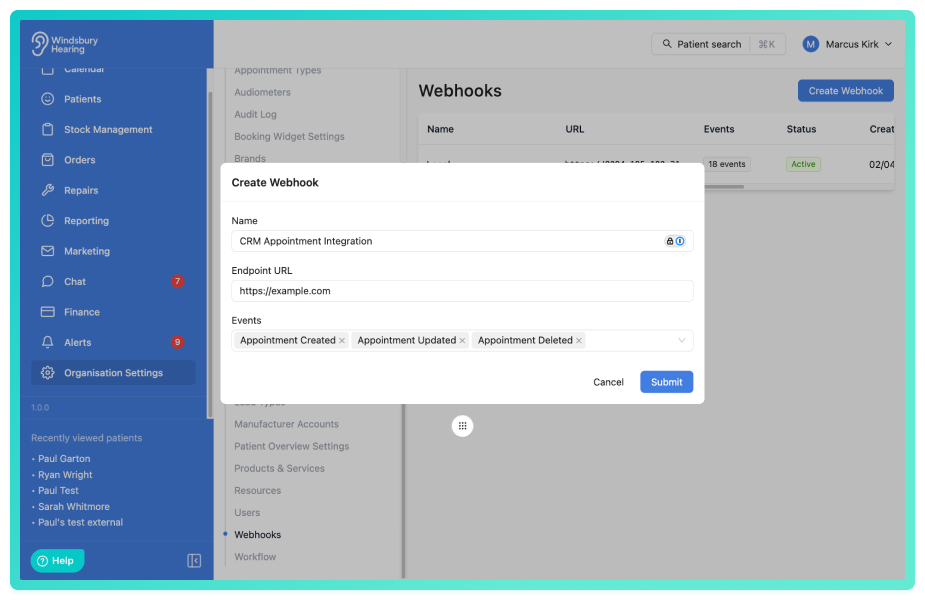
- Click Save.
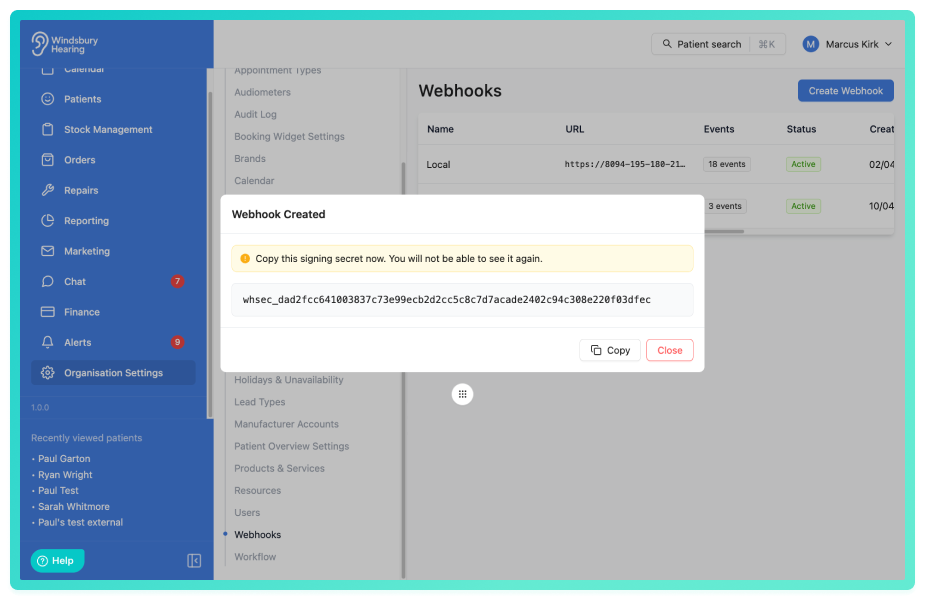
Once created, HearLink generates a signing secret for this webhook. This secret is used to verify that incoming requests to your URL genuinely came from HearLink. Copy and store it securely, it is only shown once.
Available events
You can subscribe to created, updated, and deleted events for the following entities:
| Entity | Events |
|---|---|
| Patient | patient.created, patient.updated, patient.deleted |
| Appointment | appointment.created, appointment.updated, appointment.deleted |
| Invoice | invoice.created, invoice.updated, invoice.deleted |
| Transaction | transaction.created, transaction.updated, transaction.deleted |
| Credit Note | credit_note.created, credit_note.updated, credit_note.deleted |
| Hearing Test | hearing_test.created, hearing_test.updated, hearing_test.deleted |
For full details on the data included in each event, see the Webhooks section of the HearLink API documentation.
Test a webhook
- Navigate to Organisation Settings > Webhooks.
- Click the Test button next to the webhook you want to test.
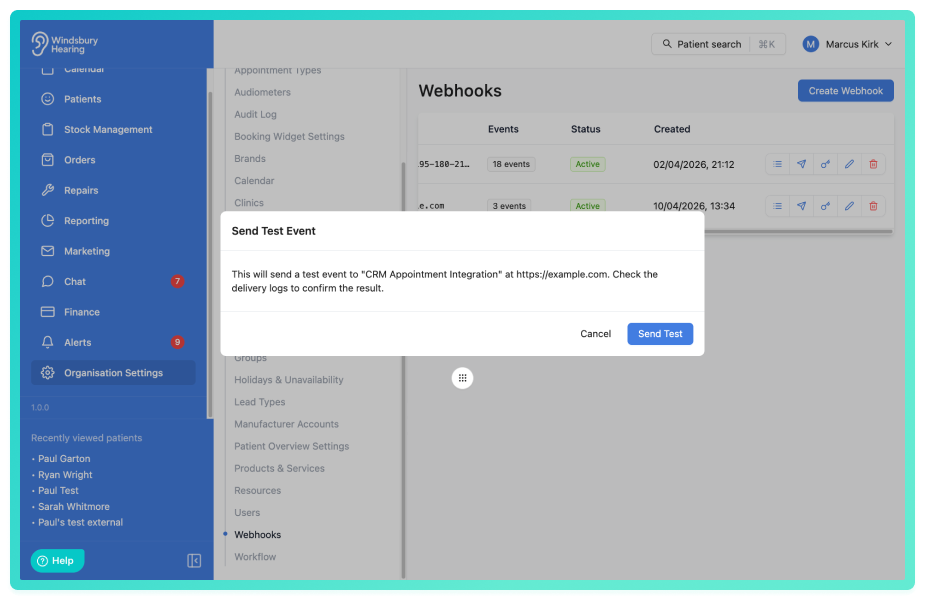
- HearLink will send a test event to your URL immediately. The test event uses the type
webhook.testand contains a sample message rather than real patient data. - Check the Delivery Logs to confirm it was received successfully.
 Tip: Use the test button to verify your endpoint is reachable and correctly validating signatures before subscribing to live events.
Rotate a webhook secret
If you believe your webhook secret has been compromised, you can rotate it without deleting and recreating the webhook.
- Navigate to Organisation Settings > Webhooks.
- Click the Rotate Secret option for the relevant webhook.
- A new secret will be generated. Copy and store it securely — it is only shown once.
- Update your receiving application with the new secret.
 Warning: The old secret will stop working immediately. Any deliveries in progress that were signed with the old secret may fail signature verification on your end.
Delivery logs
Every webhook delivery is logged so you can monitor and troubleshoot issues.
- Navigate to Organisation Settings > Webhooks.
- Click on a webhook to view its Delivery Logs.
- Each log entry shows the event type, delivery status, response code, and duration.
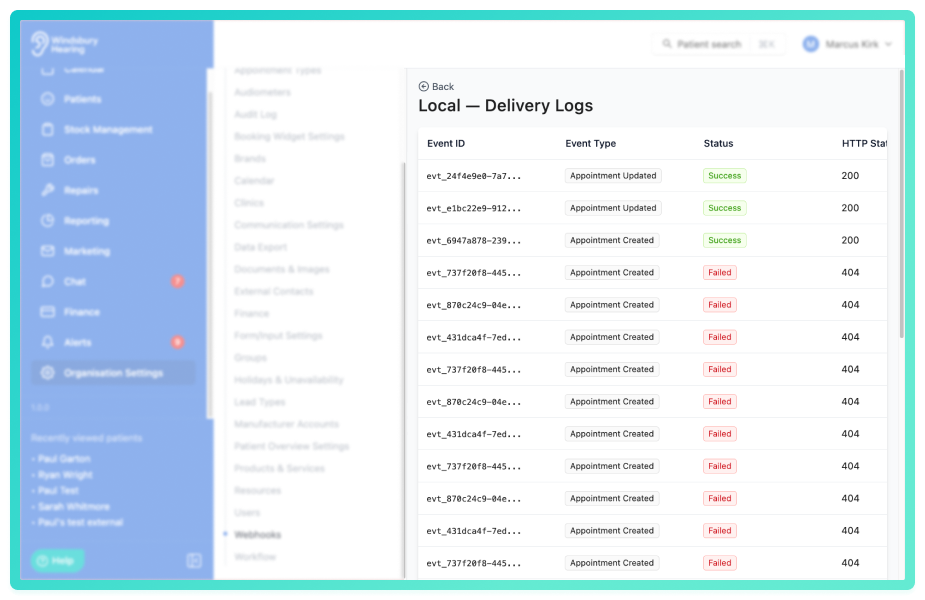
Delivery logs are retained for 30 days and are then automatically removed.
Verifying webhook signatures
Every webhook delivery includes a signature in the X-HearLink-Signature header. You should verify this signature to confirm the request came from HearLink and has not been tampered with.
The signature header looks like this:
t=1712764800,v1=5d41402abc4b2a76b9719d911017c592...
To verify:
- Extract the
t(timestamp) andv1(signature) values from the header. - Concatenate the timestamp, a full stop, and the raw request body:
{timestamp}.{body} - Compute an HMAC-SHA256 of that string using your webhook secret.
- Compare your computed signature to the
v1value. If they match, the request is authentic.
For code examples, see the Webhooks section of the HearLink API documentation.
Retries and automatic disabling
If a delivery fails (your endpoint does not respond with a 2xx status code within 30 seconds), HearLink will automatically retry the delivery.
- Each event is retried up to 5 times.
- Retries use exponential back-off, meaning the delay between attempts increases each time.
If a webhook accumulates 50 consecutive failures across any events, HearLink will automatically disable the webhook to prevent further failed deliveries. You can re-enable it from the webhooks settings page once the issue is resolved.
Tip: A single successful delivery resets the failure counter. Intermittent failures will not cause automatic disabling.Additional headers
Every webhook delivery includes the following HTTP headers:
| Header | Description |
|---|---|
X-HearLink-Signature | HMAC-SHA256 signature for verifying authenticity |
X-HearLink-Event | The event type, e.g. patient.created |
X-HearLink-Delivery | A unique ID for this delivery attempt |
Was this article helpful?
That’s Great!
Thank you for your feedback
Sorry! We couldn't be helpful
Thank you for your feedback
Feedback sent
We appreciate your effort and will try to fix the article