The Patient status report gives your organisation a clear overview of where patients are in their journey, based on their current workflow status. This report helps identify how patients progress through different statuses.
This report displays:
- the number and percentage of patients in each status.
You can also group data and apply filters to refine your analysis.
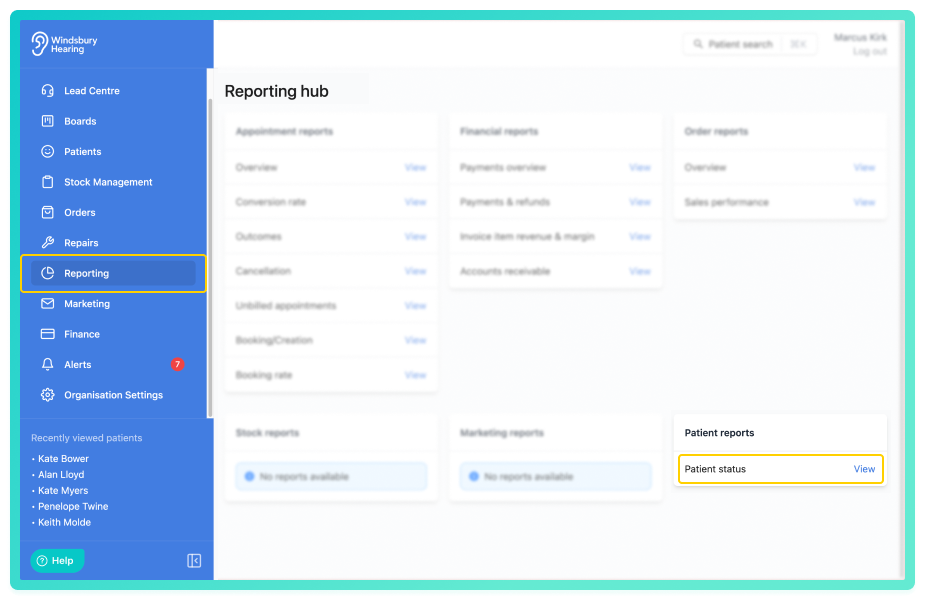
View the patient status report
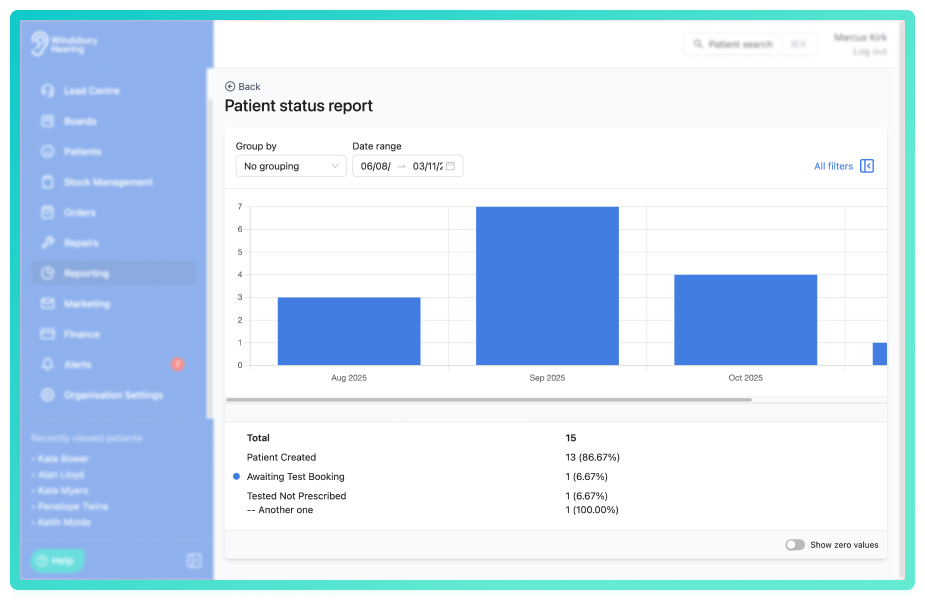
By default, the report shows rows of data across the selected date range
This includes:
- Total - the total number of patients included in the report.
- Individual statues - the number and percentage of patients within each workflow status.
You'll also see a bar chart visualising the conversion activity across the selected period.
Group by
Use the Group by dropdown to segment the data.
Examples:
- No grouping - all patient statuses shown together.
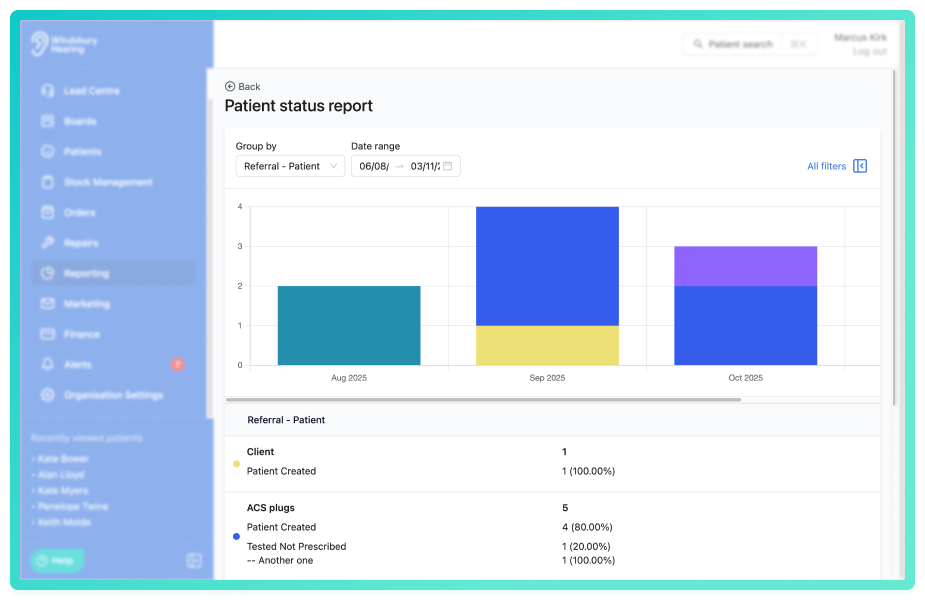
- Referral - Patient - groups statuses by how the patient was referred when created.
- Creator - groups statuses by how the patient was created (e.g. via Online Booking).
Grouping changes both the graph and the breakdown table below.
Click All filters to open the sidebar and apply the filters to narrow the results.
You can save a set of filters for each report to quickly change the data on the report. See Saved report filters
Example: Use Referral - Patient and select "Google Campaign" to view patient status distribution for that specific referral source.
You can also enable:
- Show zero values - includes groupings with no data for fuller context.
By combining grouping and filtering, you can uncover valuable trends, such as which referral sources generate the most active patients or how new leads are progressing through the workflow.
Was this article helpful?
That’s Great!
Thank you for your feedback
Sorry! We couldn't be helpful
Thank you for your feedback
Feedback sent
We appreciate your effort and will try to fix the article