You can customise your organisation's invoice settings to align with your invoicing and regional requirements. This ensures invoices are tailored to your clinics.
In this article we will cover how to:
- customise invoice numbering.
- add different defaults for separate clinics.
- clear the clinic the override.
- show or hide VAT and Discount columns on the PDF.
Only users with the correct permissions can edit the invoice settings. If you think you should have permission to perform such an action please contact the organisation owner.Configure the invoice settings
- Navigate to Organisation settings.
- Locate and click the Finance section of the settings.
- Click the Edit icon
 next to Invoice settings.
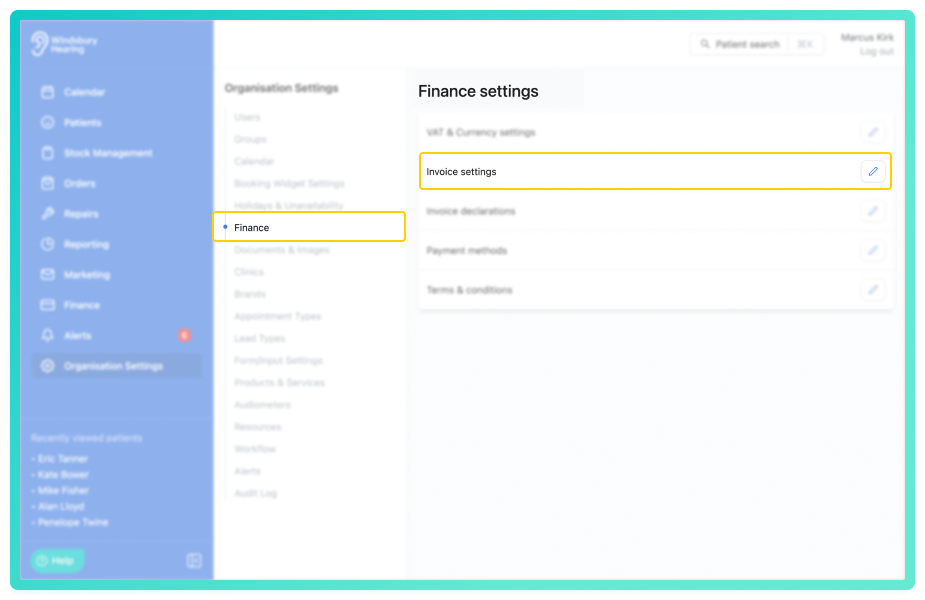
- Configure the default settings according to your organisation's requirements.
- Click Submit to save your changes.
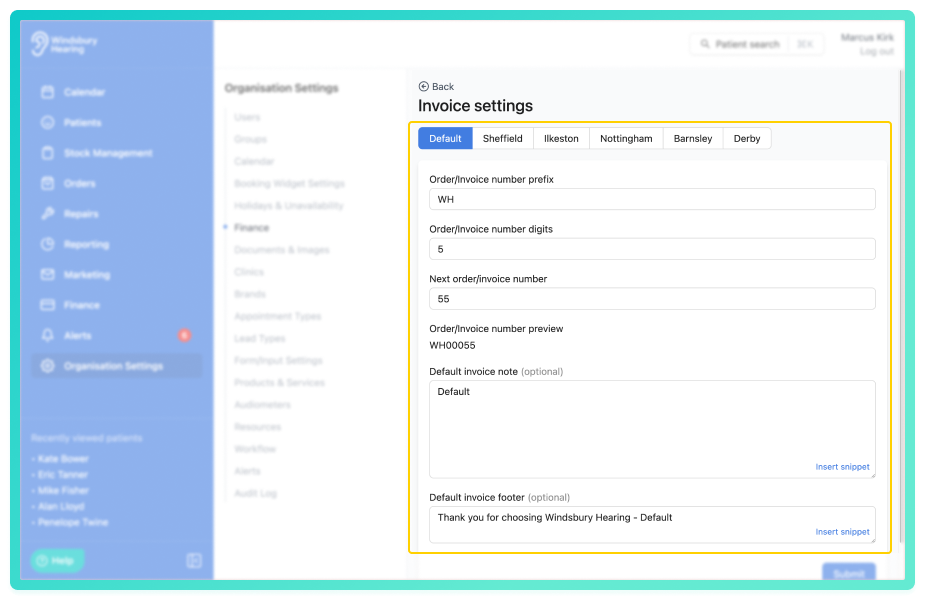
Change the defaults for different clinics
If an organisation has multiple clinics, you can set configure unique invoice numbers, notes and footers for each clinic.
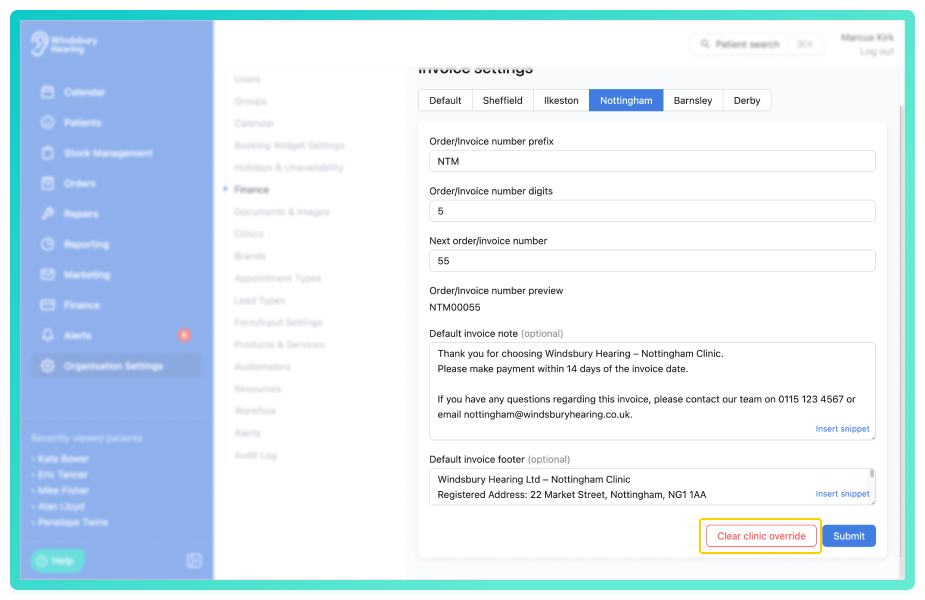
Example: Windsbury Hearing operates multiple clinics. For the Nottingham clinic, they use invoice prefix will be NTM and include clinic specific payment instruction in the note and footer.
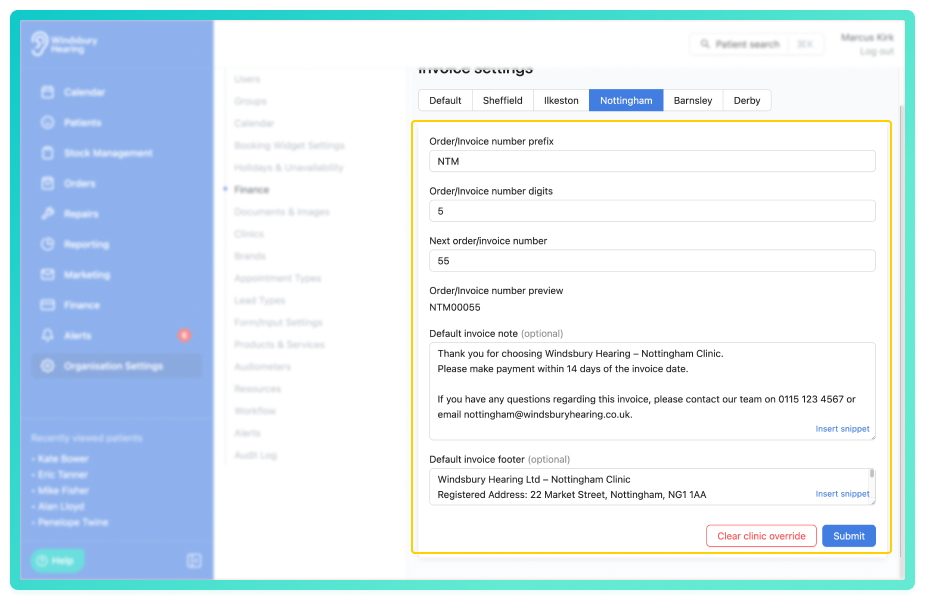
When creating an invoice, HearLink will automatically apply the settings that match the selected clinic.
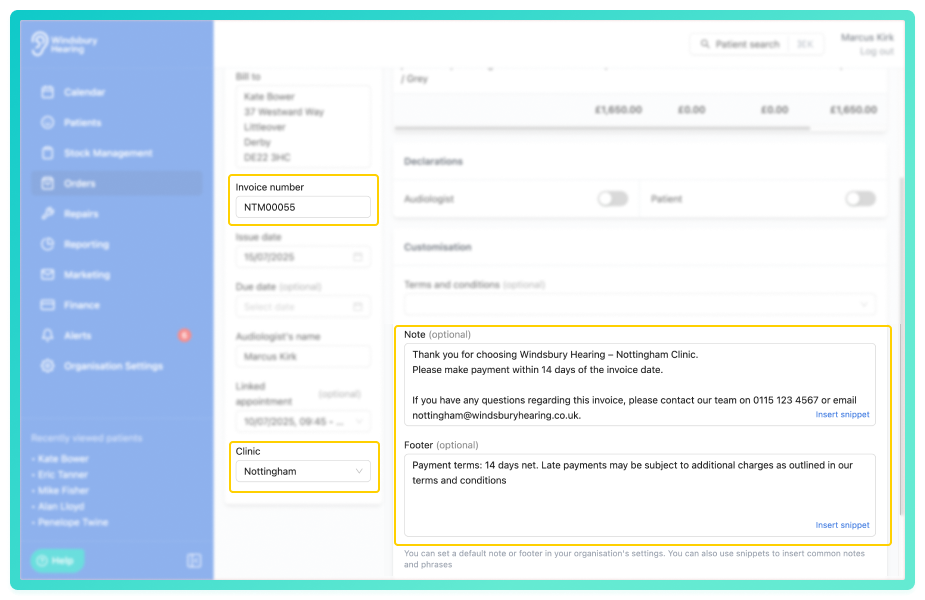
Clear clinic override
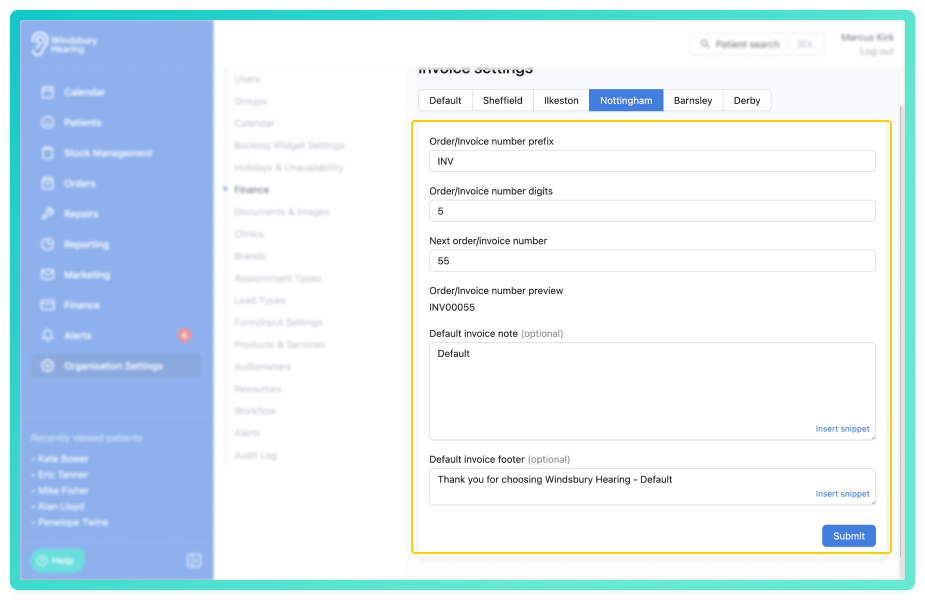
If an organisation no longer wants separate invoice, note or footer settings at a clinic, they can clear the override and reset to default.
- Navigate to the desired clinic.
- Click the Clear clinic override button.
- The invoice settings will be set to default.
Understanding the settings
Oder prefix and digits
Customise how invoice numbers appear:
- Order prefix: A text prefix for invoice numbers (e.g. WH).
- Number of digits: How many digits should follow the prefix (e.g. 5).
- Next invoice number: The next number in the sequence.
Example: If your prefix is WH, digits = 5, and next number = 35, the next invoice will display as WH00035.
Default invoice note & footer
Add any standard messaging you'd like included on all invoices.
- Invoice note: Appears in the body of the invoice, you can choose to overwrite this default when creating an invoice.
- Footer: Appears at the bottom of the invoice, you can choose to overwrite this default when creating an invoice.
These can be used for payment instruction, terms, or disclaimers.
Show or hide VAT and Discount columns
HearLink allows you to control the visibility of the VAT and Discount columns on invoices. This can be useful if you do not want the patient to see the VAT or Discount amount, or if you prefer a simpler invoice view.
- When enabled, the VAT and/or Discount columns will appear on all invoices.
- When disabled, the columns will be hidden entirely and will NOT be shown on invoices , even if values exist.
Example:
- The invoices for this setting will display the VAT but hide the Discount.
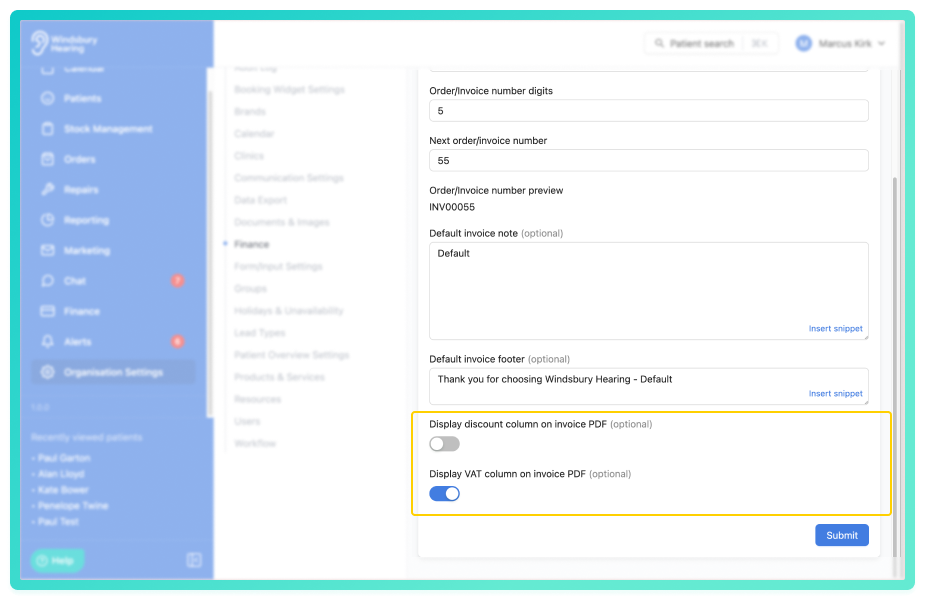
These settings affect invoice display only and do not change how VAT or discounts are calculated in the system.
Was this article helpful?
That’s Great!
Thank you for your feedback
Sorry! We couldn't be helpful
Thank you for your feedback
Feedback sent
We appreciate your effort and will try to fix the article