You may want to delete an order that is no longer needed.
In this article we'll cover how to:
- delete an order.
Delete an order
- Navigate to the desired patient.
- Locate and click the Orders tab.
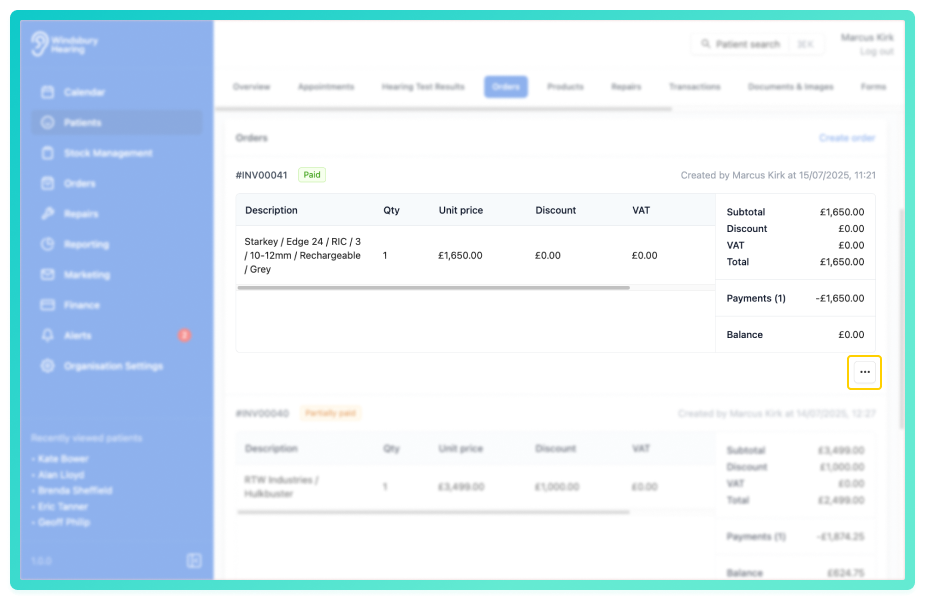
- Locate the relevant order, then click More options

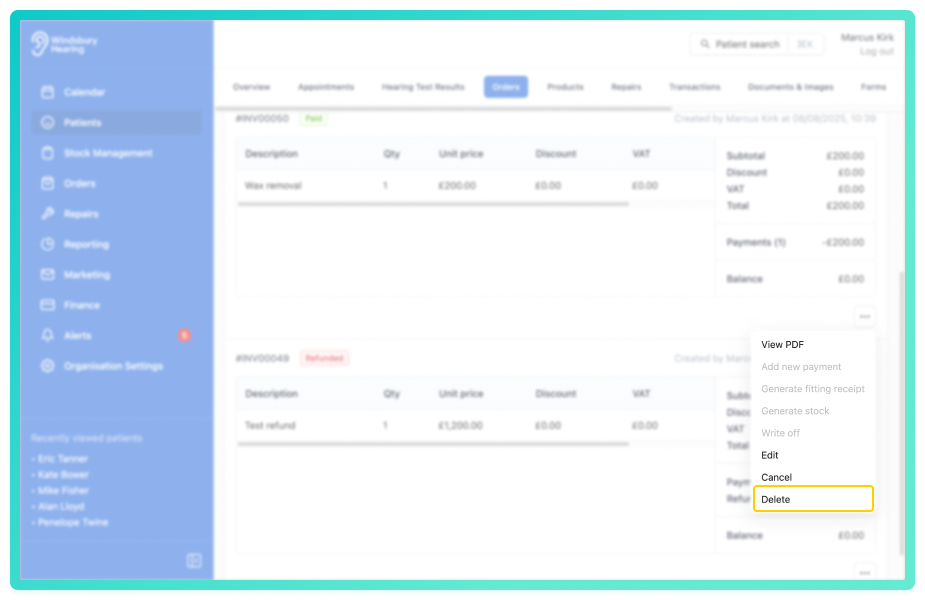
- Select Delete from the options.
- You'll be shown a warning message.
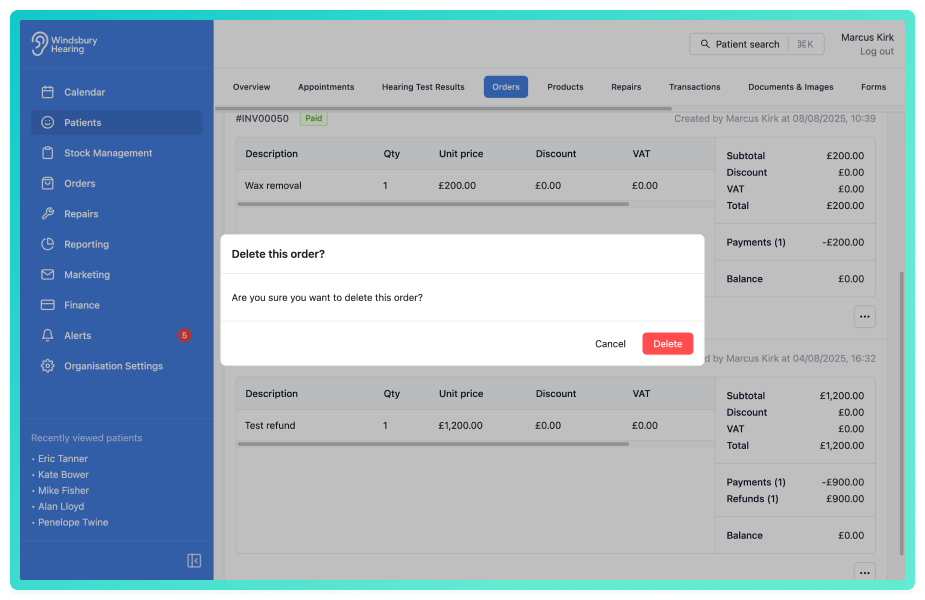
- Click Delete to confirm and delete the order.
Warning: Once an order has been deleted this action cannot be undone. Please proceed with caution! Was this article helpful?
That’s Great!
Thank you for your feedback
Sorry! We couldn't be helpful
Thank you for your feedback
Feedback sent
We appreciate your effort and will try to fix the article