Repairs can be created in two places. Directly from the repairs section or from a specific patient's dashboard. You can also create repairs for hearing aids in stock without linking them to a patient. All methods generate the same repair from and status flow.
In this article we'll cover how to:
- create a repair from the repairs section.
- create a repair from the patient dashboard.
- create a repair for a stock item.
- understand auto-population of account details.
- assign a clinic to a repair.
Create a patient repair from Repairs
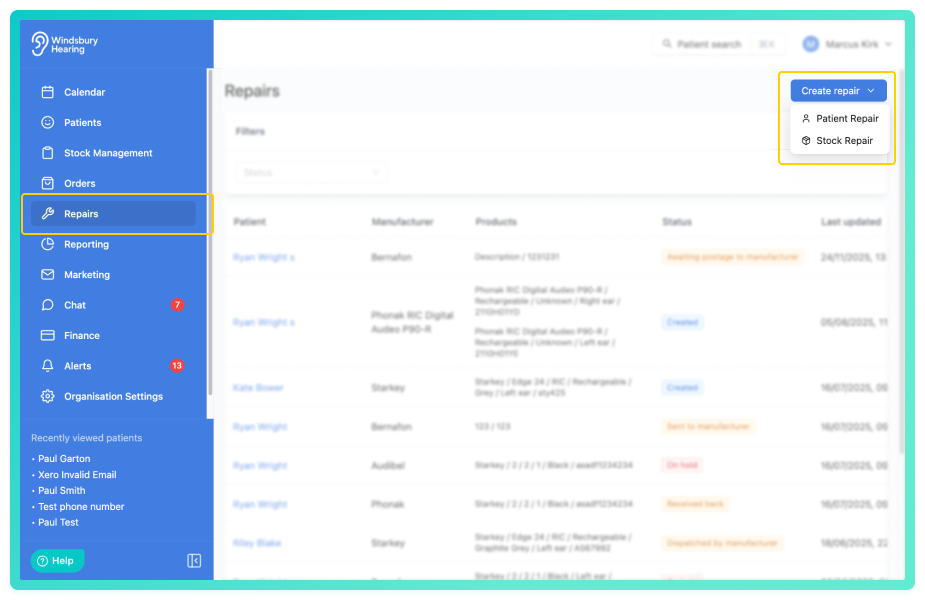
- Search for and select the patient the repair relates to.
- Complete the Create a new repair form with the required details.
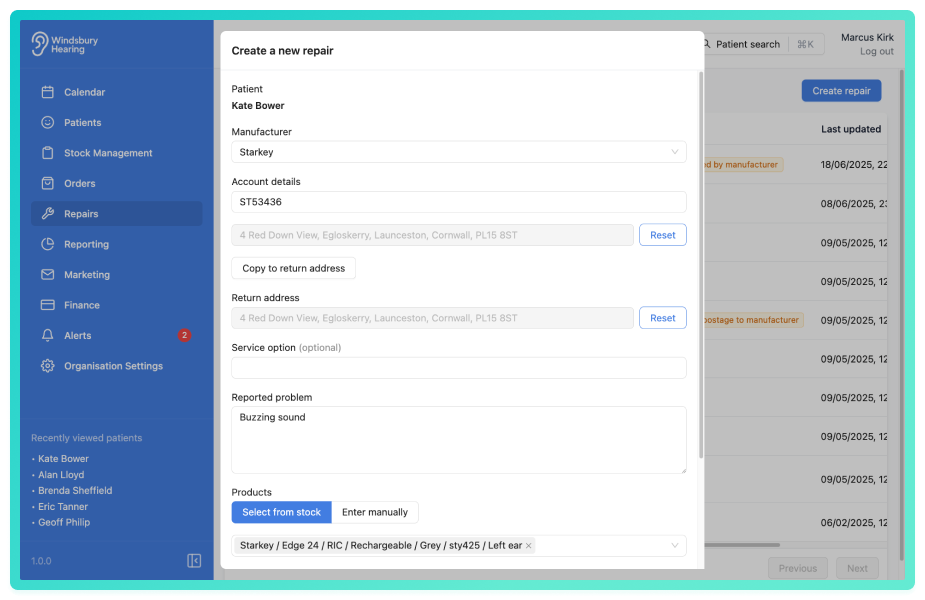
- Click Submit to save the repair.
The repair will now be visible in both the Repairs section and on the Patient's dashboard.
A repair form is automatically created and stored in the Documents & Images tab on the patient dashboard.
The repair will be assigned the status of Created, which can be updated as needed.
Learn more about repair statuses in this article.
Create a repair from the patient dashboard
- Navigate to the desired patient.
- Click the Repairs tab.
- Click the Create repair text.
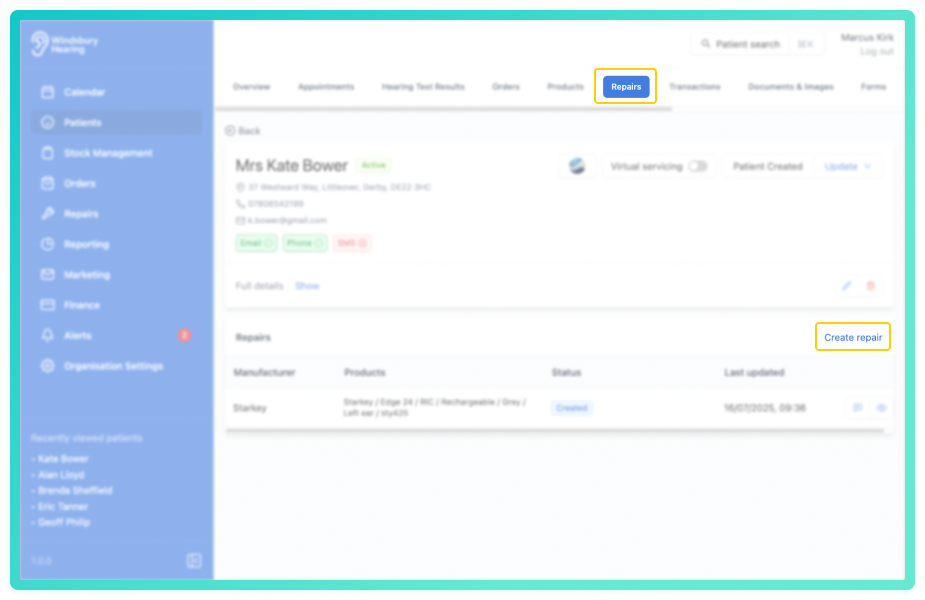
- Complete the Create a new repair form with the required details.
- Click Submit to save the repair.
Create a repair from stock
You can create repairs for hearing aids in stock without linking them to a patient. This allows you to manage repairs for items that are not yet assigned to anyone.
- Click the Repairs tab.
- Click the Create repair button and click Stock Repair.
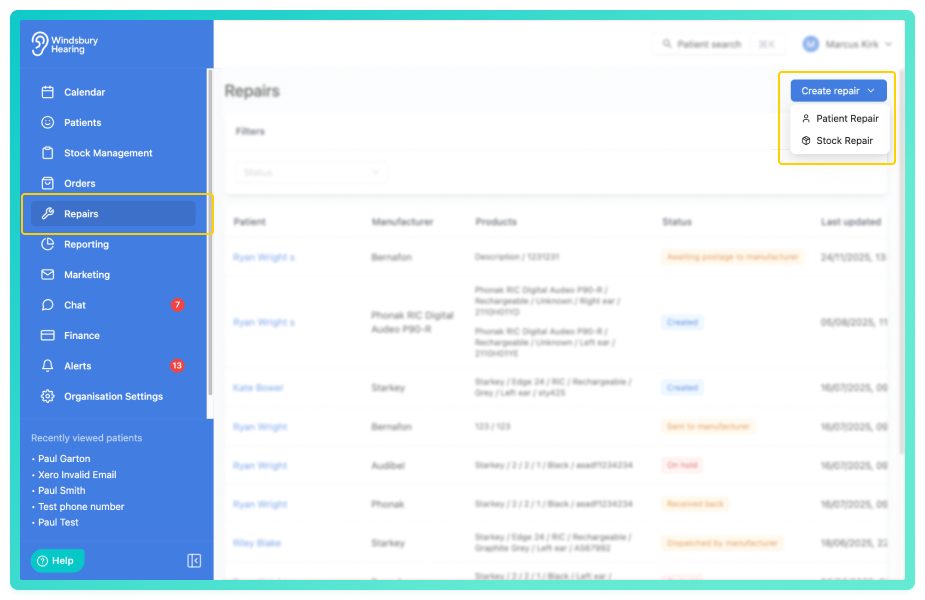
- A dialog will open allowing you to search for and select a stock item.
- Locate the stock item you want to create a repair for and select it.
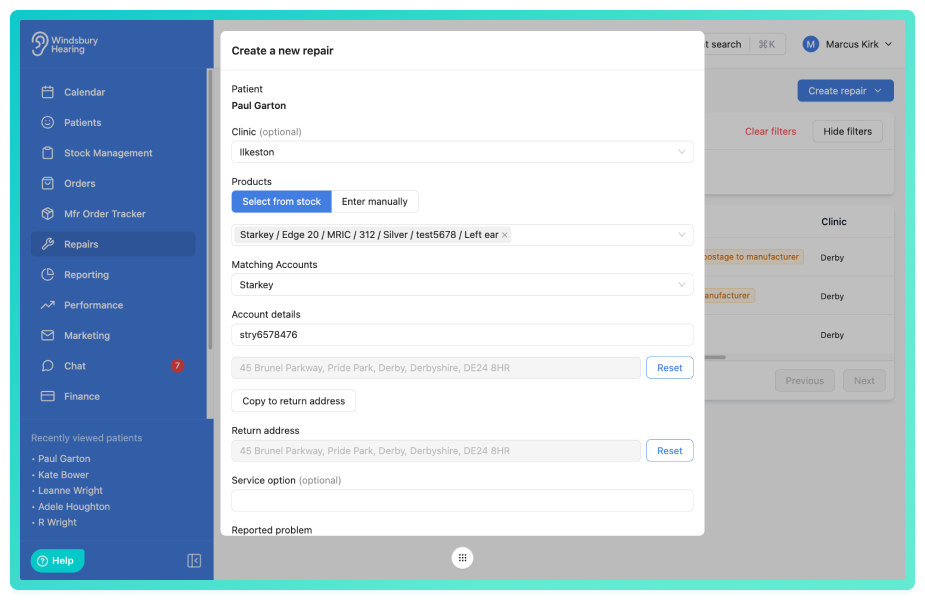
- The repair form will open with the stock details pre-populated.
- Complete the repair form details as required.
- Click Submit to create the repair.
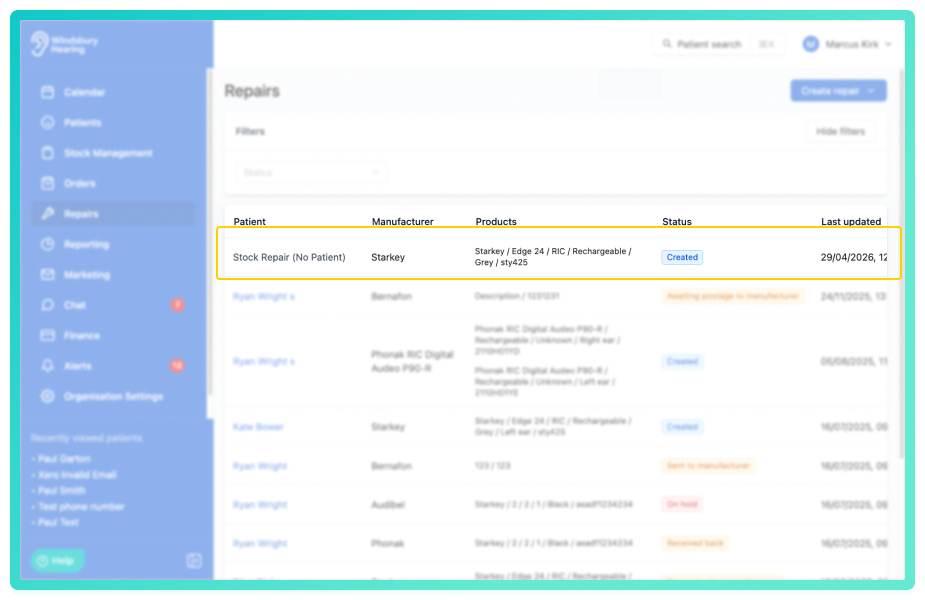
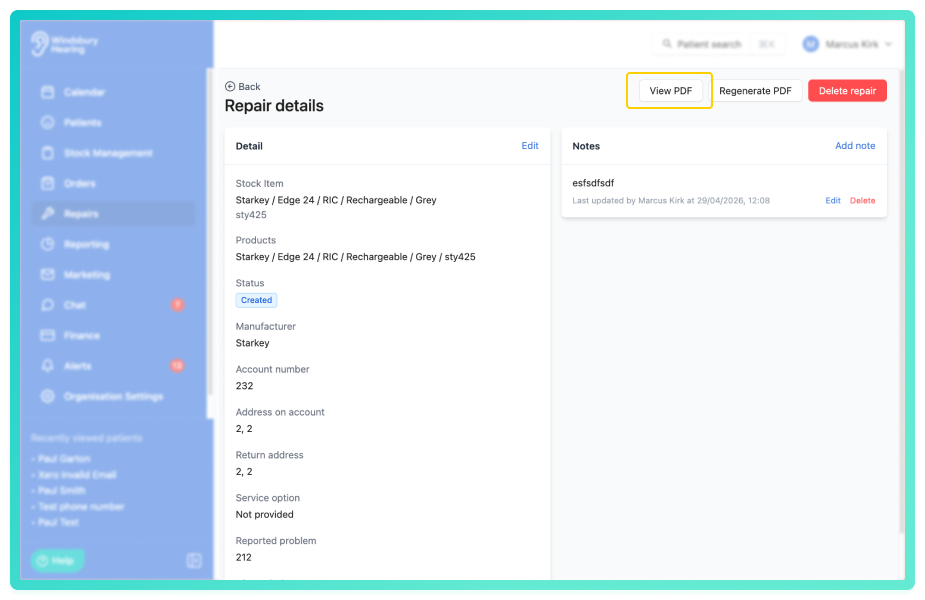
A PDF will be automatically generated and stored. The stock item description and serial number will be included in the PDF instead of the patient information. Stock repairs can be accessed from the Repairs section. The PDF can be viewed within the repair.
Auto population of account details
When you select the product for a repair, HearLink automatically searches for matching manufacturer accounts. The account number will be automatically populated and the organisation address.
You will need to have manufacturer accounts for auto population to work. If no manufacturer accounts exist, these fields will remain empty and can be entered manually. Manufacturers accounts
You can still manually enter or edit the account number and account address fields at any time if required. Manual entries will not be overwritten by the auto population process.
Assign a clinic to a repair
You can assign a clinic to patient and stock repairs. When a repair is assigned to a clinic, the generated PDF is branded with that clinic's details including logo, colour and company name. If no clinic is assigned, the PDF uses your organisation's branding.
When creating a repair for a patient, the clinic field is pre-filled with the patient's primary clinic. You can change this to a different clinic if required.Was this article helpful?
That’s Great!
Thank you for your feedback
Sorry! We couldn't be helpful
Thank you for your feedback
Feedback sent
We appreciate your effort and will try to fix the article