API keys allow external systems to securely connect to your account and access the API. You can create multiple keys to manage integrations.
For detailed technical documentation on available endpoints, authentication, request formats, and integration examples, visit the HearLink API documentation at https://docs.hearlink.co.uk/
In this article we'll cover how to:
Only users with the correct permissions can manage API keys in an organisation. If you think you should have permission to perform such an action please contact the organisation owner.Create an API Key
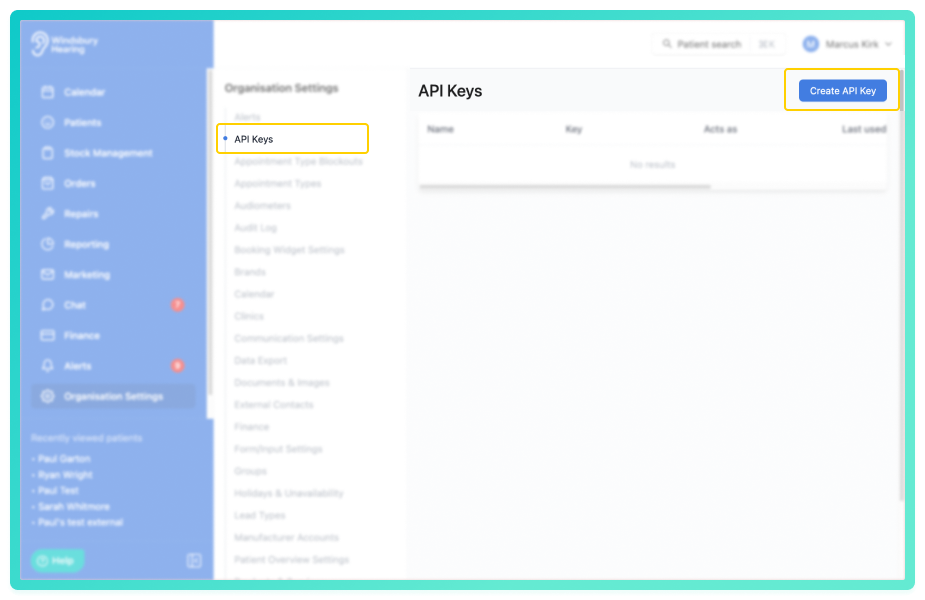
- Navigate to Organisation settings.
- Locate and click the API keys section of the settings.
- Click the Create API Key button.
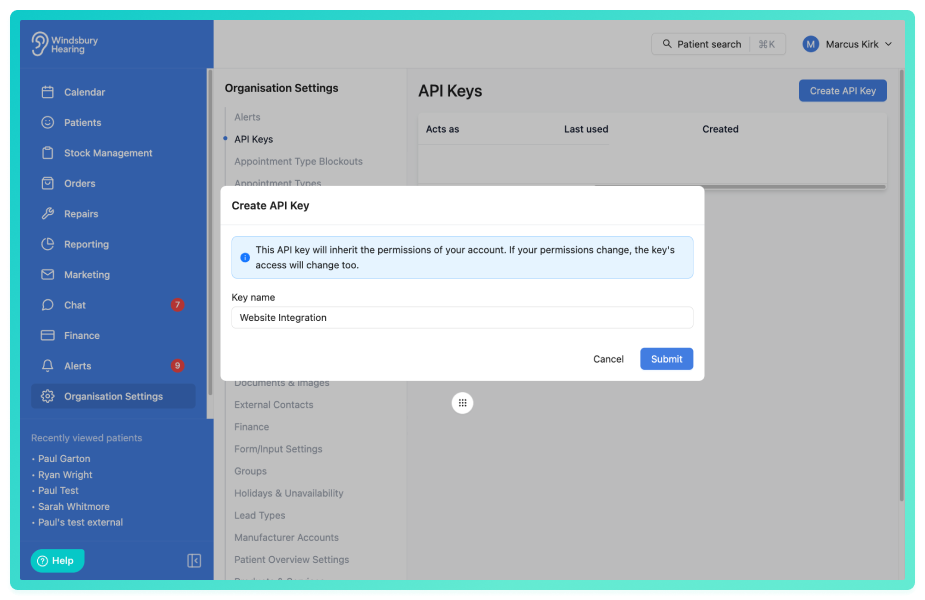
- Enter a Name for the API key (example: Website integration or Reporting tool).
- Click Submit.
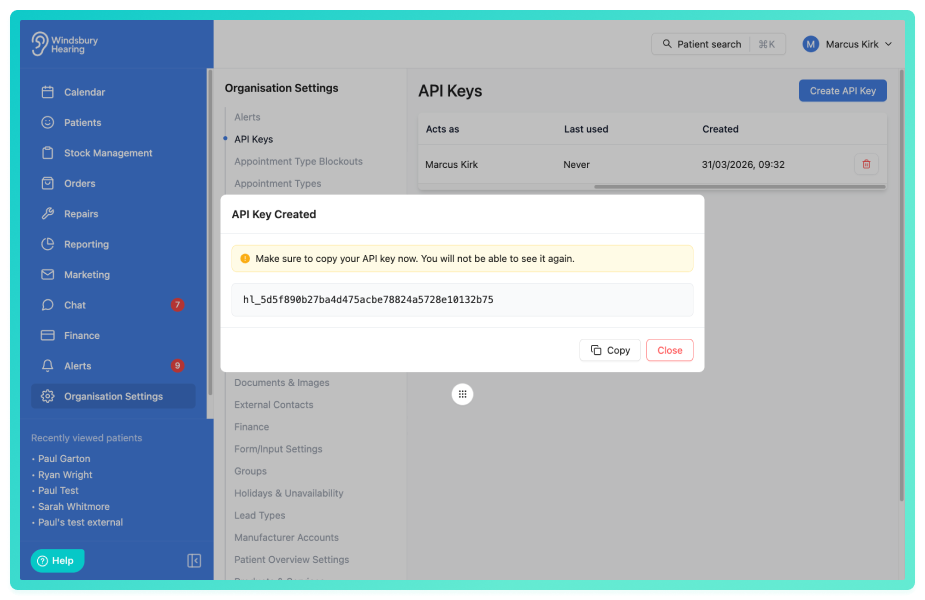
- The API key has now been generated.
- Copy the key and store it somewhere secure.
 Important: The API key will be displayed once when it is created. Make sure you copy and store it securely before leaving the page. If you lose your key you will need to delete it and generate a new one.
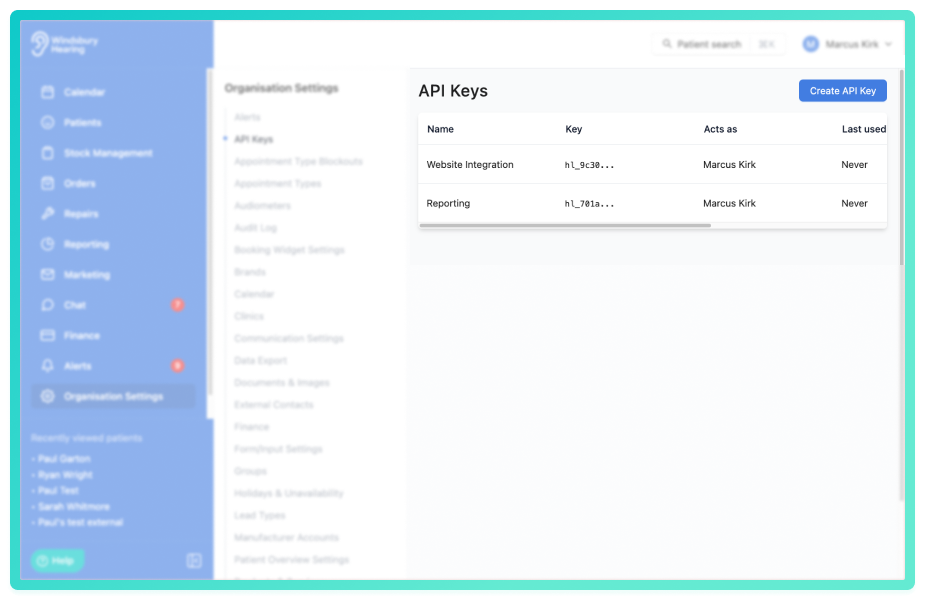
You can create multiple API keys. This is useful if you have different integrations connecting to the system, as each integration can use it's own key.
For example:
- Website integration
- Reporting tools
- Third party applications
This makes it easier to manage and revoke access if needed.
Delete an API Key
- Locate and click the API Key section of the settings.
- Locate the Delete icon
 of the API key you want to delete.
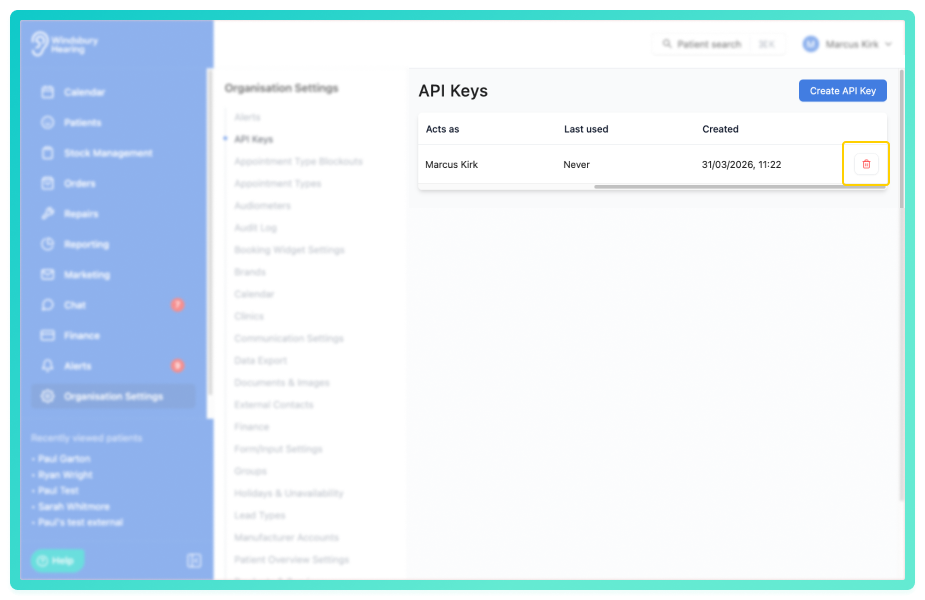
- Click the Delete icon.
- You'll be shown a warning message.
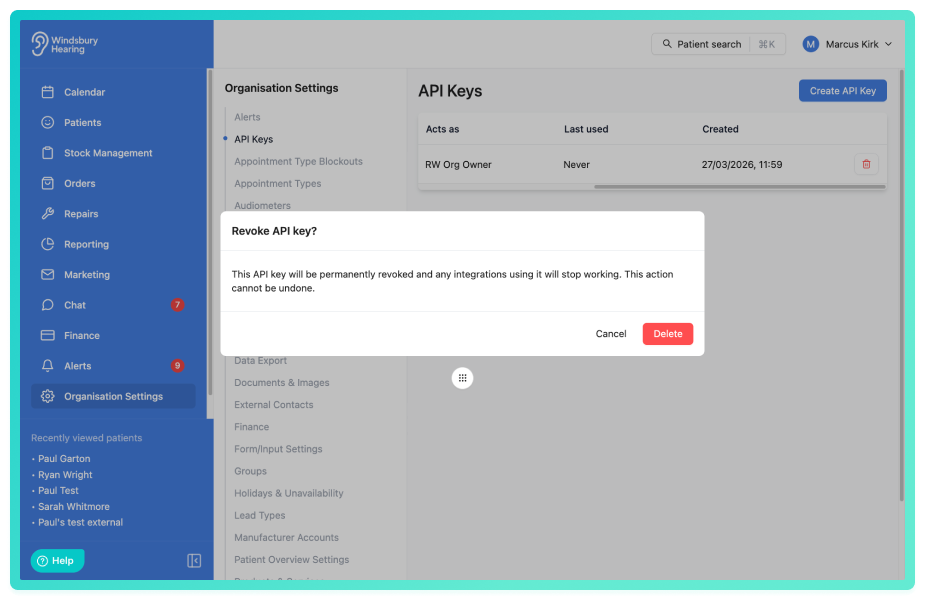
- Click Delete to confirm and delete the API key.
Warning: Once an API Key has been deleted this action cannot be undone. Please proceed with caution!
Was this article helpful?
That’s Great!
Thank you for your feedback
Sorry! We couldn't be helpful
Thank you for your feedback
Feedback sent
We appreciate your effort and will try to fix the article