Tonee Scribing lets you record a patient consultation and have HearLink's AI assistant turn it into a structured consultation report, a clinical note and a patient summary. Before anyone records, an administrator sets up how Tonee writes for your clinic and creates the consultation templates that shape each report. This is a one-time setup that applies across the organisation.
In this article we'll cover how to:
Only users with the correct permissions can configure Tonee Scribing. If you think you should have permission to perform such an action please contact the organisation owner.Set up Tonee Scribing for your clinic
These settings control how Tonee writes reports for your organisation and apply to every consultation.
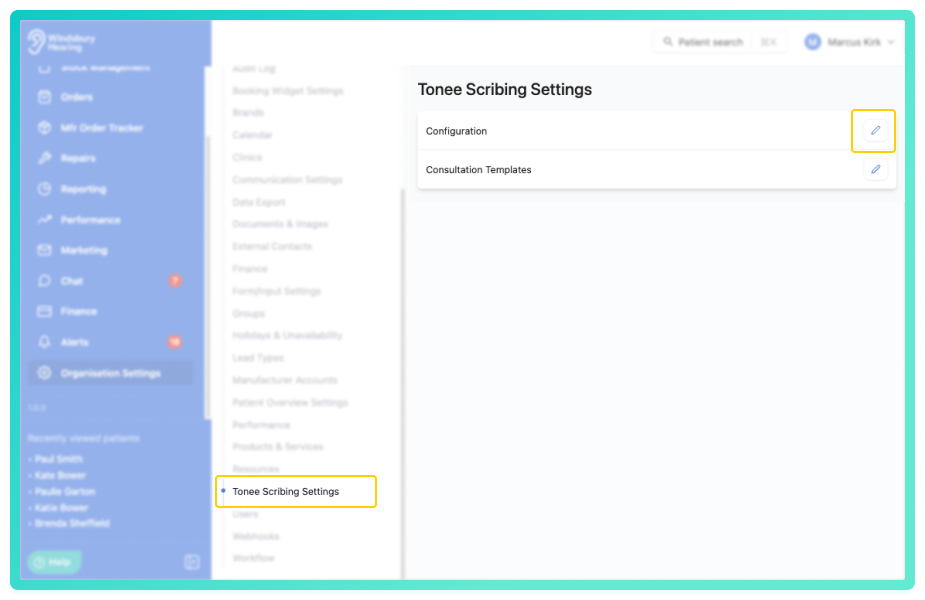
- Navigate to Organisation settings.
- Locate and click Tonee Scribing Settings.
- Click the Edit
 button on Configuration.
Each setting changes how the finished report reads. Set your preferences:
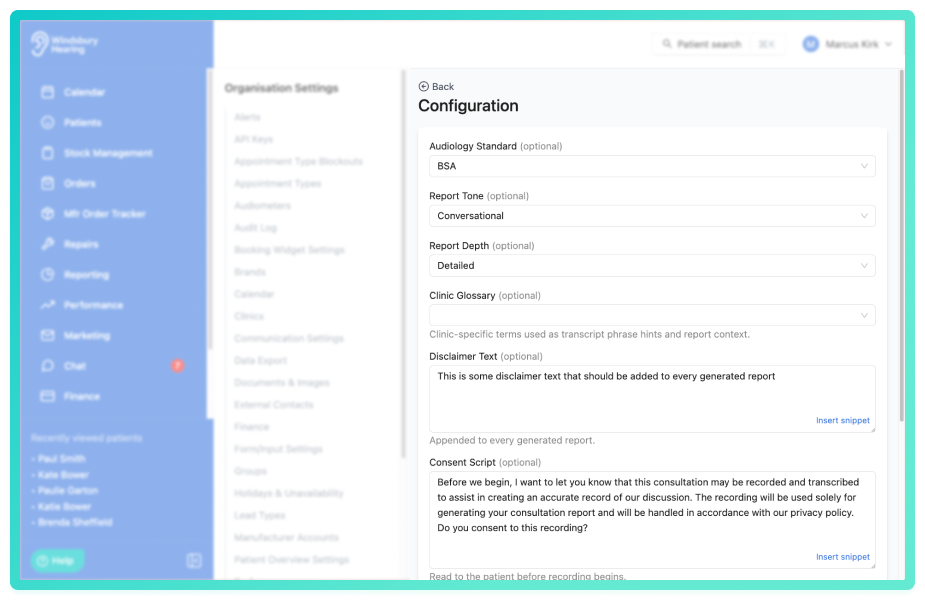
Audiology standard
- Sets the clinical framework Tonee follows. When set to BSA, the report follows British Society of Audiology recommended procedures and terminology throughout, so the wording and conventions match what your team expects to see.
Report tone
- Formal: a precise clinical register with complete sentences and full terminology, no contractions and no direct address to the patient. Pitched as a medical record entry or professional correspondence to a GP or consultant.
- Conversational: plain, accessible English with shorter sentences, where any clinical term is briefly explained in lay terms in brackets. Warmer and more direct, while staying accurate and professional.
Report depth
- Concise: one or two sentences per section, the essential finding only.
- Standard: a short paragraph of roughly two to four sentences per section, covering the main points.
- Detailed: a longer paragraph per section with the relevant detail plus the clinical reasoning and implications.
Report depth only affects the report sections. The clinical note and patient summary are always kept brief regardless of the depth you choose.Clinic glossary
- A list of terms specific to your clinic. Type a term and press enter to add it; add as many as you need.
Disclaimer text
- Wording that is automatically added to every generated report. Use it for a standard clinic disclaimer, Tonee keeps it separate from the body of the report rather than rewriting it.
Consent script
- The wording shown on screen to read to the patient before recording during a consultation. This is about gaining consent, it doesn't change the content of the report.
How the clinic glossary helps: the terms you add are used in two ways. They act as hints when your recording is transcribed, so unusual words are heard and spelled correctly rather than guessed at, and they tell Tonee to use those exact terms and spellings in the report where they apply. It's most useful for words a general transcription would get wrong, manufacturer and product names, abbreviations, clinician or clinic names, and any local terminology.
For example, you might add:
- Phonak Audéo Lumity, Oticon Intent, so product names are captured accurately instead of being mis-heard.
- REM (real ear measurement), BAHA, so abbreviations your clinicians say aloud appear correctly.
- a clinician's or clinic's name that is often spelled wrong.
Keep glossary entries short and specific — individual terms, names or abbreviations, not whole sentences. There's no need to add everyday clinical words; only add terms that are mis-heard or that you want spelled a particular way.There are also three output toggles:
- Auto-save report to patient notes: automatically save the generated report to the patient's notes.
- Generate patient note output: produce a clinical note alongside the report.
- Generate patient summary output: produce a plain-English summary written for the patient.
- Audiogram AI summaries: Enable or disable AI generated summaries on hearing tests.
- AI-suggested onward referrals: Enable or disable AI suggested referrals.
- Click Save to save your changes.
Configuration requires the Tonee Scribing settings permission. If you don't have access, an organisation owner or administrator can update these for you.
Was this article helpful?
That’s Great!
Thank you for your feedback
Sorry! We couldn't be helpful
Thank you for your feedback
Feedback sent
We appreciate your effort and will try to fix the article