You may want to cancel an appointment while keeping a record of it on the calendar and the patient's dashboard.
In this article we'll cover how to:
- cancel an appointment directly from the calendar view.
Cancel an Appointment
- Navigate to Calendar.
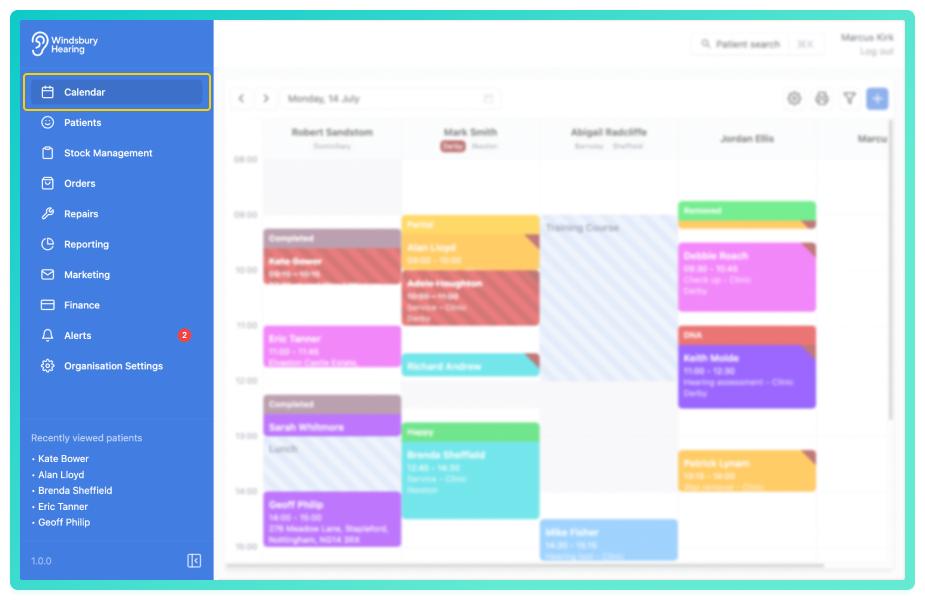
- Locate the required appointment, then click More options

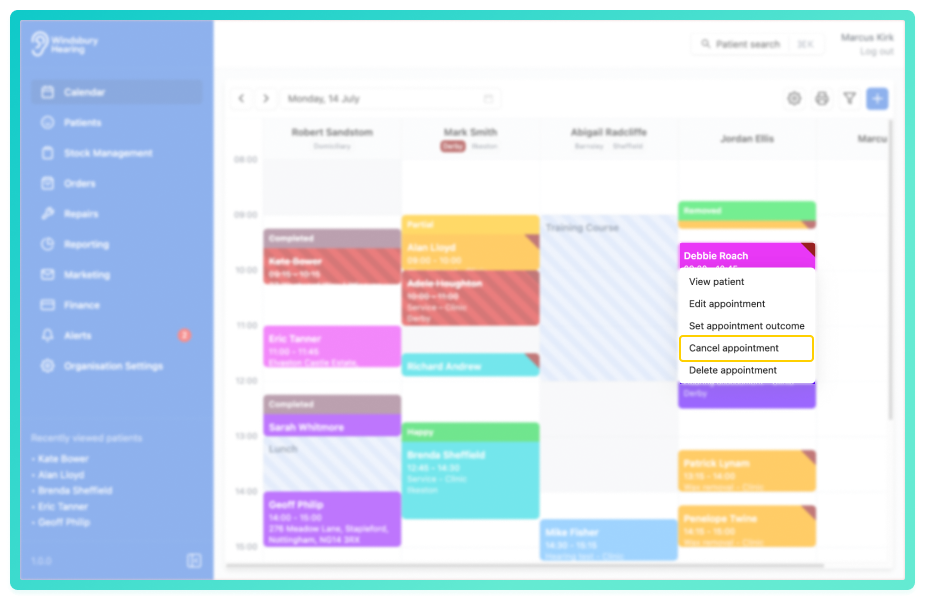
- Select the Cancel appointment text.
- You'll be shown a warning message with a text field to enter a cancellation reason, should it be required.
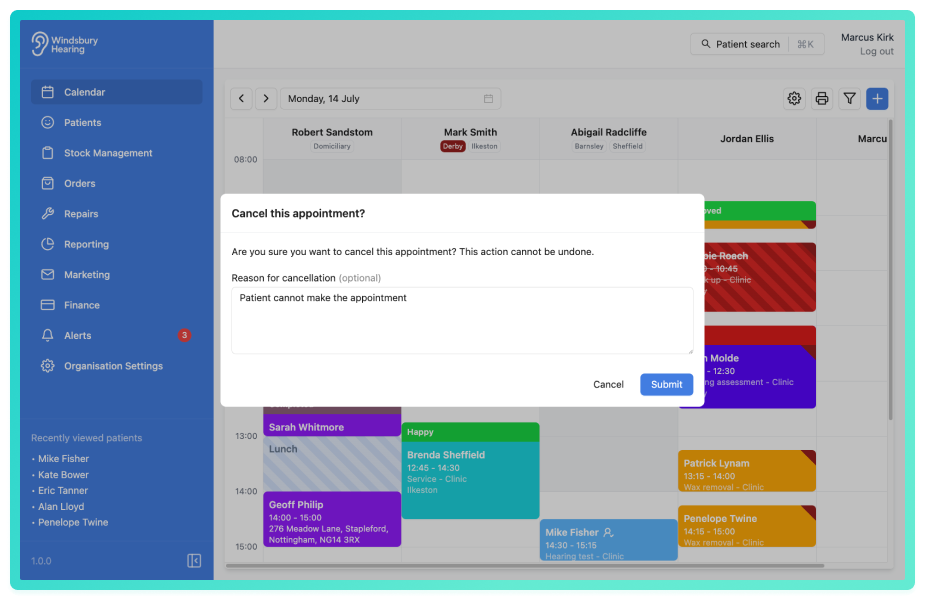
- Click Submit to confirm and cancel the appointment.
The appointment will now appear as Cancelled in the calendar view.
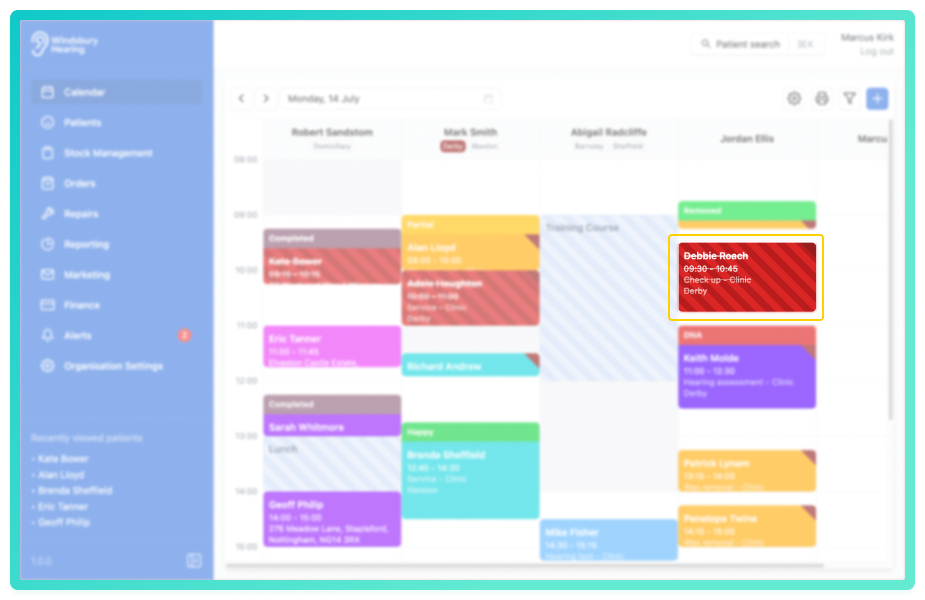
If your organisation has the Hide cancelled appointments setting enabled then the appointment will not be visible in the calendar when cancelled. It will still be visible in the patient dashboard.Warning: Once an appointment has been cancelled this action cannot be undone. The only action from this point is to delete the appointment. Please proceed with caution! Was this article helpful?
That’s Great!
Thank you for your feedback
Sorry! We couldn't be helpful
Thank you for your feedback
Feedback sent
We appreciate your effort and will try to fix the article